Copy designs with the Figma Sync plugin
Release date: 14th October 2026
This release introduces the Amplience Figma Sync plugin, which copies your Figma designs straight from the canvas into the Amplience CMS. Instead of someone recreating every banner, card and block by hand, the plugin reads the component instances in your campaign file and creates the matching content items. Images are copied as assets by default.
For teams who design campaigns in Figma, that means:
- Design system compliance, by default. The plugin encourages following designs by copying component instances to Amplience CMS automatically, while anything that doesn't fully follow the design system is still copied by hand
- Less time rebuilding content. Once a design is signed off it's ready to copy, and the time saved grows with every extra audience, variation and segment
- Last minute changes handled. If a product sells out or a hero image is replaced, update the Figma design and run the plugin again to update the items you already created
See how it's doneLink copied!
Watch the short walk through below of how to use the plugin:
Steps to copying a designLink copied!
Open the plugin from the Figma Plugins menu and select the component instances you want to copy. As you select, the plugin populates with what will be copied and lets you:
- Add a prefix to every generated item name, so related items are easy to identify later
- Choose the destination repository and folder for content and images
- Review and rename items before the copy starts, so names are descriptive in Amplience rather than in Figma
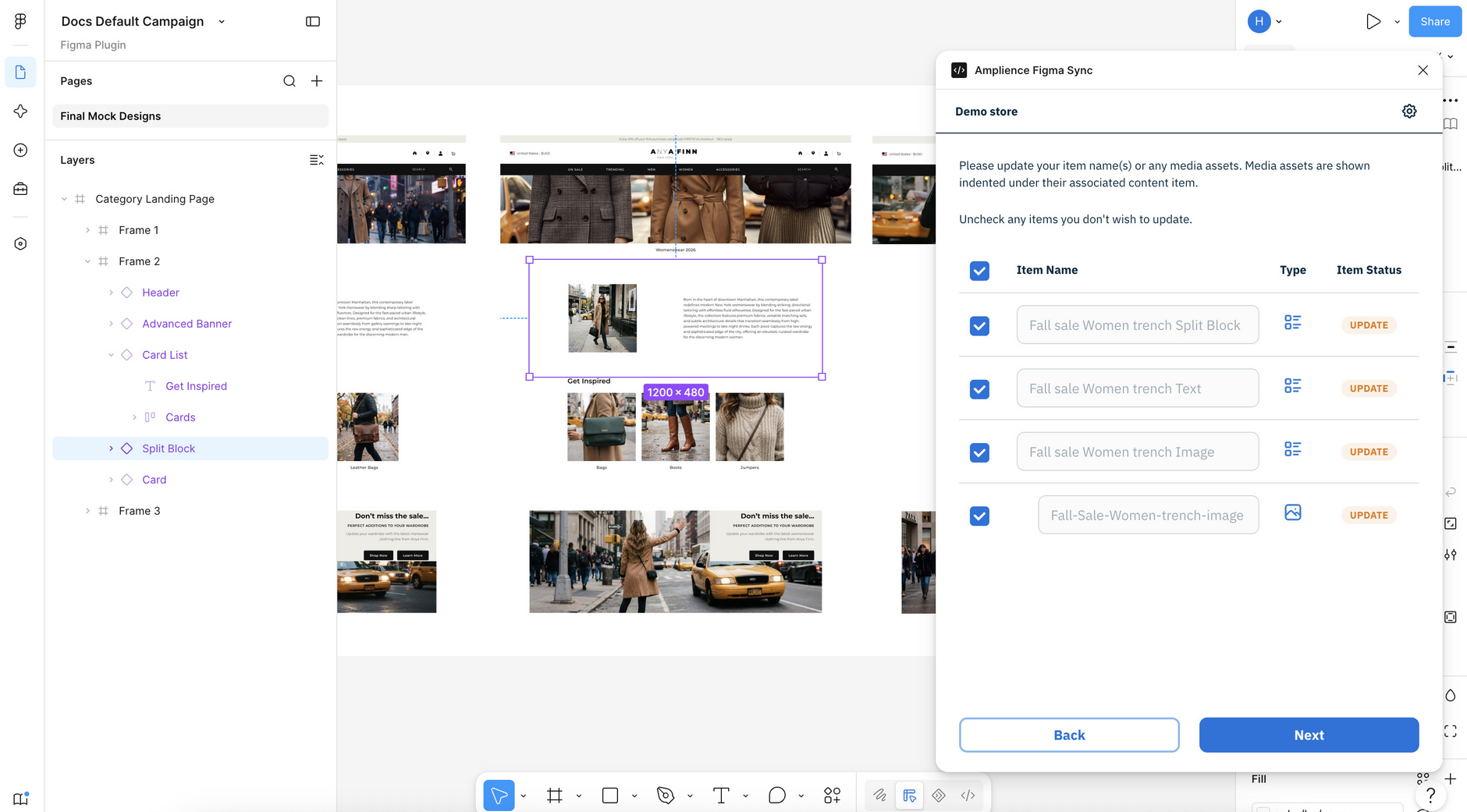
For the steps in full, see Copying Figma designs.
The plugin lets you know when the copy is complete and reports any errors.
If you copy the same component instances to the same destination, the plugin updates the existing content items, creating a new version of each one. Copy to a different destination and you get new content items, leaving the originals as they are. Republish afterwards for the changes to go live.
Images work differently. The plugin never overwrites an existing asset, so copying the same image to a folder that already has it creates a second asset with _1 added to the name.
Setting up mappingLink copied!
Before you sync your designs to Amplience CMS (Dynamic Content), you need to map the Figma components in your design system to content types in the CMS. See Figma mapping for more details.