Copying Figma designs into Amplience
Use the Amplience Figma Sync plugin to turn approved Figma designs into content items in Amplience, without rebuilding them by hand.
This page assumes the plugin is already installed and mappings are configured. If not, start with installing and configuring the plugin.
Copying a designLink copied!
The plugin captures the design as it is at the moment you run it. If any last minute changes arise you can update Figma and run the plugin again to update your items.
If you'd like to see the process end to end first, watch the short video on the Figma Sync plugin overview page.
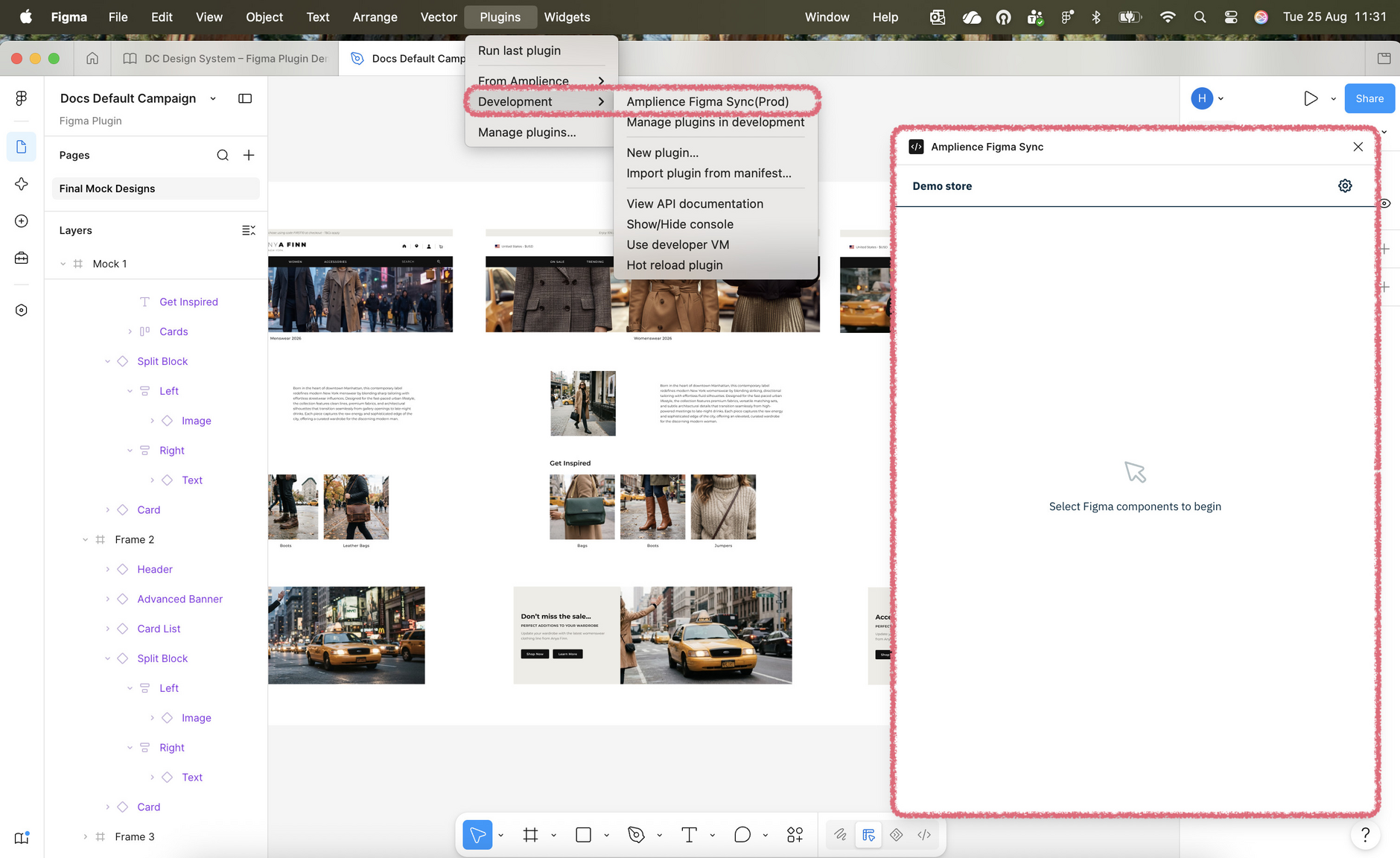
Step 1: Open the pluginLink copied!
Launch the Amplience Figma Sync plugin from the Figma Plugins menu. The plugin shows the Amplience hub that will be used by default. You can change this in the plugin Settings.
Step 2: Select what to copyLink copied!
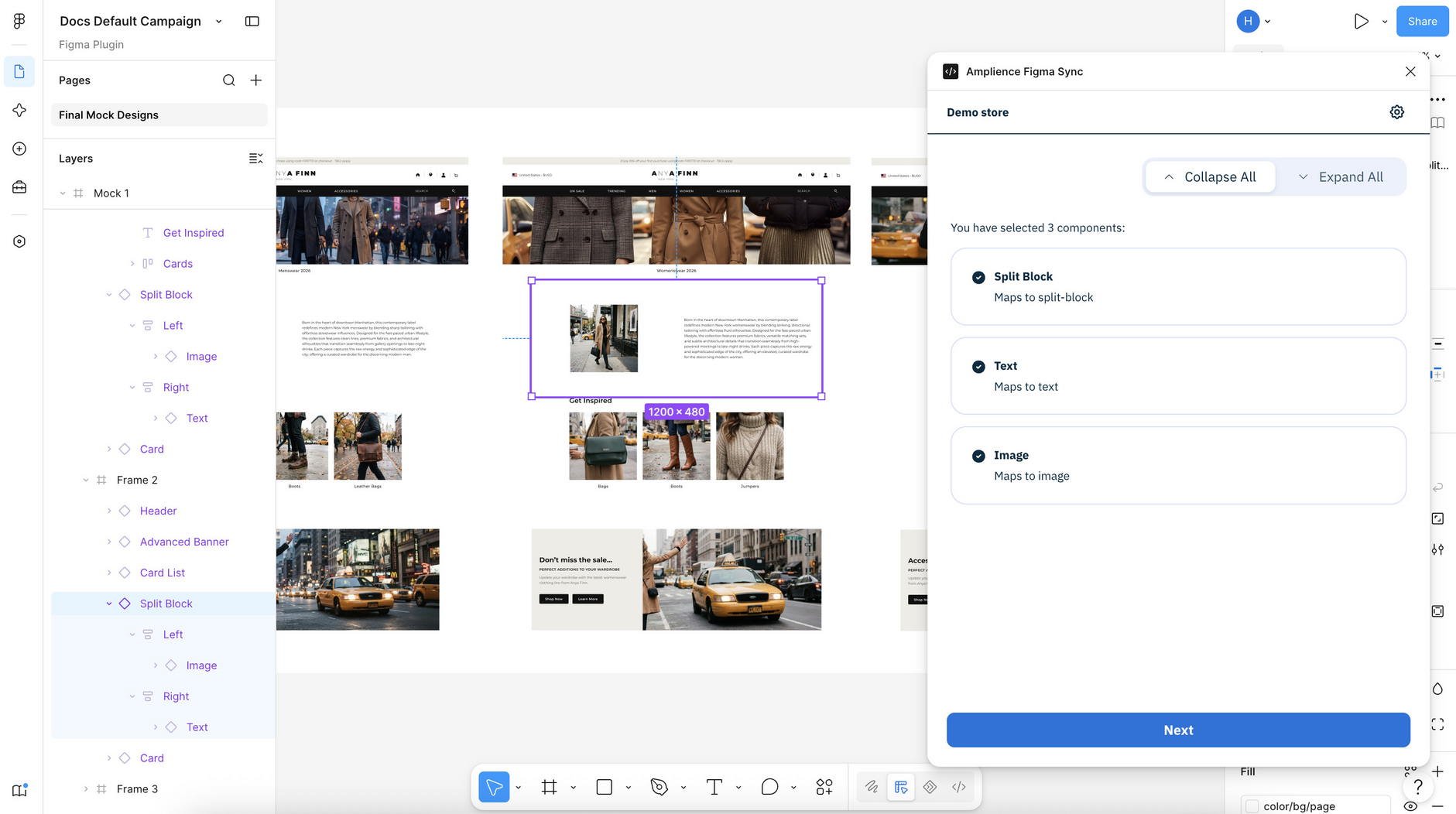
Select the component instances you want to copy to Amplience. As you select, the plugin populates with what will be copied.
Selecting multiple component instances
To select more than one component instance at a time you need the plugin's Designer role. See roles.
Click Next to continue.
Step 3: Set prefix and destinationLink copied!
Optionally, enter a prefix to be added to the start of every generated item name (for example, “Fall Sale”) so that related items are easily identifiable later.
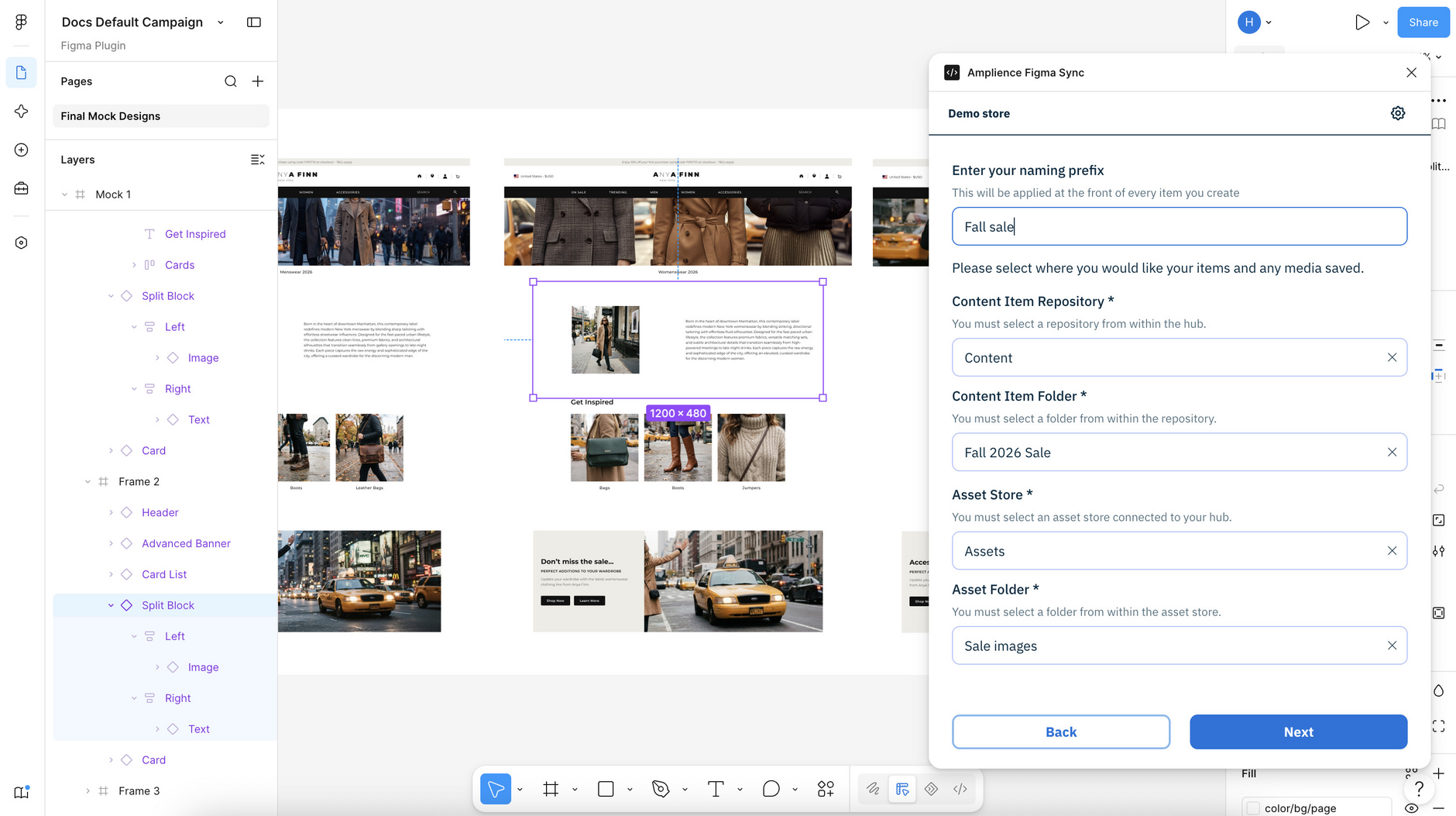
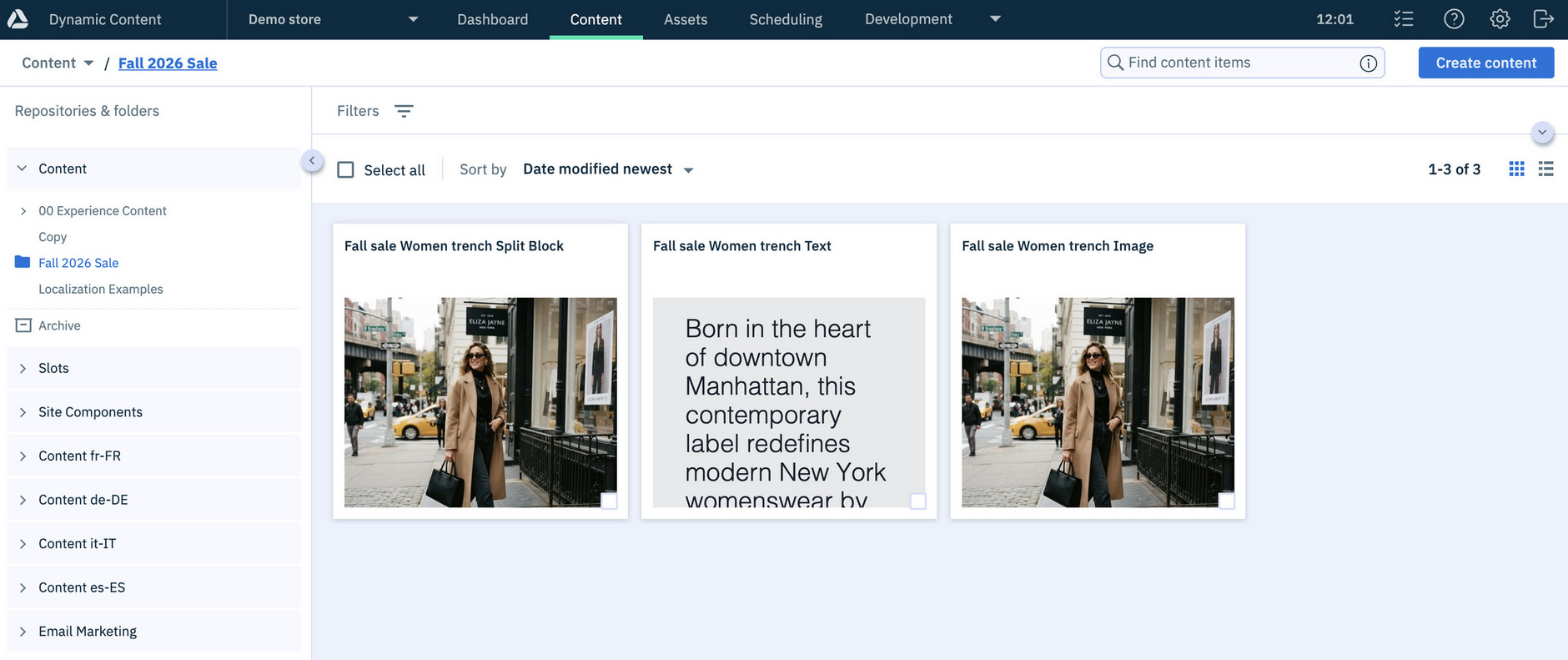
Select the destination content repository and the specific folder in Amplience where the content items will be created (for example, the “Content” repository and the “Fall 2026 Sale” folder).
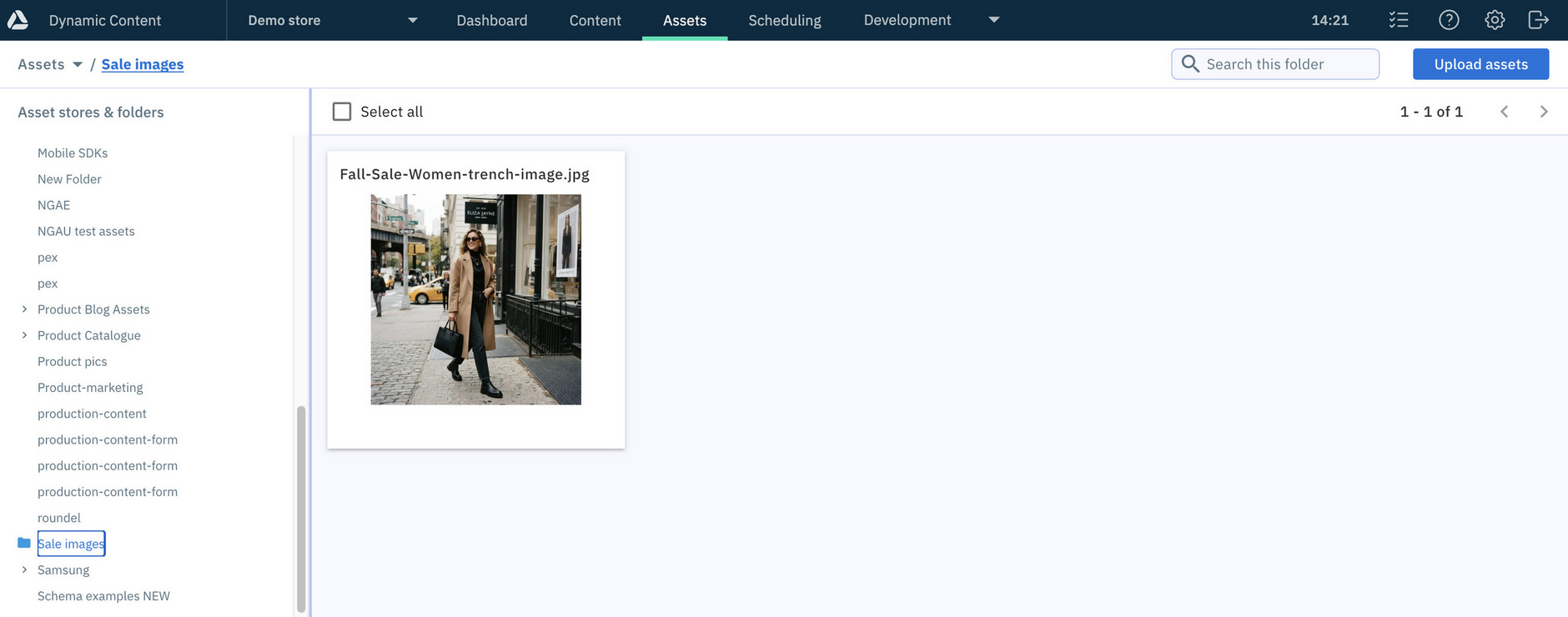
If the content includes images, select the asset repository and folder where those images will be placed (for example, “Assets > Sale images").
Note
The fields for choosing where assets will be copied to will only appear if your selected instances contain images and asset copying is turned on in the plugin Settings.
Click Next to continue.
Step 4: Review and rename itemsLink copied!
The default item names come from your Figma design and may not be clear outside Figma, so it's good practice to rename them to something that will be descriptive and useful in Amplience.
For asset names, use only letters, numbers, hyphens, and underscores - reserved characters such as / \ : * ? " < > | will lead to issues when uploading or publishing the asset. For more information see Reserved and unsafe characters in filenames.
Rename items in the plugin, not in Figma
The plugin matches on the Figma component names, so renaming an instance in Figma stops the plugin from finding the right content type. The names you enter in the plugin are what you'll search for in Amplience, so enter descriptive names now to save time later.
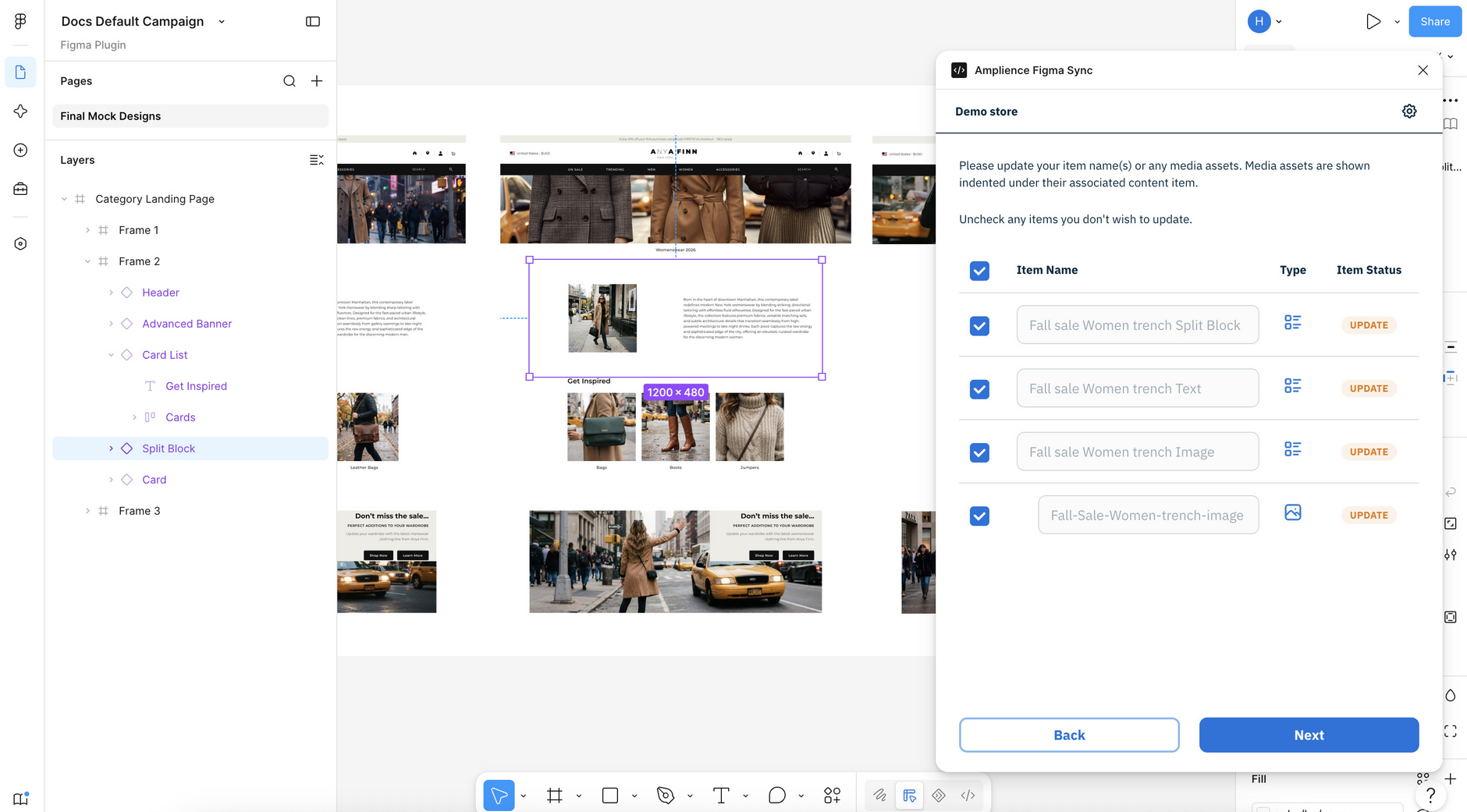
Your chosen prefix will be applied to any new items, and you can include additional descriptors (for example, “Women’s Trench”).
The item status shows whether new items will be created in Amplience, or whether the plugin will update existing items.
Info
Check the names and destinations before you continue. Once you click Next, the plugin starts the copy - see next step.
Step 5: Start the copy to AmplienceLink copied!
When you are ready to copy from Figma into Amplience, click Next on the Review and rename screen (shown in previous step).
The plugin lets you know when the process is complete, and reports any errors.
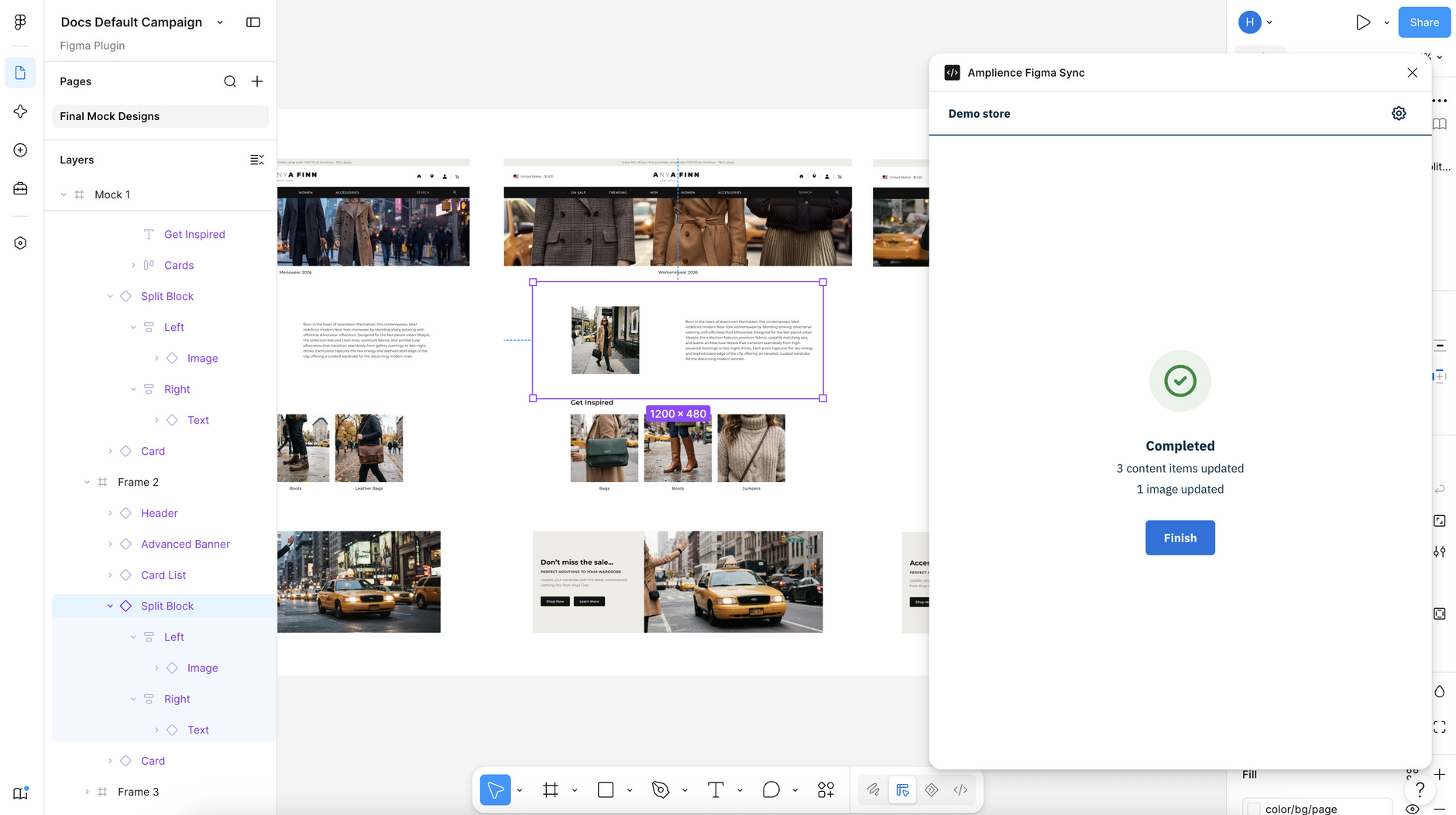
Step 6: Verify the content in Amplience CMSLink copied!
Switch to the Amplience CMS to review what has been brought in from Figma.
If you've copied images to the Amplience DAM (Content Hub), those will be shown in the Assets section.
Best practiceLink copied!
Follow these guidelines to make sure the plugin copies designs successfully:
- Work from the component library. Insert an instance of the main component, rather than building custom designs.
- Keep the original component names. The plugin maps on the component name. Rename component instances and the plugin can no longer find the matching content type.
- Make copied content easy to identify. Giving your campaign content a unique prefix and selecting to create it in one Amplience folder means you can easily find all the items plugin created.
FAQsLink copied!
What if the Figma design changes?Link copied!
That's fine. You can copy the same component instance as many times as you need, and what happens depends on where you send it.
- Copying content again to the same destination (for example, hub, repository or folder) updates the existing content item and creates a new version of the existing content item.
- Copying content to a different destination creates a new content item and leaves the original as it is.
Images work differently. The plugin never overwrites an existing asset. Copying the same image to a folder that already has it creates a second asset with _1 added to the name.
Republish after re-copying
If you copy a design again over a published content item, you'll need to republish it in Amplience for the changes to go live.
What if I need something custom?Link copied!
When a stakeholder wants something more custom than the system allows, raise it with the design system owner so the component and the content type are updated together. Then everyone benefits from the update, and it is copied automatically.
The plugin doesn't force you to use your Figma component library - it just makes it the faster option. Build from mapped components and the copying is done for you. Build outside them and you're back to copying and pasting by hand.
Why aren't my edited images syncing?Link copied!
By default, the Figma Sync plugin syncs the original version of each image, not any edits you've made in Figma. To sync edited images as well, turn this on in the plugin Settings.
Why are unexpected images showing for content items?Link copied!
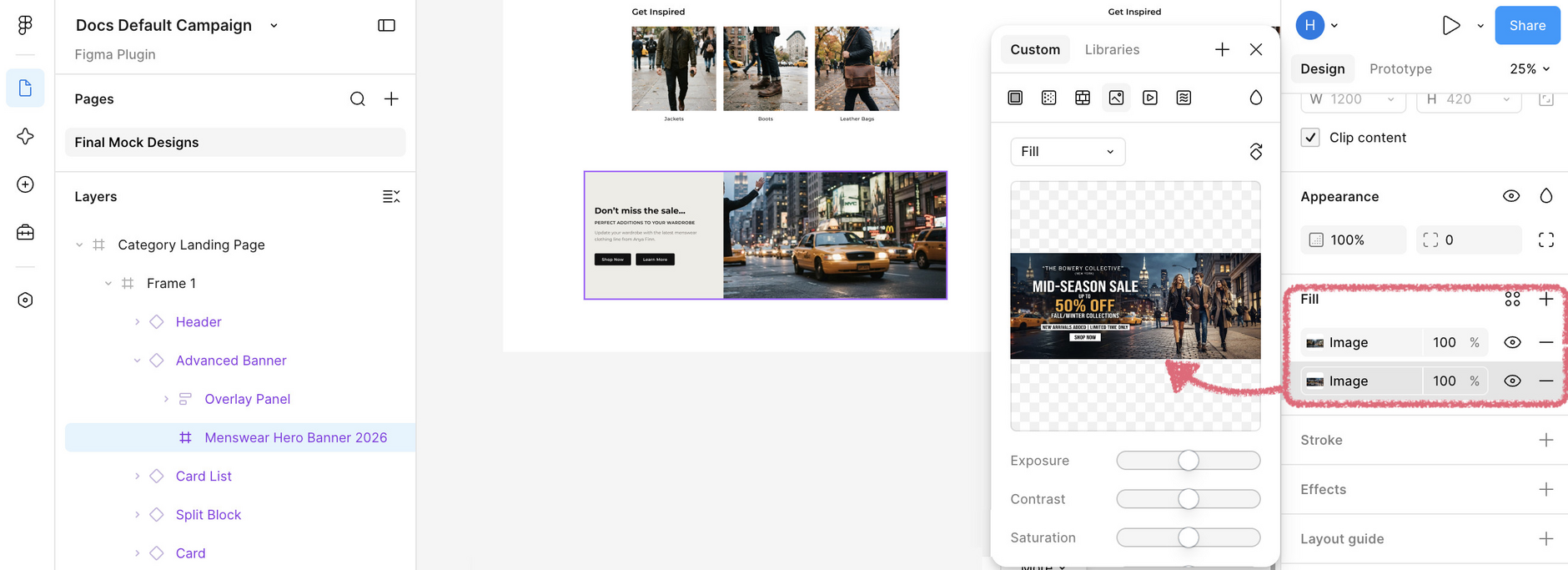
To copy a design, each component instance can have only one image fill. If an instance has more than one, the plugin cannot tell which image to assign to the content item.
Remove any unneeded image fills in the Fill section, then copy the design again. The instance below has two fills - remove one to copy successfully.
TroubleshootingLink copied!
As a designer you might experience the following when using the plugin:
| What happens | Why | What to do |
|---|---|---|
| The plugin only allows you to select one instance | Your role is set as Figma Admin | Set your role to Designer in the plugin Settings. See Check your role |
| The message "Value does not exist in the enum list", or similar is displayed | Figma is offering a value the content type does not have. For example, the component offers a purple button background, but the content type allows only black, white and grey | Pick a value that exists in the content type. If you genuinely need the missing value, raise it with your design system owner. Either the component has options it should not have, or the content type needs extending |