Amplience Figma Sync plugin
Copy your Figma designs straight from the canvas into the Amplience CMS.
Watch this short walk through of how to copy your Figma designs, from opening the plugin to checking the result in Amplience. Or skip to the steps for Copying a design.
Why use the Figma Sync plugin?Link copied!
For teams who design campaigns in Figma and then copy that work into Amplience CMS (Dynamic Content) by hand - the plugin does the copying for you. Instead of someone manually recreating every banner, card and block, it reads the components in your Figma file and creates the matching content items and assets.
Copying assets
Assets are copied by default. You can turn this off in the plugin Settings.
Design system compliance, by defaultLink copied!
A design system only delivers consistency when everyone builds from it. The plugin encourages that by only copying component instances to Amplience CMS automatically.
The plugin also helps keep alignment between your Figma design system and your Amplience content types. What you design can automatically create what your front end displays if you maintain mapping between the two systems.
Less time rebuilding contentLink copied!
Once a Figma campaign design is signed off, it's ready to be copied into Amplience. The plugin does that for you, and the time saving grows with every extra audience, variation and segment - so campaigns with lots of personalization benefit most.
Handling last minute changesLink copied!
Campaign designs often need changing at short notice. If stock runs out before the campaign goes live, the Figma design has to be updated to reflect it - a sold-out product removed, a hero image replaced - and the revised design goes back through approval.
When the updated design is approved, you don't need to copy the campaign again from scratch, you can simply update your previous items that were created.
How the plugin worksLink copied!
You map your Figma component library to your Amplience CMS content types. After that, the plugin reads the component instances in your campaign file and creates the matching content items in Amplience.
Figma and Amplience CMS already share the same structure. They use different words for it.
| In Figma | In Amplience CMS |
|---|---|
| Main component | Content type (schema) |
| Instance of a component | Content item |
| Component property | Schema property |
| Property value | Field value |
The link between the two sides is the component name. That name in Figma is how the plugin knows what content to create. Changing the name breaks the connection to the main component, and with it the connection to the plugin. This is the most common reason a copy fails.
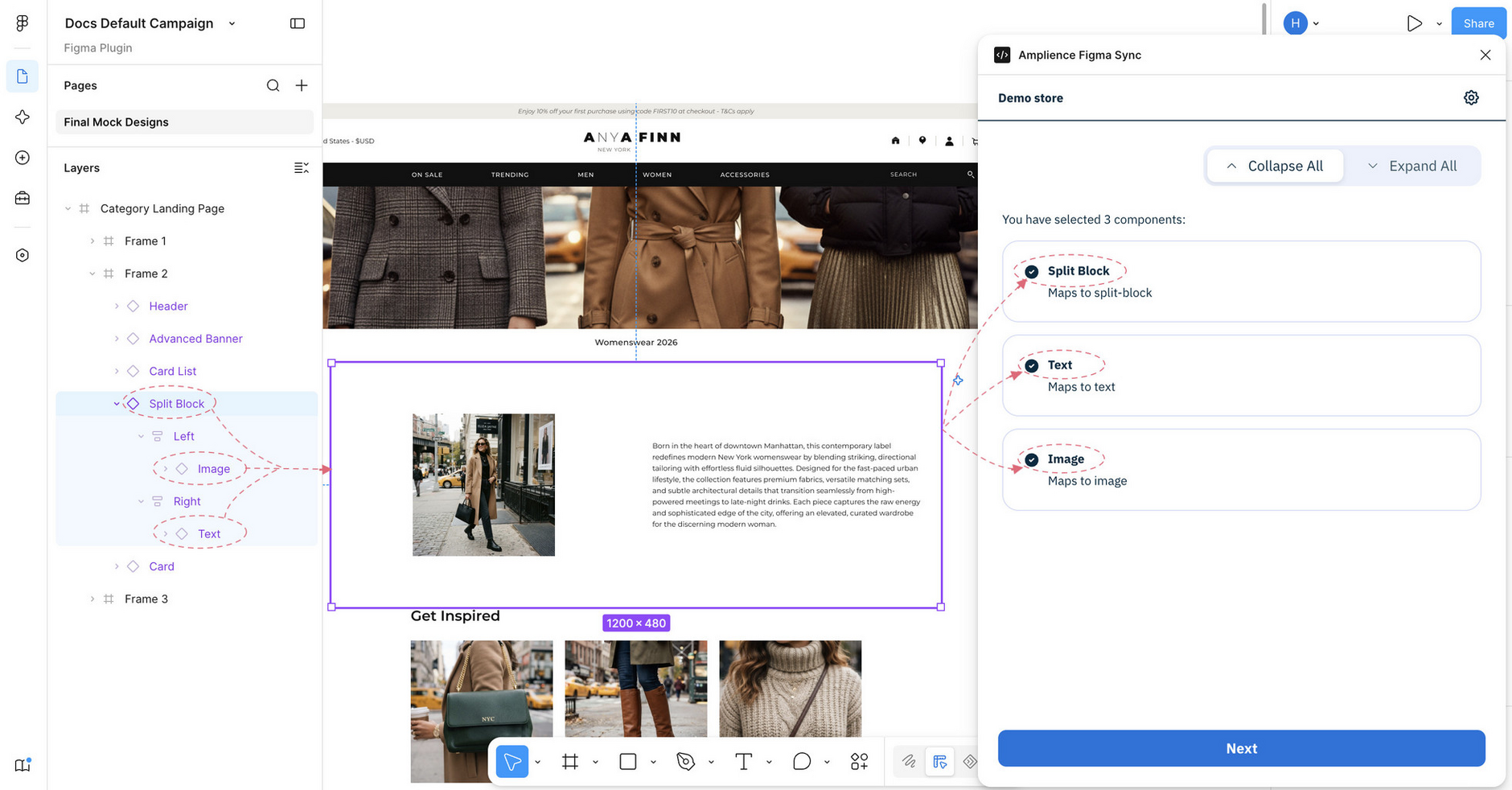
Your main component and your content type schema are meant to describe the same thing. For example, a messaging banner in your component library and a messaging banner schema in Amplience CMS should hold the same or similar properties.
Before you beginLink copied!
You need four things in place.
- An Amplience account with the Developer permissions role or higher, to install the plugin.
- A Figma component library file containing your main components. The plugin has nothing to map to without one.
- A mapping between your main components and your content types. This is set up by whoever owns the design system, working with your Amplience team.
- A campaign file built from instances of those main components.
It's important to involve the owner of your Figma component library from the start.
Plugin settingsLink copied!
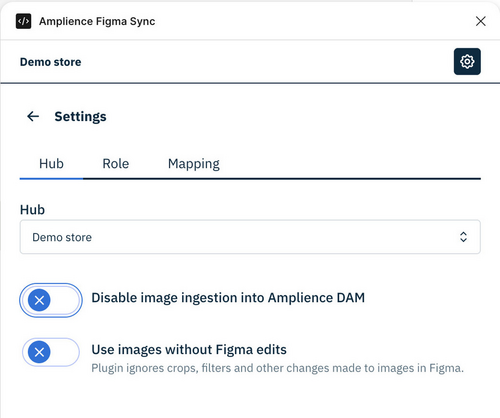
From the plugin menu you can choose the Hub and Content repository that you want to use to map and copy your content.
RolesLink copied!
The plugin has two roles. These are Amplience roles, not Figma ones, and you can set your role in the plugin settings once the plugin is open. See Opening the plugin.
- Designer. Copies designs. Lets you select several component instances at once. See Copying a design.
- Figma Admin. Creates mappings. Lets you select one component at a time.
Admin settingsLink copied!
Admins have access to two further settings:
- Disable image ingestion into DAM. By default, when your designs are copied to the Amplience CMS, any attached images are copied to Amplience DAM. If you turn off image ingestion, then the images will no longer be copied to Amplience DAM.
You might choose to set this option if you are not using Amplience DAM, or you upload your images directly into DAM using FTP, or bulk or manual upload.
- Use images without Figma edits. If you have edited an image within Figma, then if you set this option the original image will be used instead. This setting is off by default.
Note that this option is hidden if Disable image ingestion into DAM is set to on.