Flow Control
Flow control actions let you manage how a Workforce content flow responds to different conditions, using decisions, loops and error handling.
Tip
These descriptions cover the most commonly used inputs and outputs. Additional input and output variables may be available when designing flows.
Logic DecisionLink copied!
Branches the flow into different outcomes based on how your input matches the rules you configure.
Inputs: None
Outputs: None
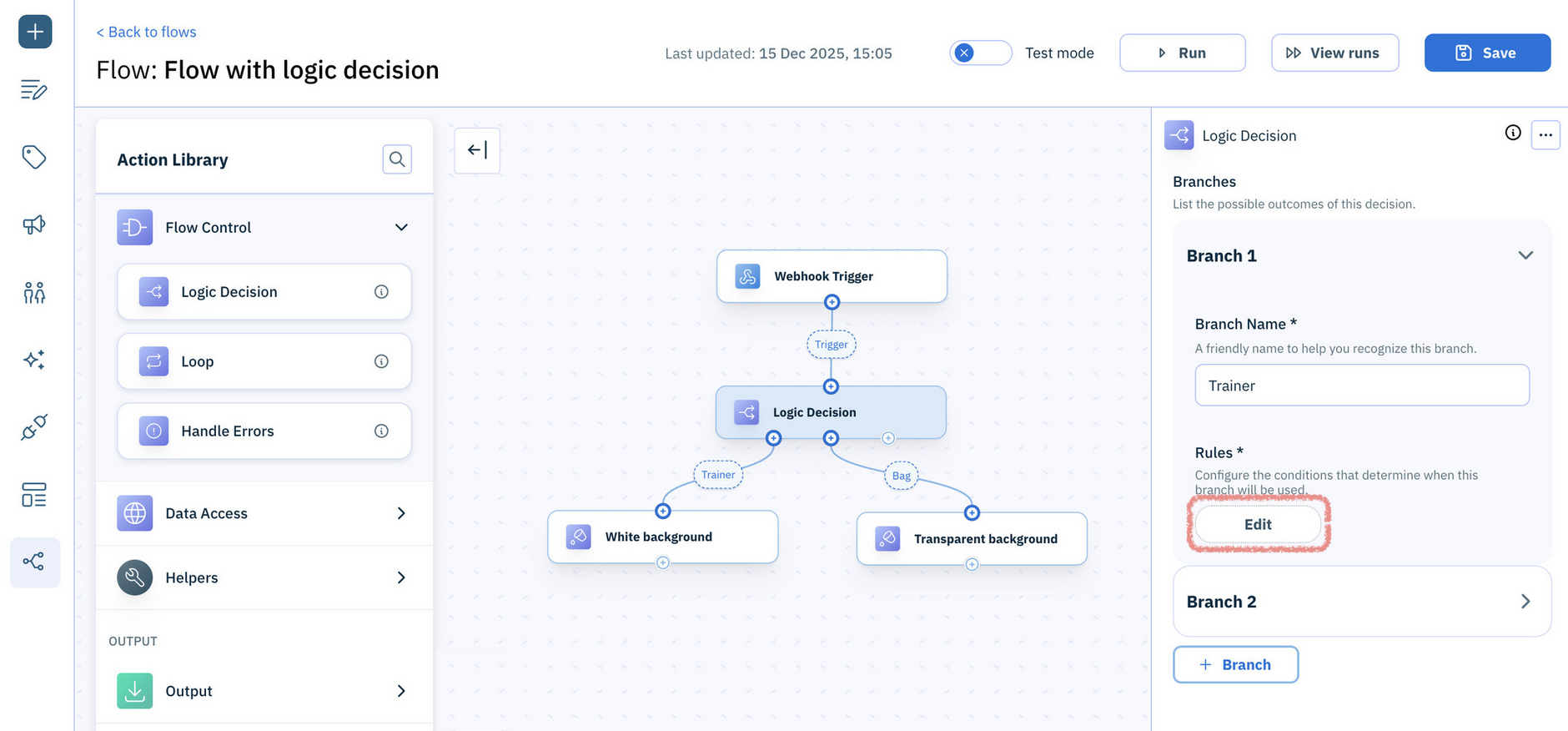
How to use: For a Logic Decision, add one or more branches, then click Edit to configure rules for each branch.
This simple example shows a Logic Decision for deciding which background fill to use for different product images.
Tip
To help identify which branch is chosen during a flow run, give each branch a descriptive name.
LoopLink copied!
Repeats the same steps for each item in a list, by adding a block where you can build a sub-flow, complete with its own entry and exit actions.
Inputs: Data (array)
Outputs: Results (array)
How to use:
Once you've added a Loop action, connect an array variable to the loop's Data property - the loop will iterate through the array, invoking the sub-flow for each item.
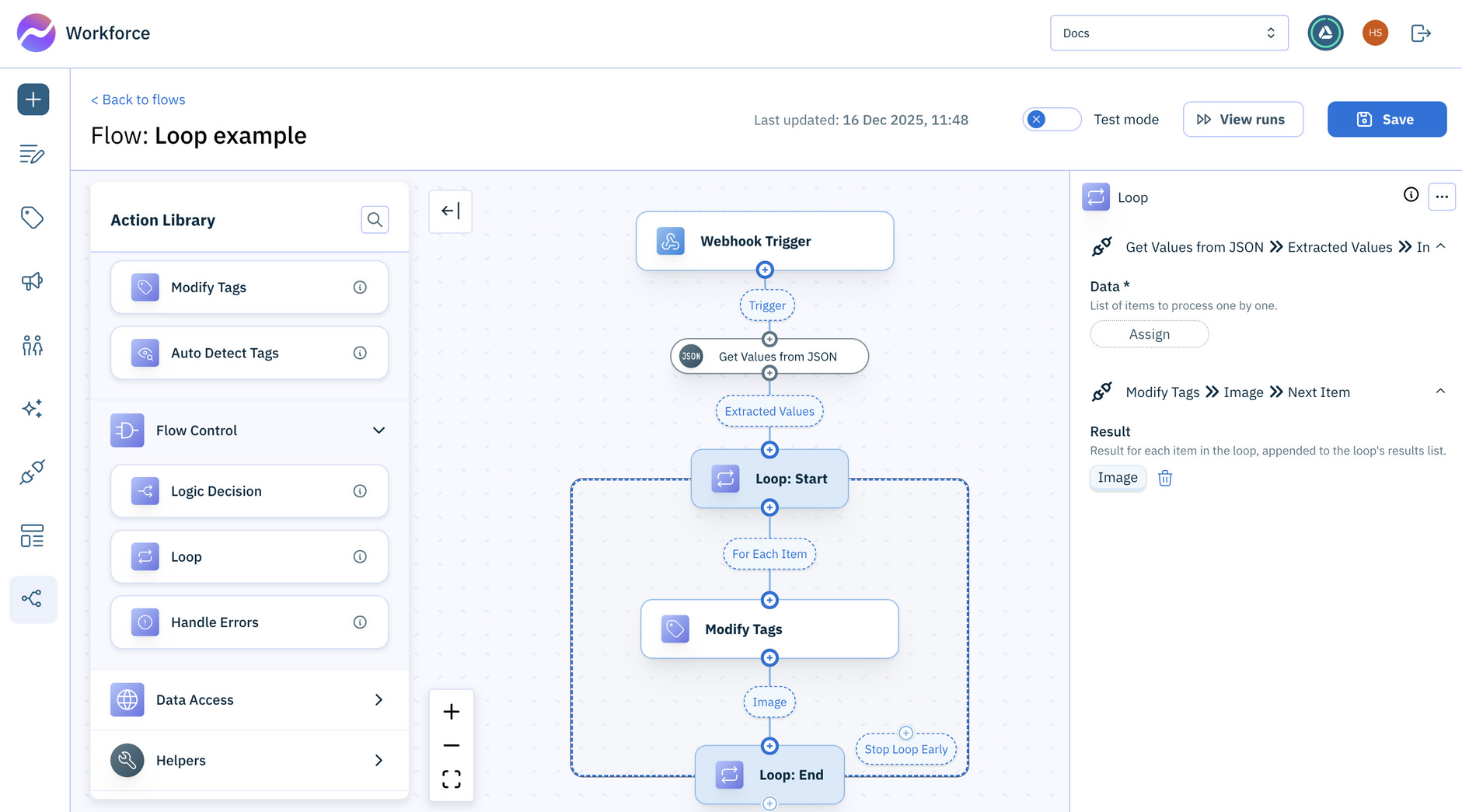
Within the Loop sub-flow, add an action and connect it’s in port to the For Each Item port of the Loop: Start action.
Connect the out port of the action in the sub-flow to the Next Item port of the Loop:End action.
Finally, if you want the loop to map the items in the sub-flow to a results array, assign the output of one of the actions in the loop to the Results property.
The results list is available in the Variable picker to actions outside of the sub-flow via the Processed Data array.
Featured in these example flows
Handle ErrorsLink copied!
Creates a sub-flow that manages what should happen when errors occur, by adding a block where you can build a sub-flow, complete with its own entry and exit actions.
Inputs: Uses the inputs of the first action in the sub-flow
Outputs: Success (the output of the last action in the sub-flow) and Error message (string). Note, subsequent actions can be added to the Error port to handle errors.
How to use:
When you add the Handle Errors action to a flow, place any actions inside the sub-flow that require specific handling if they fail.
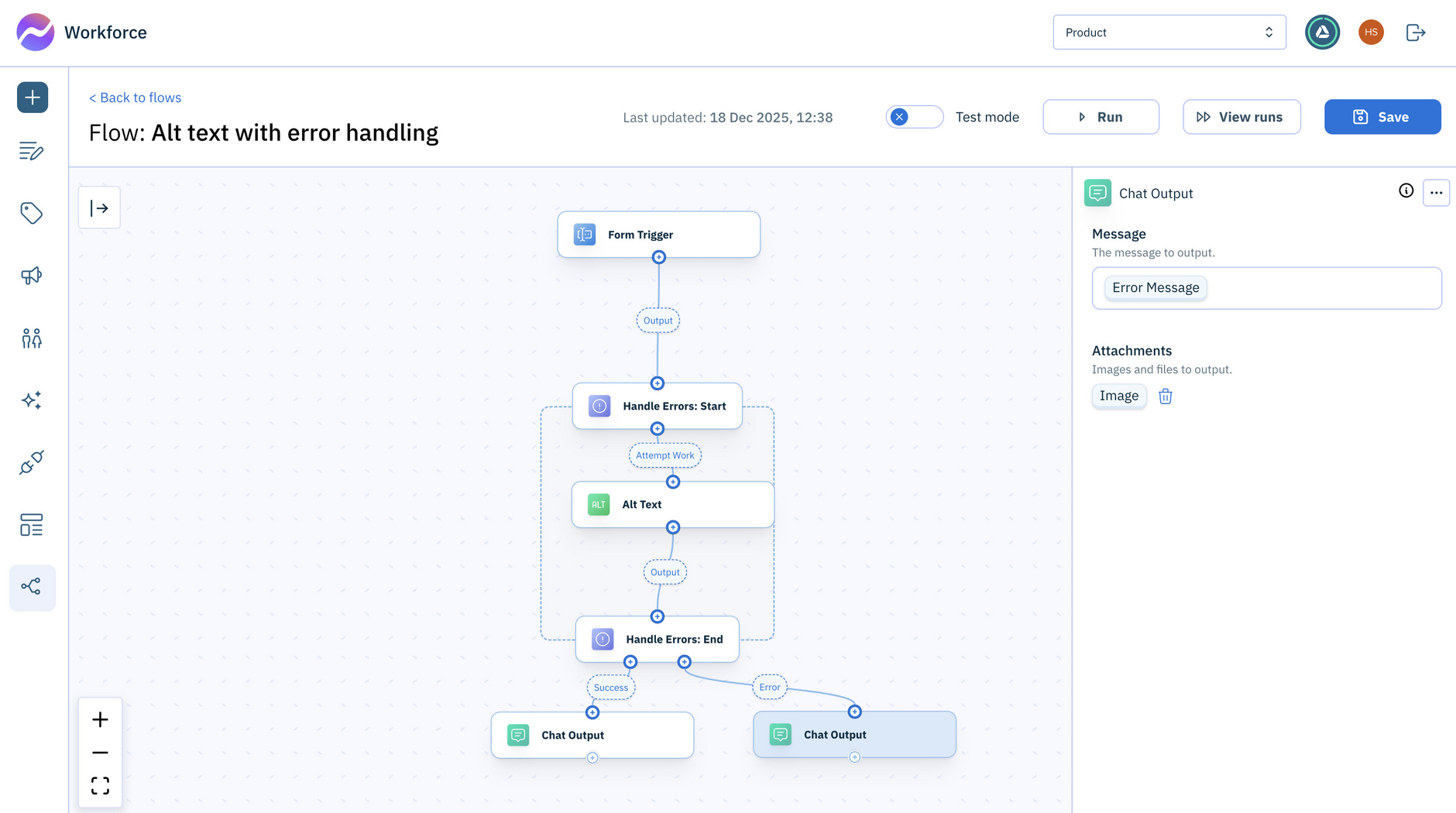
This example shows the Handle Errors action being used when alt text can't be generated for an image:
Retry on ErrorLink copied!
Manages retries automatically when actions within a dedicated sub-flow fail - letting you set the retry limit and define what happens next. For example, you might want to retry if an error is caused by a failed LLM request.
Credits and retries
Retries due to technical reasons with LLMs (for example, timeouts) don't use any credits. Retries caused by users - such as prompt or configuration errors - do consume credits.
Inputs: This action uses these ports:
| Input | Description |
|---|---|
in | Entry point; receives maxRetries |
run | Starts the enclosed action or action chain |
continue | Connects back from the enclosed actions on success, signaling the retry block is done |
success | Continues the flow after the retry block has completed successfully |
invokeActionError | Receives error signals from enclosed actions and triggers a retry attempt |
Outputs: There is no explicit out port for this action. Once the enclosed actions succeed and return to continue, the flow exits the retry block via success.
How to use:
When you add the Retry on Error action to a flow, place any actions inside the sub-flow that should be retried if they fail.
An example for this action is to wrap a Generate Image action that depends on an external AI service. Transient failures like rate limits and timeouts are common with external services, so using retry makes your flow more resilient.
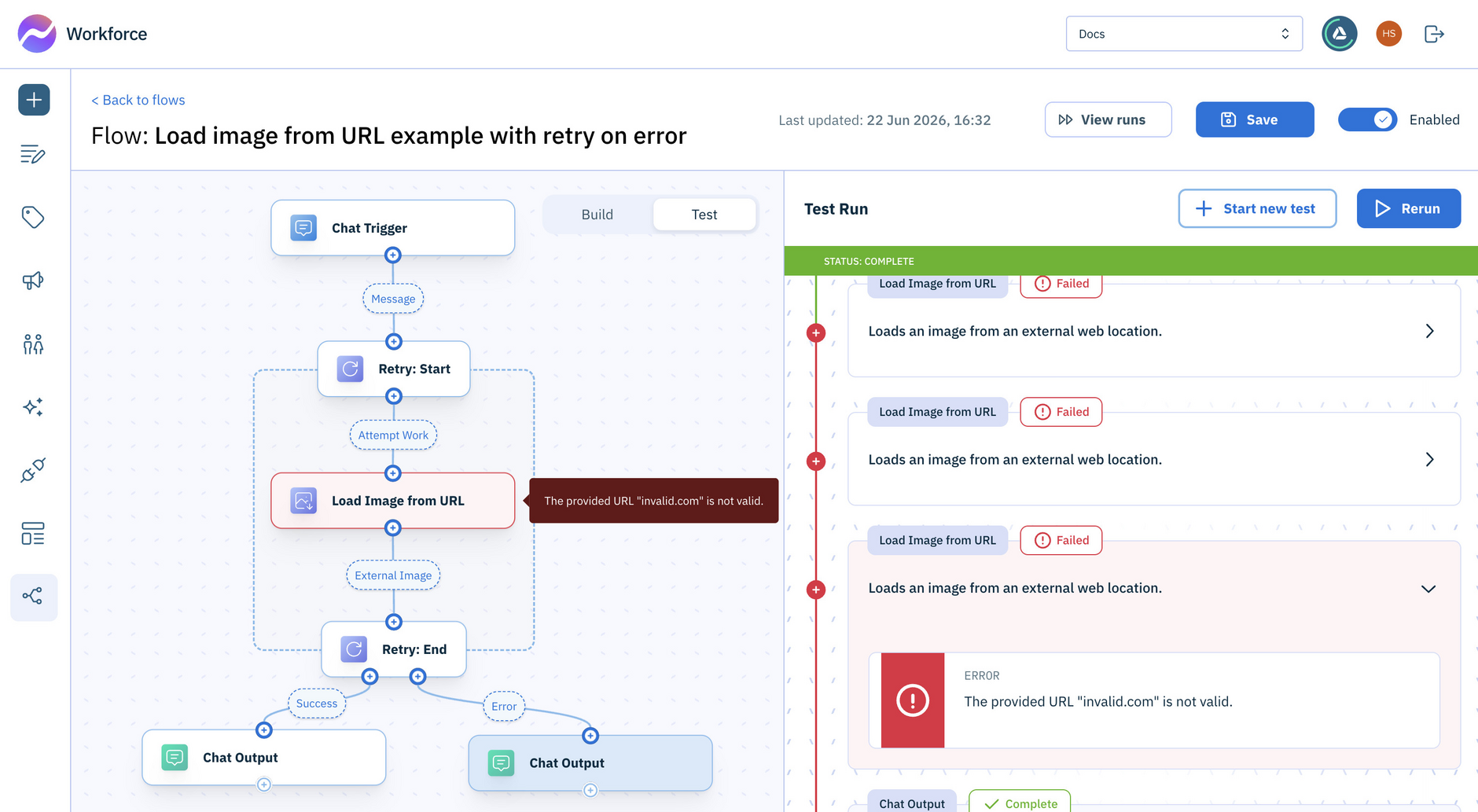
This example shows Retry on Error being used with the Load Image from URL action: