Running flows
Once a flow has been created, you can run it to automate a process. As a flow runs, you can monitor its progress, view the actions being executed, and review the outputs it produces.
Permissions for running flows
Flows are stored with a hub, and to run them you will need the Author role or higher. More about Workforce permissions.
To run a flow, launch it from your Flows library.
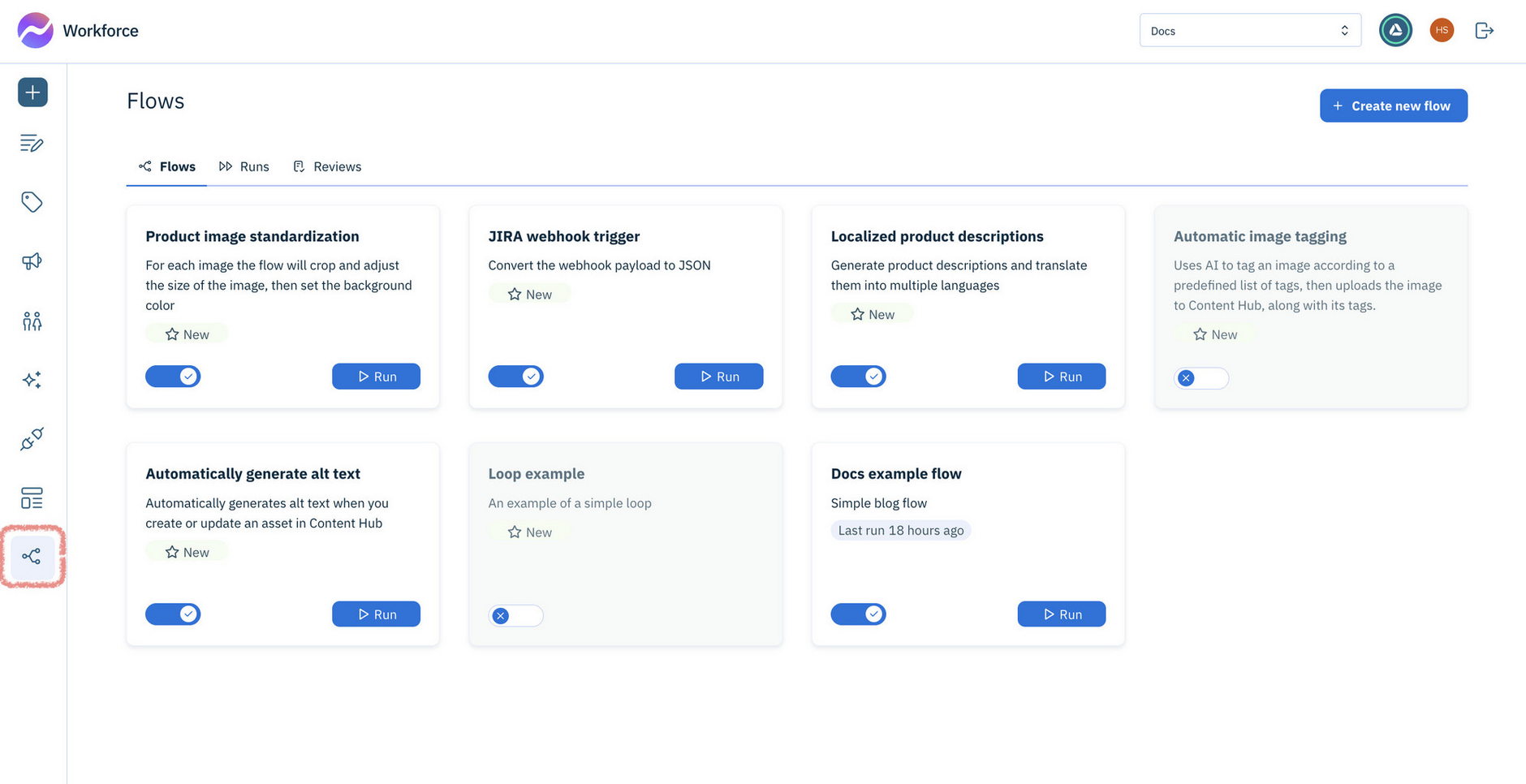
Each flow is shown as a card with its name and description. The card also shows:
- Whether the Flow can be run - this is controlled by Admin users, who enable Flows
- How it runs (manually or automatically) - enabled Flows display a Run button on the card, that users can click to start the Flow. Learn more about Triggers
Hover over a card to:
- Copy flow details: Copies the flow label and ID to the clipboard (useful for developers using theGraphQL Management API)
- View runs: Opens the Runs list filtered to that flow
- Duplicate flow: Creates a copy of the flow in the current hub
- Edit flow: Opens the flow in the editor
- Delete flow: Prompts for confirmation, then deletes the flow and any associated runs and reviews
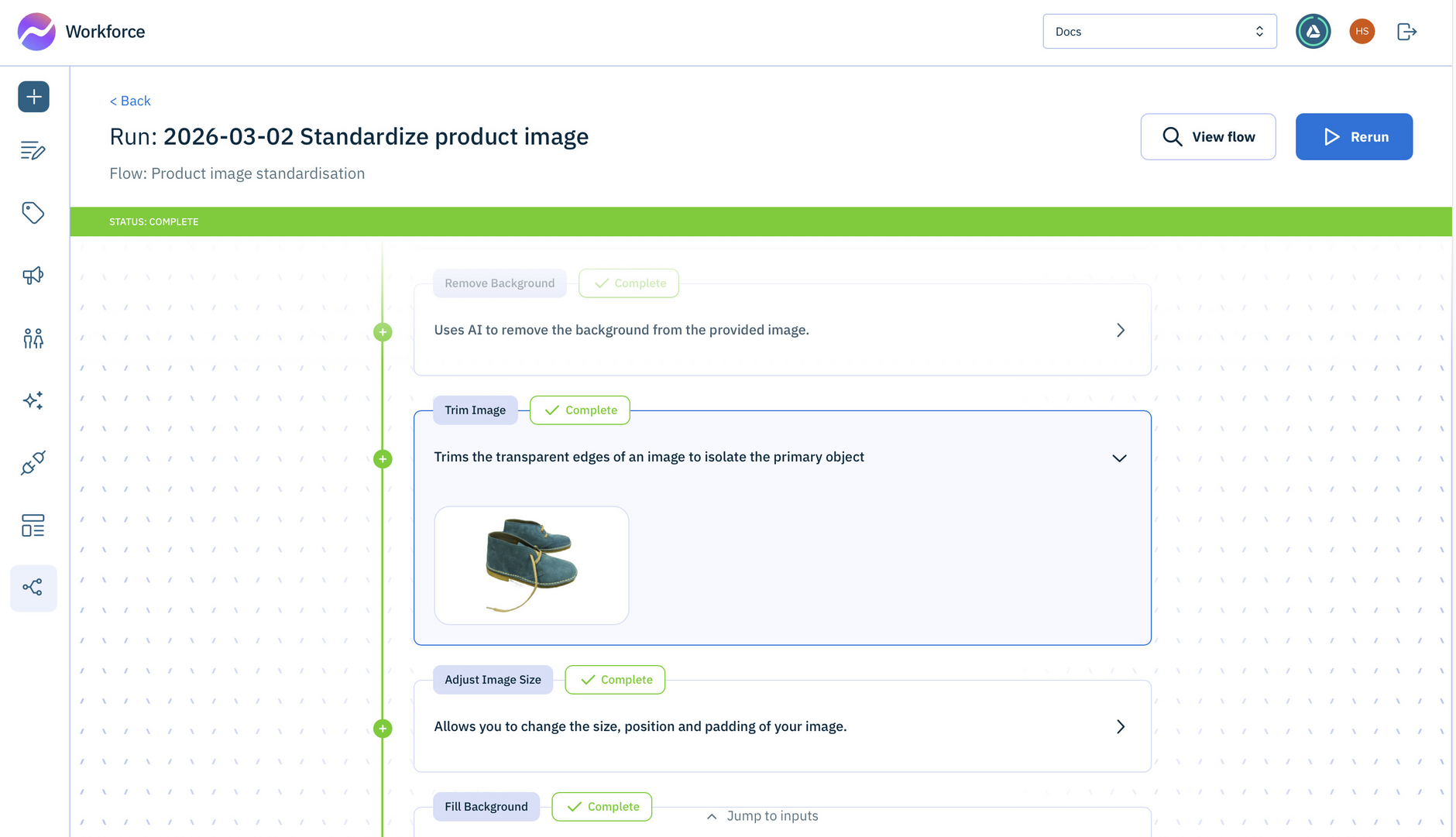
As a flow runs, each action is shown in an action card so you can track progress.
Note
Running a flow is an asynchronous process that takes an indeterminate amount of time.
Runs listLink copied!
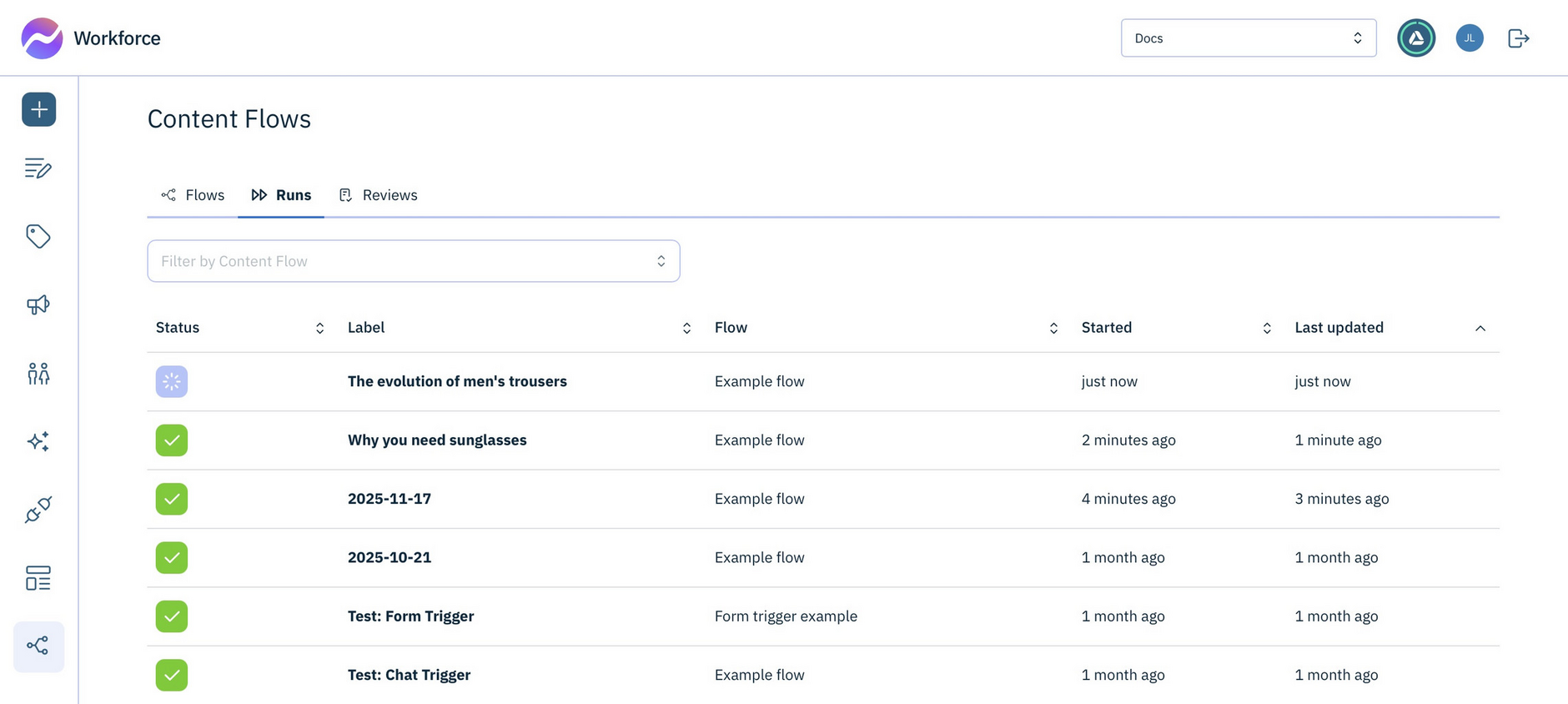
All runs, whether in progress or completed, are shown in the Runs list. You can view more information about a run by clicking on it to show its Run detail.
Note: Run data is maintained for 90 days.
Run detailLink copied!
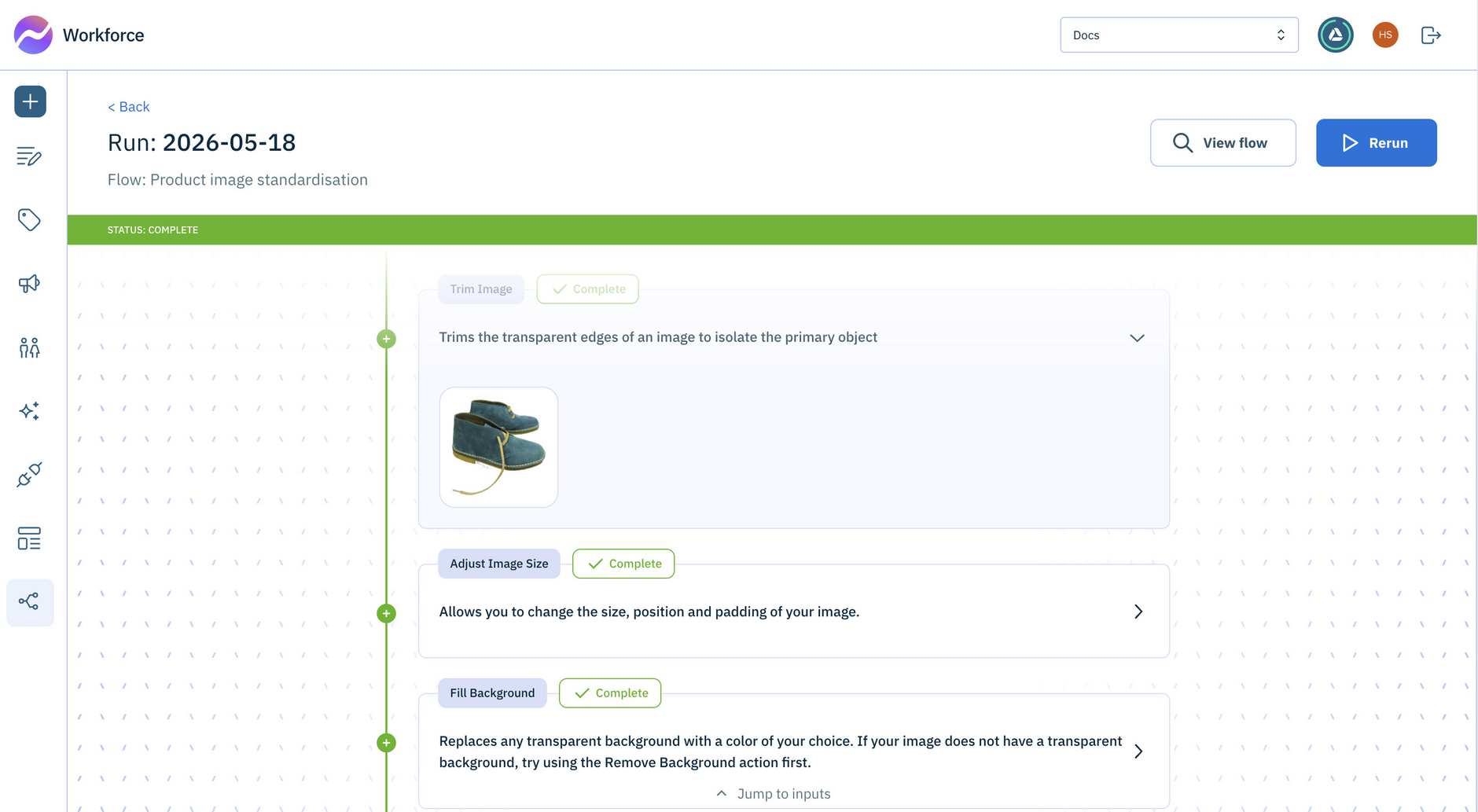
Opening a run shows its detail, such as the flow actions and the order in which they were performed. Each action, is represented by a card including its name, status (in progress or complete), description and output.
In the example below, the output of the Trim Image action is shown in a card.
Run statusesLink copied!
While running, a flow can have the following statuses:
- Queued The run has been triggered, but is in a queue waiting to start
- In Progress The run has started
- Paused The run is waiting for a review task to be completed
- Complete The run has finished.
- Aborted - The run has been cancelled
- Expired - The run timed out (reached the maximum duration of 90 days)
- Failed - The run cannot continue due to an unrecoverable error, or too many repeated errors (too many retries)
Enabling flows to be runLink copied!
Admin users control which Workforce Flows are allowed to run - giving them the flexibility to pause automations and prevent unintended runs.
By default, flows are created as Disabled. In this state, they can only be run in Test mode by Admin users and are not available to non-admin users.
To make a Flow available to other users, an Admin must set it to Enabled. This can be done from the Flows library or while building Flows. See Building a flow in minutes.