Reviewing flow output
Flows let you include review checks wherever they're needed - so you can validate and approve, or reject results. Once a flow has been run you can review its output.
A single flow can include multiple review stages, allowing you to check progress through the process.
Reviews can be carried out during a flow run or accessed later from the Reviews list, allowing you to approve, reject, or update content before the flow continues or completes.
For ideas about how and when to include review steps in flows, visit our Example flows.
Permissions for reviewing flow output
The output from flow runs is stored with a hub, and to review it you will need the Publisher role or higher. More about Workforce permissions.
Finding your reviewsLink copied!
You can open a review directly from a flow that's paused mid run, but the Reviews list is where all the review work for your hub lives - both what's pending and what's already been decided. Filters and search let you narrow that down to the reviews you care about, and those same filters carry through to Auto-next as you work.
Reviews listLink copied!
The Reviews list shows the review tasks for your hub - both pending reviews awaiting your attention and completed reviews you can refer back to.
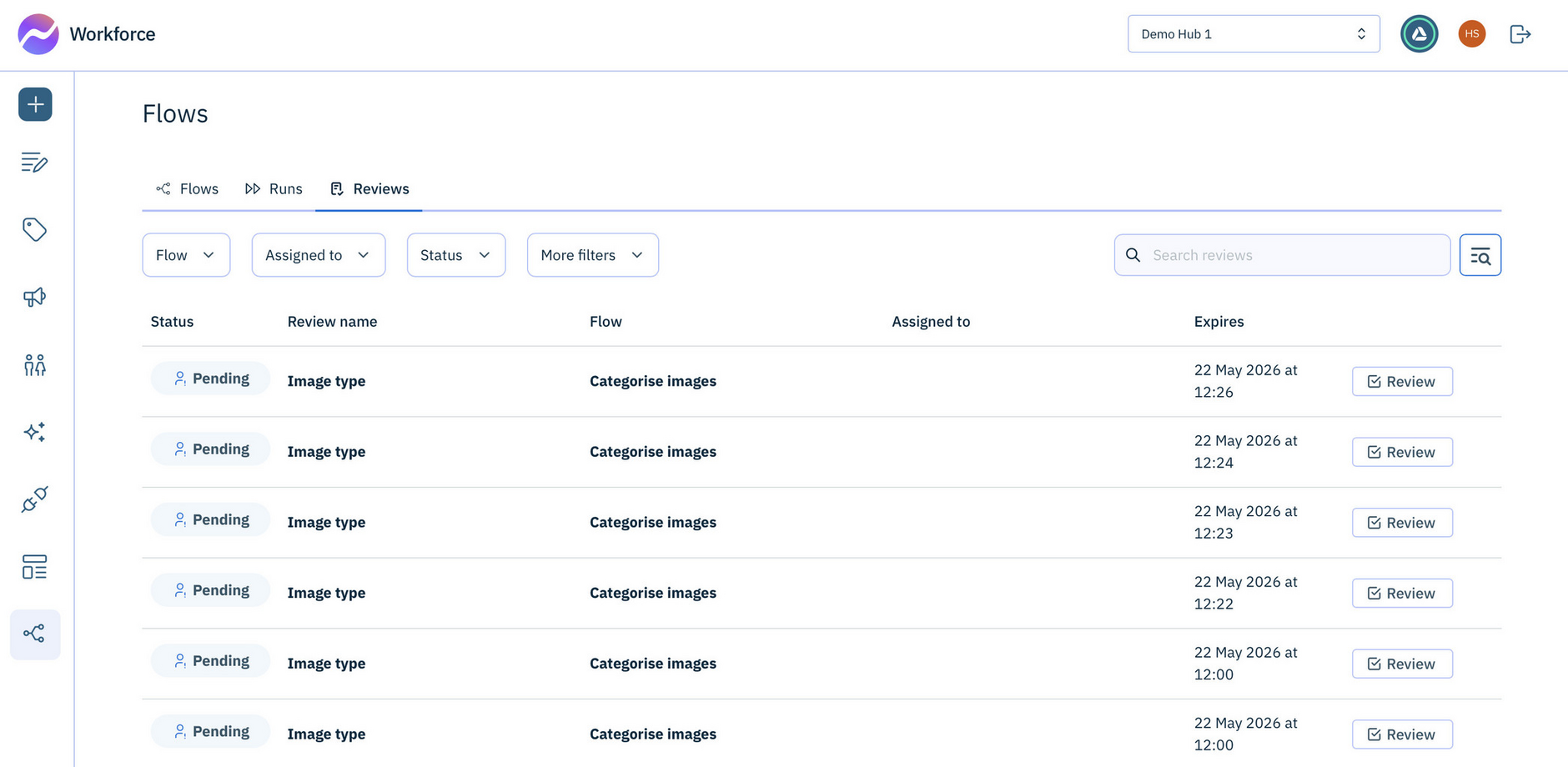
From the Reviews list you can:
- Filter by flow, assignee, status, date or custom attributes to quickly navigate to reviews
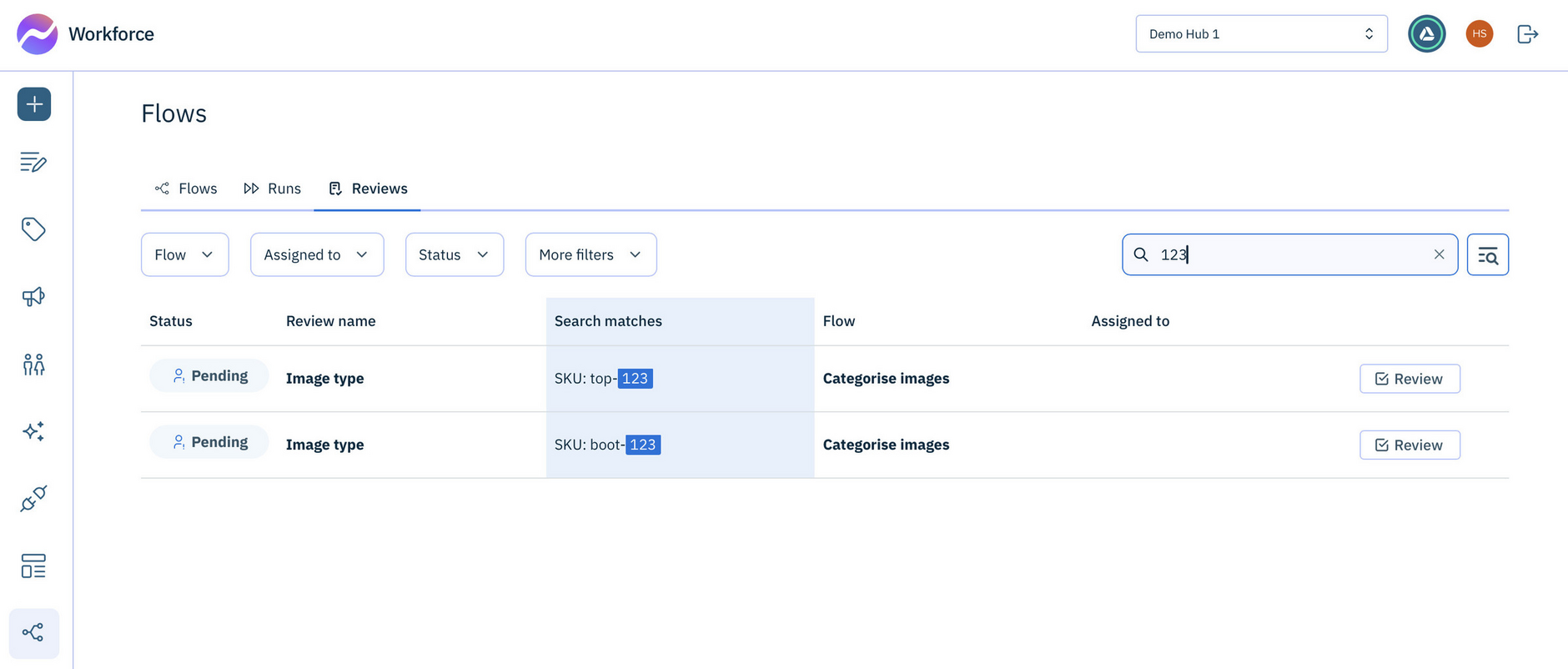
- Search review tasks, for example by product id, to find specific reviews quickly
- Click any review to open it in the review drawer, where you can approve, edit or reject the output
Review statusesLink copied!
Content flow reviews have the following statuses:
- Pending - review has not yet been completed
- Approved - the review is approved
- Rejected - the review is rejected
- Expired - the deadline for the review has passed
Building your review to-do listLink copied!
If you're a reviewer, the quickest way to work through flow output is to turn the Reviews list into a to-do list once, then let Auto-next walk you through it.
- Filter by Status: Pending. This leaves only the reviews still waiting on a decision, and hides anything already approved, rejected, or expired.
- Filter by Assignee: Select reviews assigned to you. This sets the list to show only the work that's directed to you specifically.
- Add filters to prioritize. Narrow by flow to focus on one kind of work at a time, by date to list whatever's closest to its deadline, or by any custom attributes your team has set up under More filters.
- Open the first review and work down the list. Your filters are used by Auto-next, so each time you approve or reject, you're taken straight to the next review in your queue - without going back to the list in between.
Filtering by assignee hides unassigned reviews, and those are open for anyone to pick up.
Filtering reviewsLink copied!
Filter the review list by flow, assignee, status, and date - combining them to narrow results further.
Custom attributes
Additional review filters can be created by configuring custom attributes. When custom attributes have been added, a More filters button is displayed. For details on setting them up, see Setting custom attributes.
Filters apply to more than the review list - they also determine which review Auto-next takes you to next, as you work through flow output.
Searching reviewsLink copied!
To find specific reviews - such as those including a particular product id - use the search bar. Search applies to the review label, run label and any custom attributes that have been configured.
You can set custom attributes, that improve search capabilities for specific values, such as, product ids and SKUs. See Setting custom attributes.
Tip
To search for multiple terms - separate them with a comma, or use a line break in the multi-search popup.
When searching reviews, keep the following in mind:
- Use whole words only - partial word searches are not supported
- Phrase search is automatic - no need to wrap terms in double quotes
- Special characters are treated as spaces - for example,
product-nameis searched asproduct name. If an exact match exists, it appears first in the results, followed by any phrase matches - Operators are not supported - wildcards and similar operators are not recognized
Completing your reviewsLink copied!
You can open a review directly from the Reviews list, or directly from a flow that's paused mid-run and waiting for you - either approach takes you to the same place.
For flows that include review actions, runs pause while human review is completed.
The example below shows a flow with a Human Review action as the final step. The review pauses the flow from running, until the output is approved or rejected.
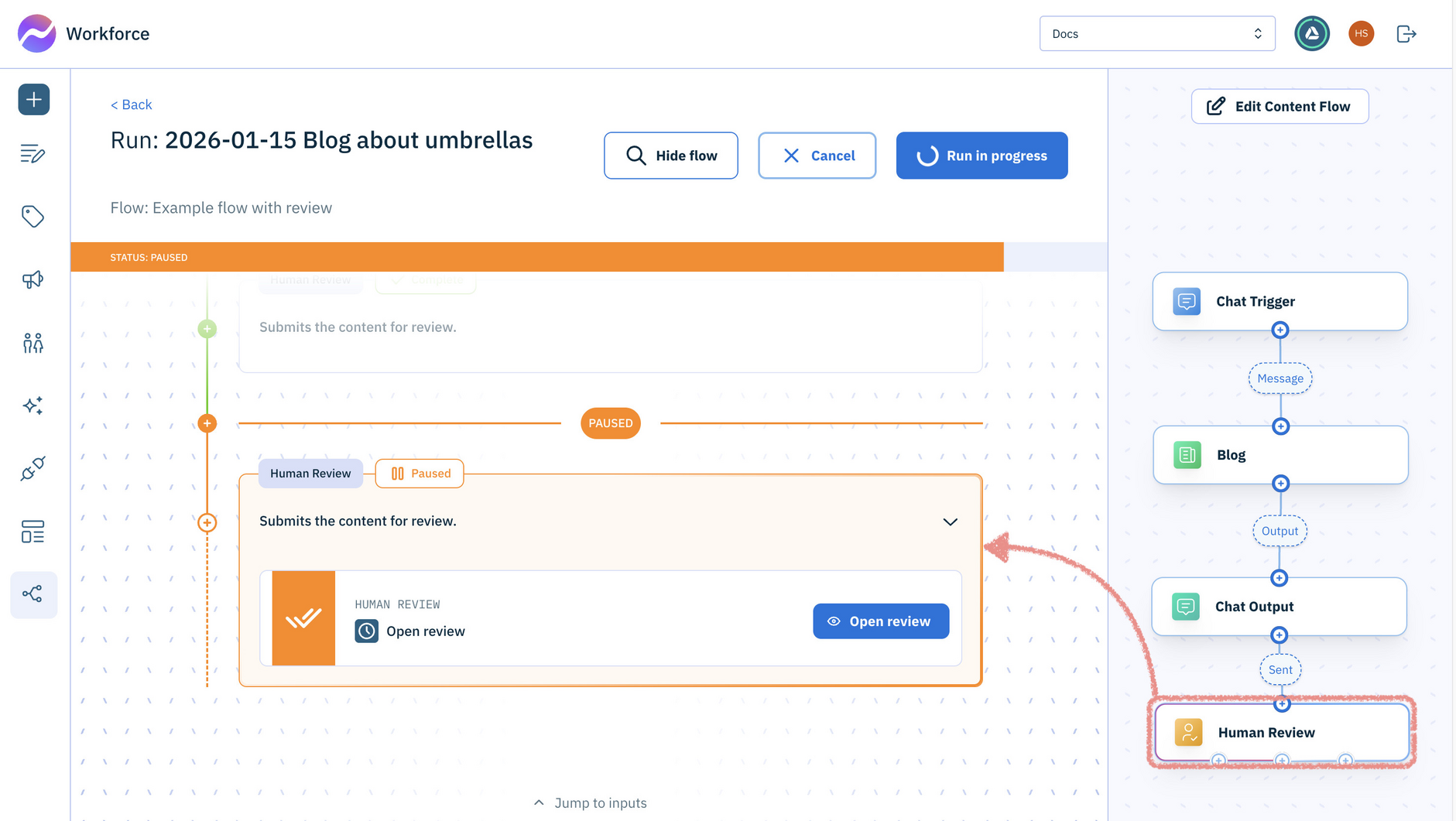
Clicking "Open review" opens the review drawer showing the output that’s ready for review.
Review drawerLink copied!
The review drawer is where you can approve, edit or reject flow output.
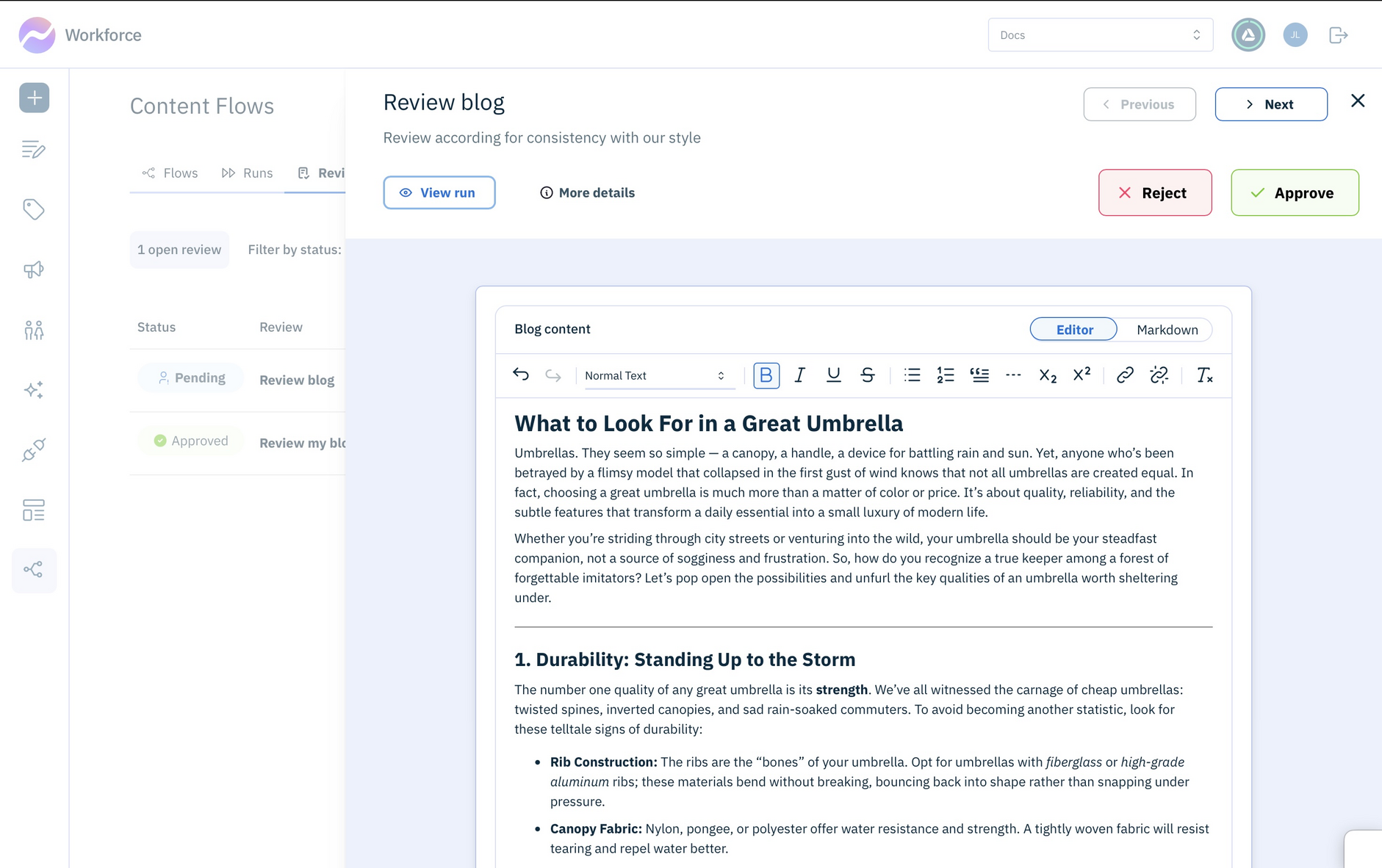
Once you've chosen whether to Approve or Reject the flow will continue.
Tips for reviewing flow output
- Click Maximize to give yourself more room to work.
- Use filters to control which reviews Auto-next presents to you.
Assigning reviewsLink copied!
By default, reviews are unassigned and anyone can modify or complete them.
Assigning a review directs the work to specific reviewers. You can assign reviews to one or more users, and teams (each team counts as 1 assignee).
Once a review is assigned, any of the assignees can modify and complete it. The first assignee to start the review takes ownership of it.
Tip
To make sure a specific person performs a review, assign it only to that person.
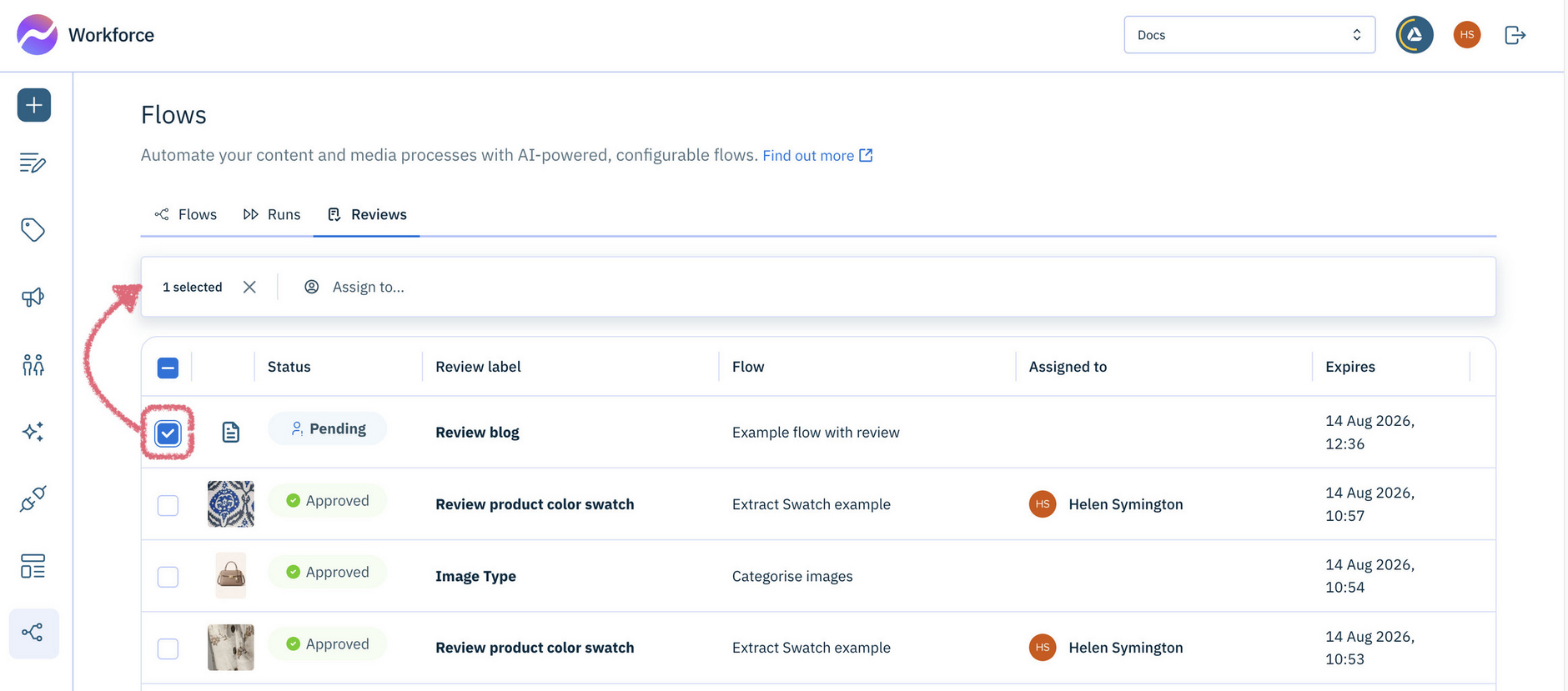
To assign a review, select it and add up to 10 reviewers.