Syncing content
Once sync has been setup, you can transfer content by using Amplience CMS or the Content Management API.
Content sync capabilities
Your plan determines sync capabilities - such as how many items you can sync. See What is my content sync plan?.
Pre-sync checklistLink copied!
Even though your administrator has set up mappings, it's worth checking the following to help smooth the process:
- Permissions - Ensure you have the developer role (or higher) on both the source and destination hubs.
- Schema validation - If schema validation is required, you can pre-empt schema validation issues by ensuring that content schemas and types match in the source and destination hubs for the content being synced.
- Localized content - If you're syncing localized content, matching locales must exist on the source and destination hubs. See How sync handles localized content.
- Extensions - Check whether the content includes any extensions. These will not be synced and should be recreated in the destination hub to prevent issues with the content.
Sync limitations
For information about what's included in sync operations, see Scope and limitations.
Starting a syncLink copied!
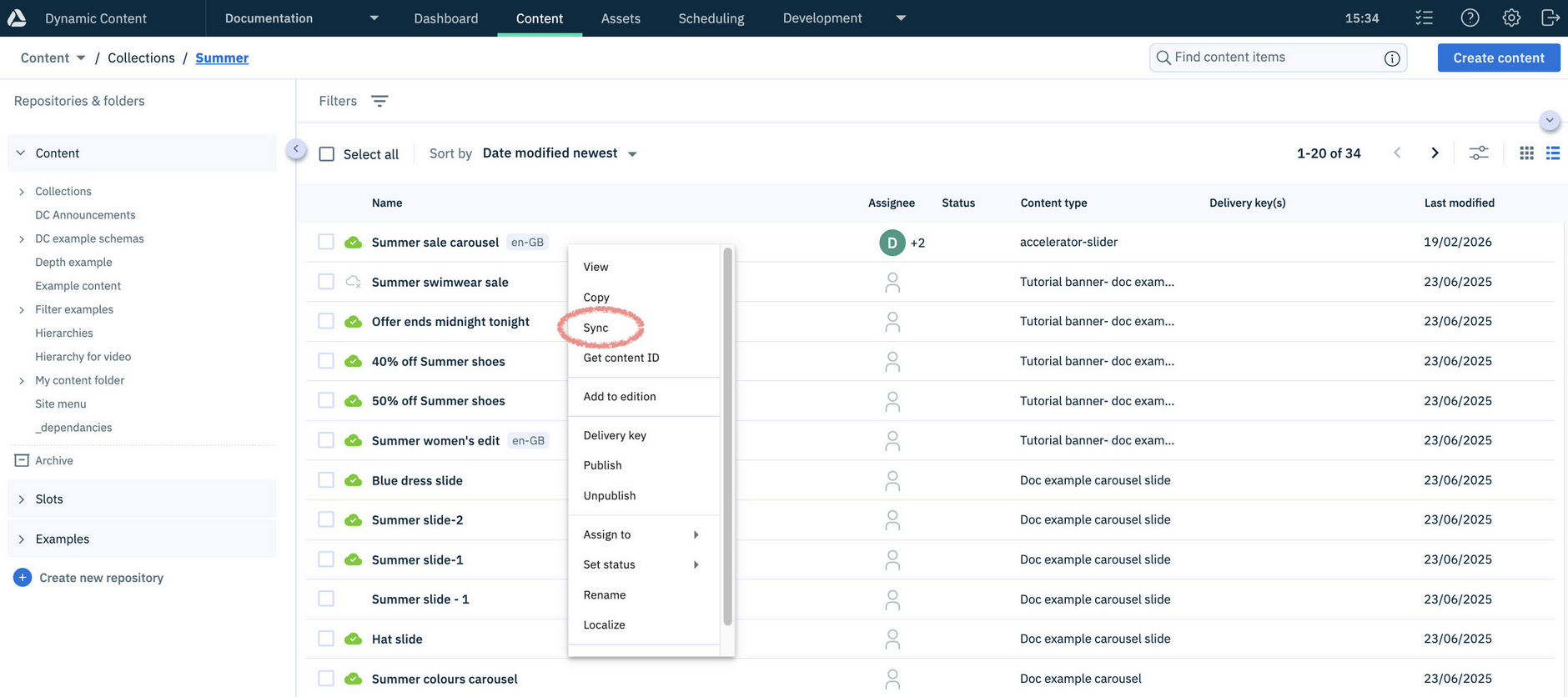
To start a sync from Amplience CMS, select the Sync option from the content library (shown below) or from the authoring experience.
Tip
You can select up to 20 content items to sync.
You can also start a sync using the Content Management API.
Note
In Amplience CMS, the option to "Sync" is available for content only when:
- The repository from which you want to sync content is mapped to a repository in a different hub
- You have the developer role (or higher) on both the source and destination hubs
Settings for syncing contentLink copied!
When using Amplience CMS to sync content, the Sync dialog provides a range of settings.
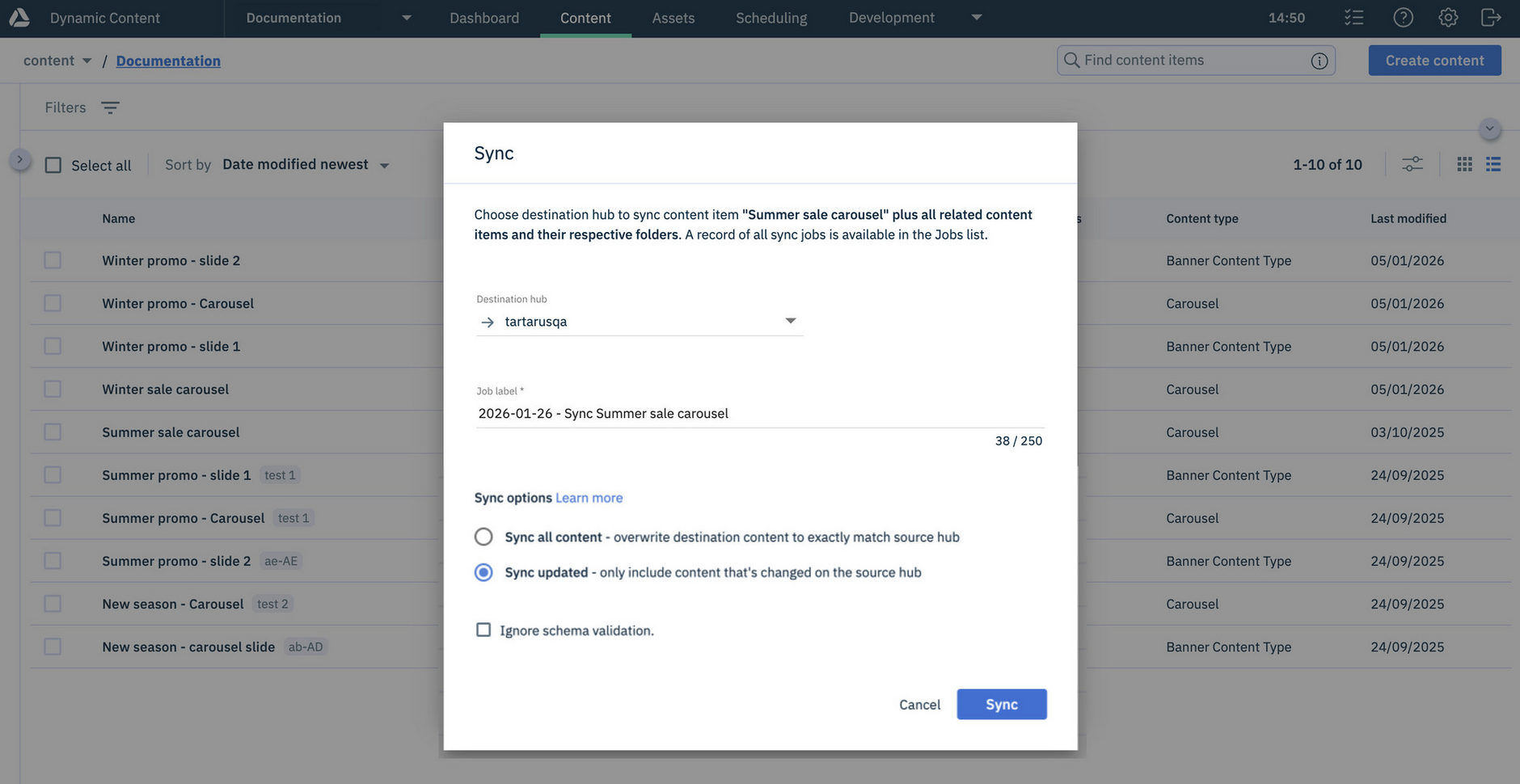
Destination hubLink copied!
This option is displayed only if multiple hubs are mapped for the selected content.
Job LabelLink copied!
Use the label to help you clearly identify the sync operation in the Jobs list. See Viewing sync status.
Sync optionsLink copied!
When syncing content, you can choose whether to:
-
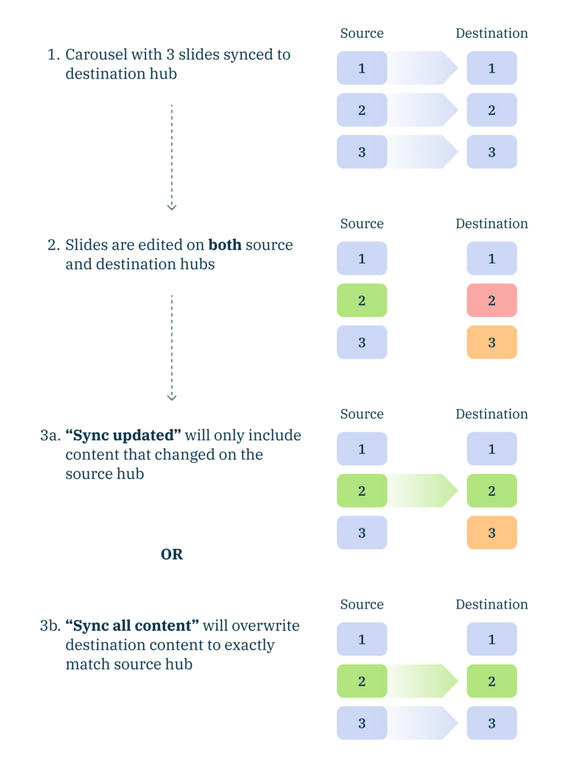
Sync all source hub content - Completely overwrite the content on the destination hub to match the source hub
-
Sync updated source hub content only - Transfer only content that has changed on the source hub, retaining any changes made only on the destination hub
This simple example illustrates the difference between the sync options:
Ignore schema validationLink copied!
This option is only available if the source and destination hubs are set up to allow schema validation to be ignored. See Schema validation and sync.
If this option isn't available, ask your administrator to enable it for you.
Viewing sync statusLink copied!
The status of a sync will be one of the following:
| Status | Description |
|---|---|
Completed | Job finished successfully — the chosen content has been synced |
Created | Job has been requested and is waiting for another job to finish first |
In progress | Job is currently running, duration depends on job size |
Failed | Job could not complete — content may be partially synced. See Resolving failed sync jobs. |
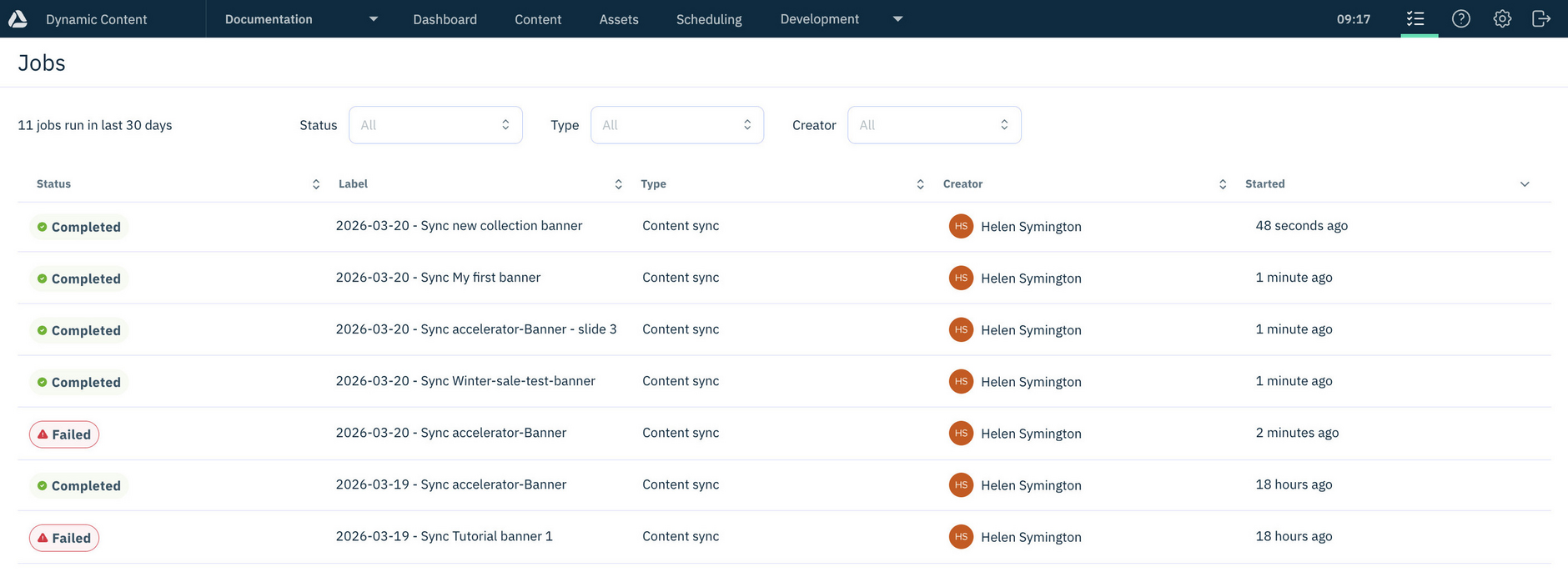
Each time content is synced, a sync job is created and shown in the Jobs list.
Checking the sync Jobs listLink copied!
To check the status of sync operations, in Amplience CMS click the "Jobs" icon in the masthead.
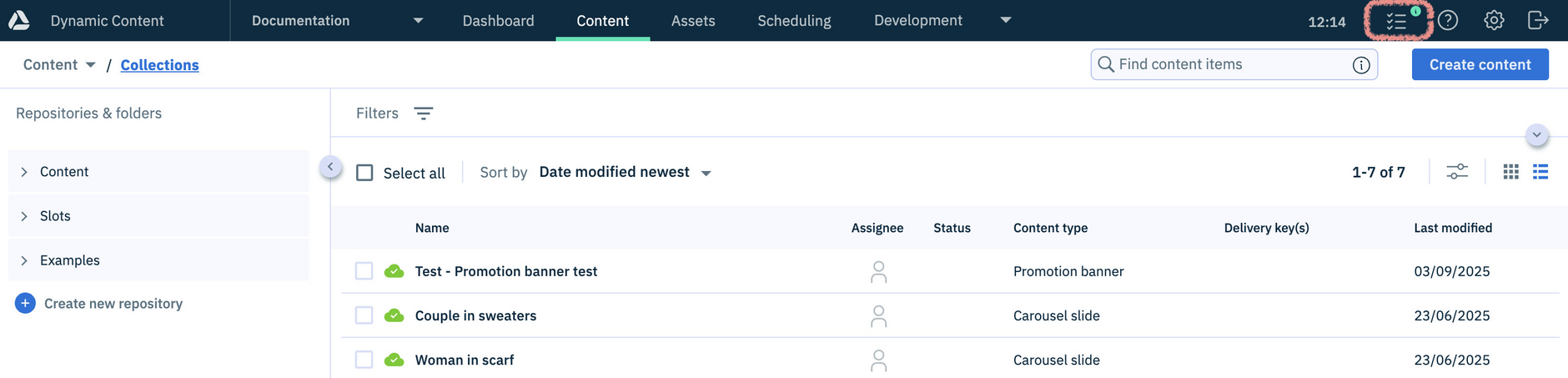
Notification of recent sync jobs
If a sync job has started since you last viewed the list of jobs, the "Jobs" icon is updated with an "i" (shown above).
The "Jobs" list shows all sync jobs for your current hub. For example, if you're working in Hub 1 within Amplience CMS, you will see jobs such as Hub 1 → Hub 2, and Hub 3 → Hub 1.
Displaying additional sync detailsLink copied!
To see detailed information about a sync job, double click on it in the Jobs list:
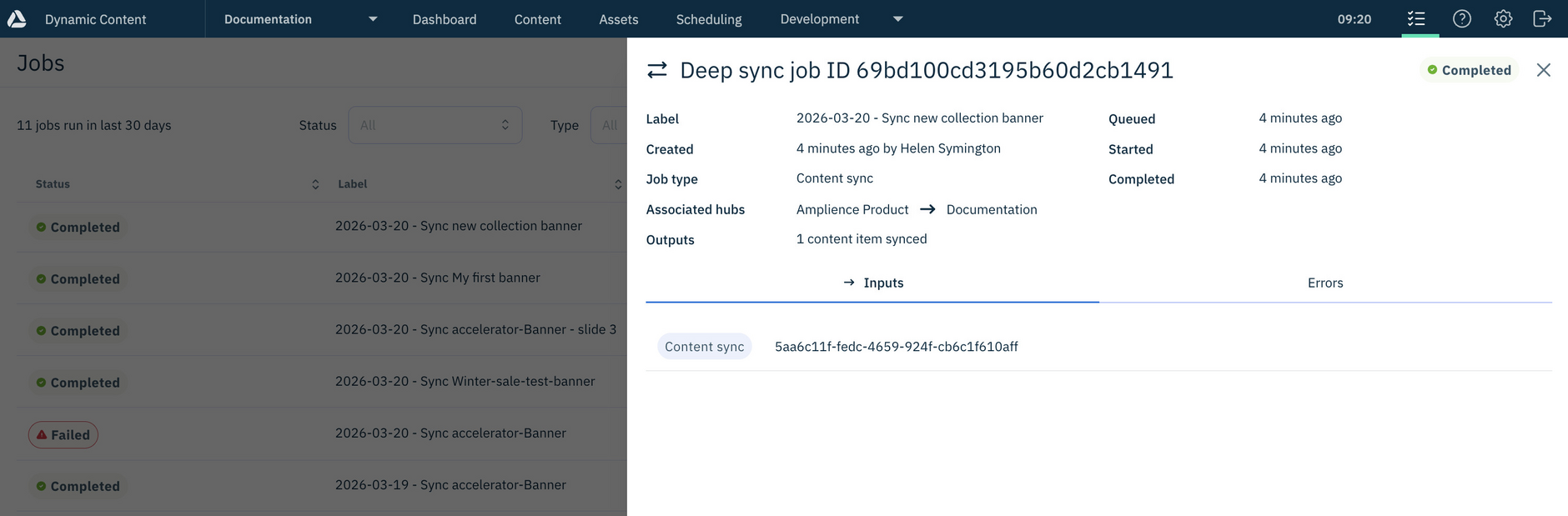
What are sync Outputs?
Sync Outputs are the total number of items synced in a job. This includes all items within the content graph.
Publishing synced contentLink copied!
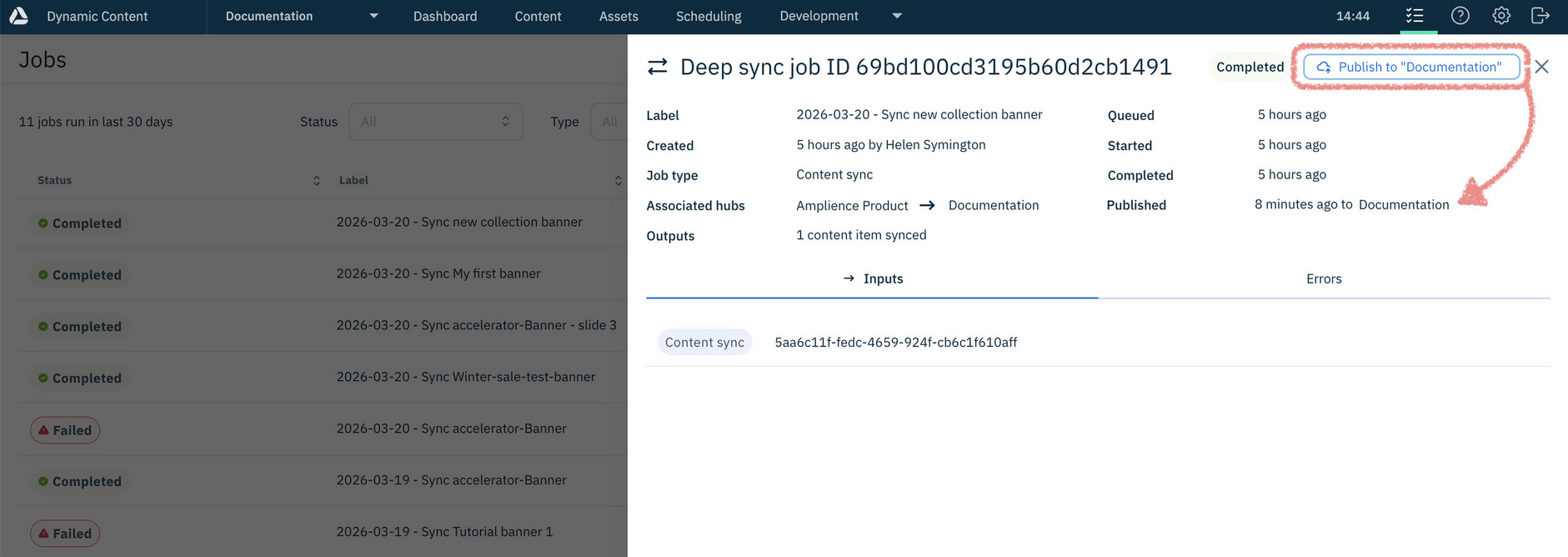
Once a sync finishes successfully, you can publish content directly from the Sync Job details, by clicking Publish to "hub name".
The Publish option is only available after a successful sync.
After publishing, the Sync Job details update to show that the content is published.
Note
The Sync Job details show publishing status regardless of where the content was published from (for example, the Content Library). The time since publishing is only displayed if the latest version of the content is published. For more information, see publish status.
Checking revision history for syncLink copied!
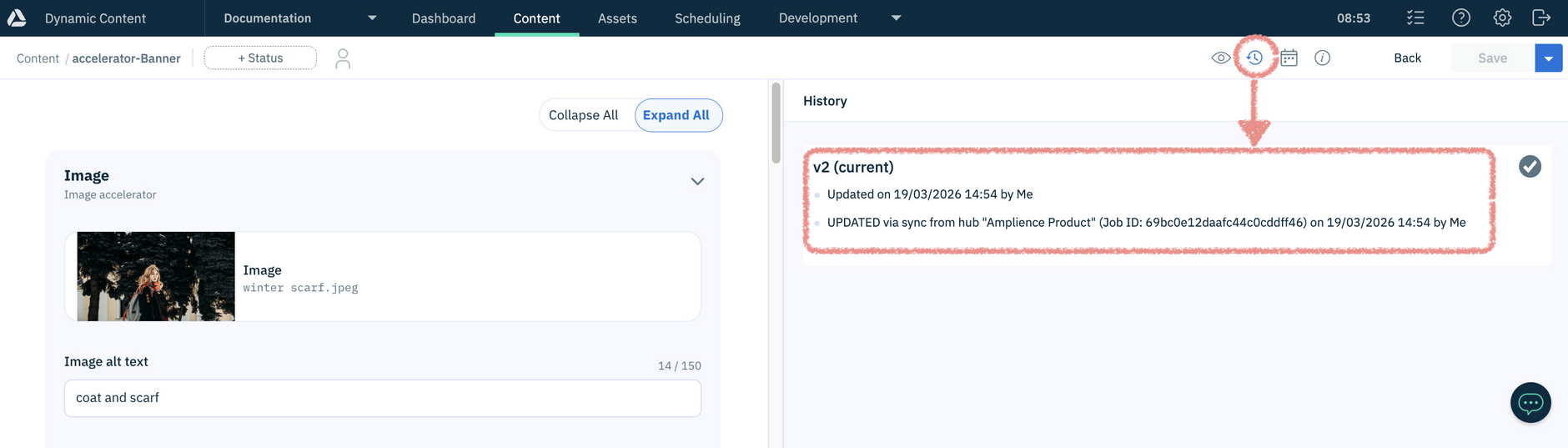
Successful sync operations are recorded in the revision history of both the source and destination content.
Info
Newly synced items always start at v2 in the revision history.
Each entry in the revision history shows the sync outcome (content changed or unchanged) and the direction (to or from), in the following format:
-
Sync (with changes) to hub "[hub-label]" (Job ID [job-id]) on [date-time-stamp] by [user-name] -
Sync (no changes) to hub "[hub-label]" (Job ID [job-id]) on [date-time-stamp] by [user-name] -
UPDATED via sync from hub "[hub-label]" (Job ID [job-id]) on [date-time-stamp] by [user-name] -
Sync (no changes) from hub "[hub-label]" (Job ID [job-id]) on [date-time-stamp] by [user-name]
For example:
Note
The actual revision history of content is not synced. See Scope and limitations.
Resolving failed sync jobsLink copied!
Sync jobs can fail for several reasons. Common causes include:
-
Content graph exceeds the number of items that sync supports - The job is marked as Failed in the Jobs list. You can resume the sync by restarting the job from where it stopped.
For more details, see How content graph size affects syncing.
-
Number of items to sync exceeds your plan allowance - Your sync plan limits how many items you can sync each month. Learn more about content sync plans.
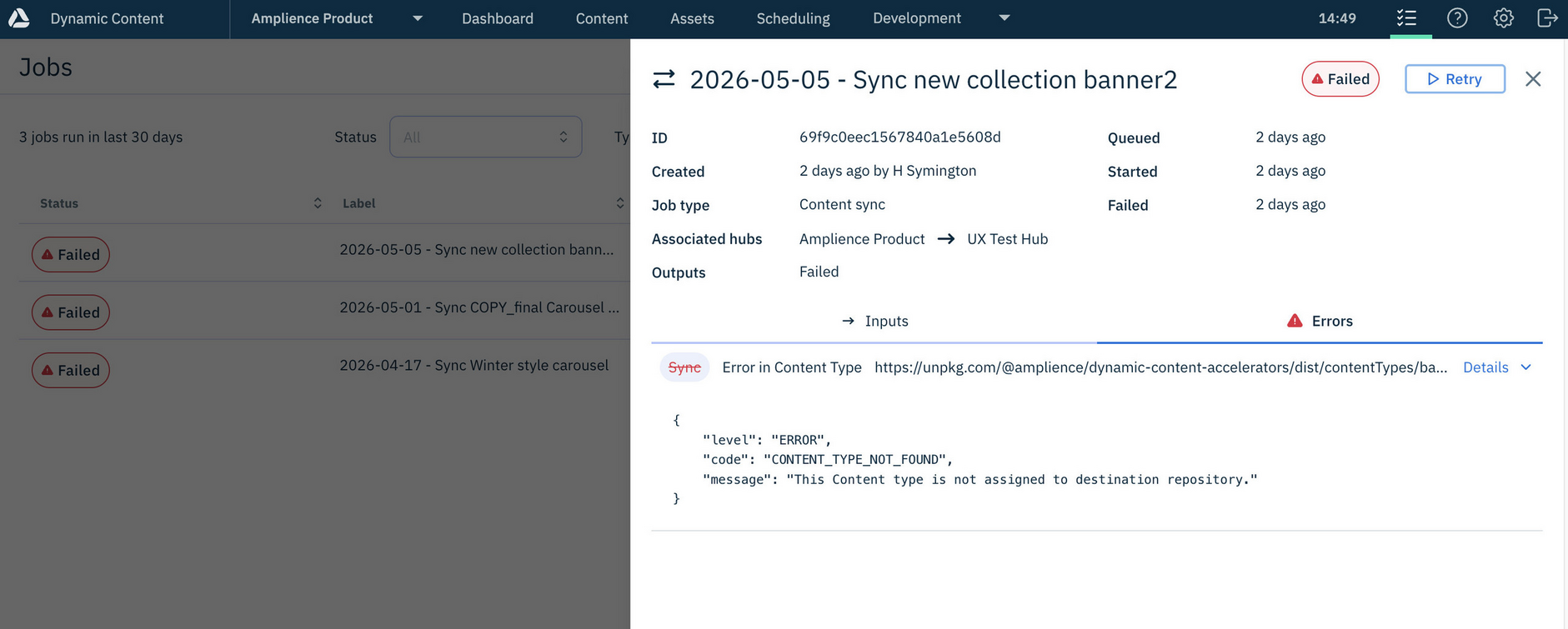
When a sync job fails, content is transferred only up to the point of the error. After identifying and fixing the cause, you can retry syncing to complete the process.
To find details of why a sync job has failed, click on it in the "Jobs list" to display the job details, then click on the "Errors" tab.
Tip
The Sync icon indicates that the sync job has failed.