Content sync overview
When working with Amplience CMS, you’ll typically use multiple hubs to keep your development, testing and production separate. Content sync makes it easy to copy content between these hubs, helping you manage content safely and efficiently across environments.
Note
Content sync capabilities - such as the number of items you can sync - vary depending on your sync plan.
What is content sync?Link copied!
Content sync lets you efficiently transfer content between hubs in multi hub set ups, providing a user friendly alternative to using the CLI tool for moving, copying, and cloning content.
It transfers content along with all of its relationships, localized content and hierarchies between repositories across different hubs.
What you can use it forLink copied!
Content sync simplifies a range of common workflows:
- Promoting new features and related content from development to test hubs, and then to production hubs
- Copying live production data to development or test hubs for building and testing new features safely
- Running stress tests against realistic datasets without affecting live content
How sync worksLink copied!
Once sync has been set up - by configuring mappings between source and destination hubs - you can control syncing content between those hubs.
Sync operations are driven by changes in the source hub.
MappingsLink copied!
Mappings establish relationships between repositories in different hubs, and the direction that content will flow. A mapping has two parts:
-
Hub mapping – Defines the source and destination hubs, and the sync direction (one-way or two-way)
-
Repository mappings – Define which repositories can be synced with repositories in other hubs
Mappings only need to be created once and remain persistent, so they can be reused for future sync jobs. An administrator must configure mappings before content can be synced. Learn how to Configure mappings.
You do not need to map to the folder level - sync automatically creates and manages the folder structure. See How sync handles folders.
Once mappings are set up, admins and developers can sync content between those repositories. See how to Sync content.
Content graphs
To keep all related content together, content sync considers each content item and its linked content as a single connected structure, called a content graph.
Sync directionLink copied!
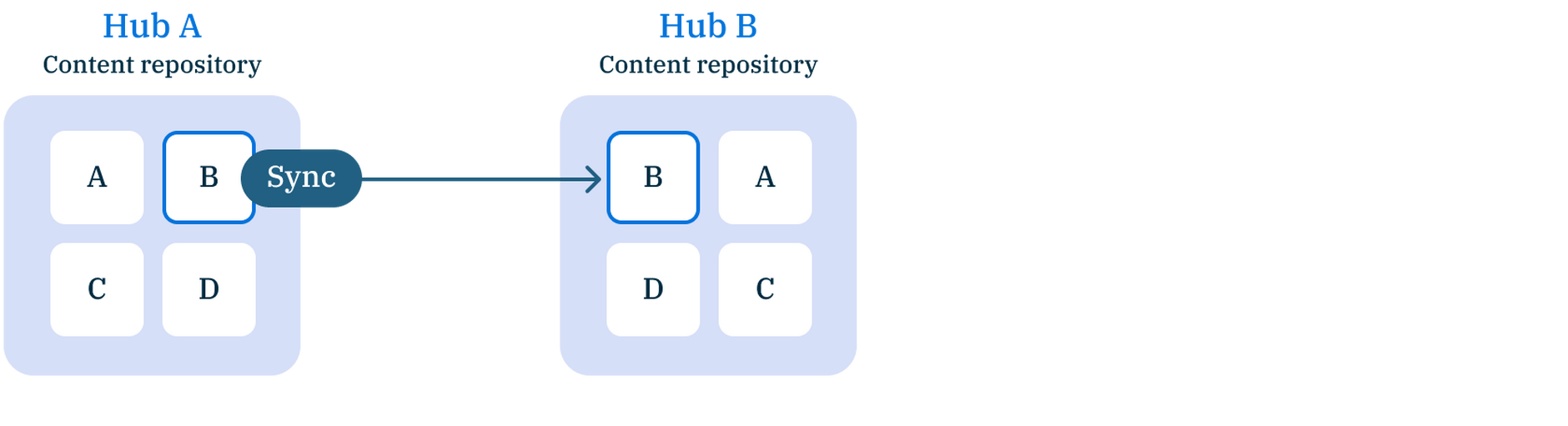
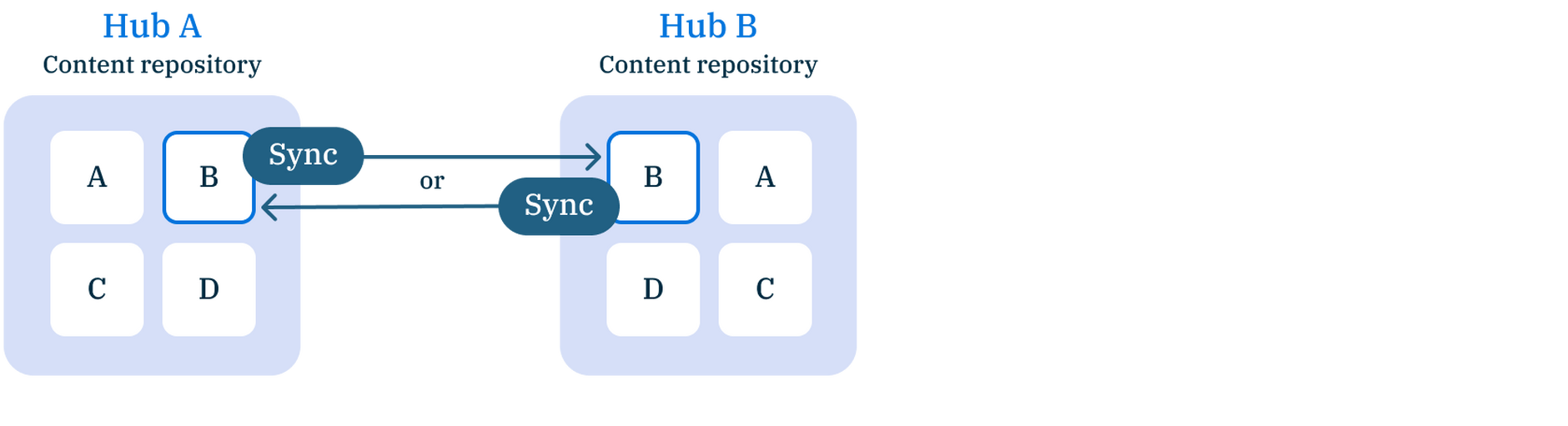
When content is synced, the direction is determined by the hub mapping, and can be either:
-
One-way – Transfers content in a single direction (for example, from Production to Test), helping protect production environments from accidental overwrites:
-
Two-way – Transfers content in both directions between a pair of hubs (for example, between Test and Staging hubs), supporting development and testing activities.
Sync settingsLink copied!
During the initial sync of content, every item in the content graph is transferred to the destination hub. For subsequent syncs, settings allow you to control aspects of the process.
For example, you can choose to sync either all content items (making the source and destination match), or only content items that have been modified in the source hub since the previous sync.
For more information, see Settings for syncing content.
Role-based permissionsLink copied!
To help prevent against accidental or unintended syncing, roles and permissions are used to control who is allowed to setup and use sync.
-
For setting up and configuring sync:
- To set up sync and configure mappings, you must have the admin role on both the source and destination hubs in each mapping.
-
For syncing content and viewing sync information:
-
To view mappings, you must have the developer role (or above) on both the source and destination hubs
-
To sync content, you must have the developer role (or above) on both the source and destination hubs
-
To list and view sync jobs, you only need the Member role on hubs
-