Setting up content sync
This guide explains how to set up Amplience content sync, including permissions and mapping configuration, ready for developers to sync content.
Note
To set up content sync you will need hub administrator permissions.
Setup considerationsLink copied!
As part of setting up sync, you should:
- Check whether sync users want the option to ignore schema validation. See Schema validation.
- Ensure sync users have the developer role (at least), on the hubs they want to sync. See Permissions.
Configuring sync mappingsLink copied!
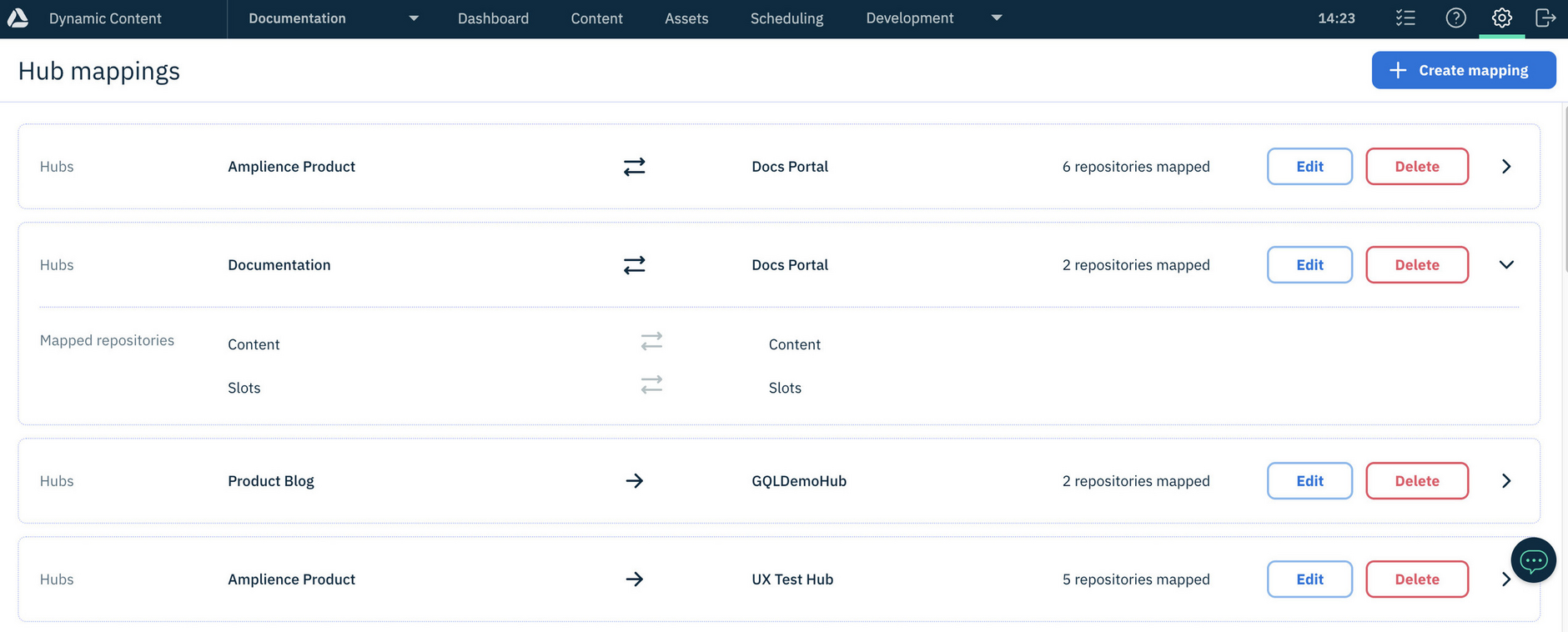
Mappings determine which repositories in one hub will sync with repositories in other hubs.
You can create and manage mappings using Amplience CMS (shown below), and also using the Content Management API.
Permissions for configuring mappings
You must have the hub admin role on both hubs in a mapping, to create, edit, and delete mappings. See permissions.
To configure mappings using Amplience CMS:
-
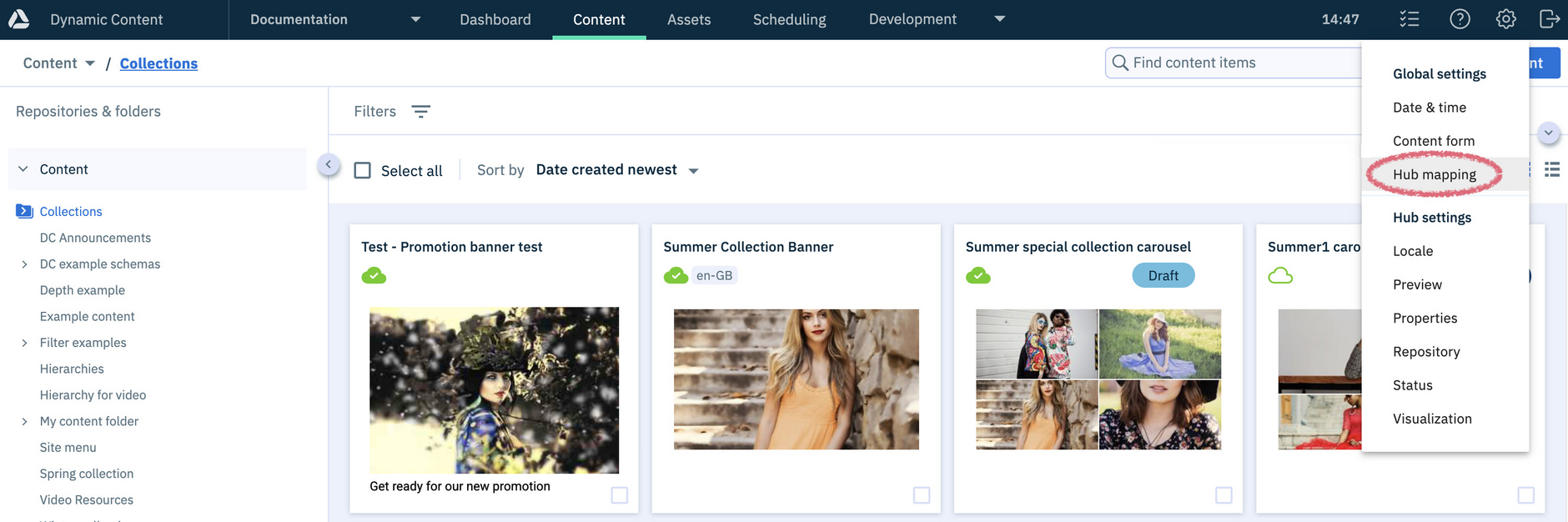
From the Amplience CMS "Settings" menu, choose "Hub mapping":
-
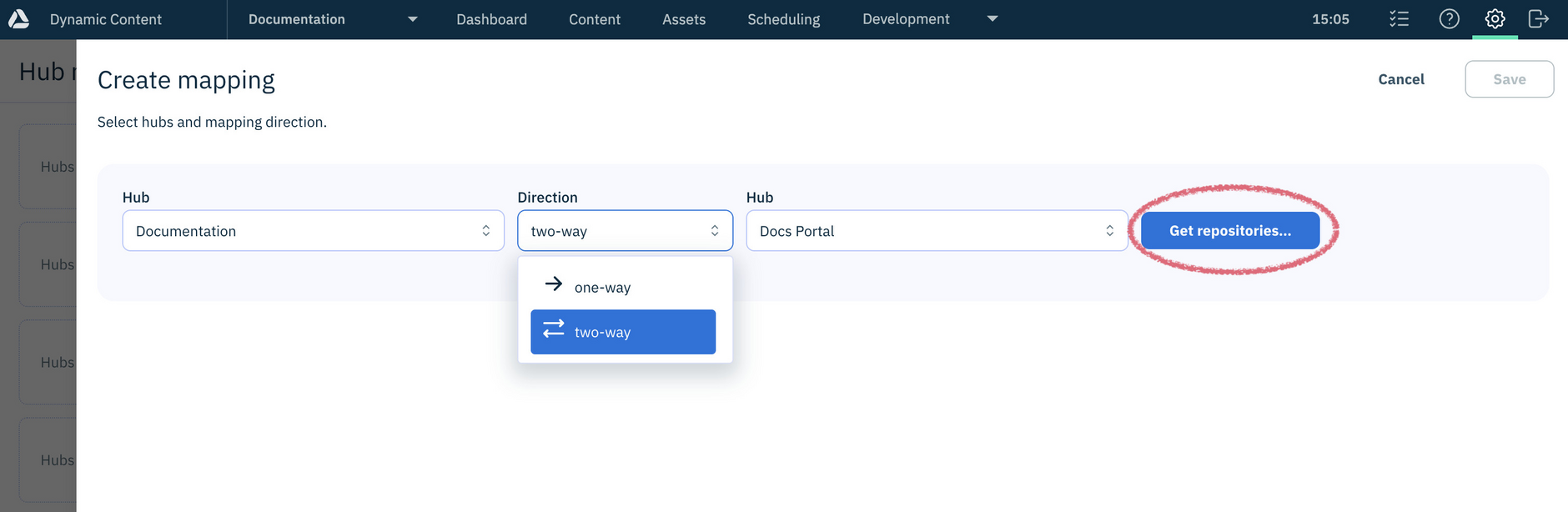
Select the hubs between which content will be synced, and the sync direction. Then click Get repositories:
If the mapped source and destination hubs use different asset stores, a warning is shown. You can proceed, but any synced content referencing media from missing asset stores cannot be published. See Mismatched asset stores.
-
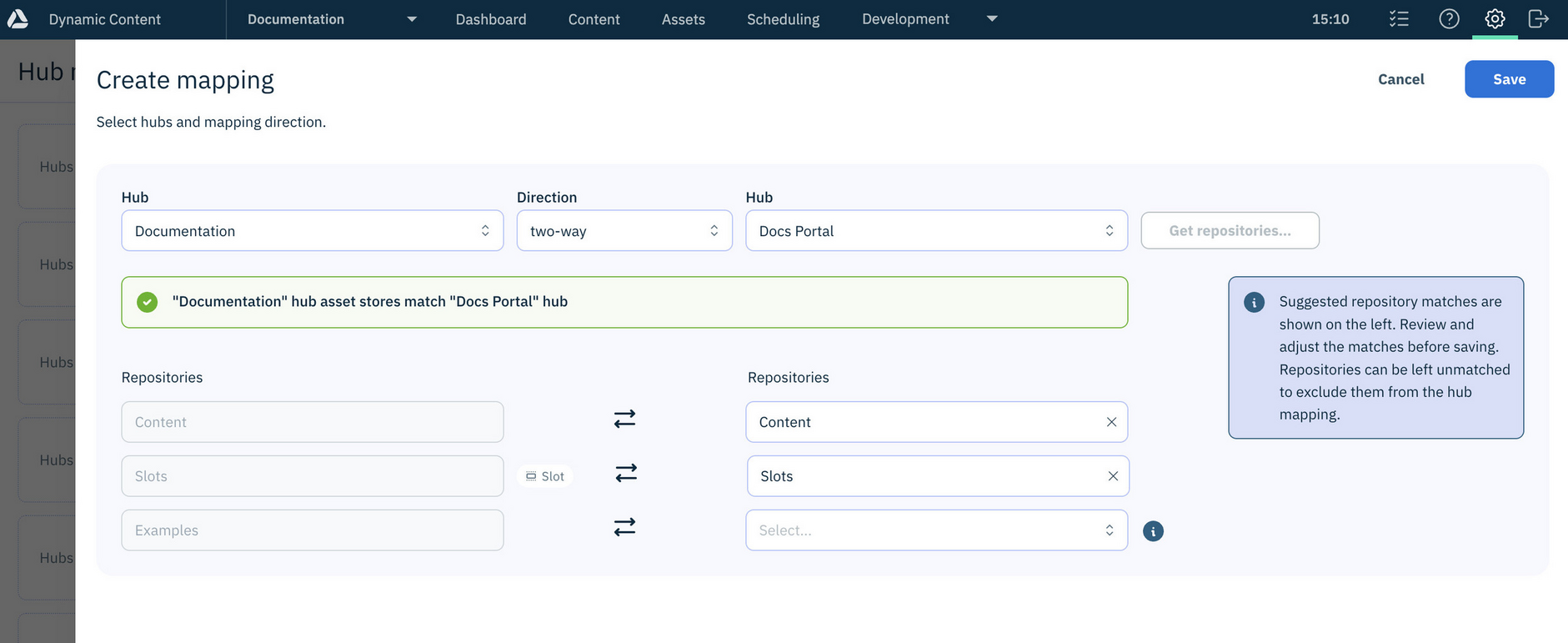
Set the required repository mappings. Note, the repository mapping direction is determined by the hub mapping.
Tip
Where possible, Amplience CMS suggests mappings based on similar repository names across hubs, but you can adjust them as needed.
Tips for mapping repositories
- You don't need to map every repository in the hub, only those that are relevant to the content being synced
- Sync automatically takes care of folder mappings for you - see How does sync work with folders?
- Repositories must be mapped to the corresponding type of repository, for example, a slot repository must be mapped to a slot repository
Asset stores and mediaLink copied!
When content is synced, media references are included, but the media files themselves are not. Therefore, to ensure referenced media is available to synced content, both the source and destination hubs need to use the same asset store.
For example, when syncing Content A (including images) from Prod Hub (Repo A) to Dev Hub (Repo A):
If both hubs are connected to the same asset store:
If the hubs are connected to different asset stores:
The asset store can be within Amplience DAM or a different asset management system, such as Bynder.
Mismatched asset storesLink copied!
When you map hubs with different asset store configurations, a warning highlights the mismatch. For each hub, the message lists the asset stores that are configured on that hub but not on the other.
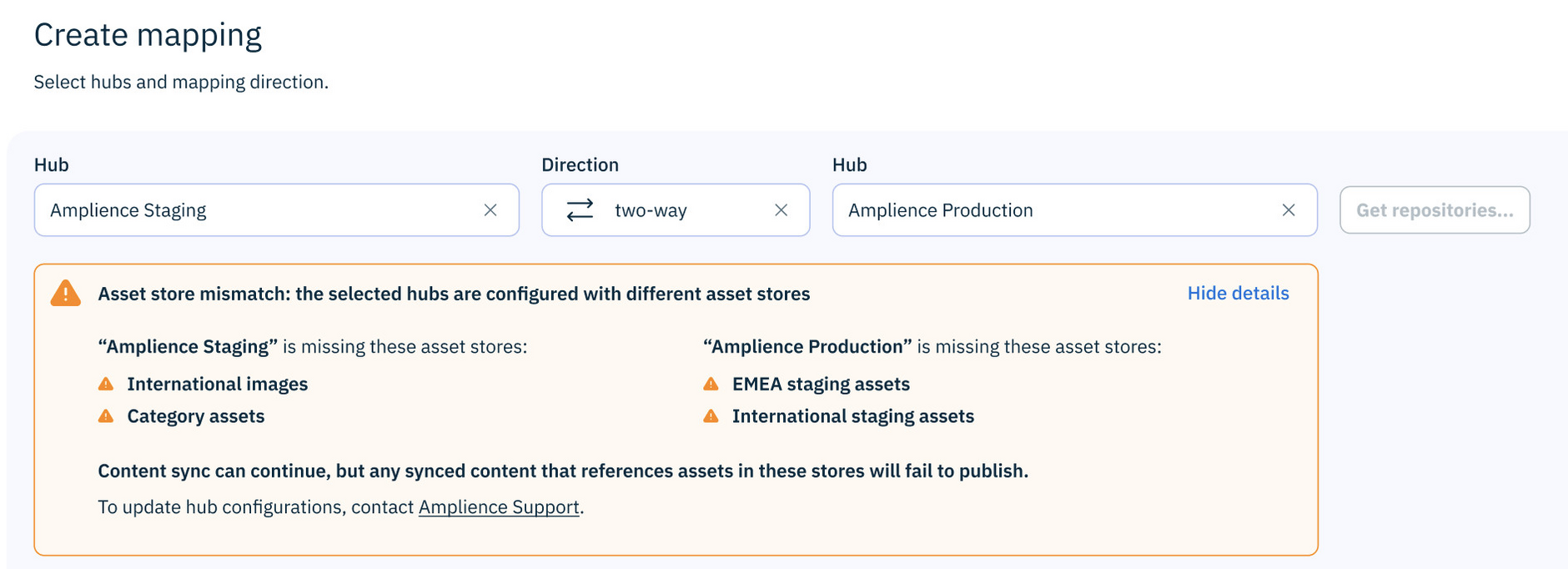
Syncing can still continue with mismatched asset stores, but any content that references media stored in a mismatched asset store will fail to publish because those assets are unavailable to the hub.
Schema validation and syncLink copied!
Schema validation helps maintain the integrity of synced content, and runs by default during syncing. It checks each content item against its associated schema and content type on the destination hub. Any content items that fail validation are not synced.
Deciding if schema validation is required...
It's recommended to use schema validation when syncing content to production hubs.
When configuring sync mappings you may need to confirm with developers which hubs require schema validation.
To ignore schema validation, an admin user must enable the Ignore schema validation property on both the source and destination hubs. See Hub properties.
Note
As a safeguard, enabling Ignore schema validation on the hubs doesn't apply it automatically - it must also be selected each time a sync starts, or schema validation will run as normal. See Starting a sync.
Updating mappingsLink copied!
You can update both the hub and repository parts of a mapping.
Before changing mappings, consider the following:
-
Updating the source hub or repository - This may cause previously synced content to be overwritten with content from the new source
-
Updating the destination hub or repository - This may create duplicate content across hubs. The updated mapping will only affect future sync jobs and will not affect content that has already been synced
Let users know if you update a destination mapping
This will help them to find where content has been synced to.