Content Revision History
Each time you create or update a content item, a new version is created. Within Amplience CMS you can view its revision history from the content form.
Viewing content revision historyLink copied!
To view content item revision history, open the content item and then click the history icon (shown below).
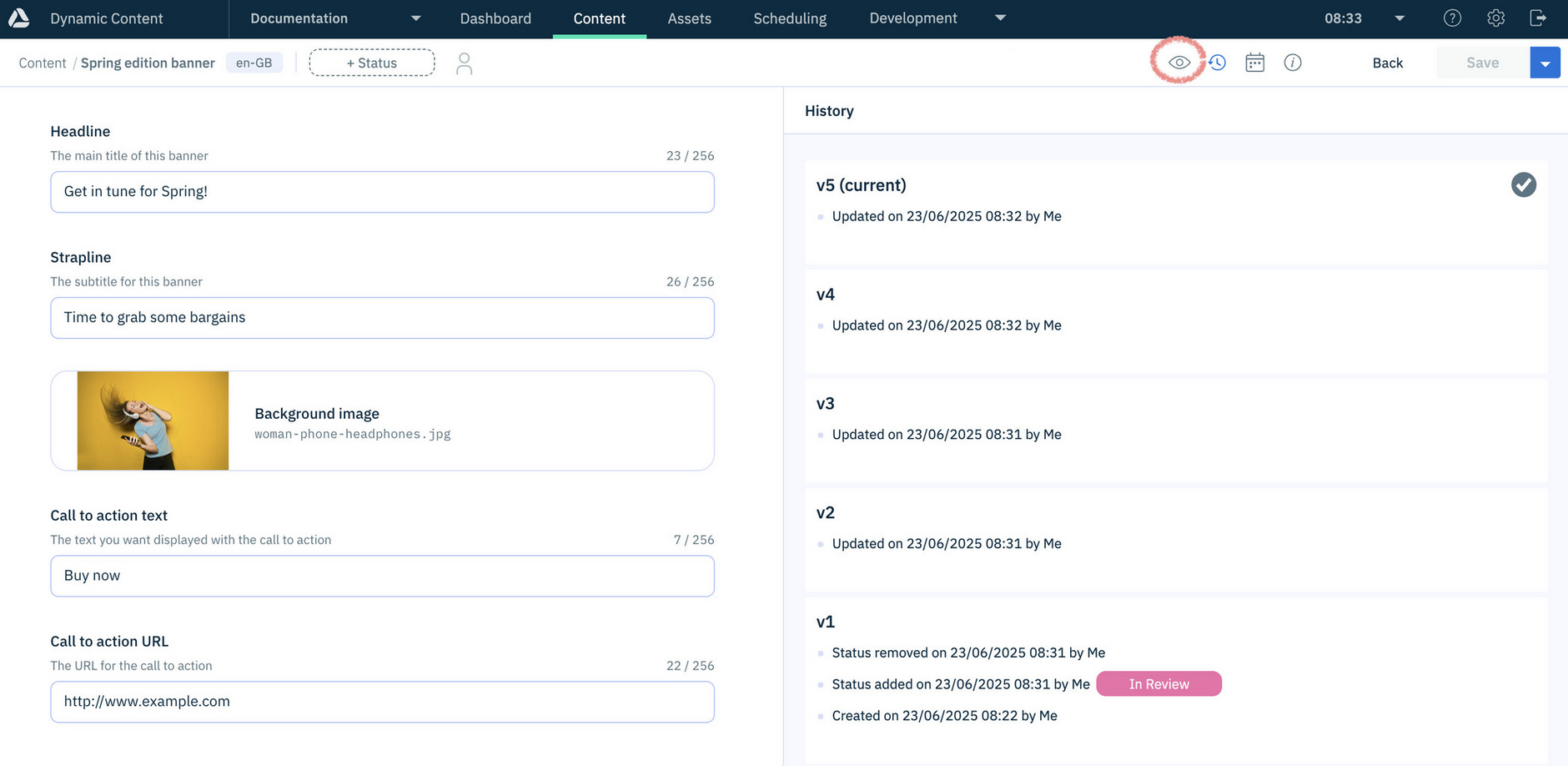
The content revision history is displayed, along with the user that made the change and the date and time that the content was updated.
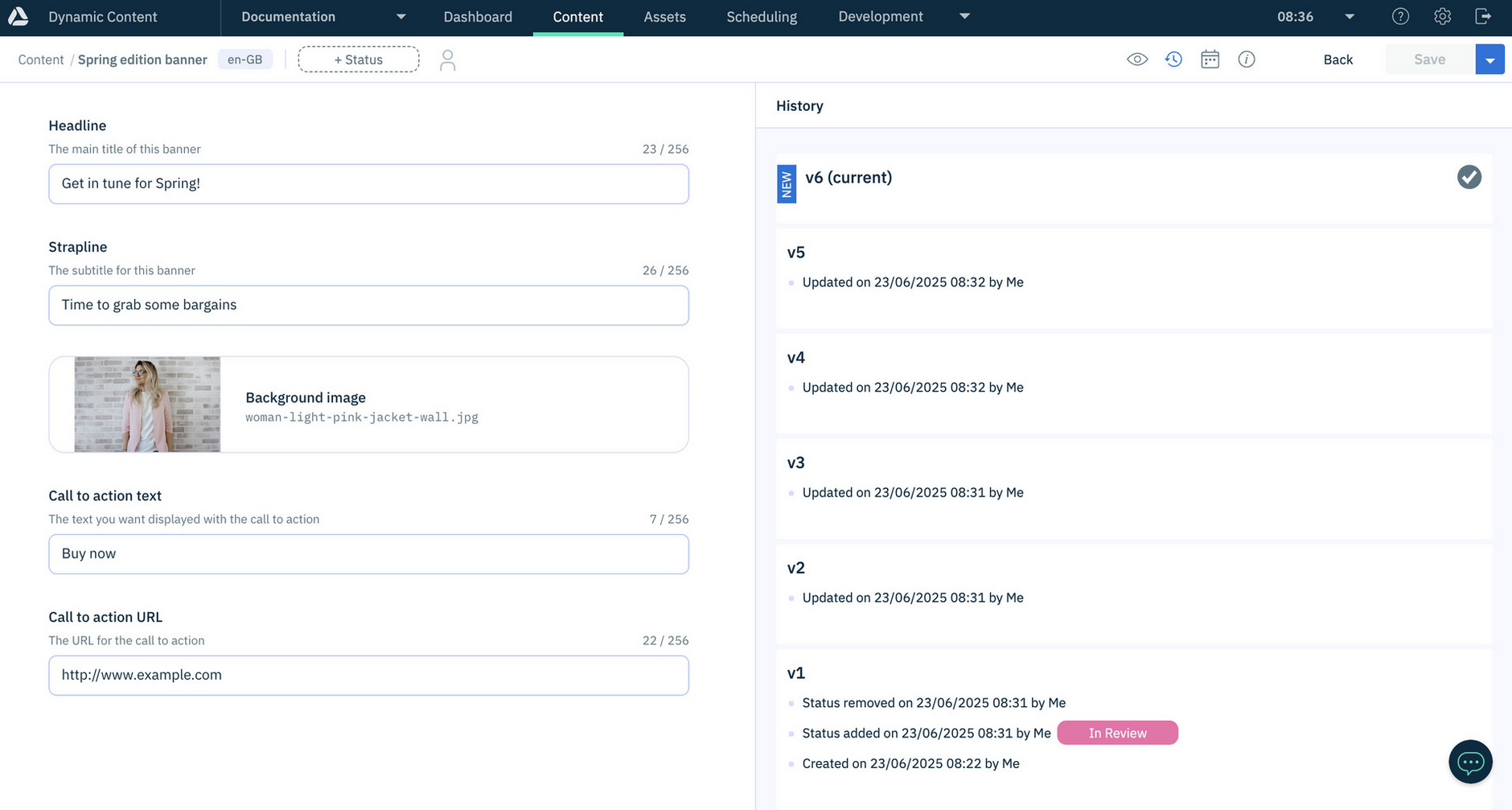
If a change is made to content in the editing form, from editing text to changing an image, a new version is created when the content is saved.
In the example below we have changed the banner's background image and version 6 of the banner is created.
Finding the latest published revisionLink copied!
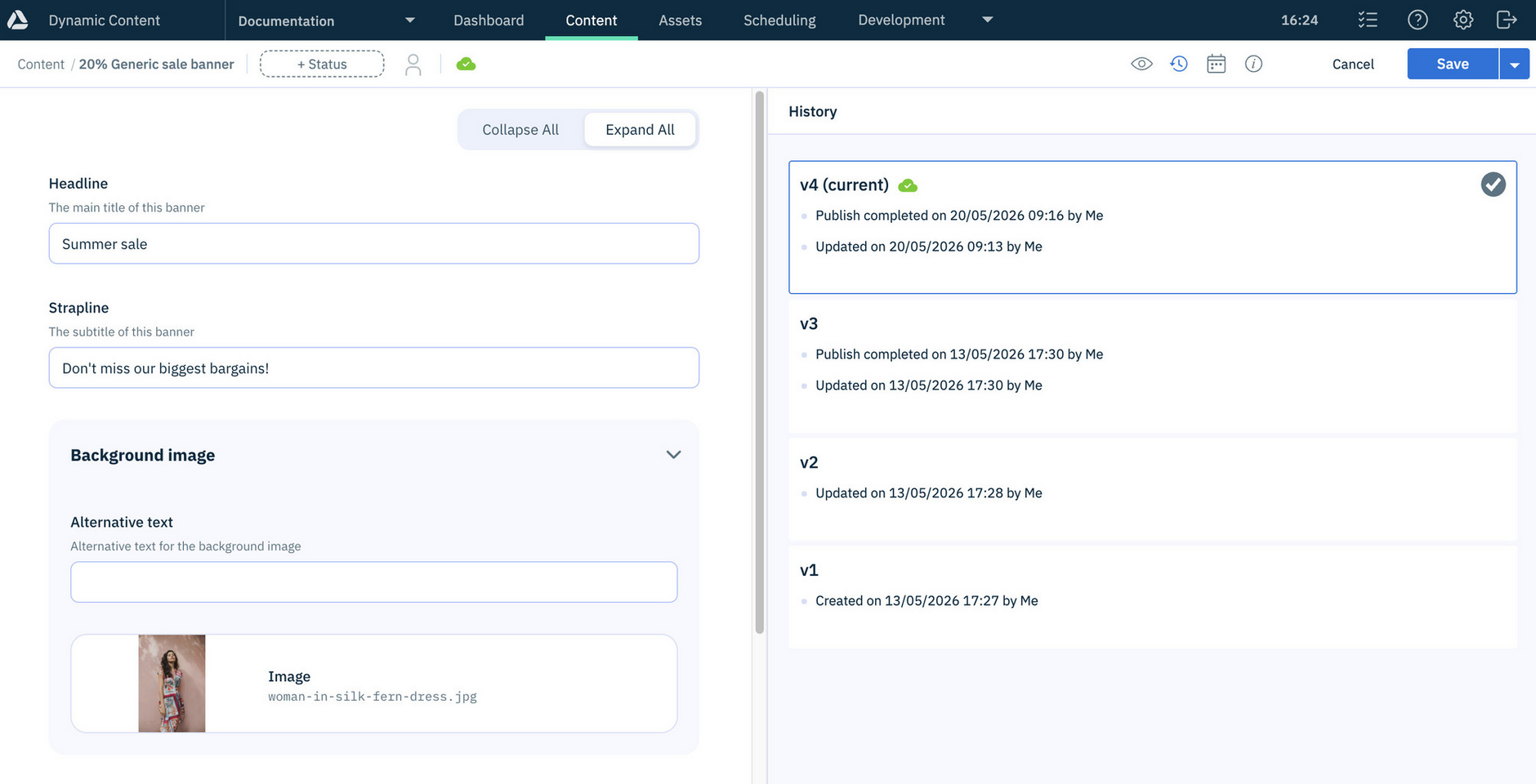
The revision history marks the most recently published version with a Publish status icon.
Here the publish status icon shows that the most recent version of the content is the published version:
Tip
To understand what each icon represents, see Publish status icons.
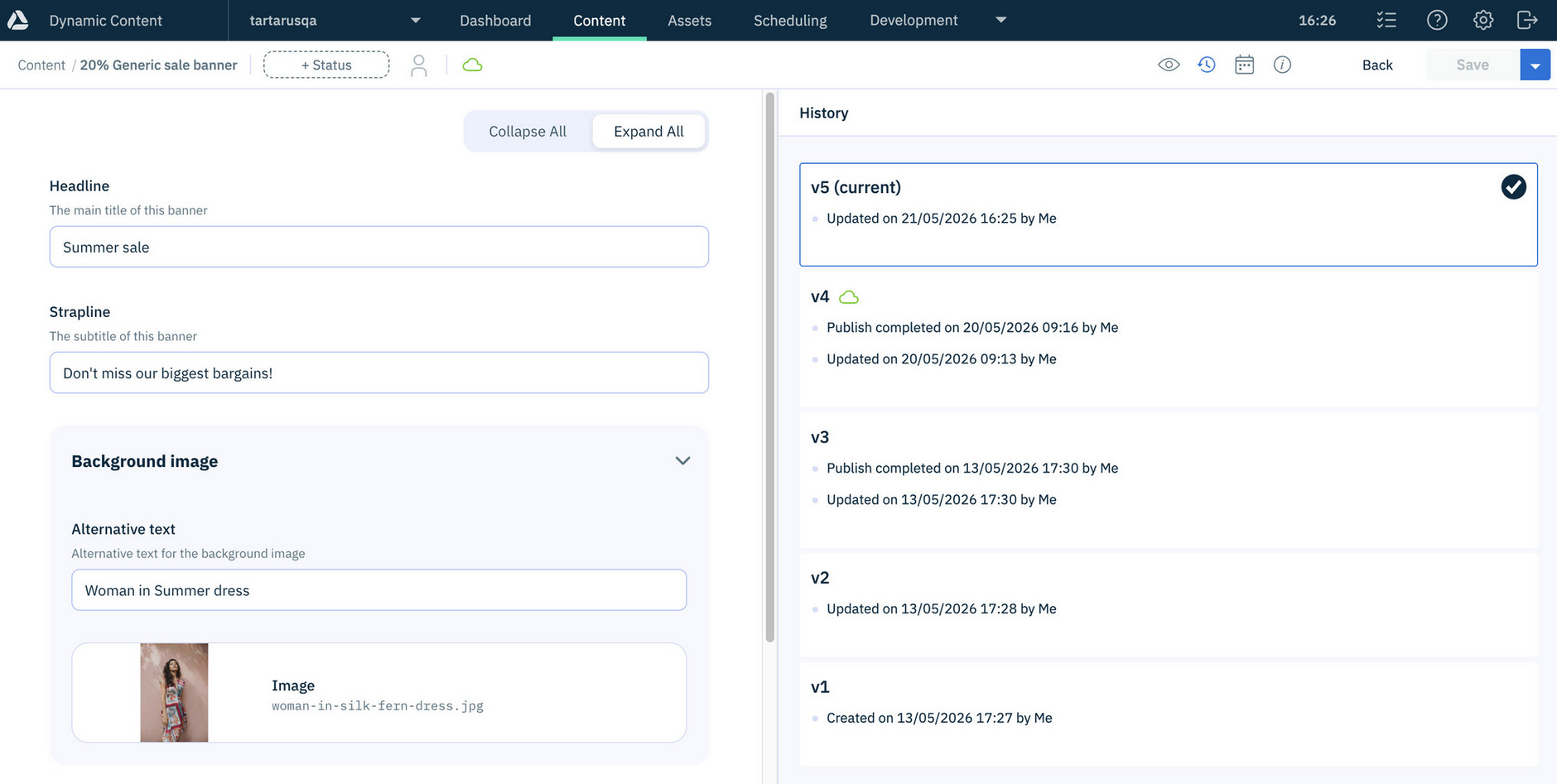
When changes are made to a published content item, the publish status icon in the revision history updates to identify that an earlier version of the content is published - not the latest version.
Tag snapshot to edition in the revision historyLink copied!
One significant user action that does not cause a new version to be generated is tagging a snapshot of a content item to an edition. However, this is recorded for auditing purposes.
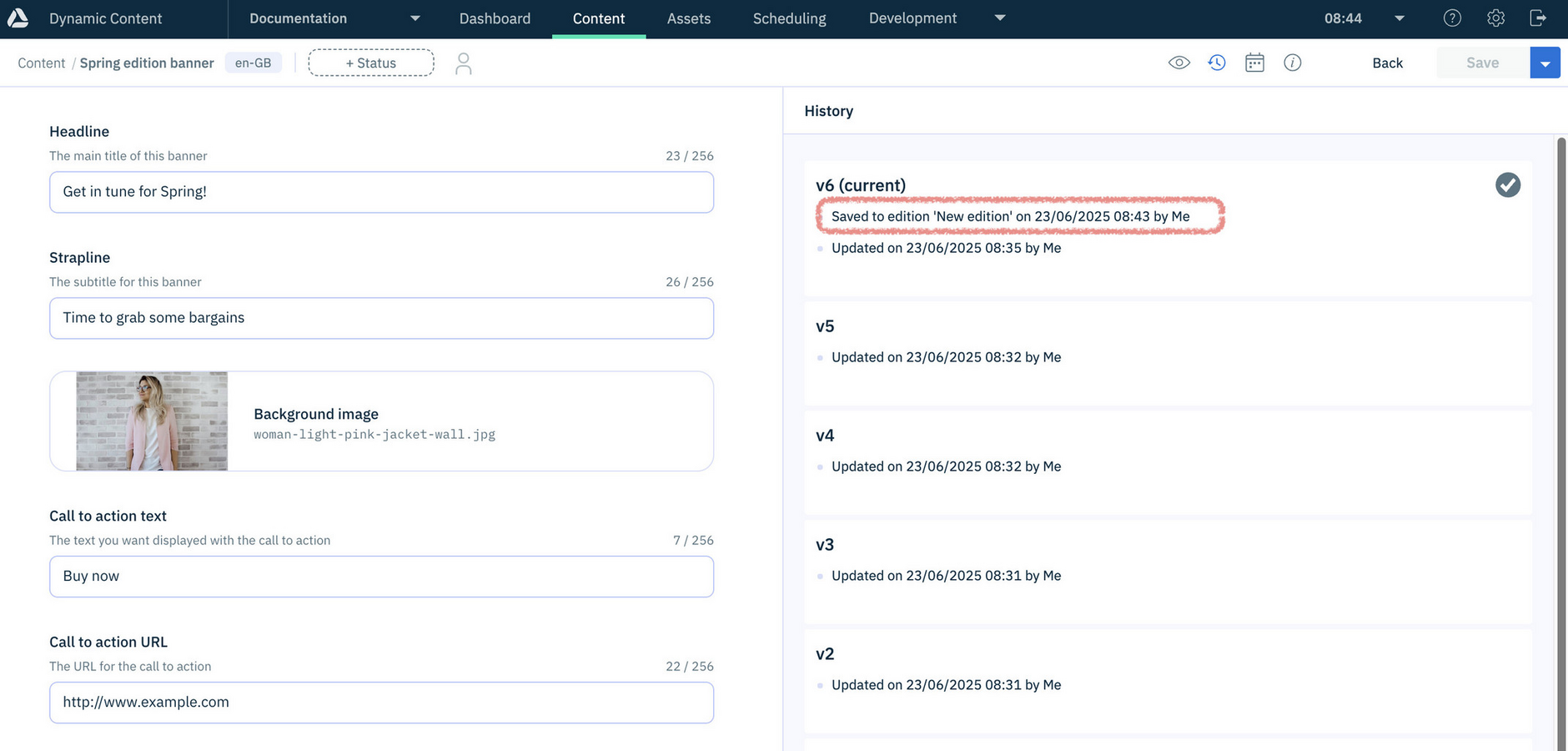
In the example below, a snapshot of v6 of the banner has been tagged to an edition at the time specified. While the current version of the banner remains the same, the modification date has been updated and saving to an edition has been included in the revision history.
See tagging a snapshot to an edition for more details.
Viewing and restoring previous revisionsLink copied!
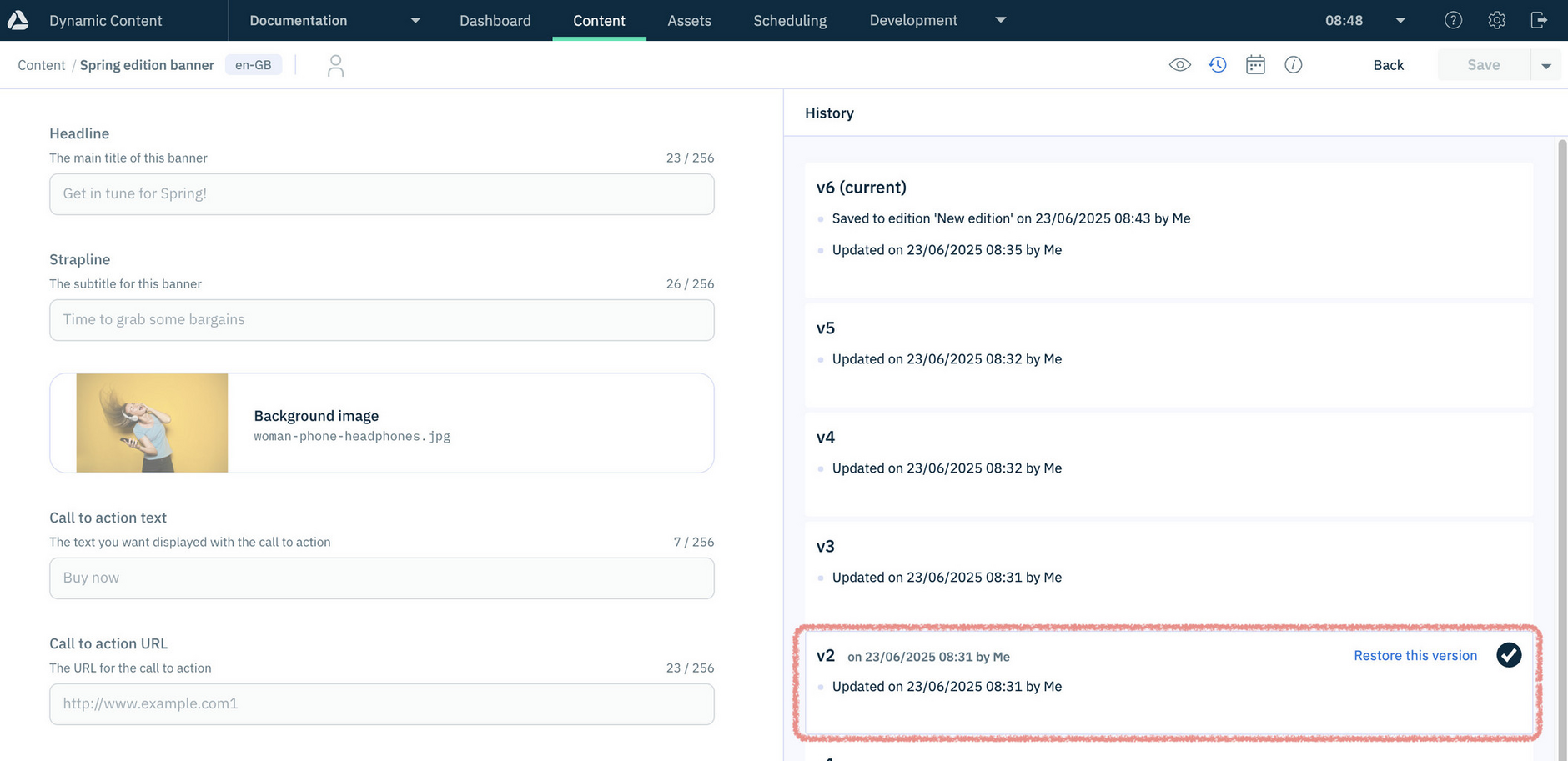
A useful feature of revision history is being able to visualize previous versions of the content. For example, if we select version 2 of the banner content, its background image will be displayed, together with the other fields of the banner as they were saved in that version.
To restore to a previous version of the content, select the version to restore and click "Restore this version".
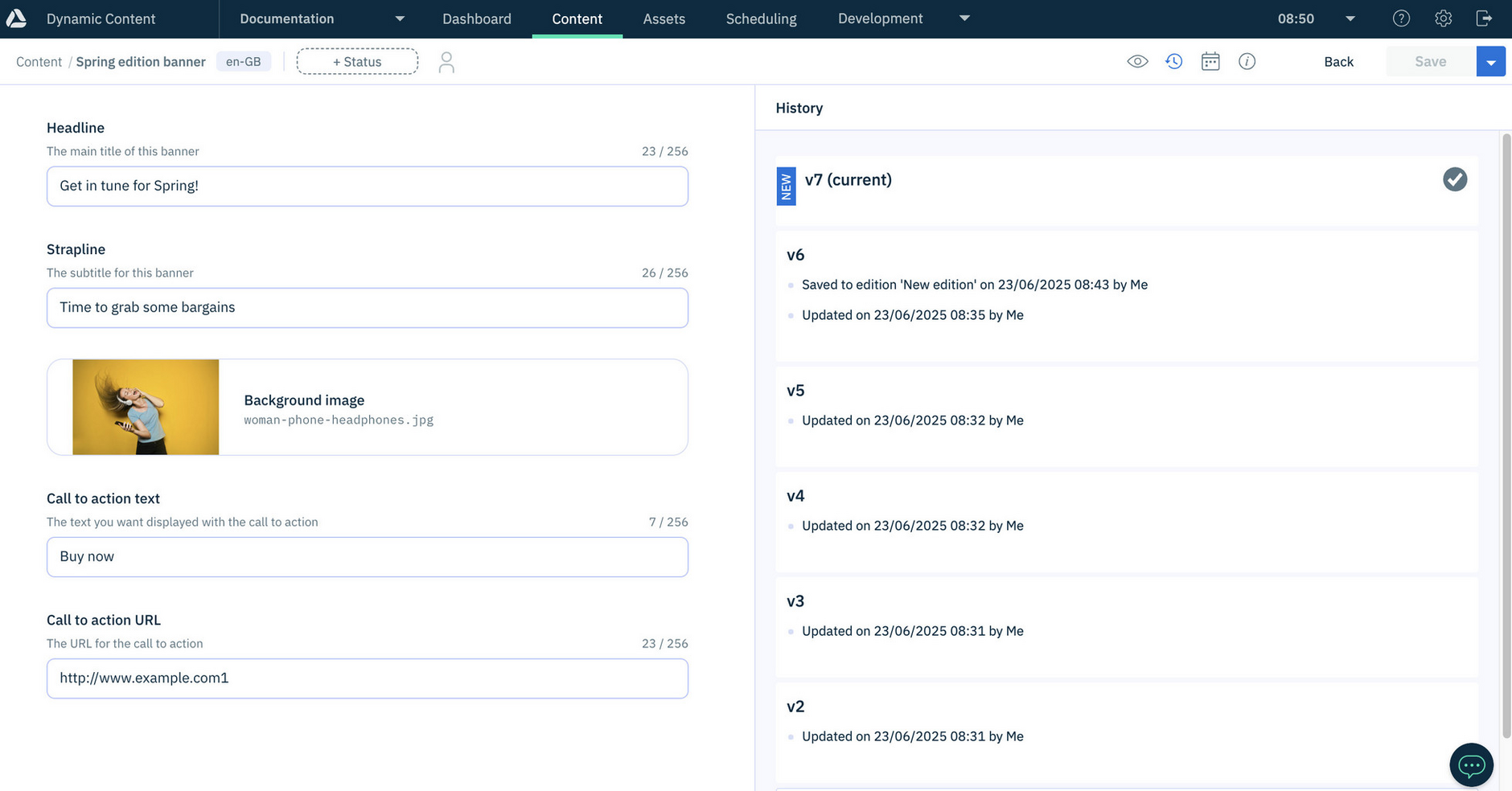
In the example below, a completely new version of the content is created and populated with all the fields stored in version 2 of the content, including the background image.
If you try to restore to a version that was created prior to the item's content type being updated to support hierarchies, you will need to convert the earlier version of the item. See Converting existing items for use with hierarchies.
Tip
The most recently published version is marked with the Publish status icon.
Revision history of linked contentLink copied!
For content items that are linked to other items, such as a carousel that contains a list of carousel slides, only changes to the carousel itself will be recorded in its revision history. If the carousel slides are updated, this would not be reflected in the carousel's revision history since the slides are entirely separate content items.
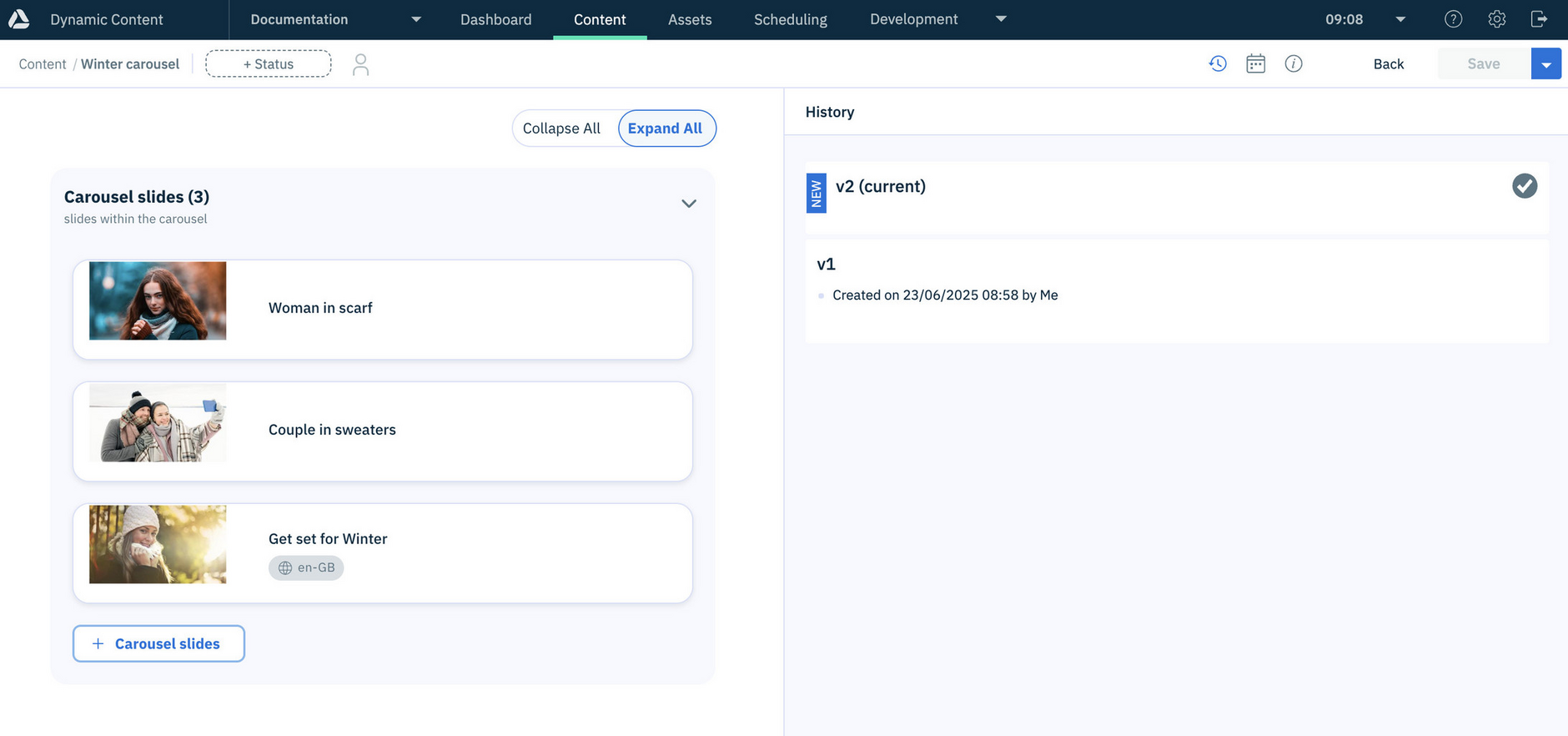
If we have a carousel and choose to delete one of the slides, as shown in the example below, then this will cause a change in the carousel's revision history, since we are changing the list of slides included in the carousel.
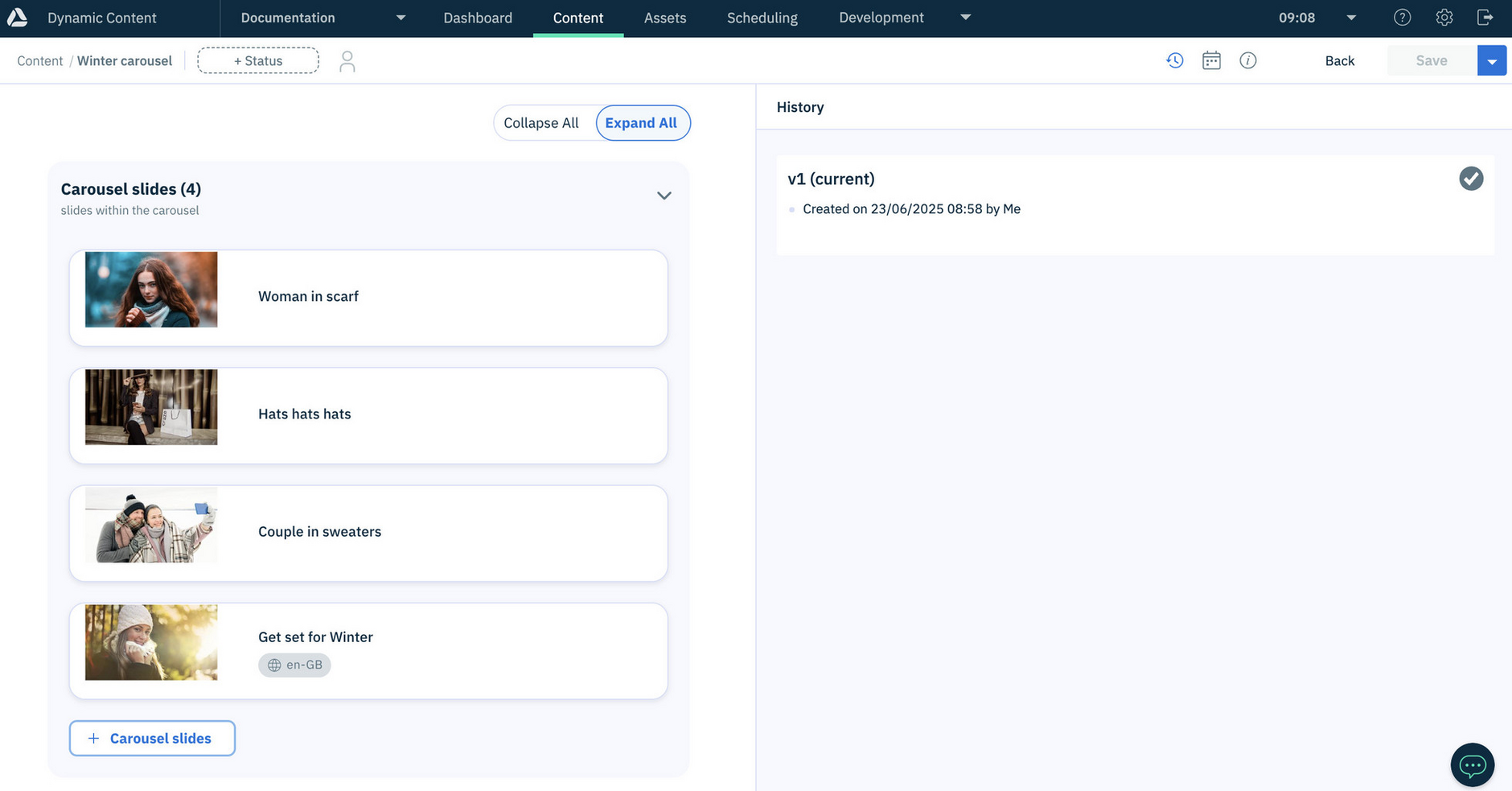
As you can see from the carousel's revision history, deleting a carousel slide has created a new version of the carousel.
However, if you were to edit any of the carousel slides and change the image that they show, this does not change the carousel itself, since it is still linked to the same carousel slides even though their content is different.