Image actions
Image actions let you prepare, analyze, and enhance images within Workforce content flows. The descriptions here outline the purpose, when to use, and the most commonly used inputs and outputs for each action.
Additional input and output variables may be available when designing flows.
Load Image from URLLink copied!
Loads an image from an external web location, by passing an image URL to the input. The output image can then be used in any of the other image actions.
Inputs: Image URL (string)
Outputs: Image
Featured in these example flows
Adjust Image SizeLink copied!
Gives the option to change the size, positioning and padding of an image.
Use - Top, Right, Bottom, Left. Each value must be present. Use digits for pixels or add % for percentages. This input can be left blank and will be treated as zero, but missing values are not permitted.
Inputs: Image, Width, Height, Position, Padding
Outputs: Image
Trim ImageLink copied!
Automatically trims an image to the non-transparent foreground.
Crops to the foreground using the alpha channel, with no padding.
To add padding and consistent sizing, use this before a resize action.
Inputs: Image
Outputs: Image
Fill BackgroundLink copied!
Replaces any transparent background with a color of your choice. If your image doesn’t have a transparent background, try using the Remove Background action first.
Inputs: Image, Background Color (rgba)
Outputs: Image
Crop ImageLink copied!
Automatically crops to the image foreground, and lets you specify values to apply consistent padding around that, and resize to a standard size while preserving the original background.
The Allow Upscaling option is useful if the original foreground object is smaller than the requested output size. It allows the action to scale the image up, rather than stopping with an error. Note that scaling up may slightly reduce image quality.
Use - Top, Right, Bottom, Left. Each value must be present. Use digits for pixels or add % for percentages. This input can be left blank and will be treated as zero, but missing values are not permitted.
Inputs: Image, Width, Height, Padding, Object Position, Upscale
Outputs: Image
Featured in these example flows
Normalize BackgroundLink copied!
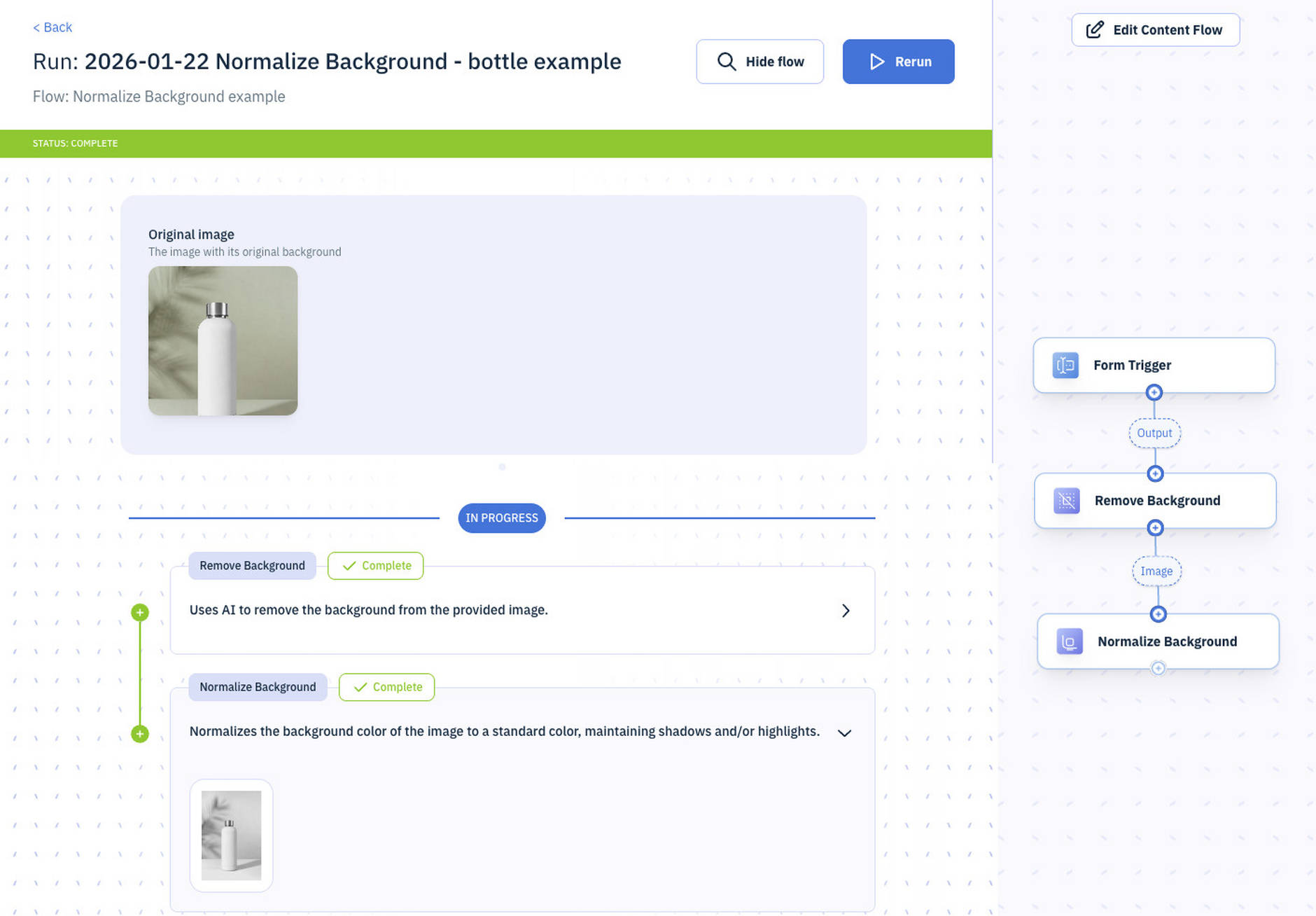
Changes the background color of the image, while maintaining shadows and highlights, to make background color more consistent or realistic.
Inputs:
-
Image - The original image
-
Foreground (image) - A version of the original image with the background removed (for example, by using Remove Background)
-
Background Color (string, required). This is the color that should be applied (in RGBA format)
Outputs: Image with normalized background
Example
Here's Normalize Background in use. A Form trigger allows the user to upload the original image, then the background is removed ready for normalization.
Featured in these example flows
Remove BackgroundLink copied!
Uses AI to remove the background of your image.
Inputs: Image
Outputs: Image
Modify TagsLink copied!
Add or remove tags from an image.
Inputs: Image
Outputs: Image (with array of tags)
Auto Detect TagsLink copied!
Analyses your image and automatically applies tags based on natural-language rules.
Inputs:
-
Model - Choose a model with with image analysis capabilities
-
Tags (array of tags and tag descriptions) - Add your custom tags together with a natural language description of what the LLM should look for when analyzing the image. If the LLM finds a match for the description, the tag name will be added to the tags array. Multiple tags can be added at a time.
-
Input Image
Outputs: Image (with array of tags)
Featured in these example flows
Extract SwatchLink copied!
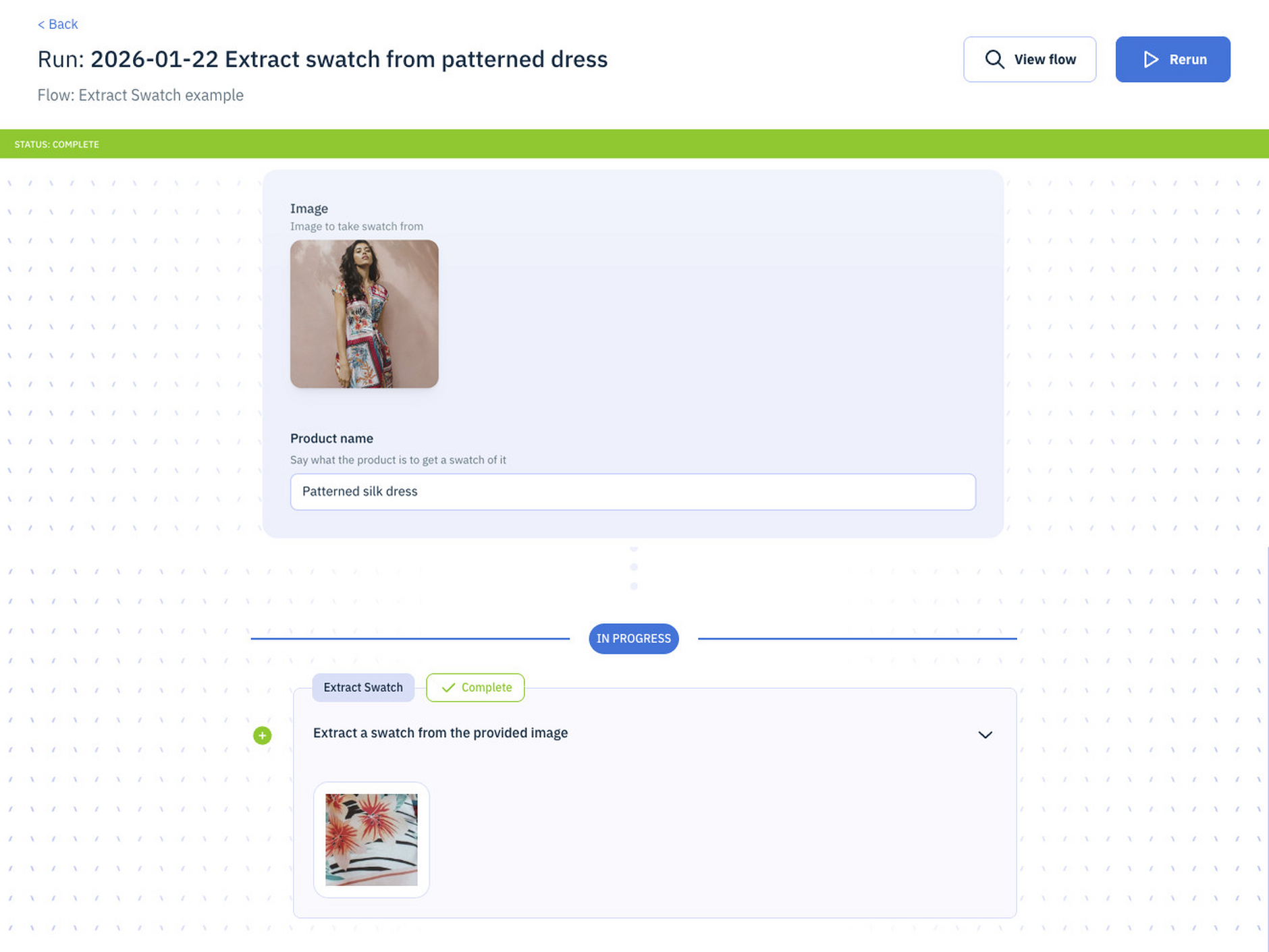
Extracts a color swatch from an image using AI to identify the most representative color area of a product.
The swatch can be focused on a specific product or be taken from the center of the image.
Inputs:
- Model - Use a model with image analysis capabilities.
- Image - The image to extract the swatch from.
- Size - The width and height of the swatch (in pixels). Default size is 64 pixels. Swatches are always square.
- Product (optional) - The name or description of the product in the image to focus on when extracting the swatch. If not provided, the action is prompted to find the most obvious product within the image and to extract a swatch from that.
Outputs: Color swatch as a square image at the specified size
Also outputs variables for:
- Bounds - Bounding box coordinates showing where the swatch was extracted from
- Dominant colors - RGBA format (Example: rgba(255, 128, 64, 1.1)) and HEX format (Example: #FF8040)
Note, if the generated swatch is close to the edge of the image, a closest match is generated.
Featured in these example flows
Example:
Here's Extract Swatch in use. The input form allows an image and product name to guide the swatch output.