Content flow actions
Actions are the building blocks of content flows. They represent the tasks a flow can perform, such as starting a run, or sending, receiving, and transforming data.
You can use built in actions provided by Amplience, or create your own using extensions.
Built in actionsLink copied!
The Workforce built in actions are grouped into categories:
AgentsLink copied!
Agents are AI-powered actions that perform complex tasks within a flow, such as making decisions, researching information, applying brand rules, or translating content. Each agent is designed for a specific purpose and can be added to flows as a ready-made, configurable action.
For examples of agents in flows, see:
Learn more about the available Agents.
Content Generation actionsLink copied!
Content generation actions create text-based content as part of a flow using predefined templates. They let you generate content such as blogs and product descriptions, for producing consistent content quickly within automated flows.
For examples of content generation actions in flows, see:
- Build a flow in 5 minutes
- Automatic alt text example
- Localized product descriptions example
- Using the Research agent example
Explore the Content Generation actions.
Review and moderationLink copied!
Review and moderation actions add a human review step to a flow. They allow people to review, edit, approve, or reject content before the flow continues, helping you maintain quality and control where it matters most.
For examples of review and moderation actions in flows, see:
Explore the Review and Moderation actions.
Image actionsLink copied!
Image actions let you analyze, transform, and enhance images as part of a flow. They cover tasks such as resizing, background removal, normalization, tagging, and extracting color swatches, making them useful for preparing images for both human and automated use.
For examples of image actions in flows, see:
- Automatic alt text example
- Product image standardization example
- Image tagging and Content Hub upload
- Extract swatch example
Explore the Image actions.
Flow controlLink copied!
Flow control actions manage how a flow runs. They let you branch, loop, and handle errors so you can build more flexible, resilient flows that adapt to different conditions and inputs.
Explore the Flow control actions.
Helper actionsLink copied!
Helper actions are lightweight actions used for connecting, transforming data or logic that helps connect the bigger actions together. For instance, you can use a helper to convert JSON to a String.
For examples of helper actions in flows, see:
- Automatic alt text example which uses the Get Values from JSON helper
- Webhook trigger example- JIRA which uses the Convert to JSON string helper to convert a webhook payload to a JSON string
- Image tagging and Content Hub upload which uses the Split file name helper
Output actionsLink copied!
Output actions generate an output in the format defined by the action, such as a message or file export. For example, you might use an output action to display a message midway through a flow for testing, or to export data (for example, as a CSV file).
The out port exists only to allow the flow to continue., it cannot pass the generated output to subsequent actions.
See output actions in use in these example flows:
- Build a flow in 5 minutes which uses a Chat output action
- Webhook trigger example- JIRA which uses a Chat output action
- Localized product descriptions example which uses the CSV output action
Integration actionsLink copied!
Integration actions allow you to integrate Workforce with other parts of the Amplience platform, or third party products. Some actions, such as those for working with Content Hub assets, may be available on your hub by default, while others will need to be installed.
Actions are available to integrate with commerce platforms including Salesforce B2C Commerce and Commercetools. You can also search your own data using the action to integrate with Amazon Q Business.
You can use extensions to create your own custom Workforce actions, and these will be shown with the integration actions.
For examples of integration actions in flows, see:
Adding actions to flowsLink copied!
You build a flow by adding and connecting actions within the Flow Designer, which includes:
- Action library (1) - Lists the available actions you can add to the current flow
- Flow editor (2) - Where actions are ordered and connected to define the flow
- Action configuration panel (3) - Where you configure the selected action
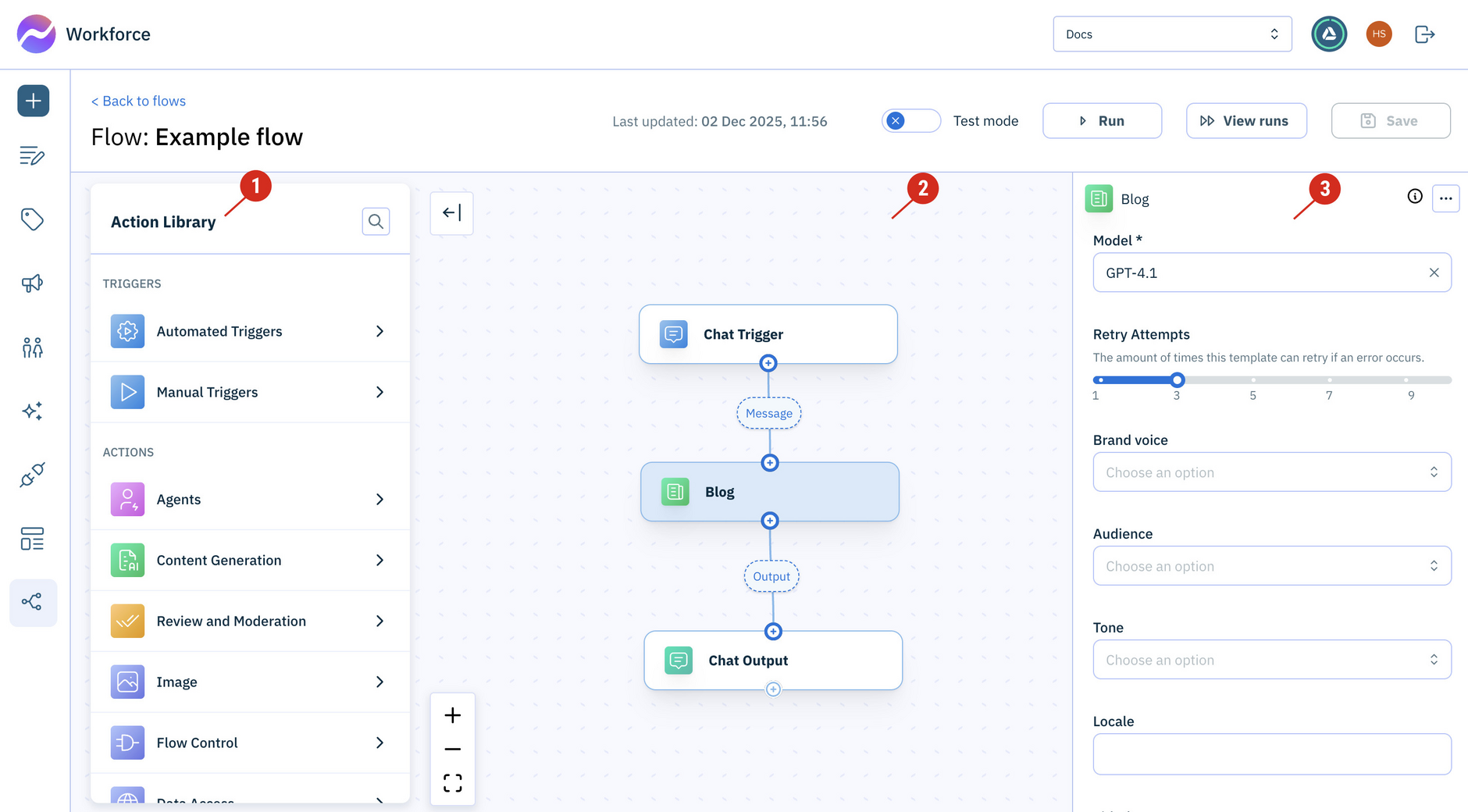
The Action library shows built in actions, along with any actions that you've created yourself. Learn about Creating your own actions.
When building a flow, think about what you're trying to achieve:
- What triggers the flow - a manual user action, or an automated event outside of the flow?
- What actions it performs - use built in actions to get started quickly or create your own
- What inputs and outputs need to be passed between the different stages or actions
See the Build your first flow example.
Inputs, outputs and portsLink copied!
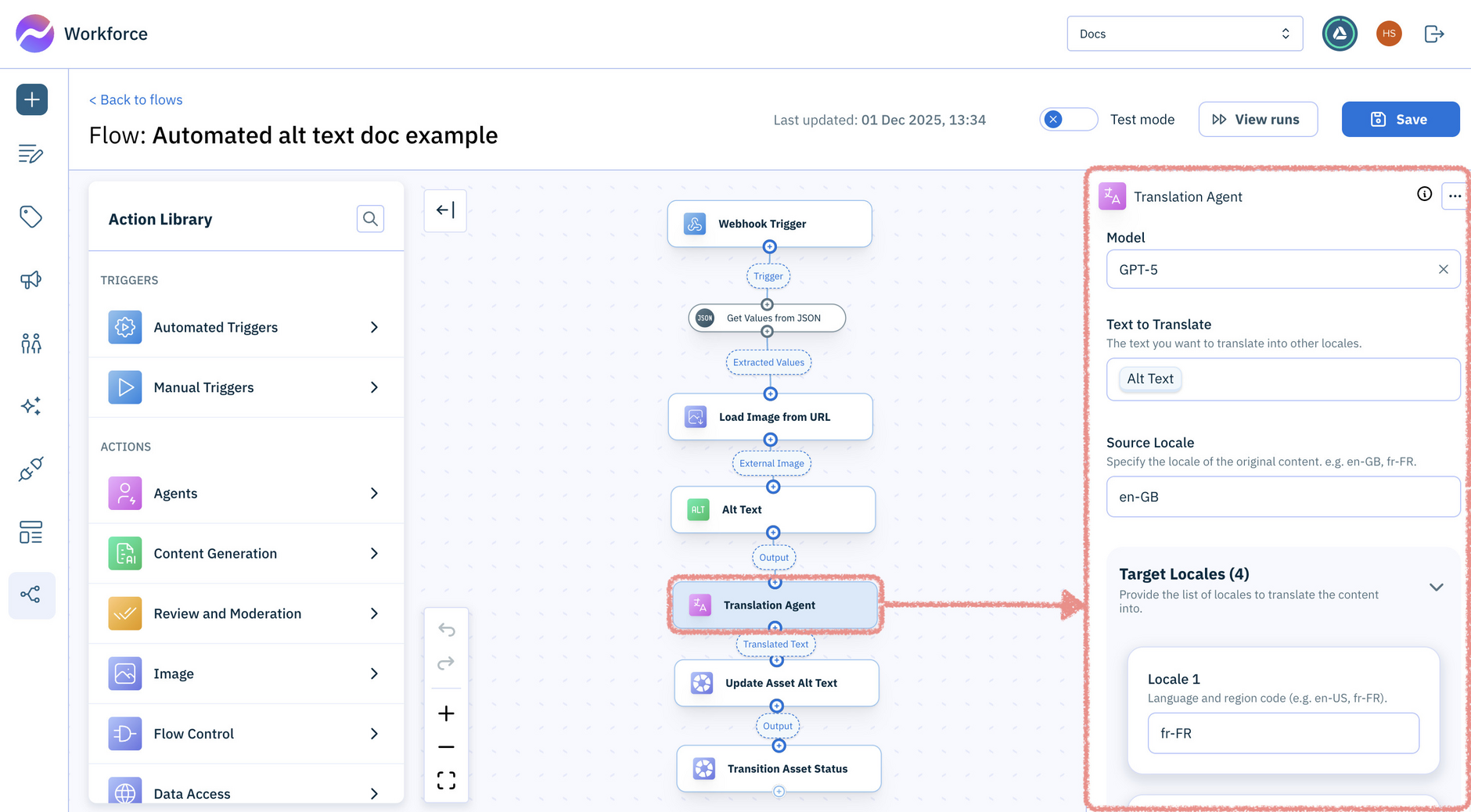
Actions receive inputs and produce outputs using ports. To build a flow, you connect the output port of one action to the input port of the next action in the flow.
When you add an action to a flow and connect it, its input fields are displayed in the Action configuration panel (highlighted below). These fields define how the action behaves. In the example below, the input fields for the selected action are shown.
Input field variablesLink copied!
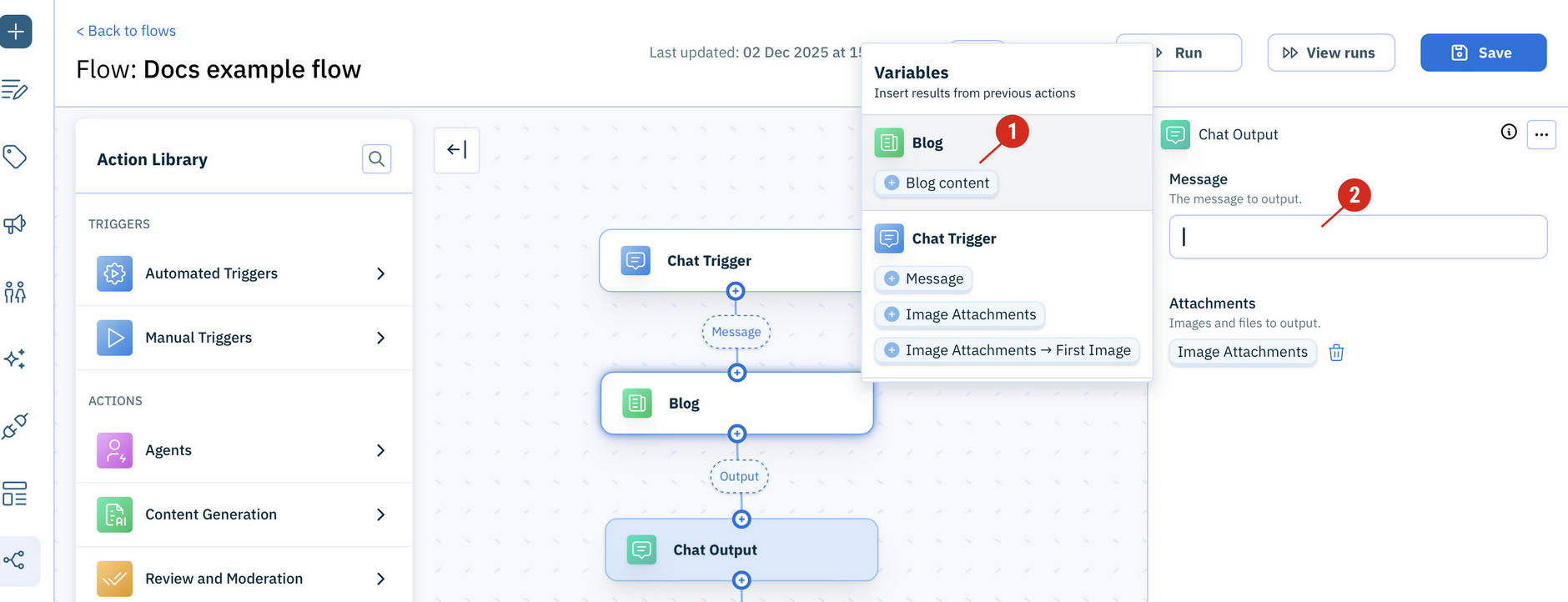
You can enter values for input fields directly, or select values from the variables picker, which shows outputs from earlier actions in the flow. Click on a variable in the variable picker to add it to the inputs of the action you're configuring. In the example flow below, we're setting the Message field of the Chat output action to the Blog content output by the Blog action.
Each port has a name and a schema, which describes the shape of the message that port will accept or produce. Each action has an input and output schema which you define when creating your own extension.
Ports can be created in the workflow editor based on the action configuration. For example, the configuration for the Decision agent action allows you to define how many branches the if statement has, so you can define multiple paths for the flow.