Content form width option
Release date: 8th April 2026
You can now choose how wide your content form appears in Dynamic Content.
A new setting allows you to switch between a default, centered layout and the new full-width layout that expands to fill your screen. This improves visibility and editing, especially for complex content and large menus.
Setting the default content form widthLink copied!
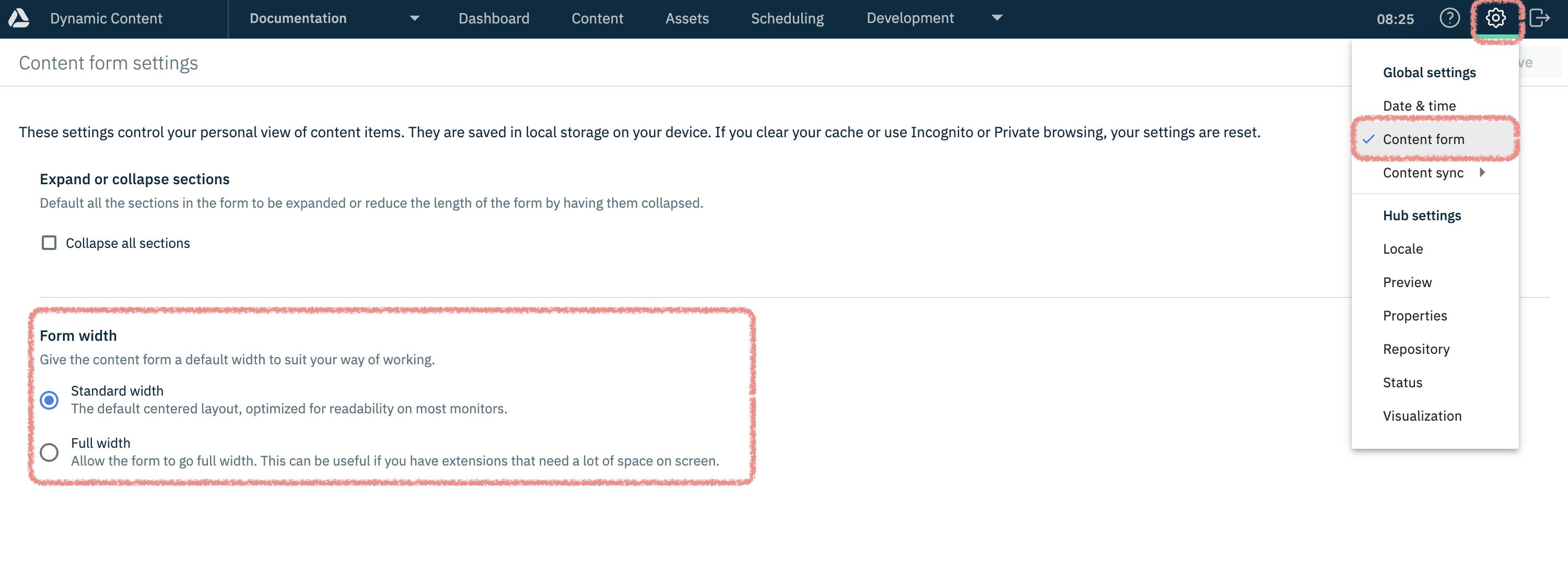
To set the default form width in Dynamic Content, go to Settings > Content form.
Note
This setting applies to your personal view and is saved locally on your device. It won’t persist in incognito/private mode or if you manually clear local storage.
Use Form width to control the default width of the content form as you author content.
Selecting Full width expands the form to use all available screen space on different sized screens. This makes it easier to work with deeply nested content and complex menus where more on-screen detail is needed.
Tip
This setting is applied consistently across content forms, the schema editor, and scheduling views.
New: interactive documentationLink copied!
We’ve recently enhanced our documentation with interactive schema examples, making it easier to explore and understand how different schema options work. These additions also help users visualize how their authoring forms can be optimized and identify opportunities for improvement.
Interactive pages are clearly labeled, making them easy to identify as you explore the documentation.
For example, here's how interactive schemas are shown in the documentation:
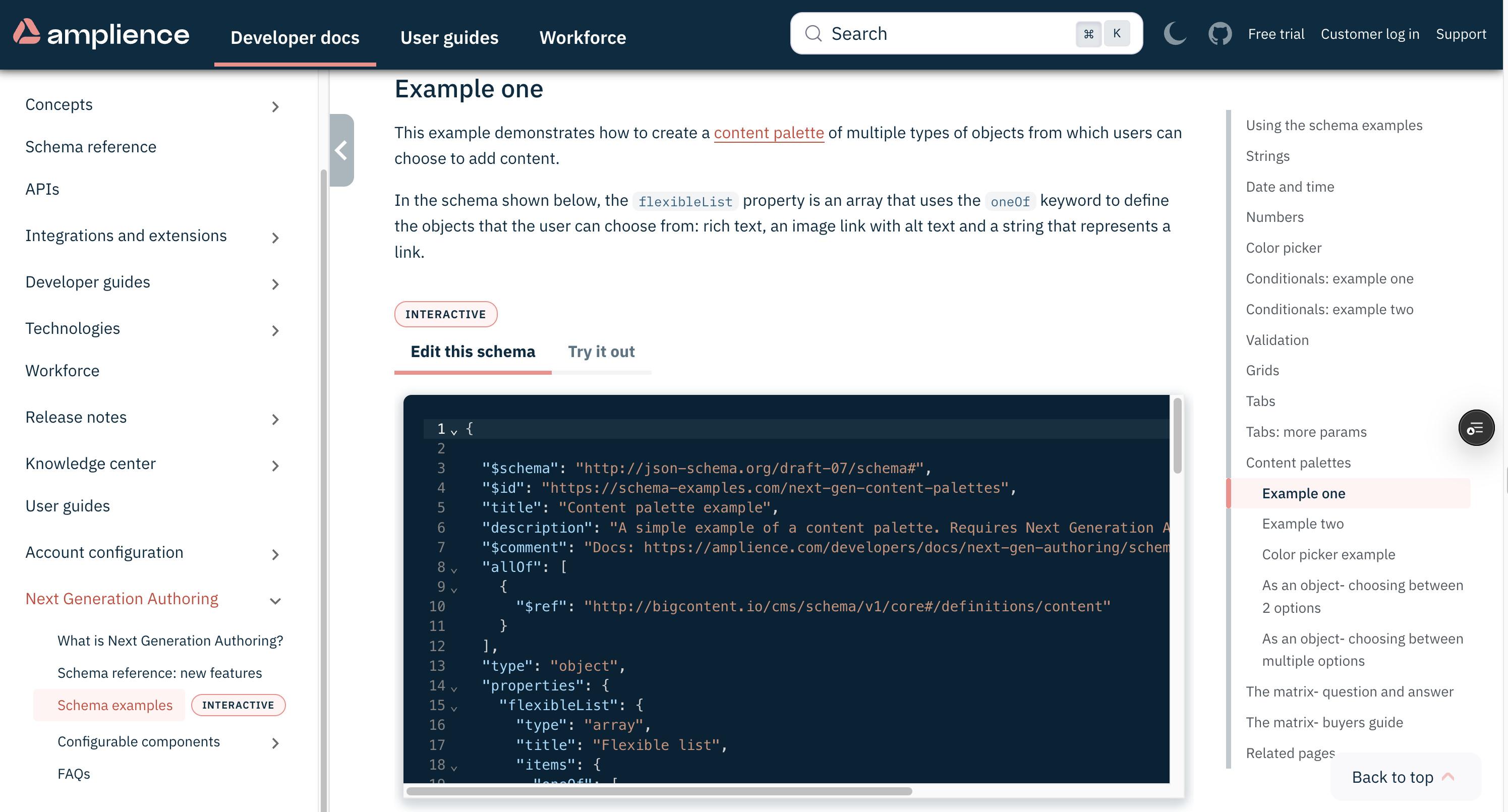
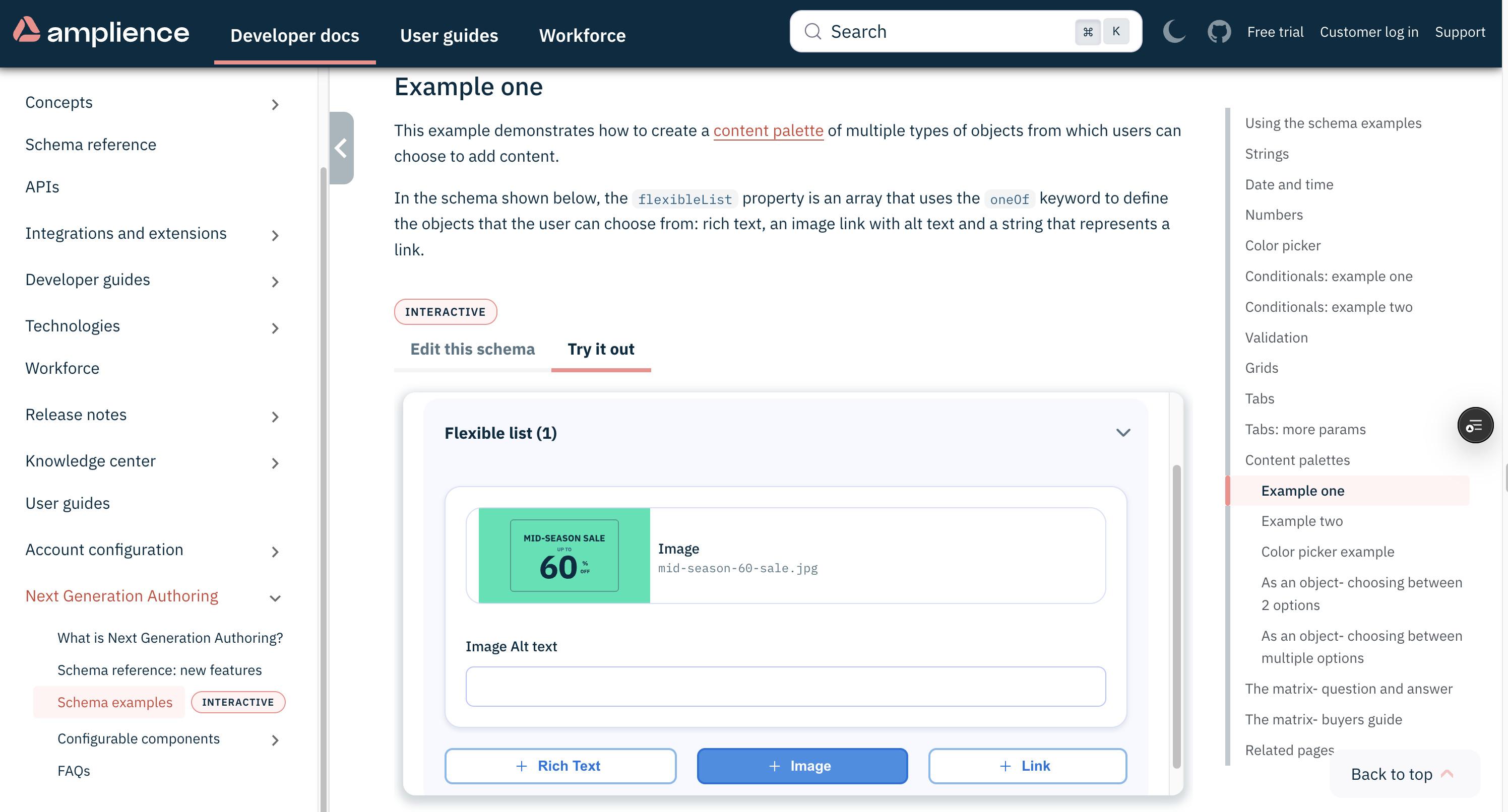
You can edit the interactive schemas and switch to the Try it out tab with its interactive fields:
To try our interactive documentation, take a look at some of our Schema examples.