Getting started with Image Studio
Image Studio (Labs preview) lets you edit images so they match your content needs. Image Studio is designed to be simple to use as part of your content production workflow.
With Image Studio, you can:
- Modify existing images
- Create new images using generative AI
- Speed up your authoring workflow by updating images directly from Amplience CMS
Accessing Image Studio
Image Studio must be enabled on your account before you can access it. See Getting Image Studio.
Launching Image StudioLink copied!
Image Studio is launched from Amplience CMS ss part of your content production workflow. See Editing images in your workflow.
Opening imagesLink copied!
To help you keep track of the original image that you opened for editing, a thumbnail of it is displayed in the top left corner of the studio window.
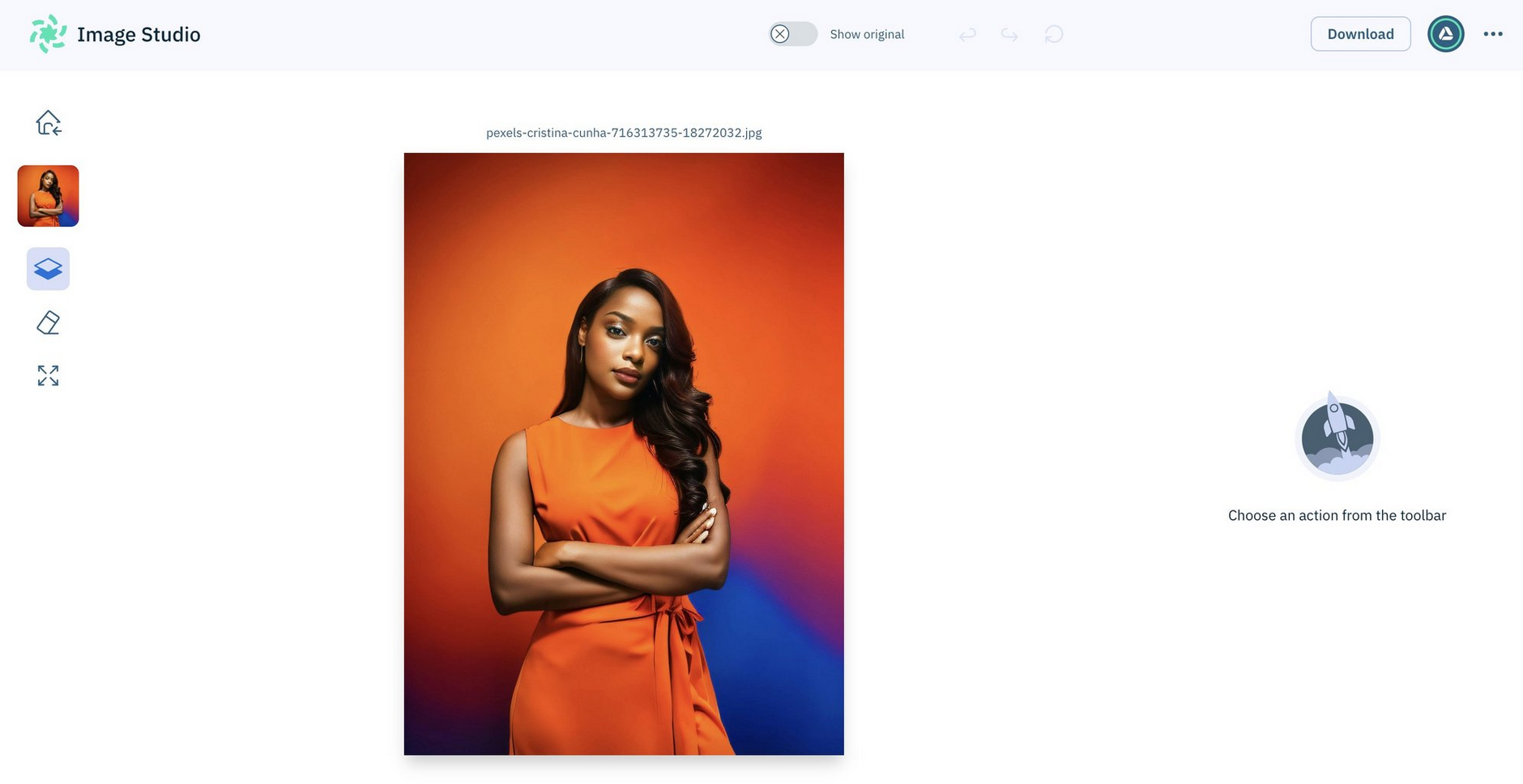
Image Studio has supported file types and sizes.
Downloading imagesLink copied!
You can download images from Image Studio at any time.
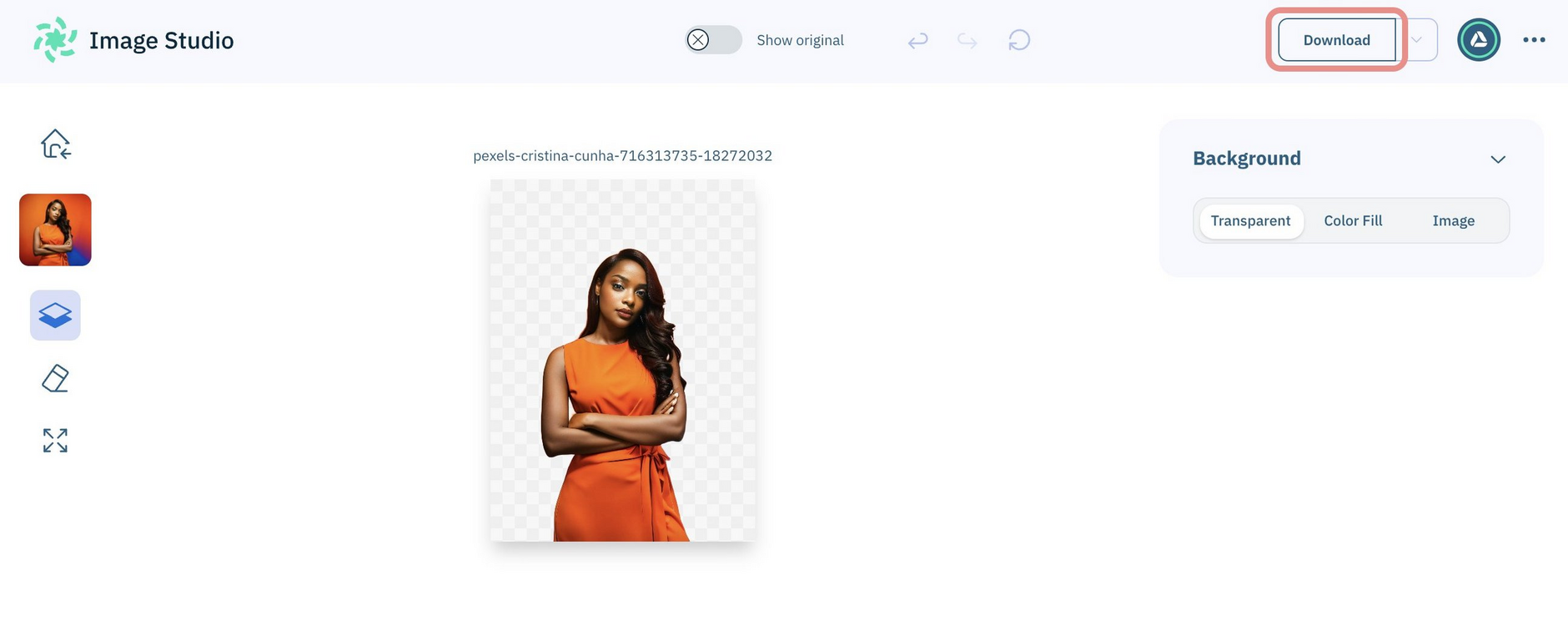
When you click "Download", Image Studio identifies the appropriate format to use for the download file, and by default, converts any JPEG file that has transparency, into a PNG file for you. More about why JPEG files are converted to PNG.
To download with a specific file type, instead of the default (described above) use "Download as". If you choose JPEG file type for an image that has transparency, you'll be notified that transparency will be lost, and given the option to download a PNG file.
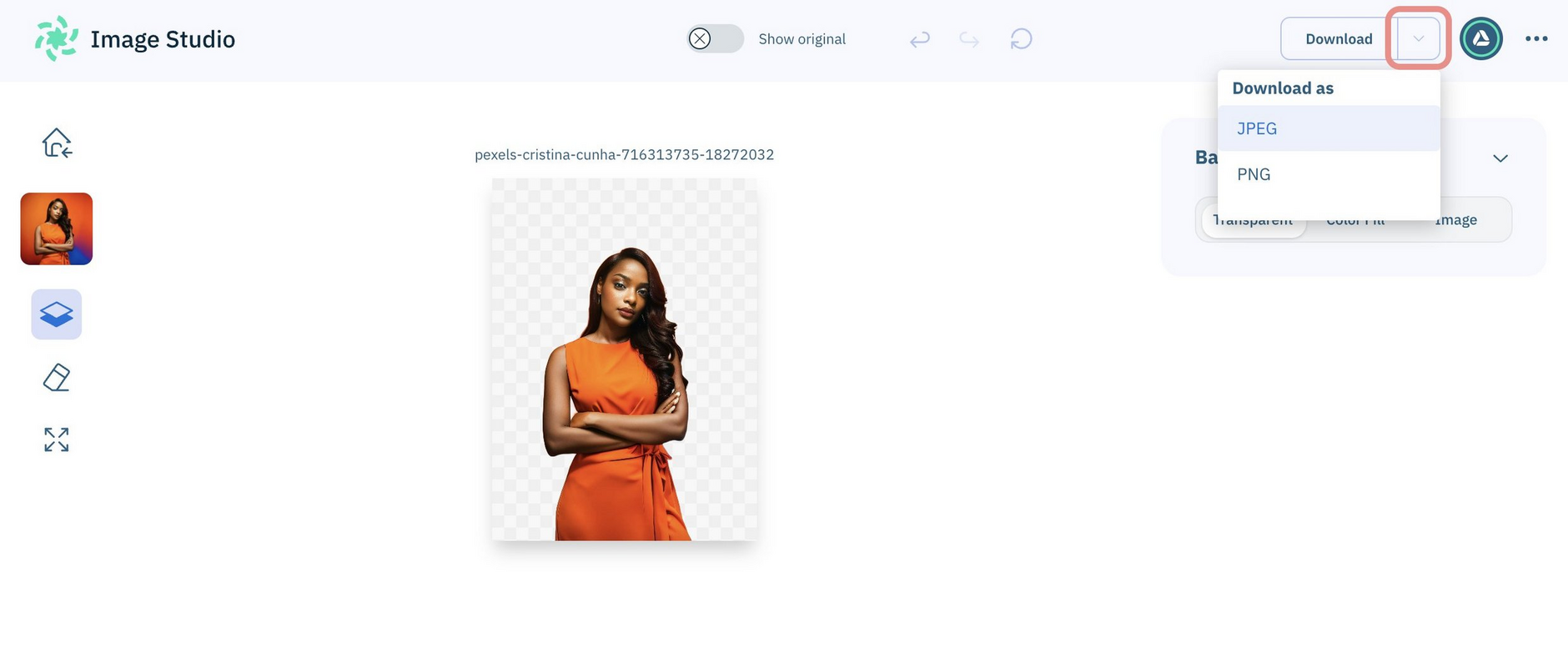
Files downloaded from Image Studio keep the names of the original images.
Saving edited images as part of your workflow
Image Studio lets you save your updates as new images automatically back to your content. See saving images as part of your workflow.
Editing images in your Amplience CMS workflowLink copied!
Using Image Studio as part of your workflow allows you to quickly edit images directly from your authoring experience.
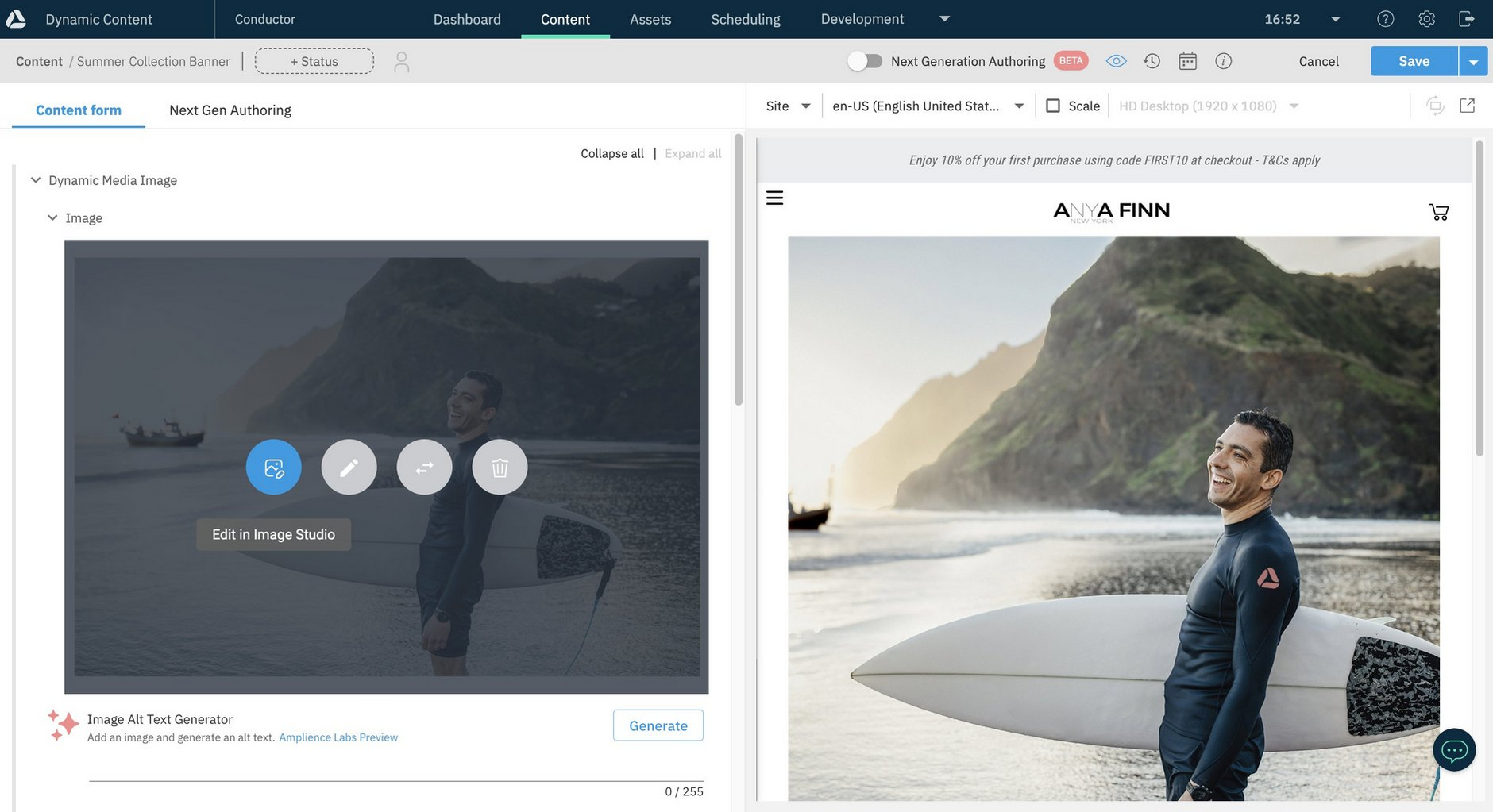
To open an image for editing directly from the Amplience CMS, hover the cursor over the image and click "Edit in Image Studio". To replace the image with a completely different image to the one shown in Image Studio, choose a different image in Amplience CMS.
Tip
The "Edit in Image Studio" icon displays when Image Studio is enabled on your account.
Image Studio opens in a new browser tab, with the image loaded and ready to edit. Here, we're going to replace the background.
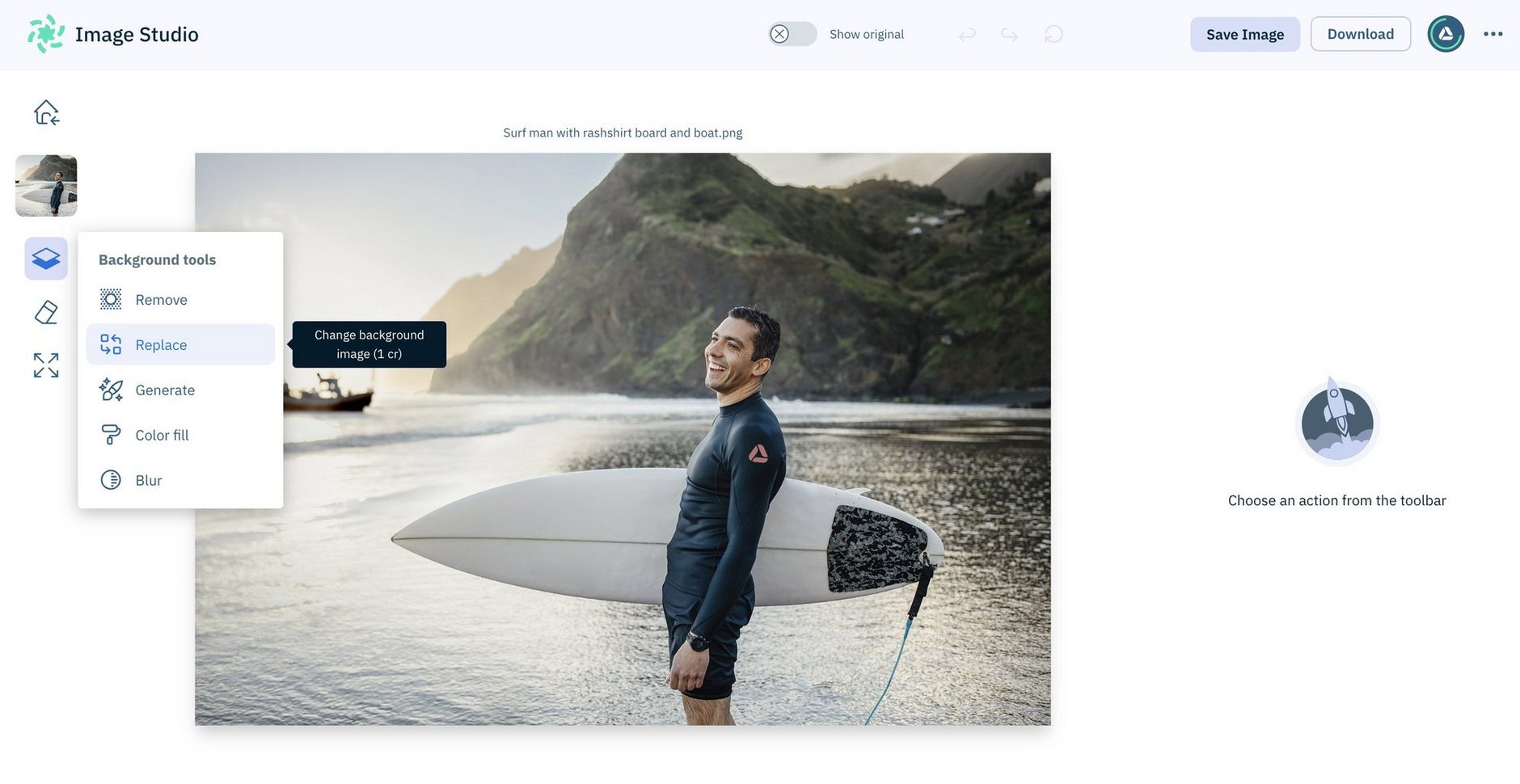
The new background gives our image more of a Summer feel, and we've applied a light blur effect to blend the foreground and background for a more natural look.
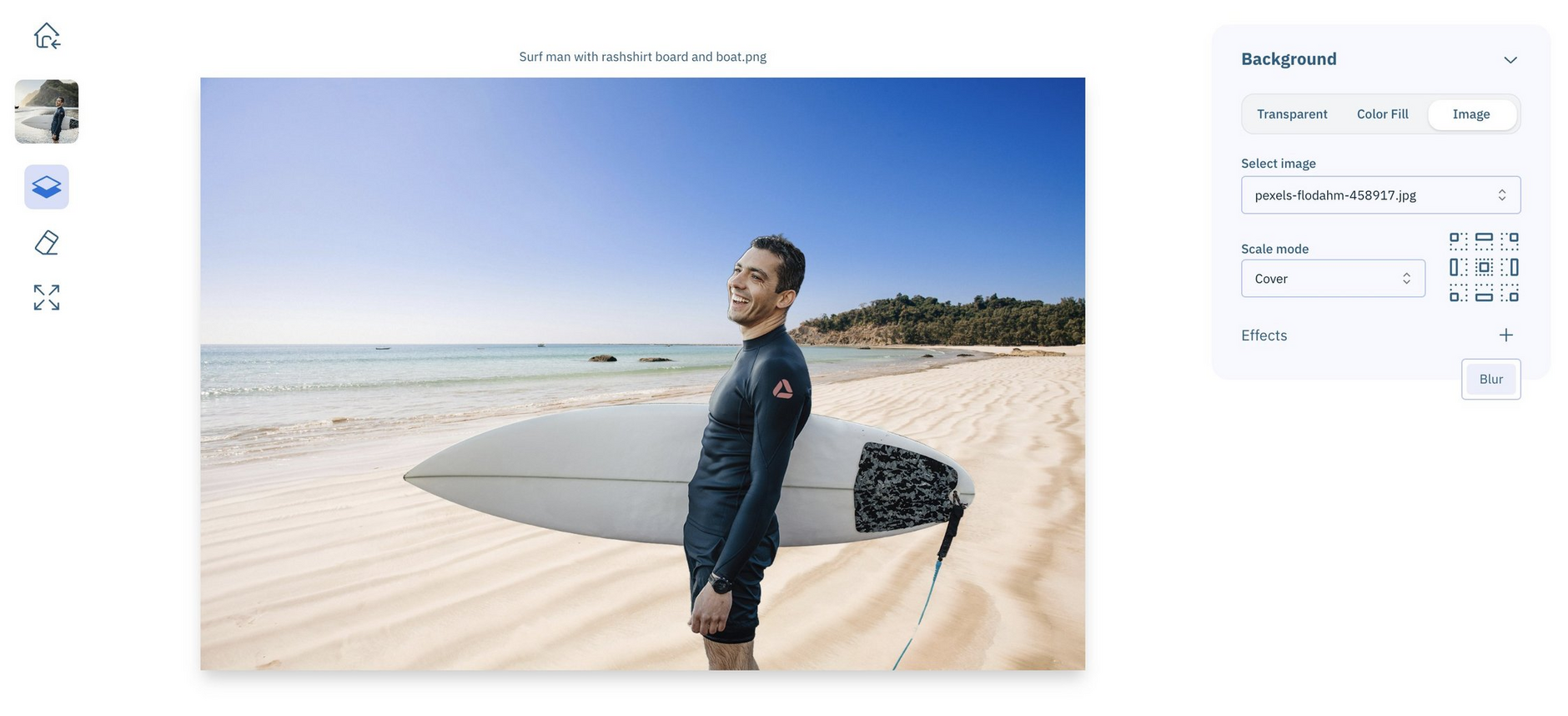
With just a few clicks and no special graphics skills, we now have an image that's more suitable for our Summer sale content.
Saving edited imagesLink copied!
Image Studio has a "Save Image" button (top right of the window) for saving the new copy of your image straight back into the content it was opened from.
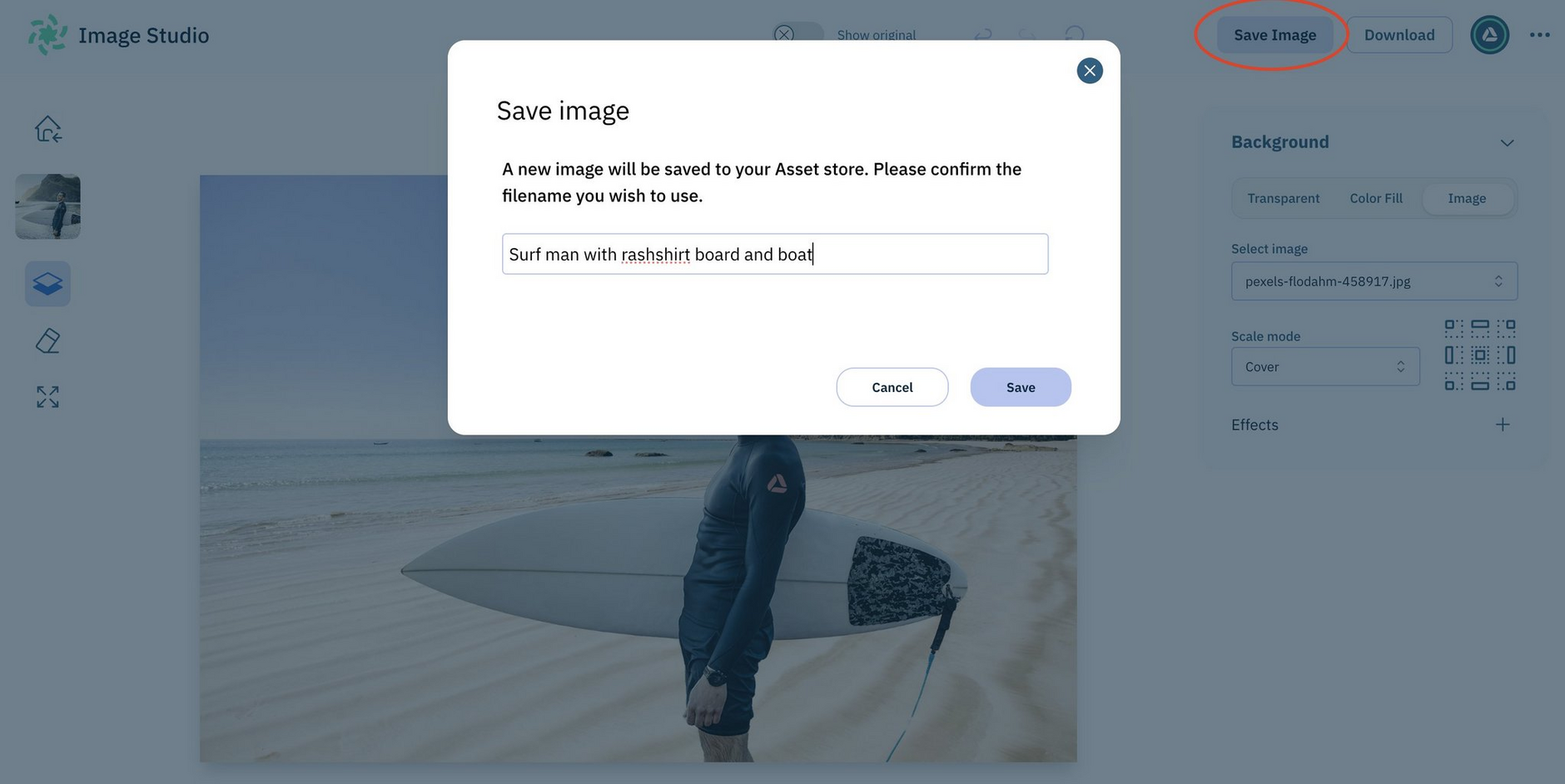
Image Studio will save your edits in a new file. The existing file name (with an appended number) will be used unless you enter a new name.
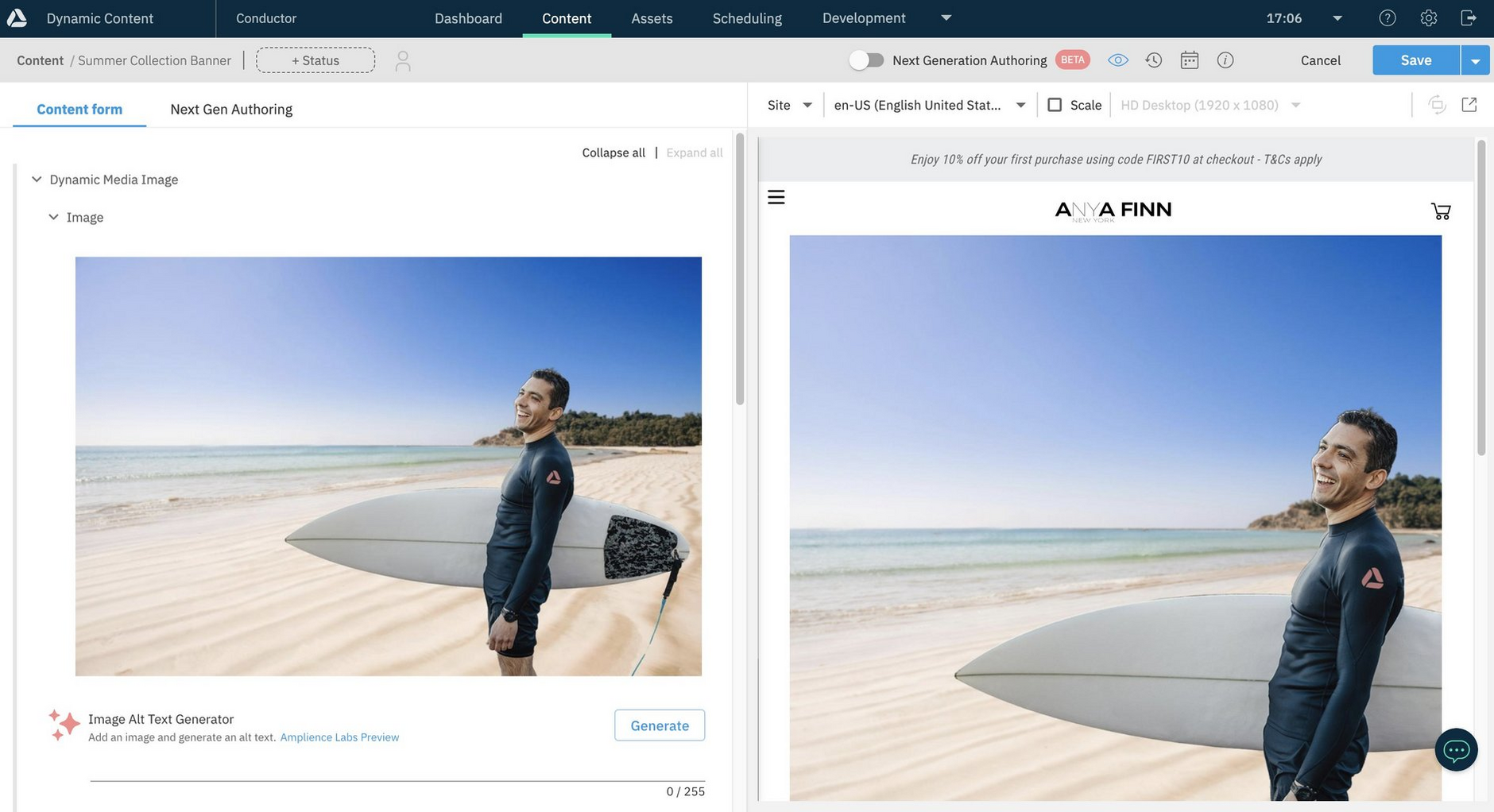
Once you've clicked "Save", when you navigate back to your content in Amplience CMS, the new image is automatically loaded into your content.
Does Image Studio overwrite images?
Image Studio always saves your edits to a new file, your original file remains unchanged.
Image layersLink copied!
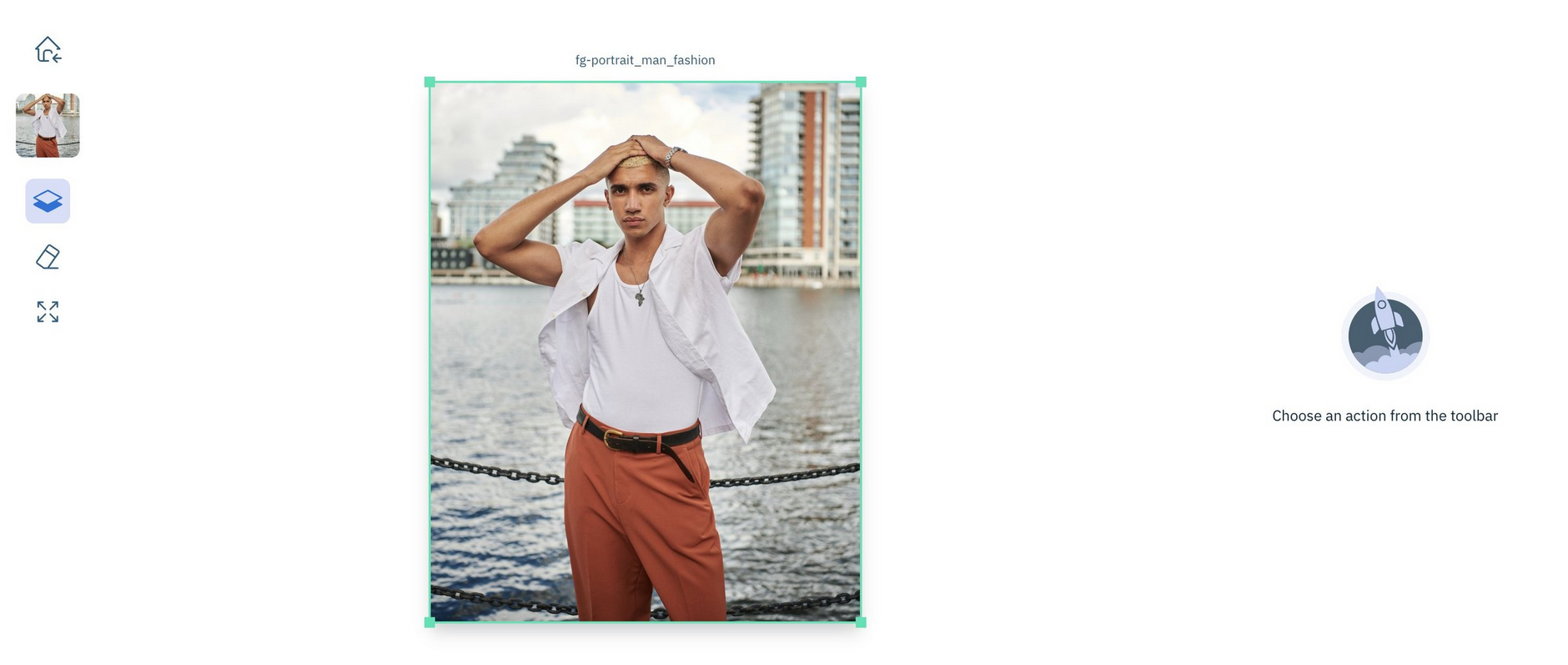
When you use Image Studio to change an image background, for example, to replace a background, the image then has two layers - the background and the foreground. Once these layers exist, you can adjust the size and position of the foreground layer independently from the background.
Here's an example of an image that hasn't yet been edited in Image Studio. Clicking on the image selects the whole thing, indicating that it has just one layer.
Now, we've replaced the background of our image, and as a result it has two layers. Clicking on the image selects the foreground layer.
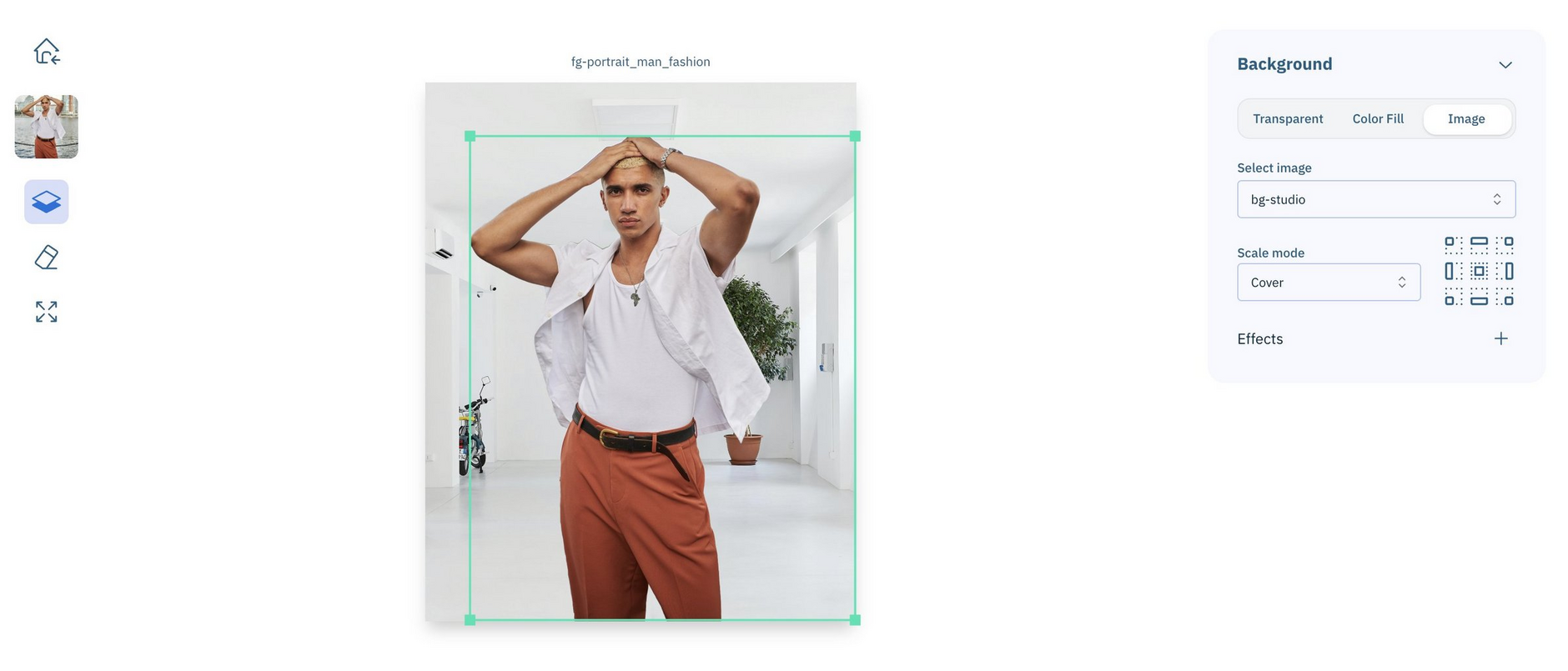
Image Studio creditsLink copied!
Each time you perform an action that requires credits, they will be deducted from your Amplience credits balance.
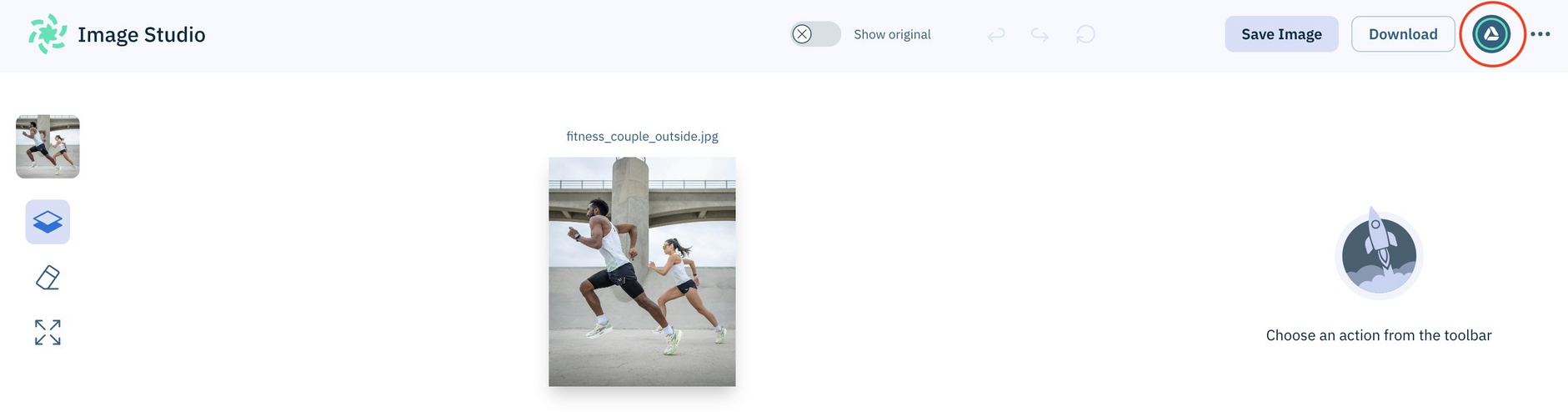
The number of credits required for each action in Image Studio will be shown before you continue. When you generate backgrounds the credit usage will vary based on how many variants you decide to create and the model you select. See Generating backgrounds.
A credits balance icon is displayed in the top right corner of the studio window. Hovering over it shows your exact balance.
Switching organizationsLink copied!
If you have more than one organization, there's a switcher on the credits balance icon that lets you pick the organization for which you want to use credits.

Help and feedbackLink copied!
You can get in app help about how to use Image Studio, and send us your feedback by clicking the Help icon (bottom left of the window).
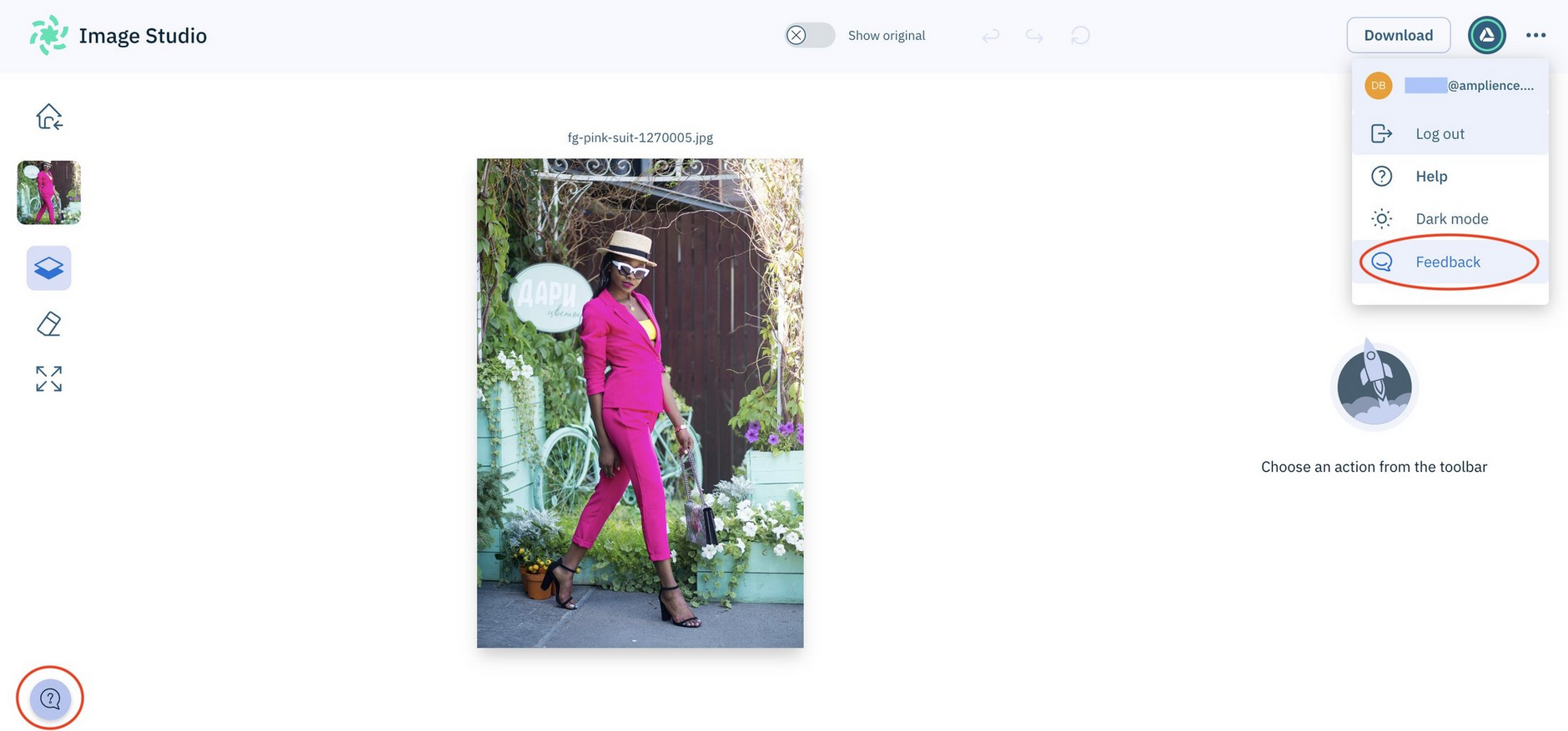
You can also use the "..." menu (top right of the window) to send us feedback and access documentation.
Labs preview releaseLink copied!
Labs preview
Image Studio is classified as an Amplience labs preview for you to evaluate and provide feedback. It's provided as is and is unsupported. Each time you use it to edit images you'll use Amplience credits.
Related pagesLink copied!
Supported file types and other FAQs