Webhook trigger example- JIRA
This example demonstrates:
-
How to use a webhook trigger to start a Workforce Flow automatically when a task is performed in an external app. In this case when an issue is created or updated in JIRA.
-
How to convert the webhook payload to JSON.


Step 1: Setting up a content flow with a webhook triggerLink copied!
-
Create a new content flow and give it a label and description.
-
From the Action Library open the Automated triggers and drag a Webhook trigger to your flow.
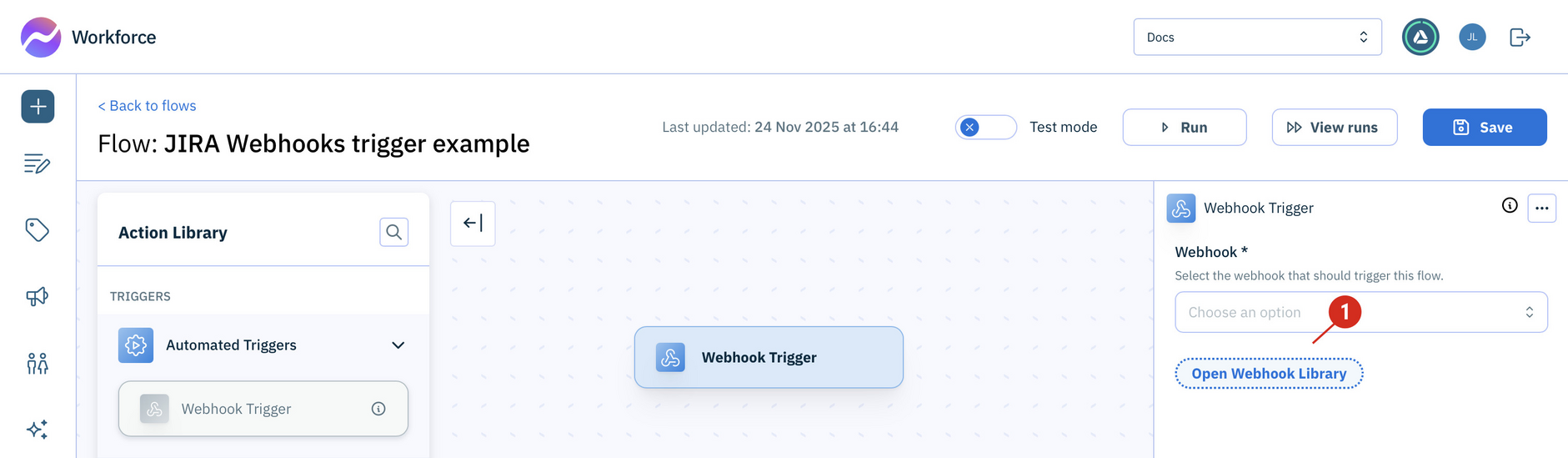
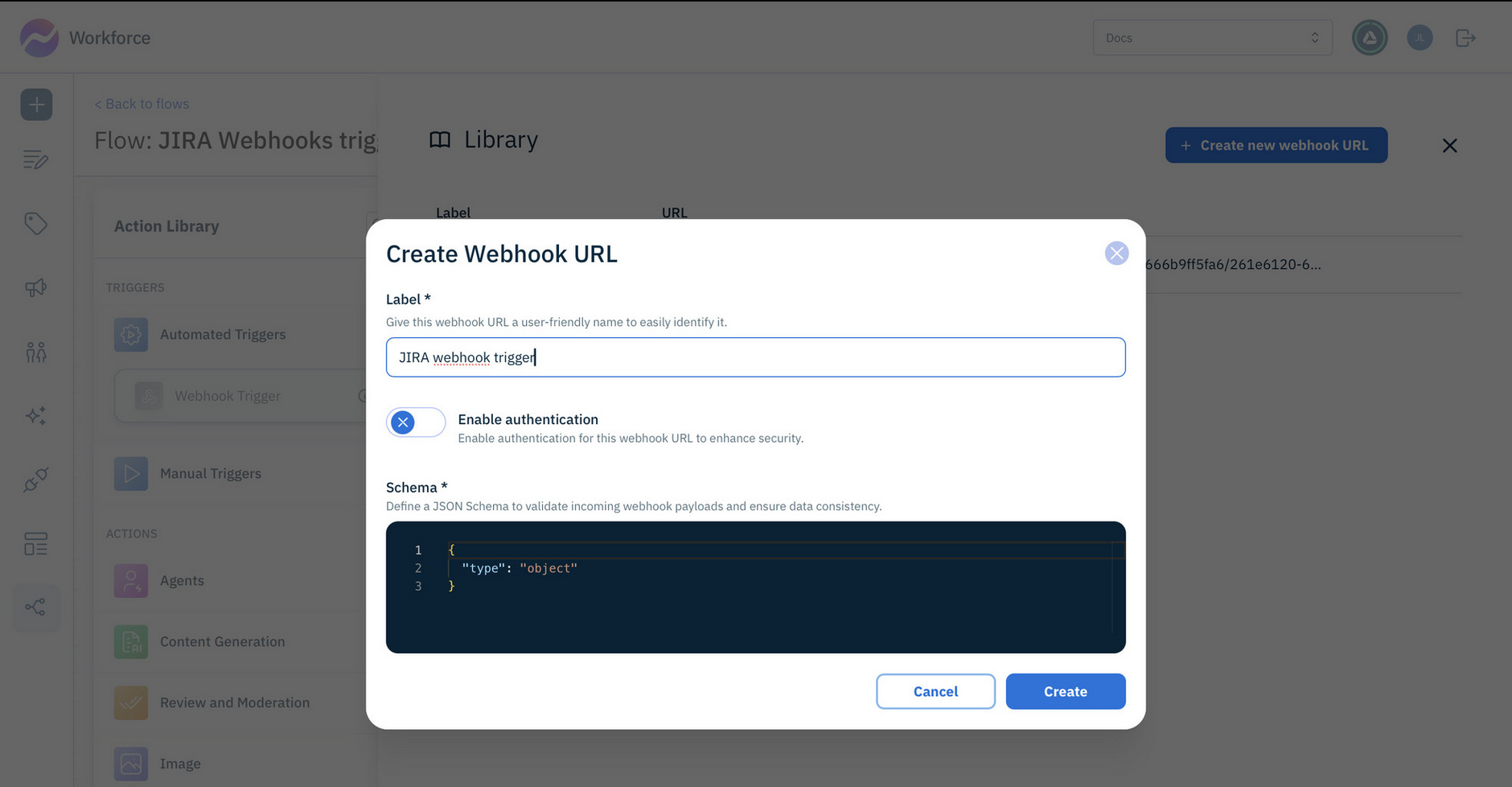
- Choose Open webhook library from the action configuration panel. You can leave authorization turned off and keep the schema as the default.
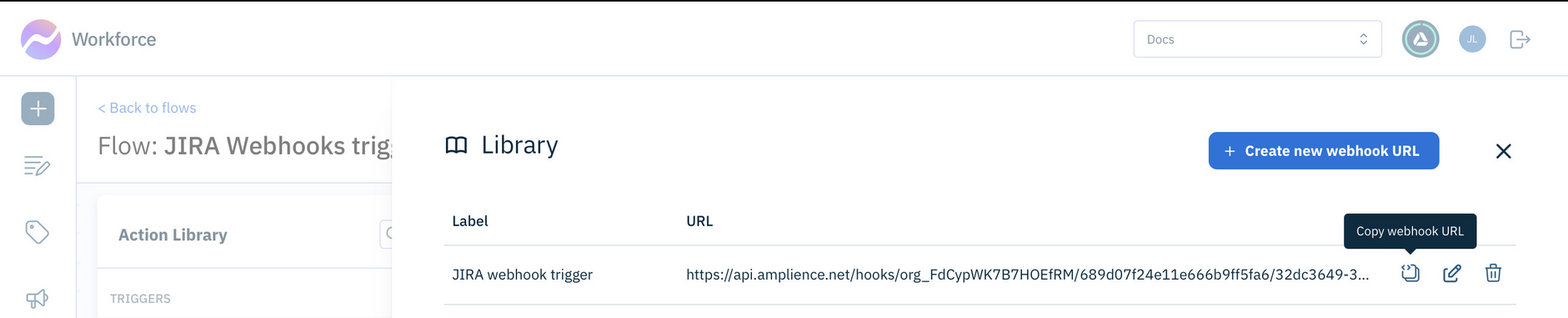
- The new webhook is displayed in your webhook library. Copy the webhook URL because you will need it when setting up the webhook trigger in JIRA.
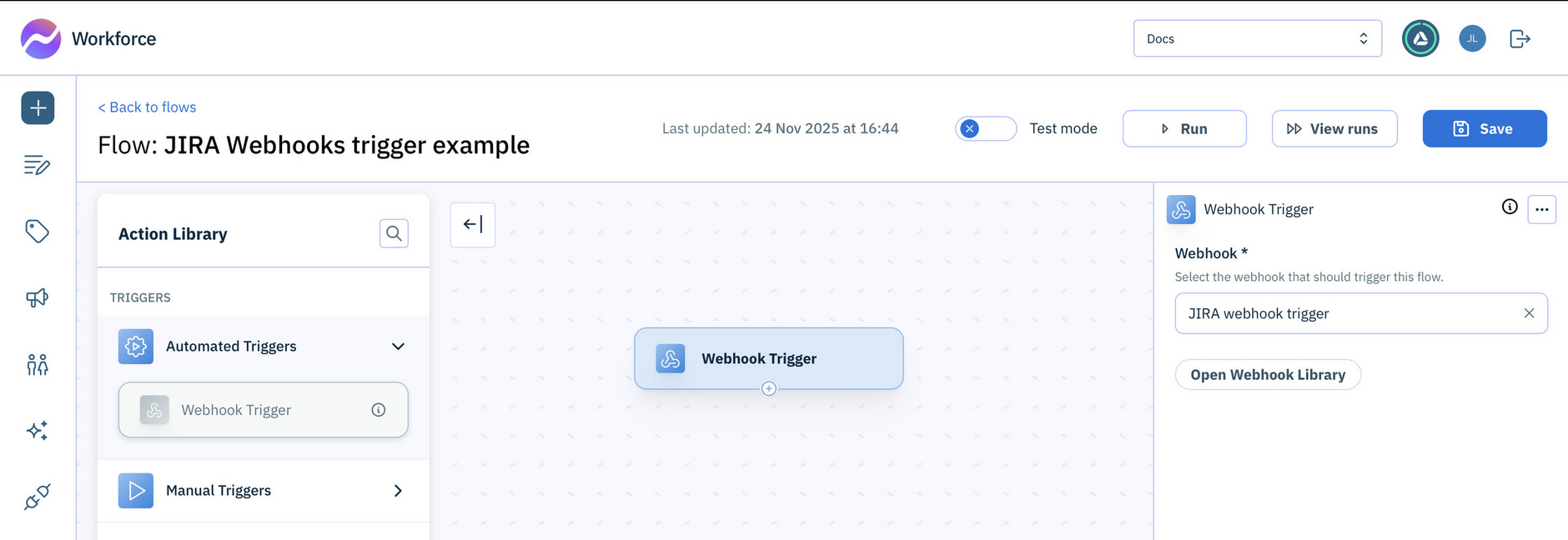
- In the action menu choose the webhook you just created as the webhook that will trigger this flow.
Step 2: Add actions to your flowLink copied!
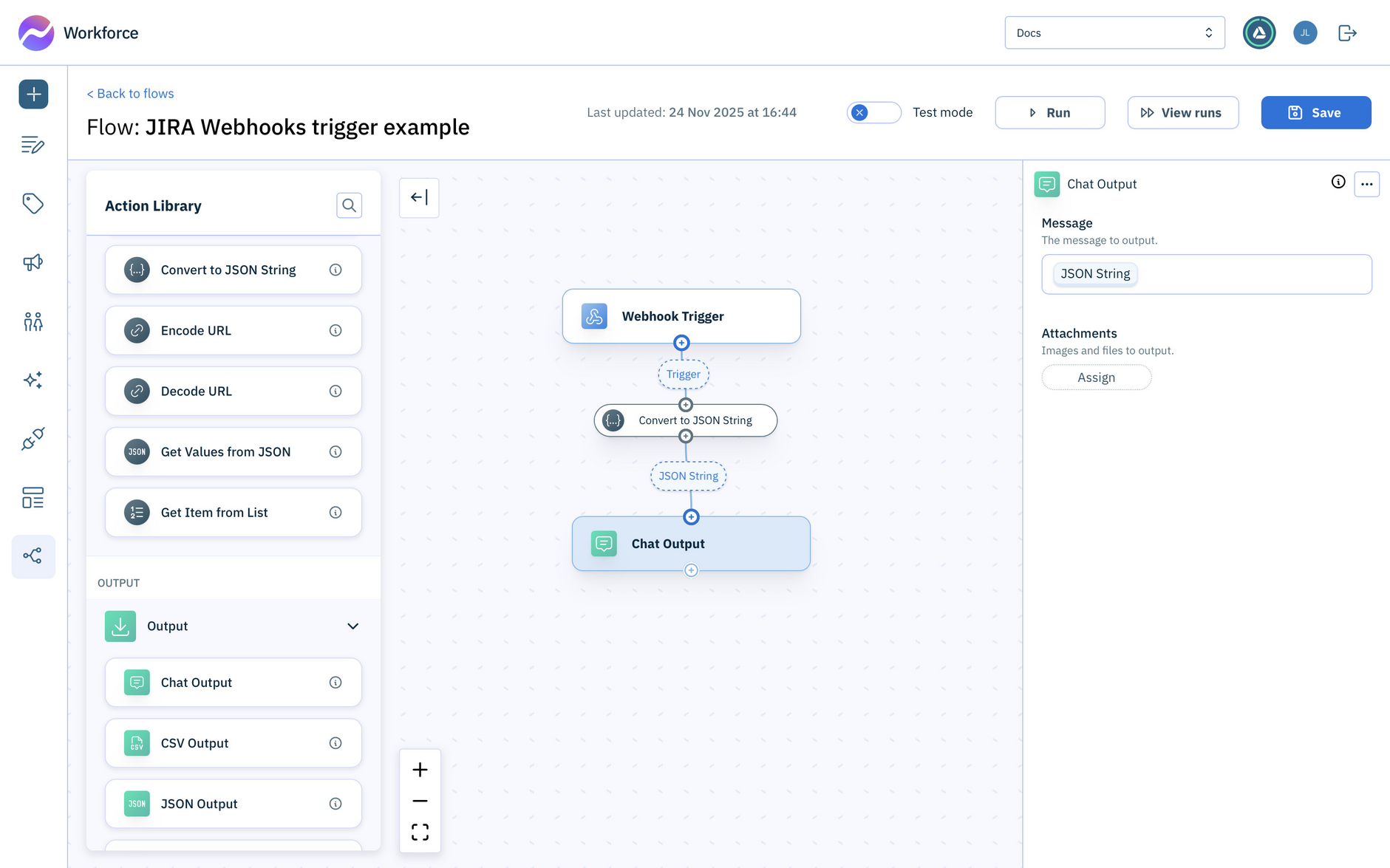
Add the following actions to your flow:
- Convert to JSON string. This will convert the webhook payload to a JSON string. Connect this action to the webhook trigger.
- Chat output. Use this to output the JSON as a chat message. Connect this action to the Convert to JSON string action.
Step 3: Creating a webhook in JIRALink copied!
You will need to have JIRA admin permissions to set up a webhook. In JIRA:
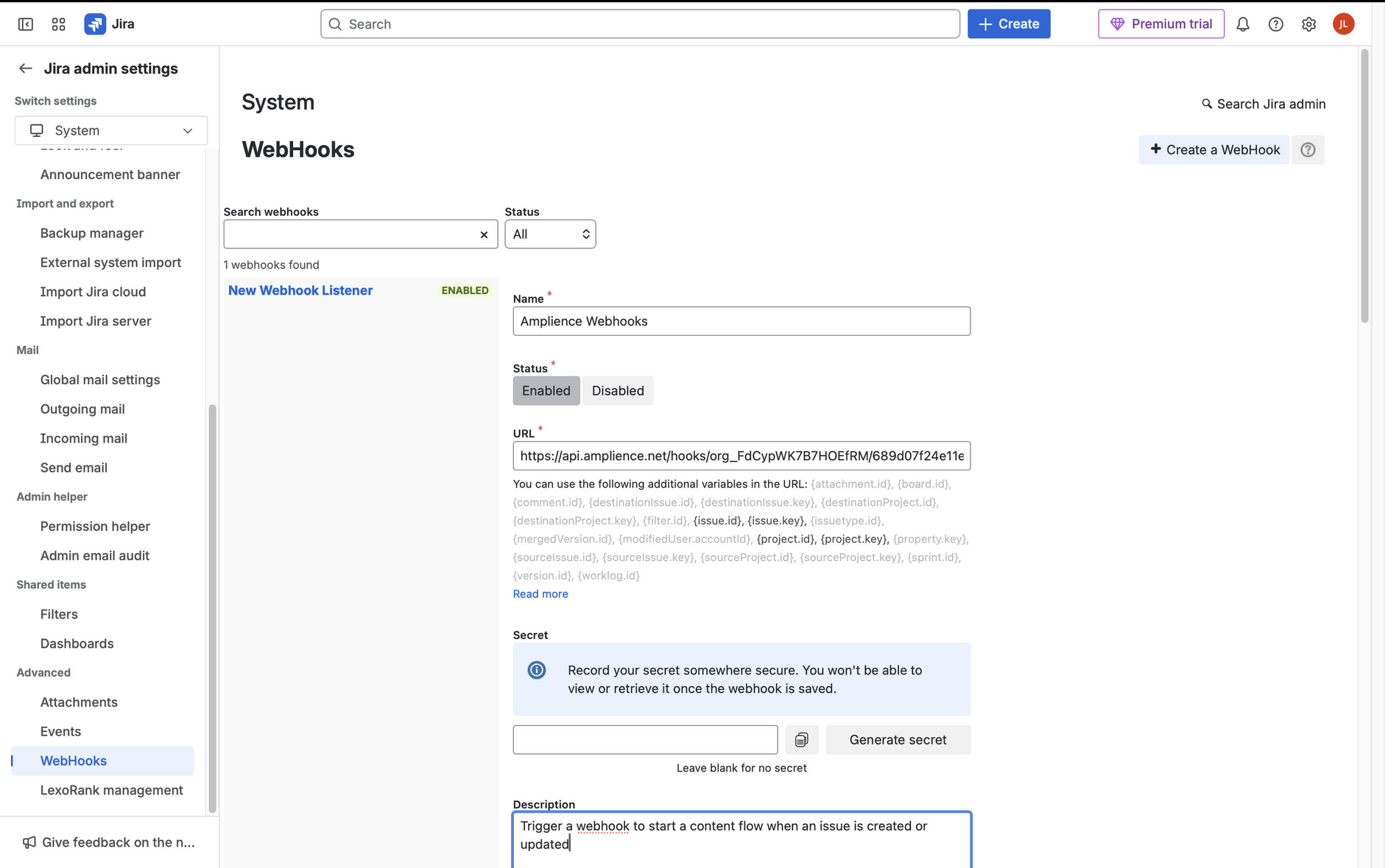
- Go to admin settings -> System -> Webhooks and choose "Create a Webhook".
- Enter the URL of the webhook you created in the previous step as the webhook URL. The URL should start with
https//:api.amplience.net/hooks. - Choose the actions that you want to trigger the webhook, such as create or update issue.
- Create the webhook.
Try it outLink copied!
- To test the flow, perform an action in JIRA that will trigger the webhook, such as creating or updating an issue.
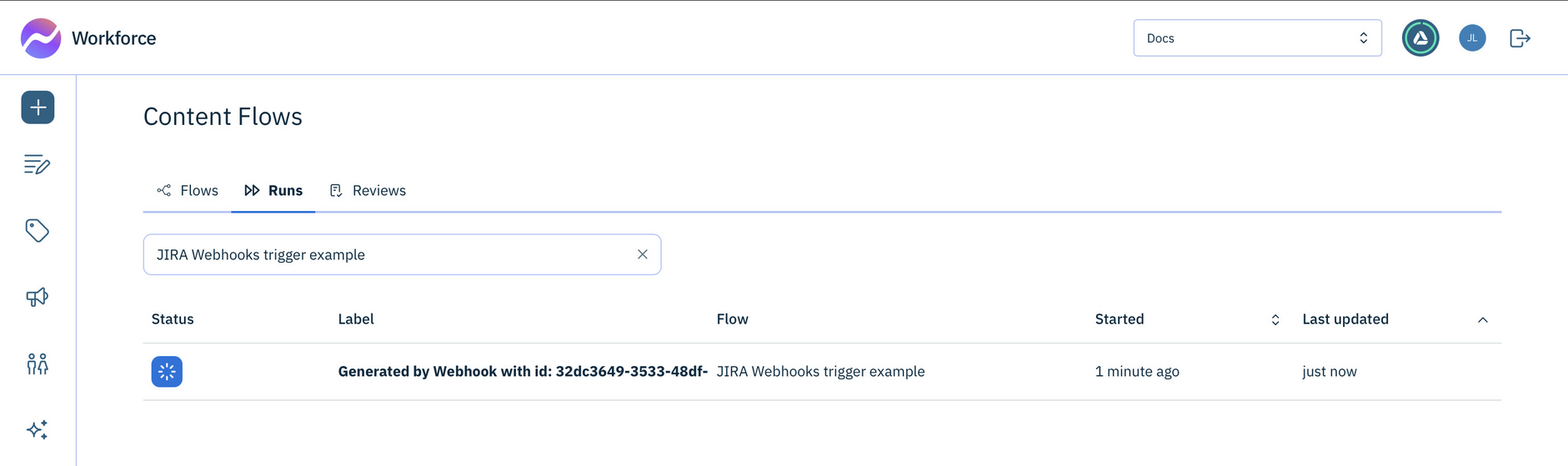
- Navigate back to Workforce. If the webhook is triggered, a run of your content flow will start automatically and be shown in your runs list.
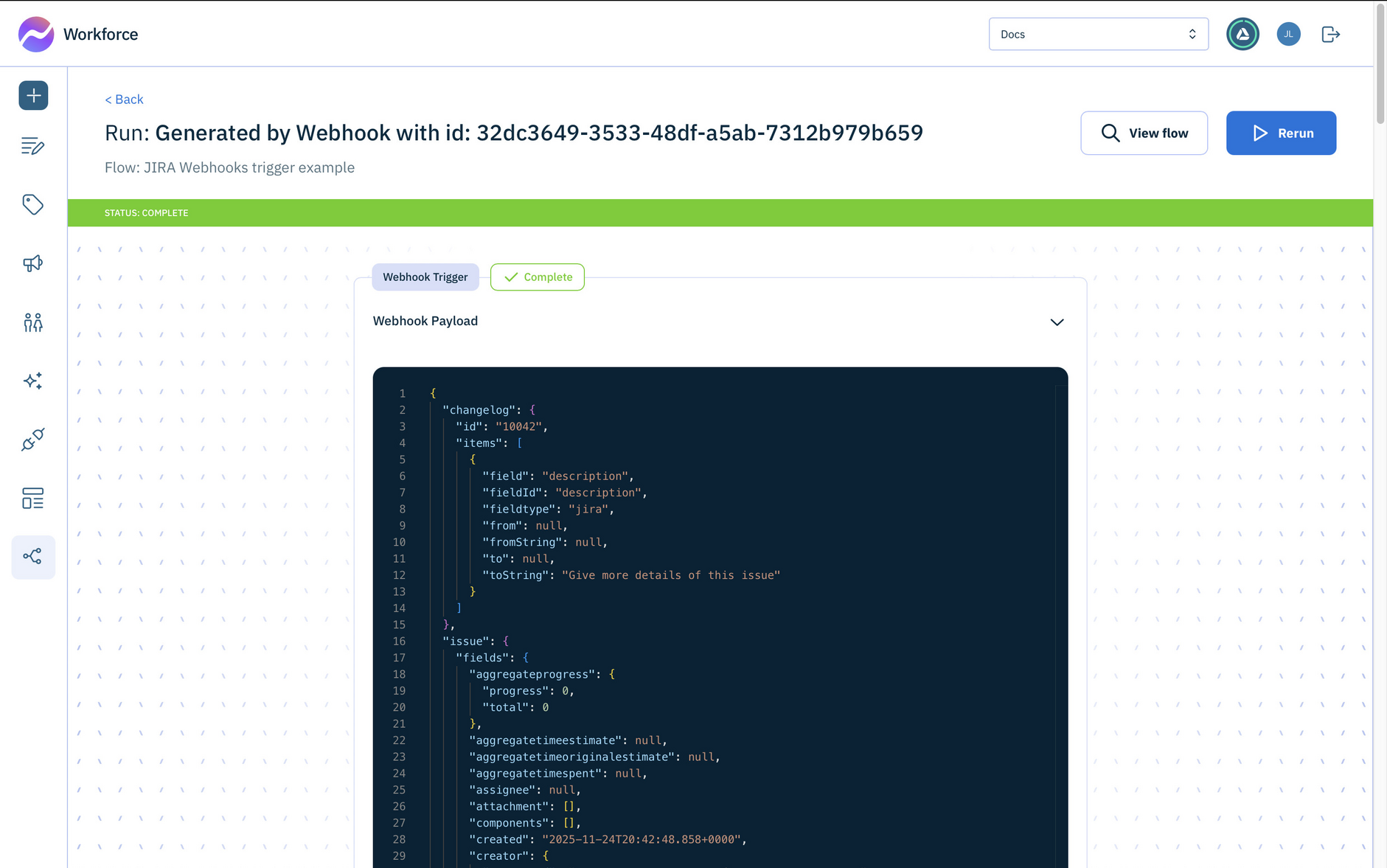
- Click on the run in the runs list to view it. The run will be opened and you can see the payload of the JIRA webhook.
Testing the flow
You can run the flow in test mode, you just need to enter a sample webhook payload.