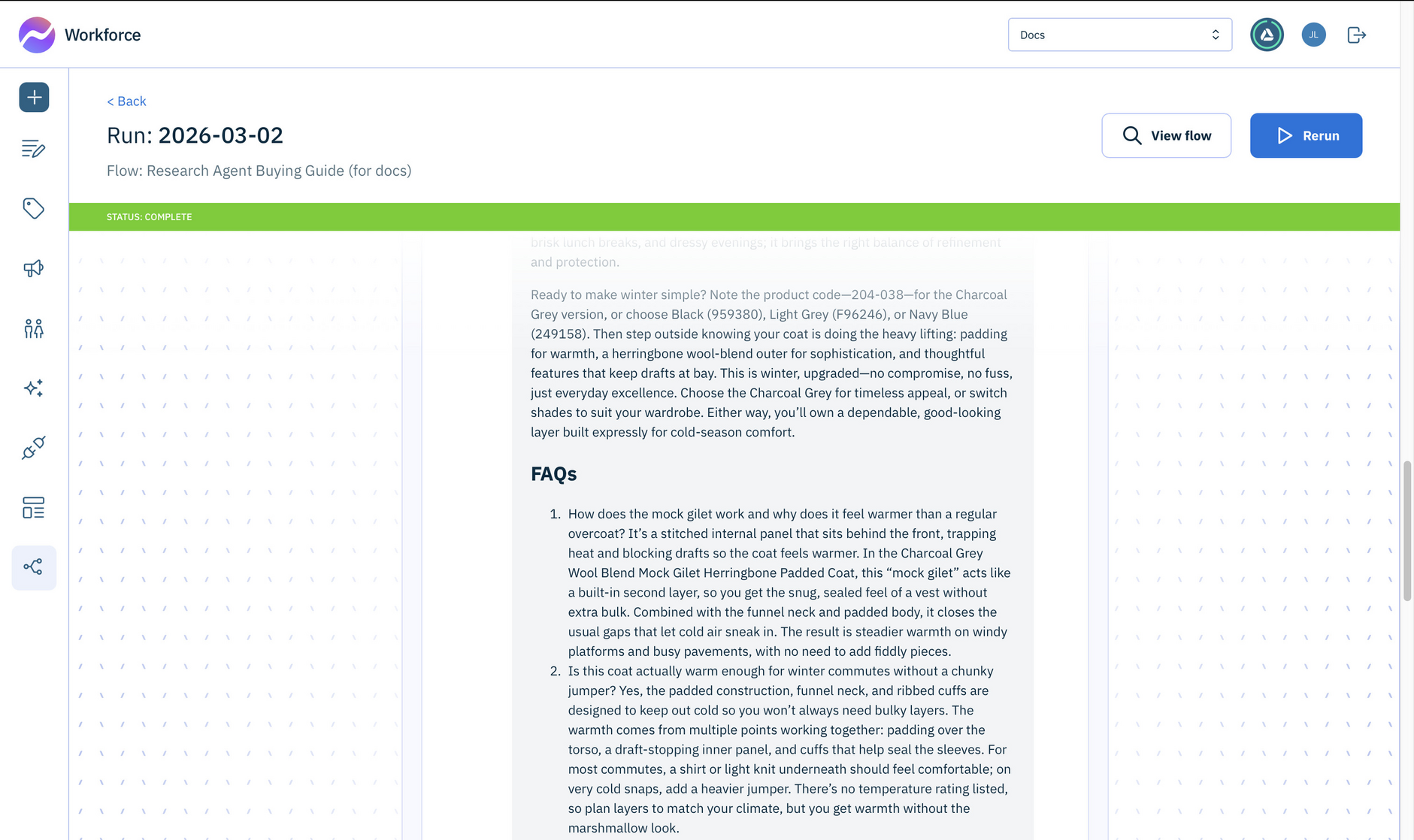
Using the Research Agent to generate a buying guide
On this page we walk you step by step through creating a Workforce Flow that:
- Uses the Research Agent to search the web for information about a product, based on its name or URL and image
- Uses the data returned by the agent to generate a GEO optimized buying guide and FAQ
This is a very simple flow, but demonstrates how you can use the Research Agent to retrieve information from the web, in this case product data. The Research Agent is very flexible and this flow can be expanded to meet your requirements.


Step 1- Create the form triggerLink copied!
Create a new flow and give it a label and description.
- From the Action Library open the Manual triggers and drag a Form Trigger to your flow. You use the form to enter the information to search for.
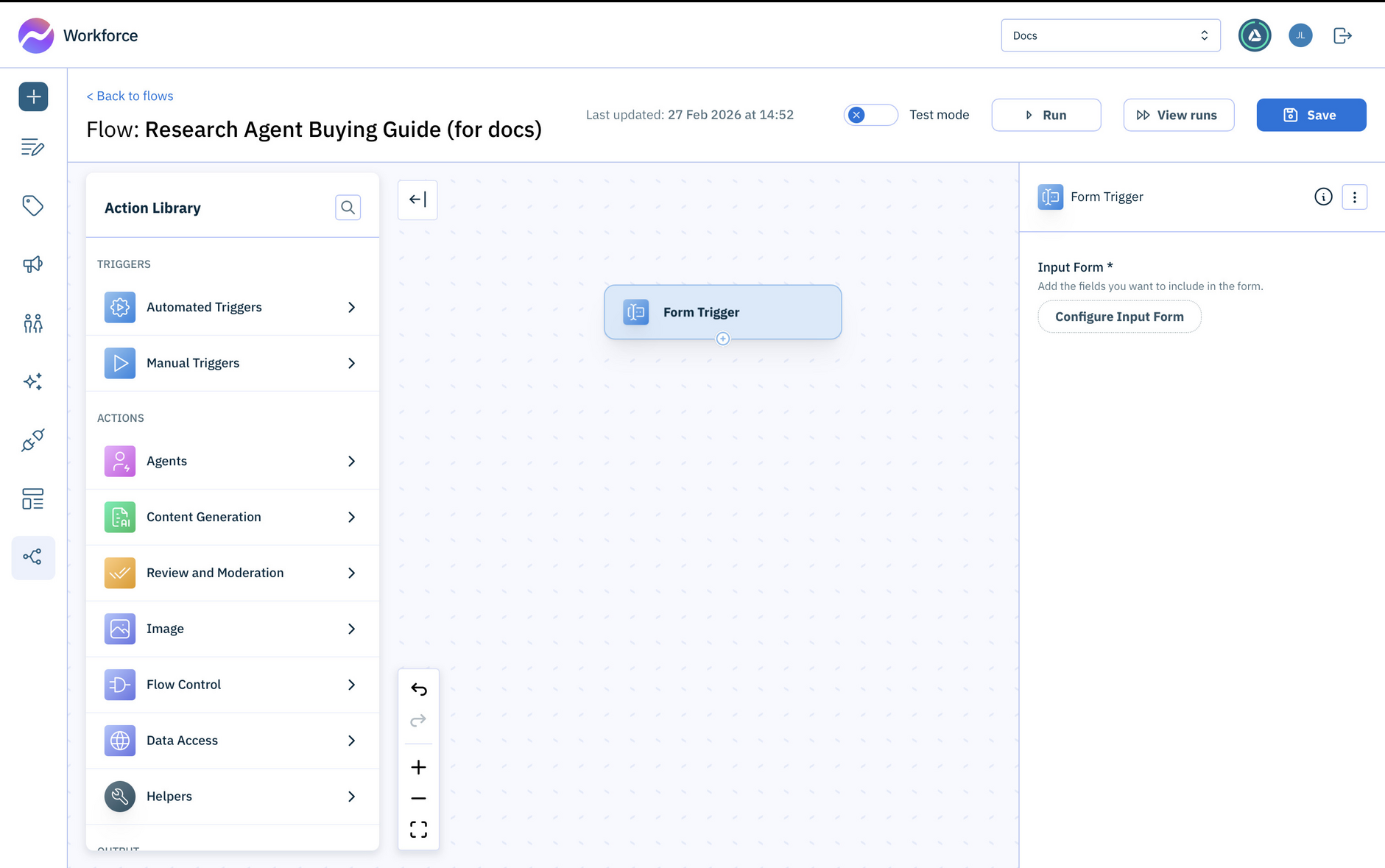
-
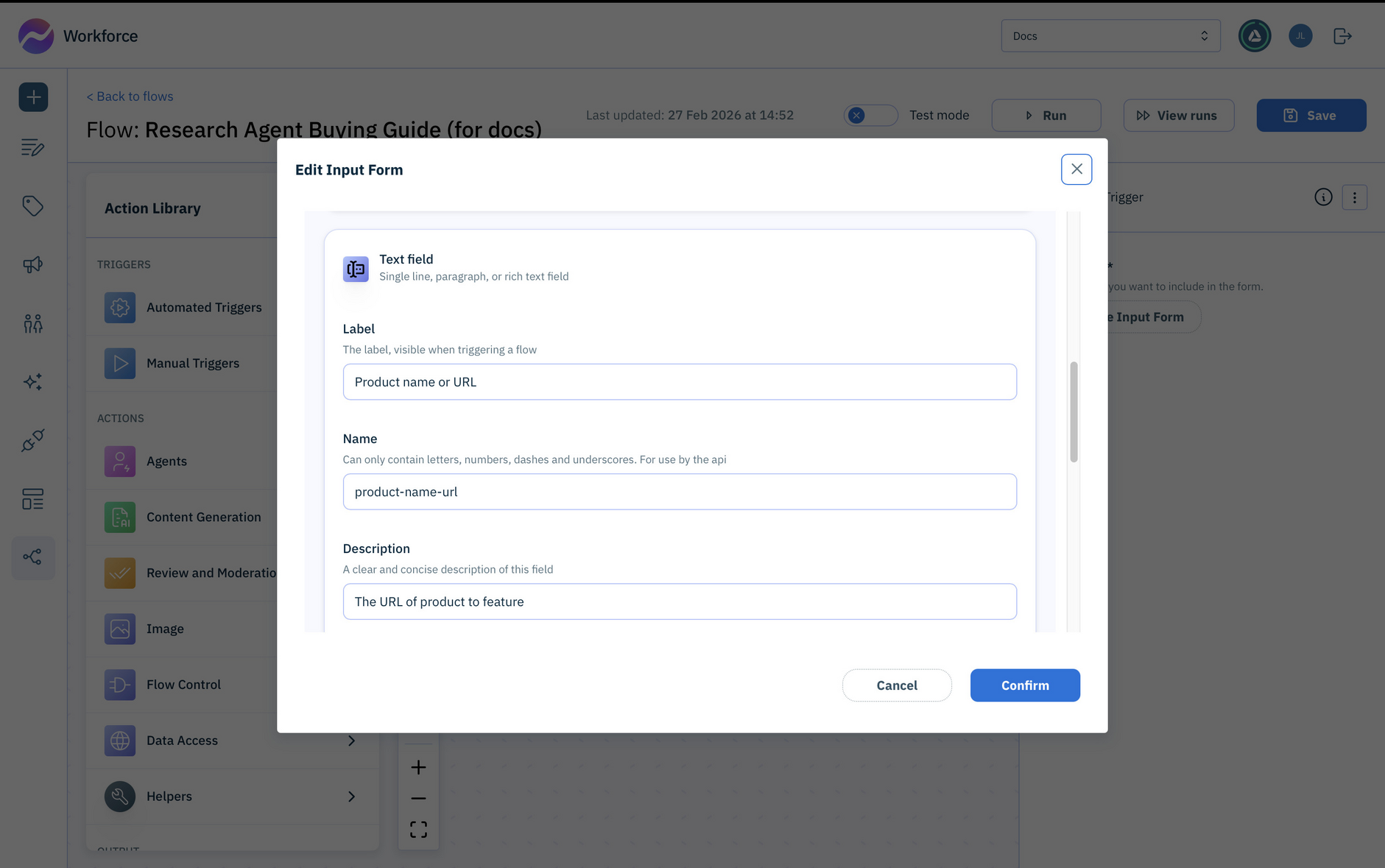
Click the Configure Input Form button and add the following single line text fields:
-
The subject of the buying guide: Subject
-
The product name to search for, or the product URL: Product name or URL
-
Add an image field to be used for the optional product image: Product image
-
Step 2- Add the Research Agent to search the webLink copied!
You'll use the Research Agent to search the web for information about the product you specify.
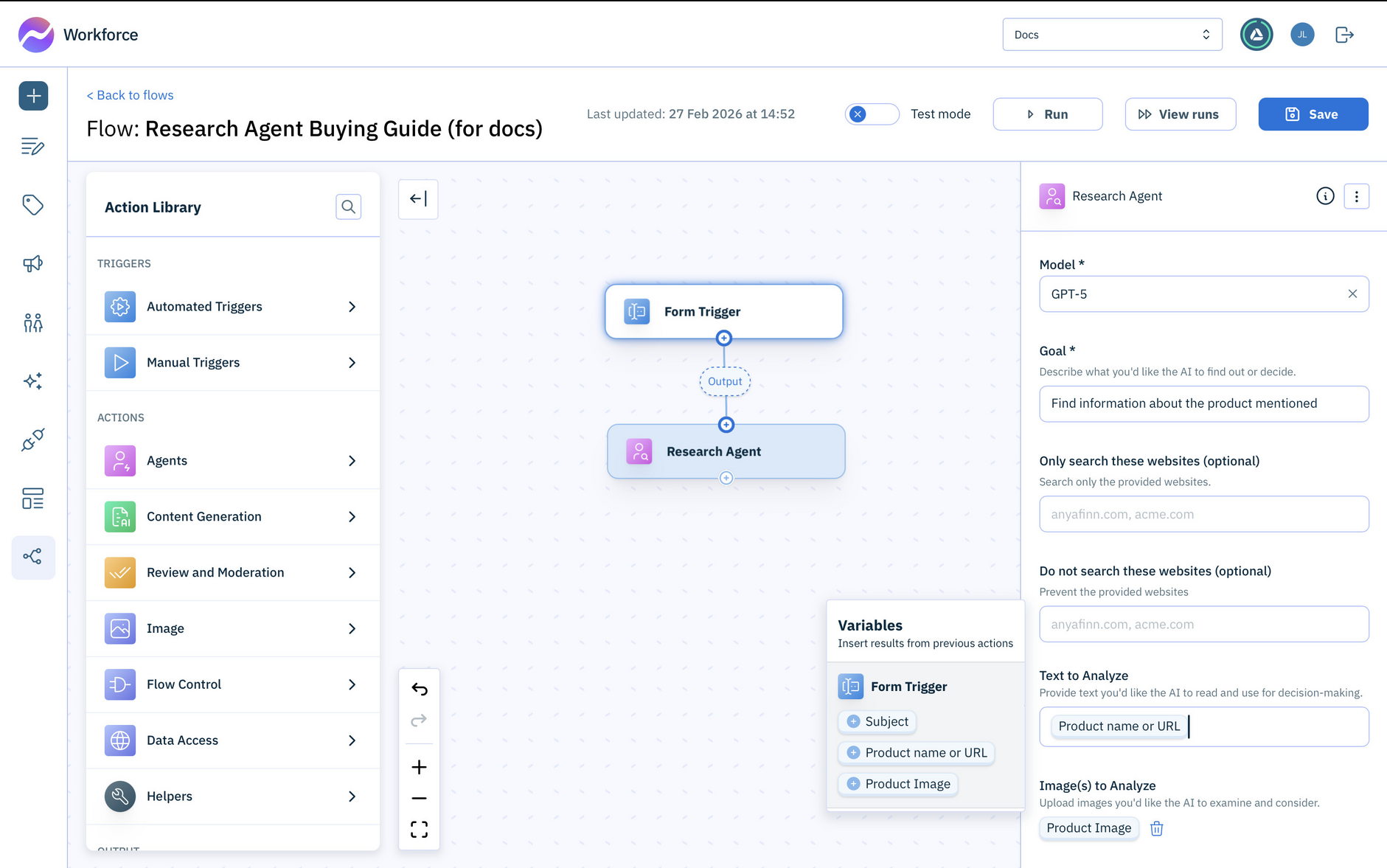
- Open the Agents section of the Action Library, and drag the Research Agent to the flow. Connect it to the output of the Form Trigger.
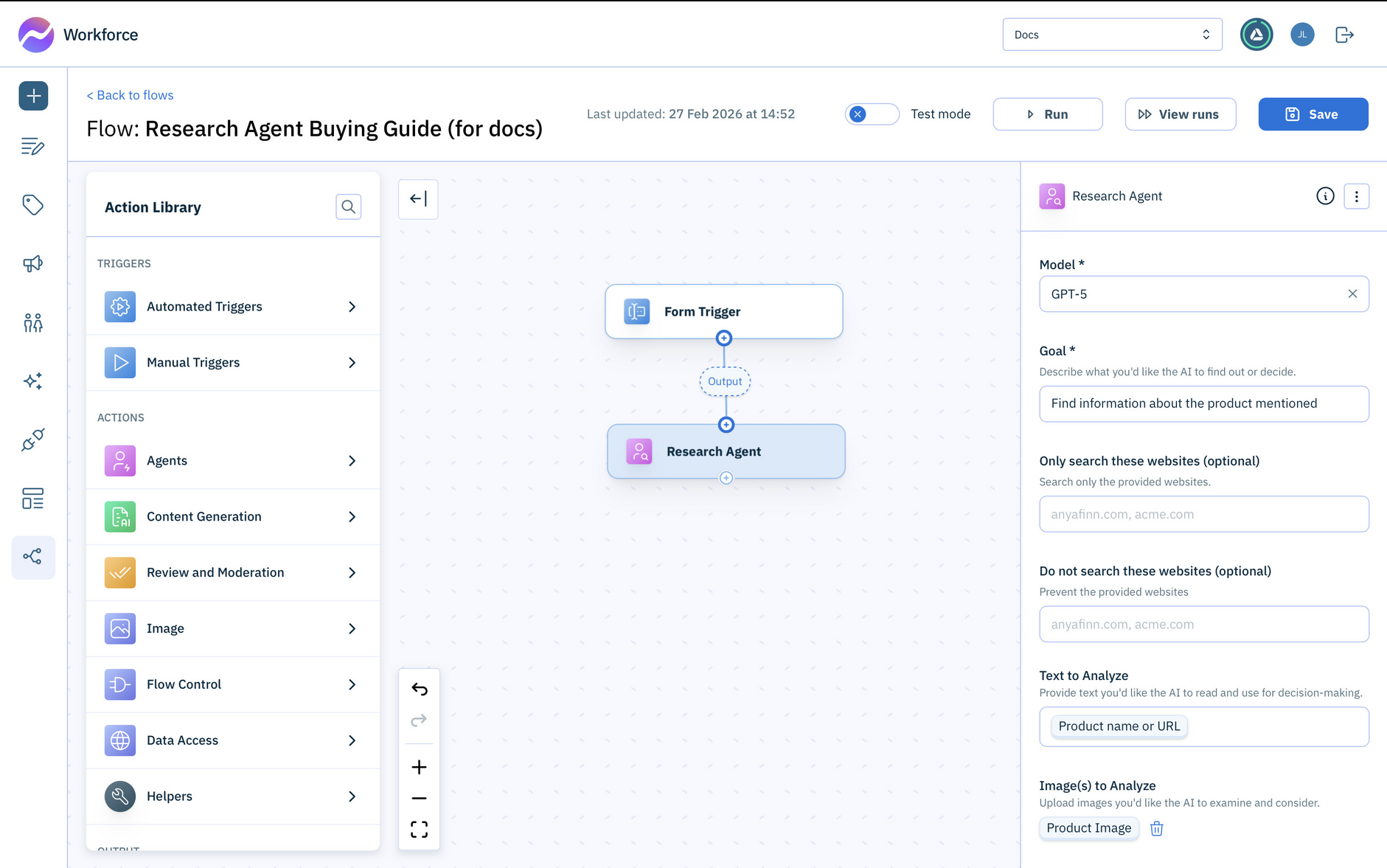
-
Choose a Model.
-
Add the Goal. For this example, we'll keep the instructions simple:
Find information about the product mentioned.
The Research Agent requires some text and an image to analyze:
-
In the Text to Analyze field select the
Product name or URLreturned by the Form trigger. -
The Image to Analyze should be the
Product imagereturned by the Form trigger.
Step 3- Generate the buying guideLink copied!
For this example, we'll use the Buying Guide action to generate a GEO optimized buying guide using the information returned by the Research Agent. To generate the guide with our chosen format and structure, we'll add some custom instructions. But you could also use a custom template instead.
-
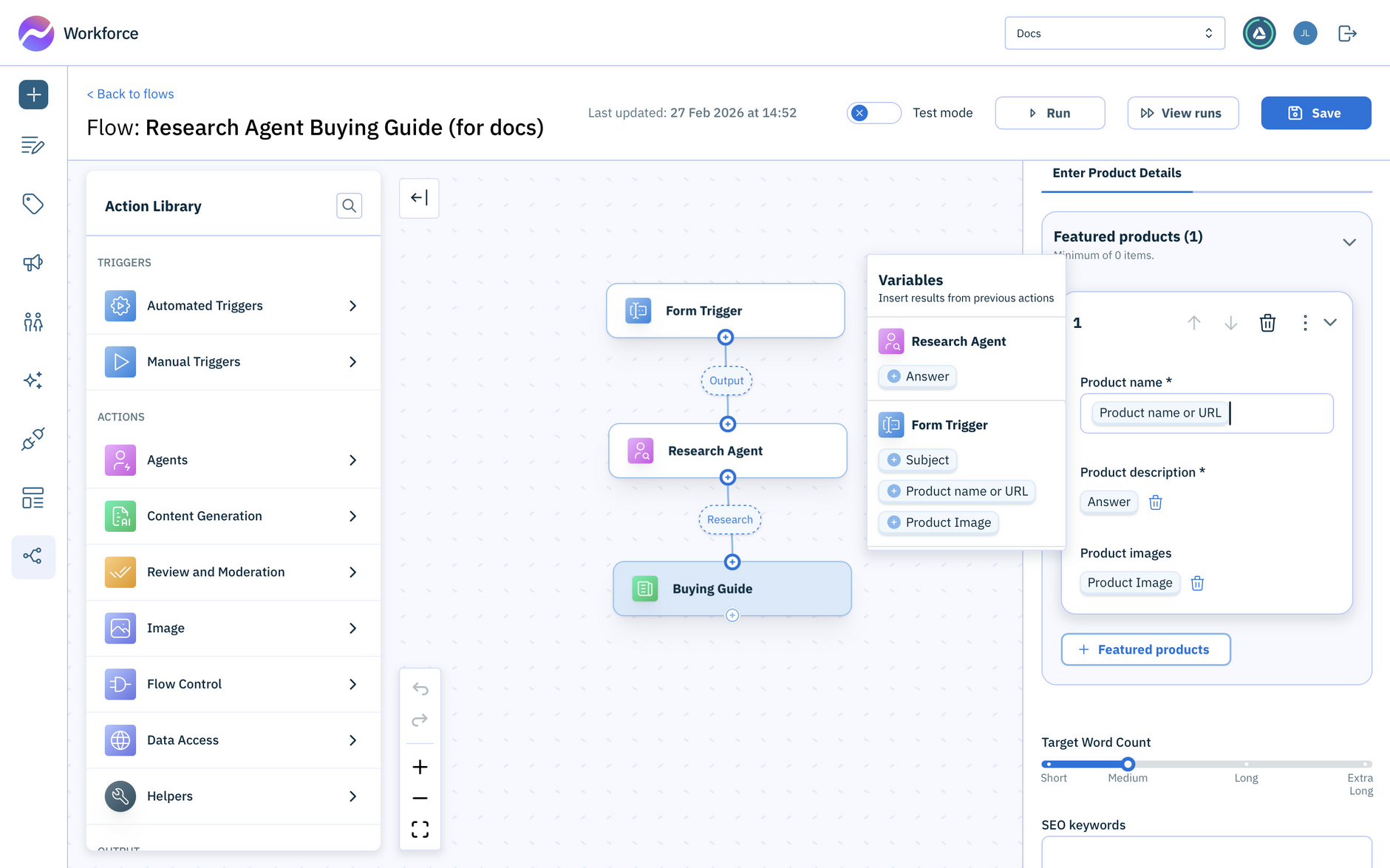
Open the Content Generation section in the Action Library and drag the Buying Guide action to the flow. Connect it to the output of the Research Agent- this will be the data returned from its search.
-
Choose which model to use and optionally the brand voice, audience, tone and locale (by default the content will be generated in English).
-
Set the Subject to the
Subjectreturned by the Form Trigger. -
Add a featured product and set the Product name value to the
Product name or URLreturned by the Form Trigger. -
Set the Product description to the
Answerreturned by the Research Agent. This will be the product information it found in its search. -
Set the Product image to the
Product imagereturned by the Form Trigger.
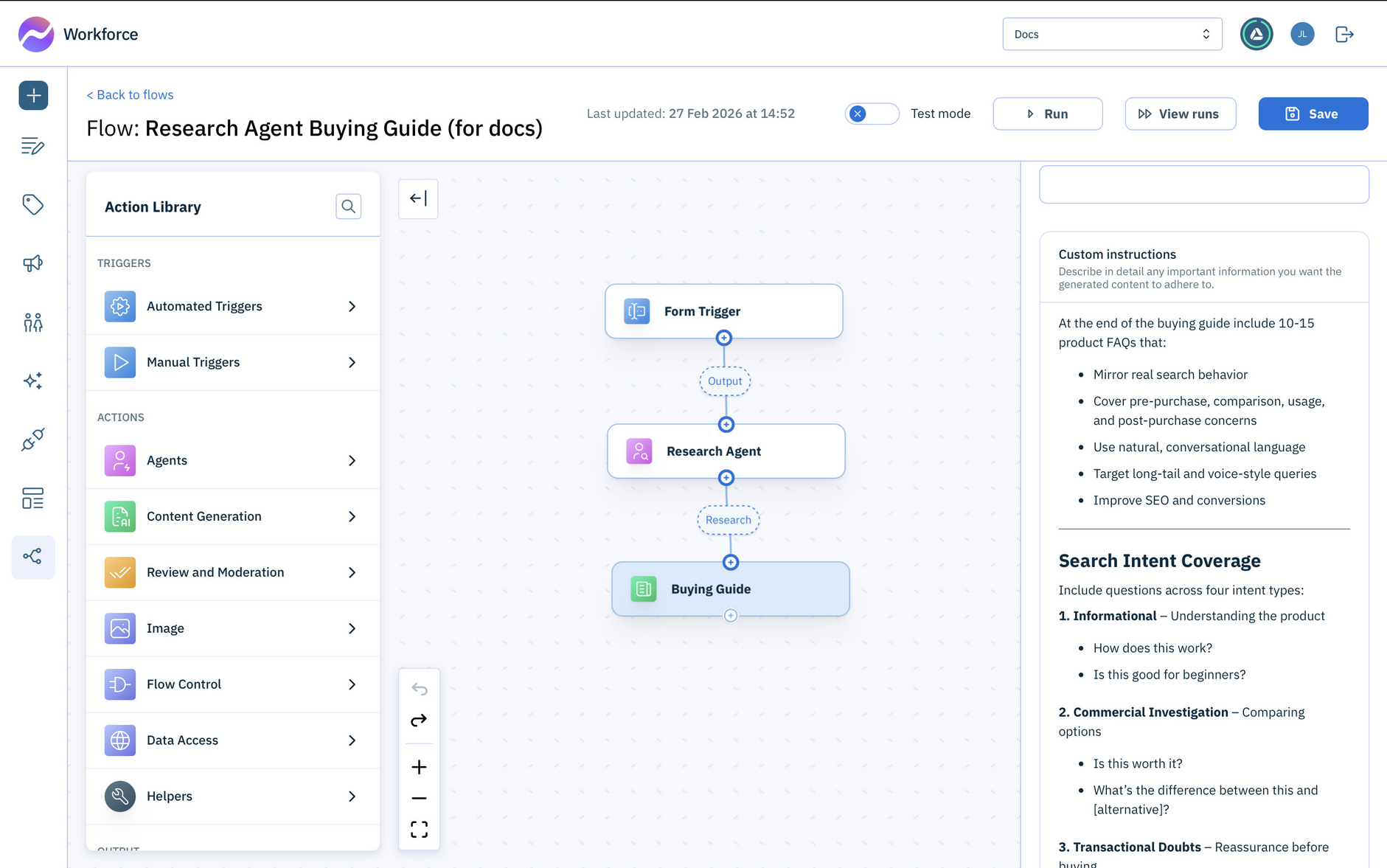
We'll add some Custom instructions to generate the buying guide with the format we want.
- Add the following text in the Custom instructions field. You can change these instructions to meet your specific requirements:
Try it outLink copied!
Save the flow. It's now ready to run.
-
Click Run at the top of the window.
-
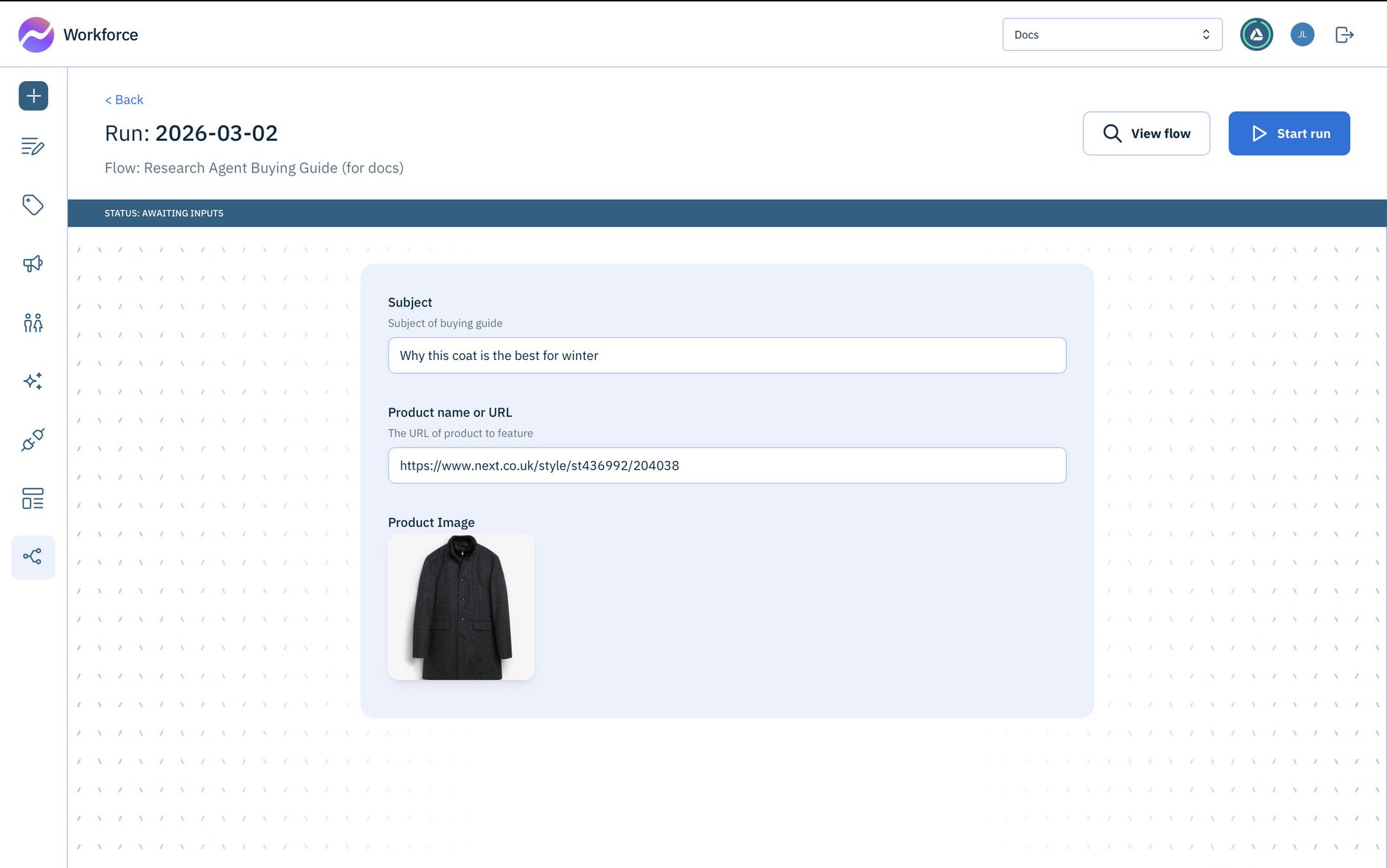
Enter a Subject for the buying guide and either a Product name or URL**. You can also upload an image to be used to help generate the content. In this example we're getting information from a URL and creating a buying guide for a grey coat.
-
Click the Start run button.
- The Research Agent starts running and retrieves information on the product using the information you provided.
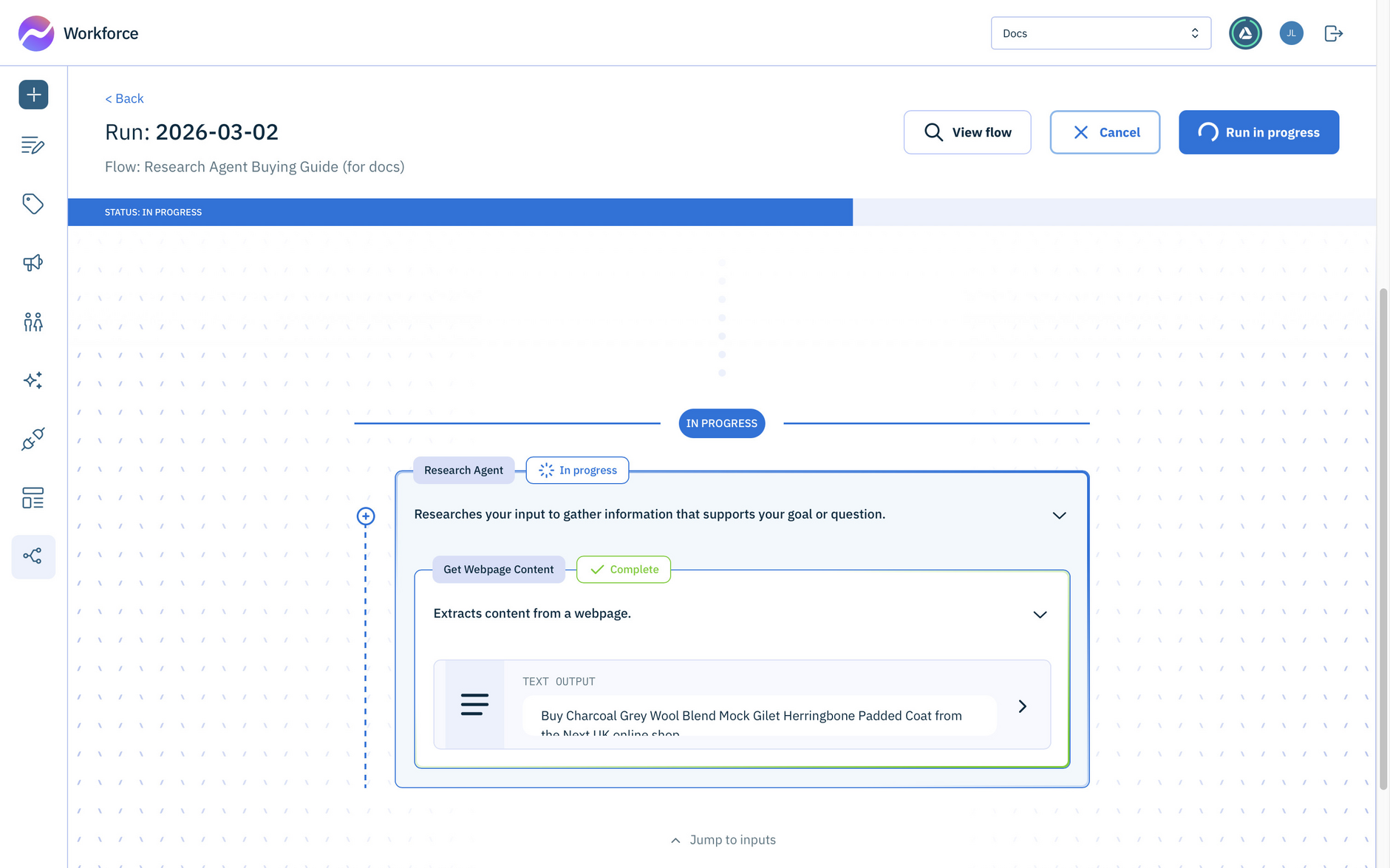
You can expand the card to show the information returned by the LLM.
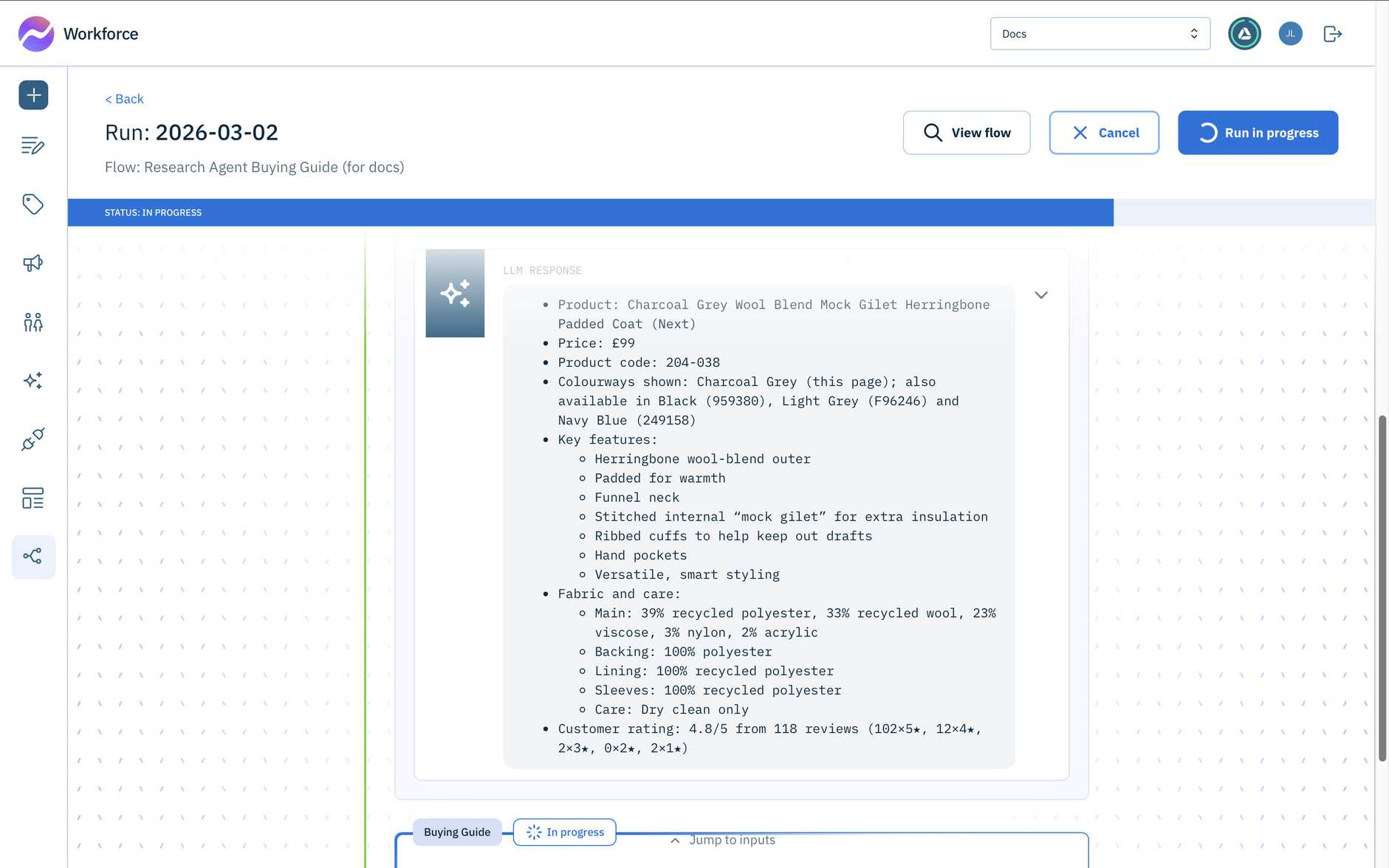
The buying guide and list of FAQs is generated from the information returned by the Research Agent.