Product image standardization
On this page we walk you step by step through creating a Workforce Flow that automatically adjusts a set of product images so that they conform to your brand's image style.
For each image the flow will:
- Crop and adjust the size of the image
- Set the background color
It's easy to customize these steps to adjust images to meet your brand requirements.
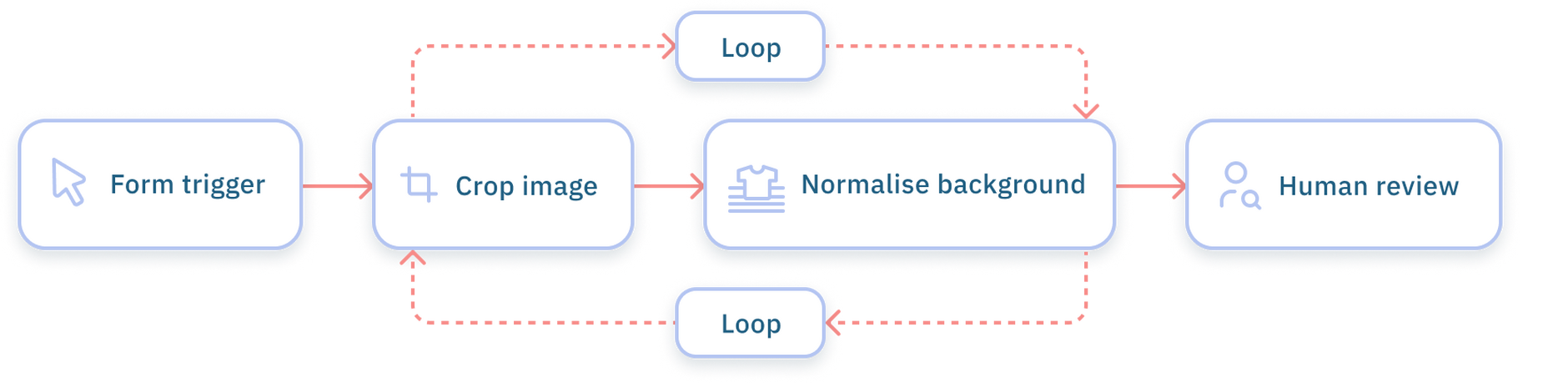
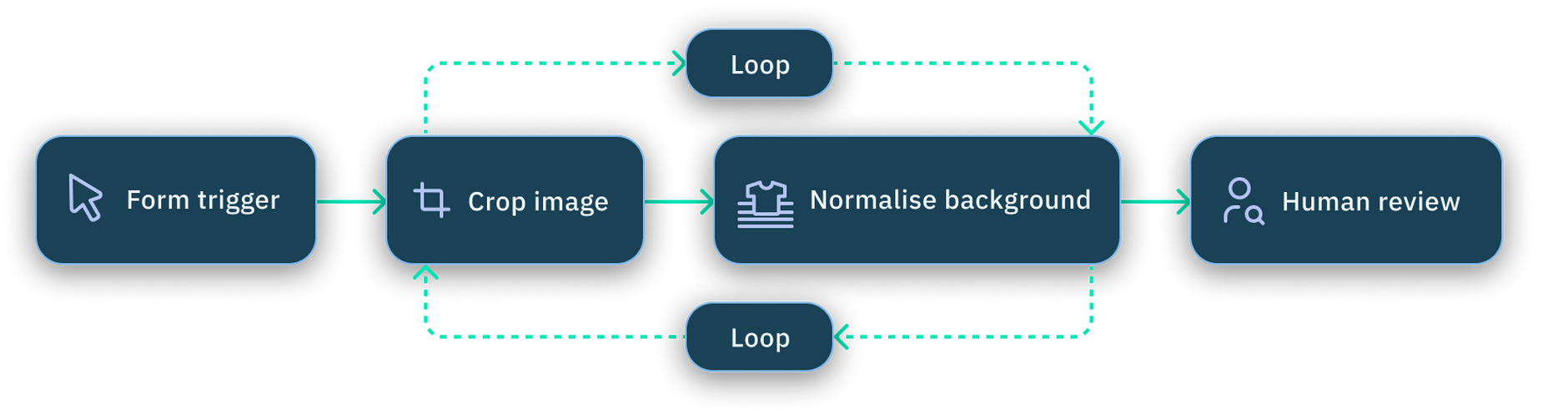
The flow uses a loop so that all of the images for a single product can be processed in a single run and then reviewed as a group.
Step 1- Create the form triggerLink copied!
- Create a new content flow and give it a label and description.
This flow is triggered by uploading a set of product images. In a more advanced example you could trigger the flow when a set of product images are uploaded to Content Hub.
- From the Action Library open the manual triggers and drag a form trigger to your flow.
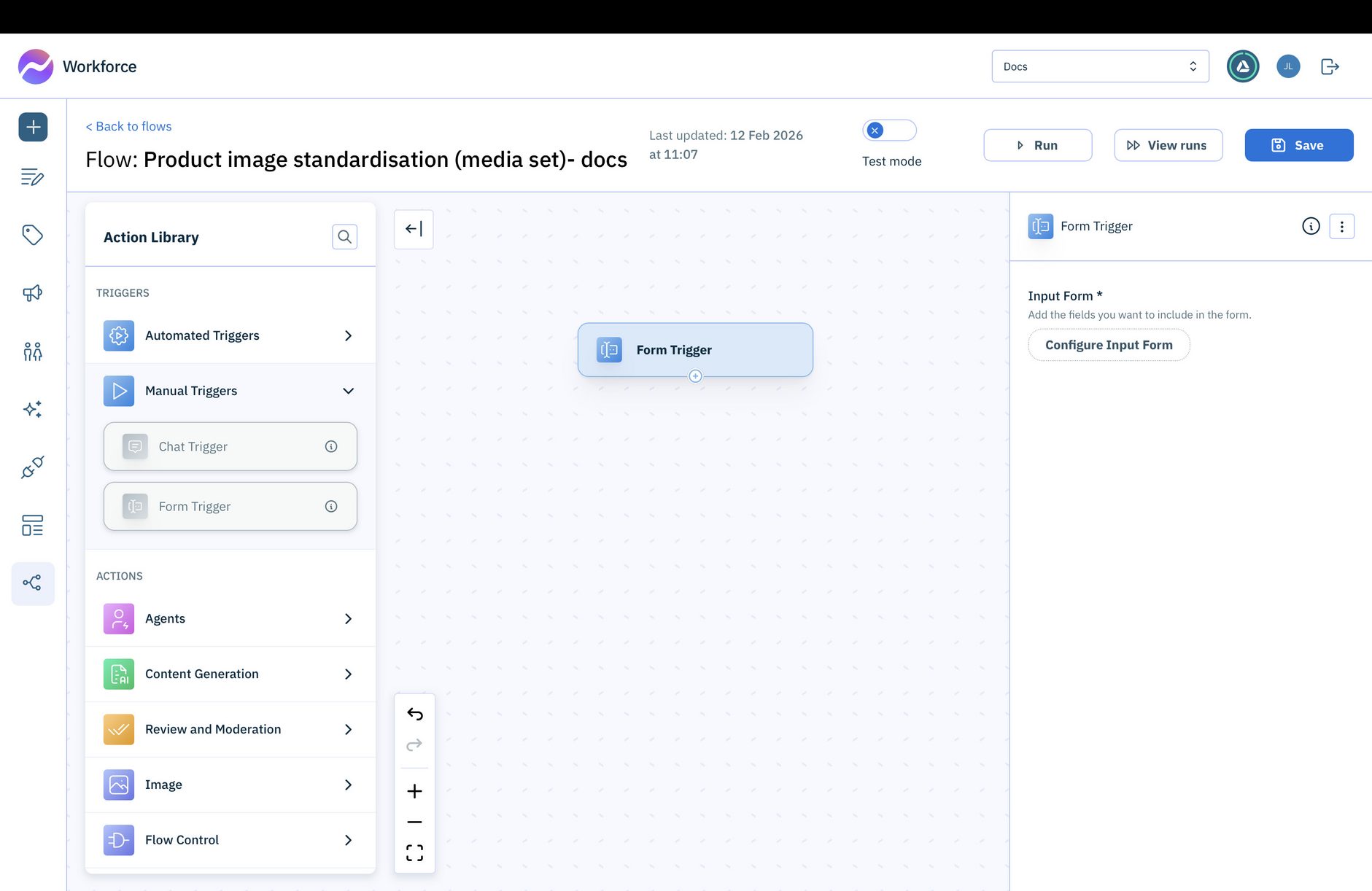
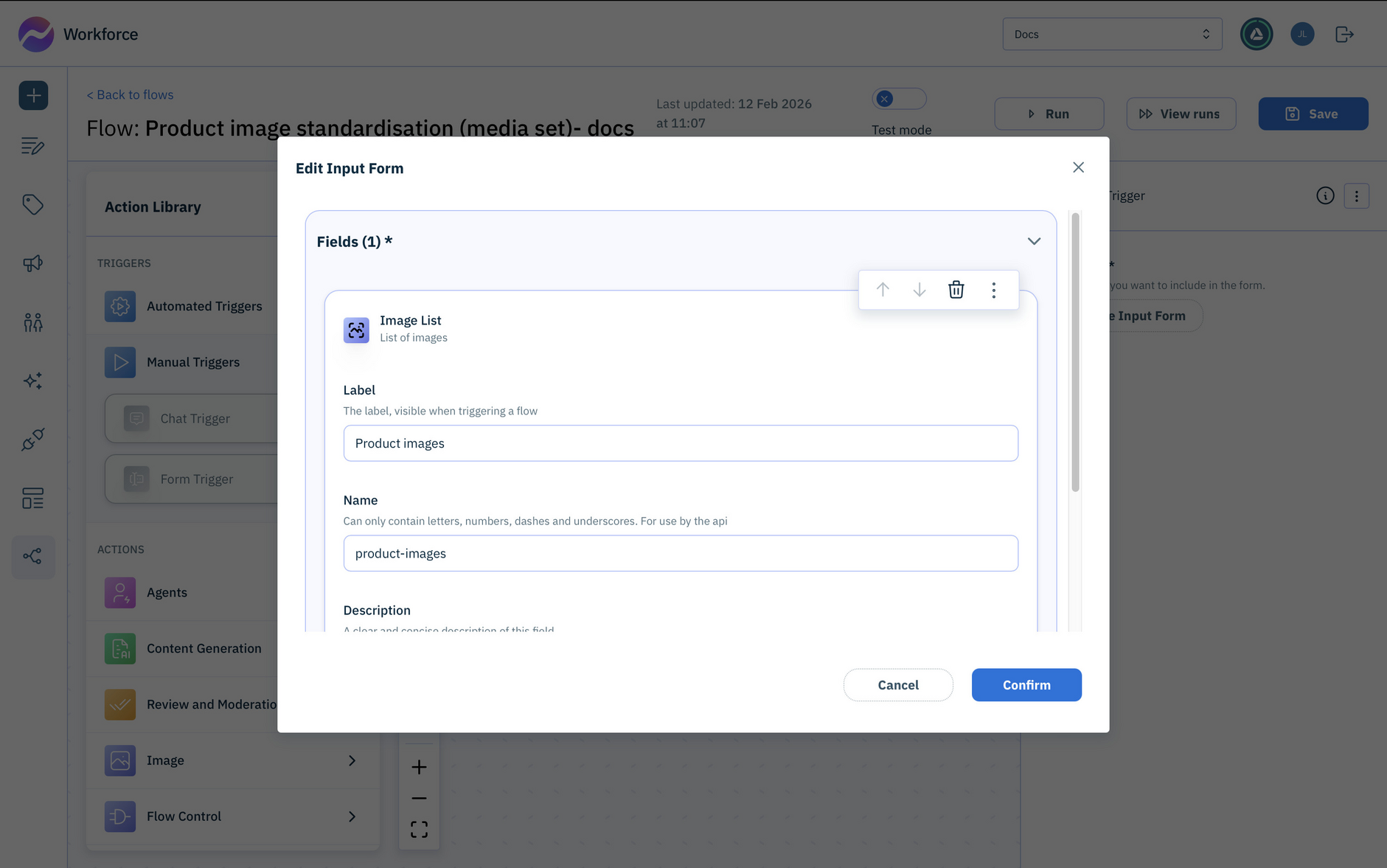
- Click the Configure Input Form button and add a field to represent a list of product images.
Step 2- Add a loop to process all the imagesLink copied!
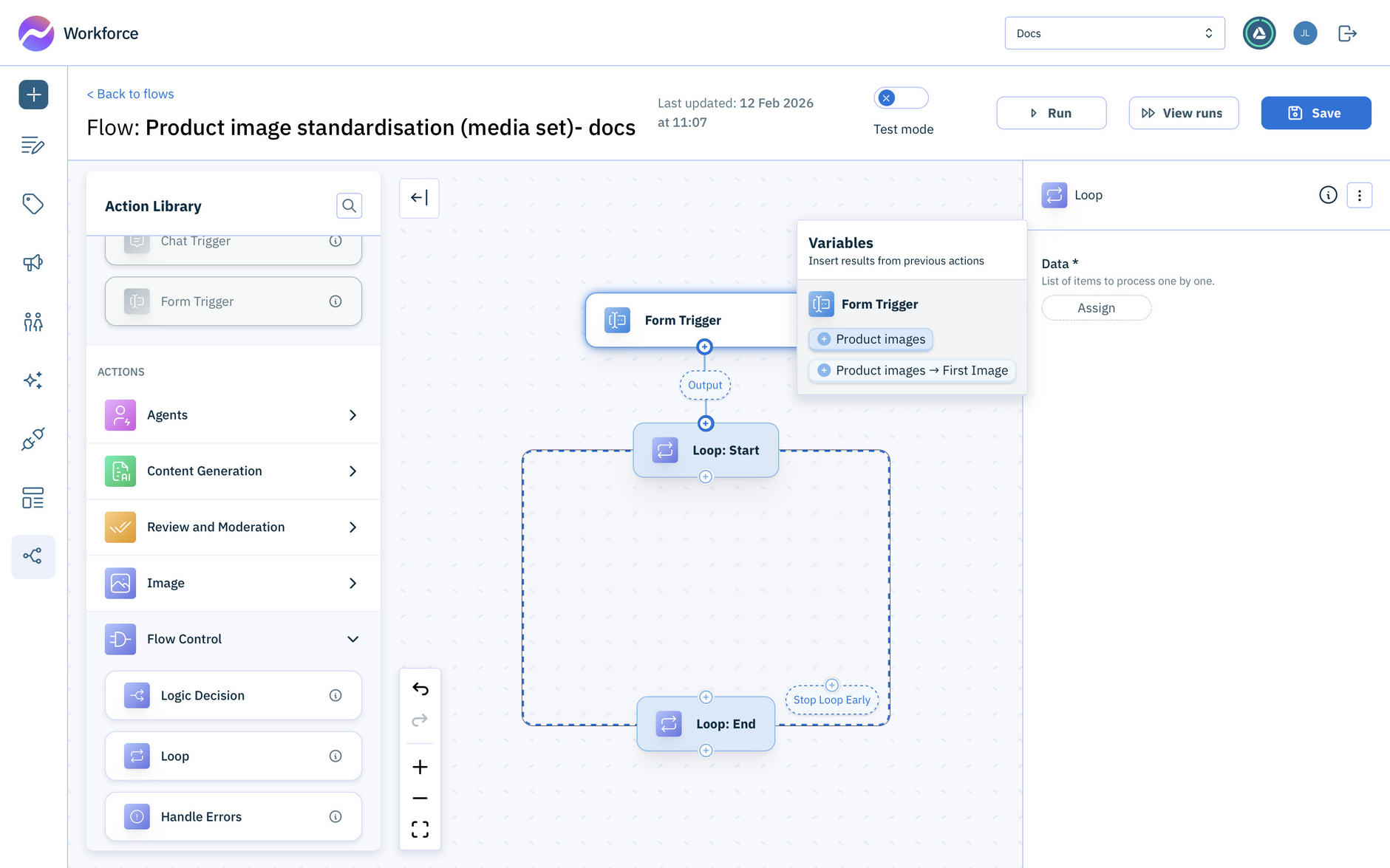
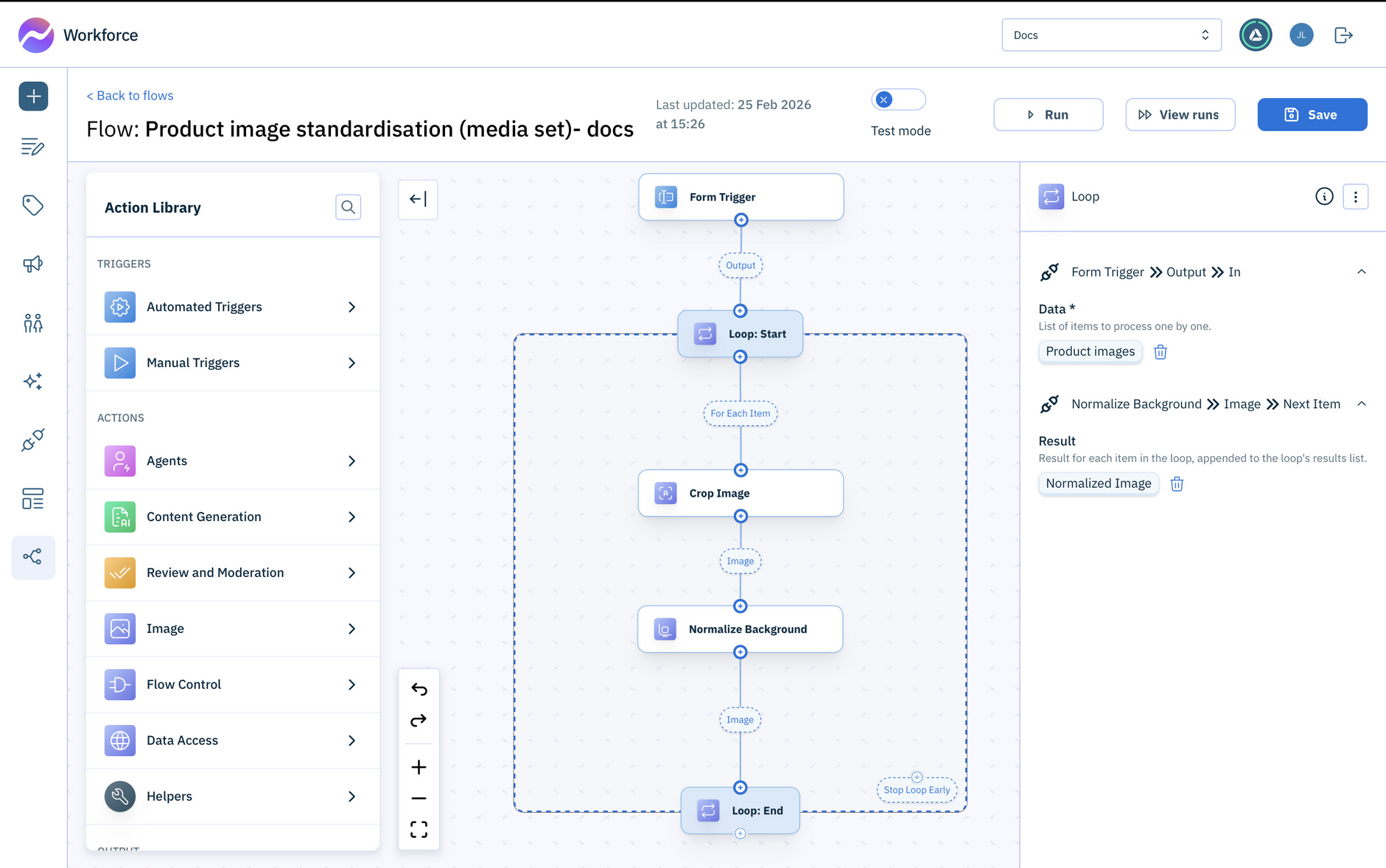
To perform the same series of steps to manipulate each image in turn, you first need to add a loop. Every action within that loop will be repeated for each image.
-
Open the Flow Control section and drag the Loop action to your flow. Connect the loop input to the output of the form trigger.
-
Assign the Data field to the list of Product Images from the form trigger.
Step 3- Crop and adjust the size of the imageLink copied!
For each image, you can add the actions to process the image to meet your brand requirements.
This consists of actions that crop the image, adjust the image size and position the object.
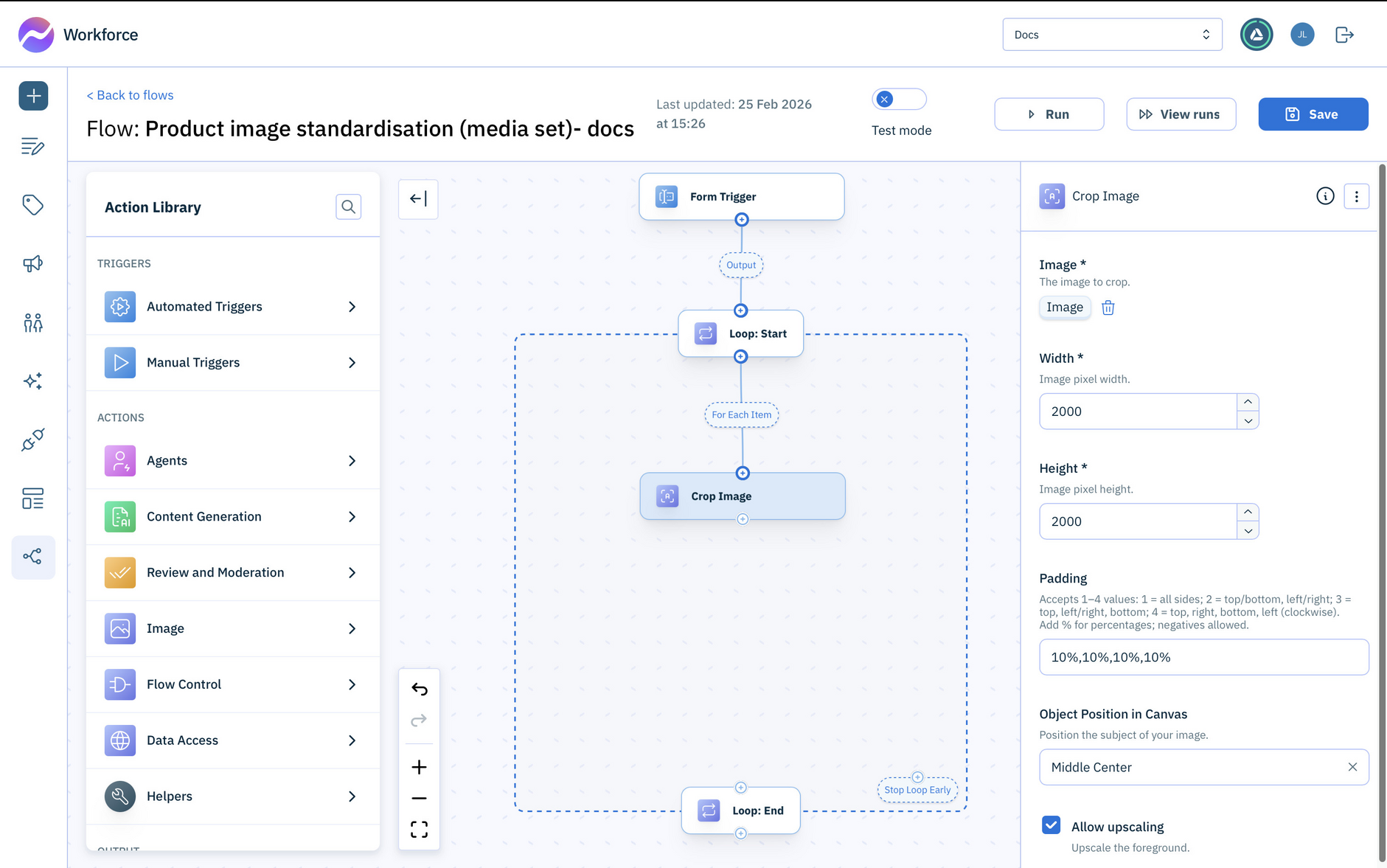
Much of the image adjustment is done by the Crop Image action.
-
Inside the loop add the Crop Image action and connect its input to the Loop: Start, For Each Item output. This will be the start of the actions performed on each image.
-
Set the width, height, position and padding fields to your required values. In this example we'll use a width and height of 2000 pixels, a position of middle centre, and padding of 10% in each dimension.
Step 4- Set the background colorLink copied!
Your brand guidelines will often require a standard background for each of your product images. The Normalize Background action allows you to set an image background color while maintaining shadows and highlights for a more realistic effect. The specified background will also fill any additional pixels created to meet the width / height specified in the crop action. Learn more about the Normalize Background action.
-
Drag the Normalize Background action and connect it to the output of Crop action- the cropped and adjusted image.
-
Ensure that the Image value is set to the Cropped Image.
-
Enter your required background color.
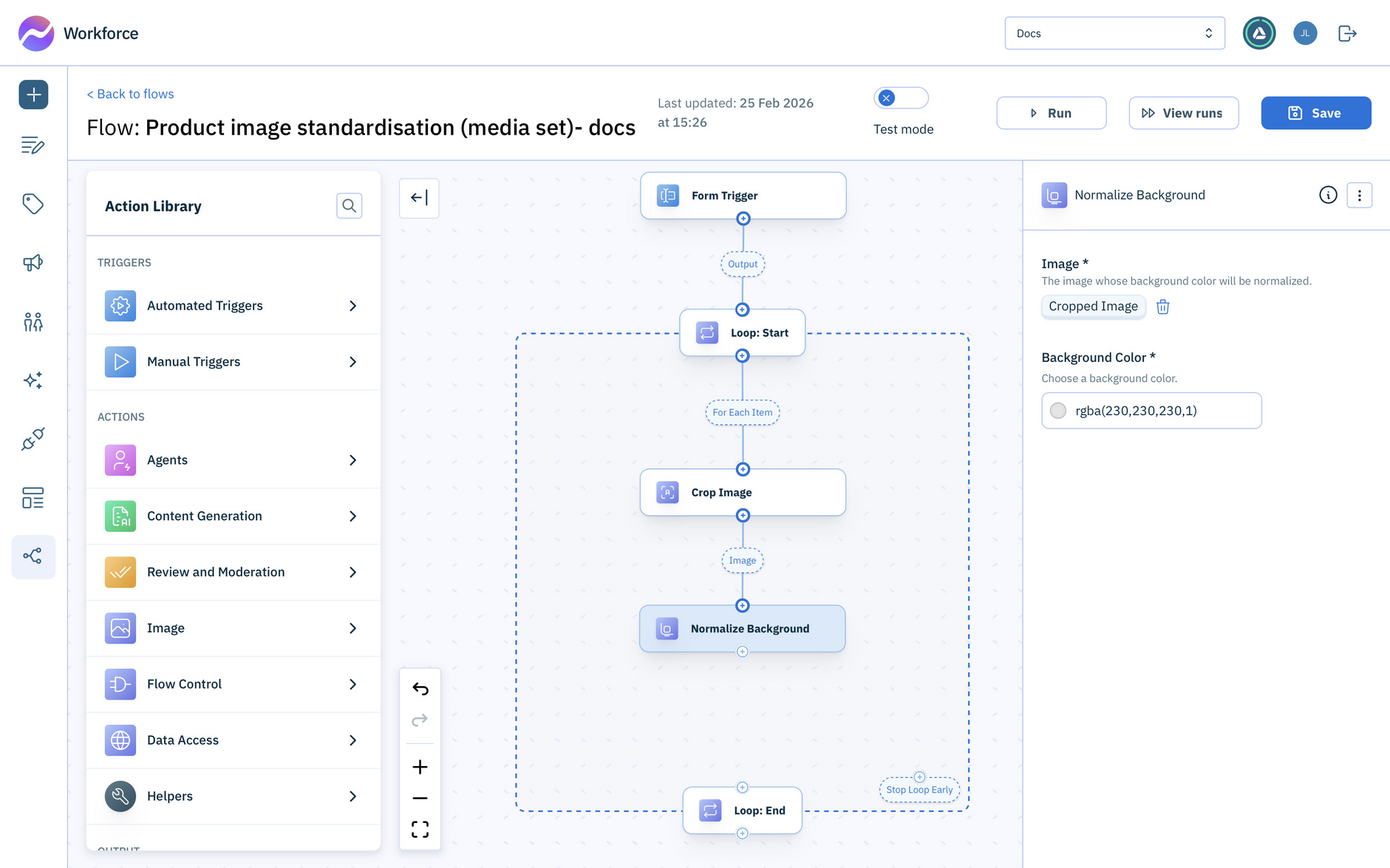
This is the last action to be performed for all images, so you'll need to close the loop.
- Connect the output of the Normalize Background action to the input of Loop: End.
Everything inside the loop will be repeated for each image.
Step 5- Add human reviewLink copied!
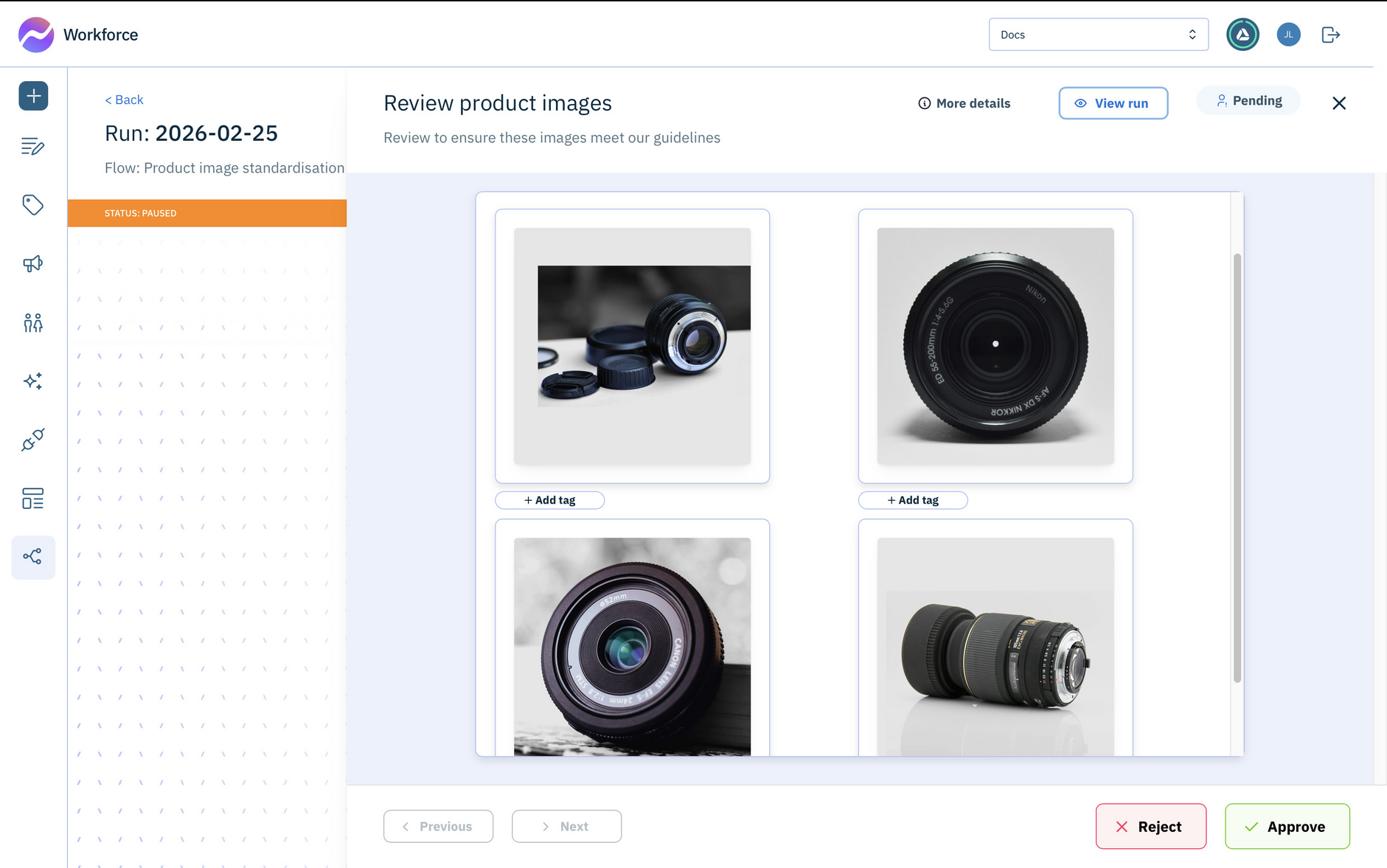
The last step is to review the processed images to ensure they meet your brand requirements.
-
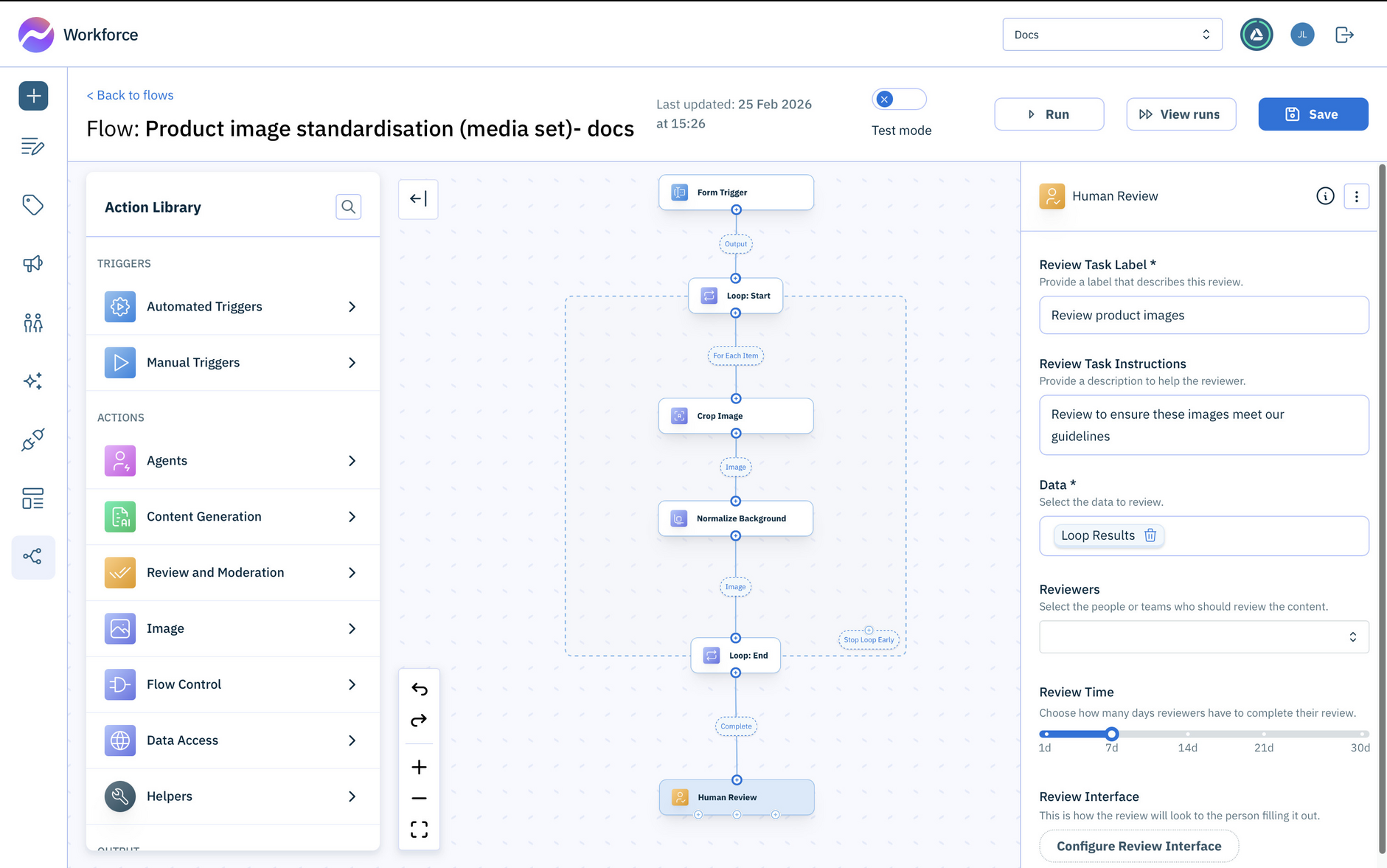
Open the Review and Moderation section in the Action Library and drag the Human Review action to the flow. Connect the input of Human Review to the output of the Loop: End.
-
Ensure that the data to review value is Loop Results. This will show you all the processed images to review.
Try it outLink copied!
The flow is now ready to run.
-
Click Run at the top of the window.
-
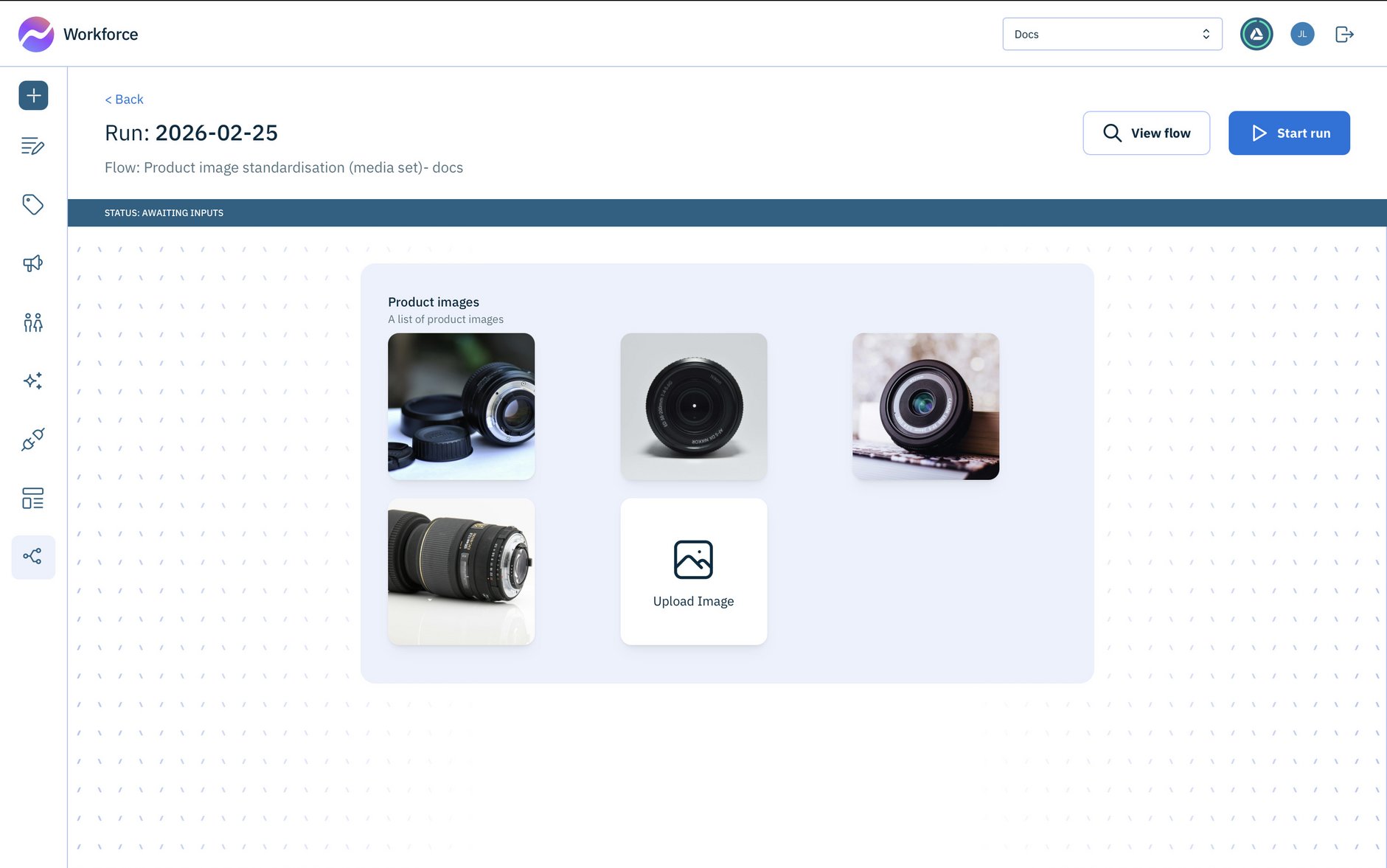
Upload a set of product images and click the Start Run button.
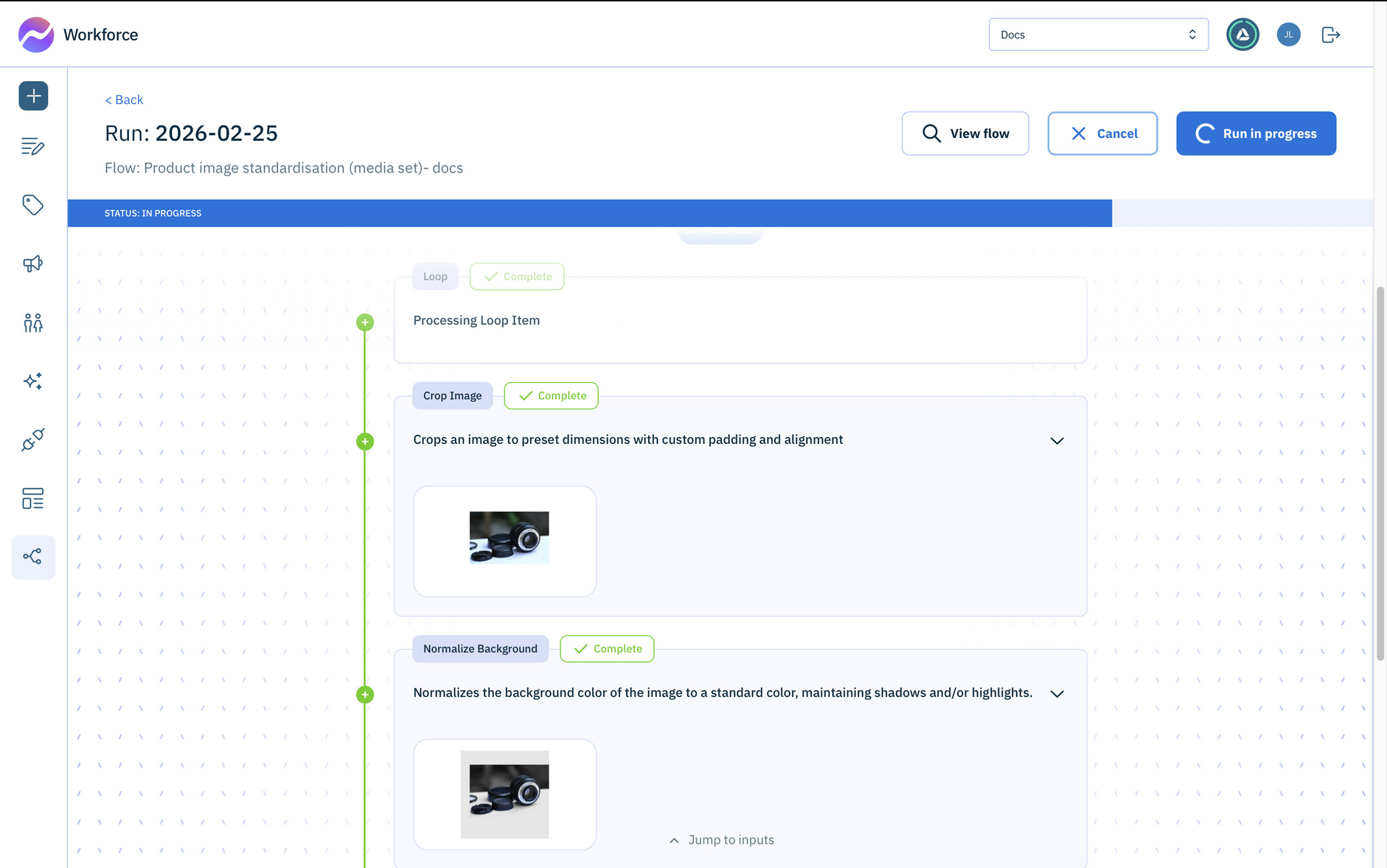
The images are processed in turn. You can see the results of each action by expanding the expanding the results card at each step.
Once all the images have been processed, they're available for review.