Localized product descriptions
On this page we walk you step by step through creating a Workforce Flow that:
- Generates product descriptions from a name, product features and product images
- Translates these descriptions into multiple languages
- Outputs the results to a CSV file


Step 1- Create the form triggerLink copied!
-
Create a new content flow and give it a label and description.
-
From the Action Library open the Manual triggers and drag a Form trigger to your flow.
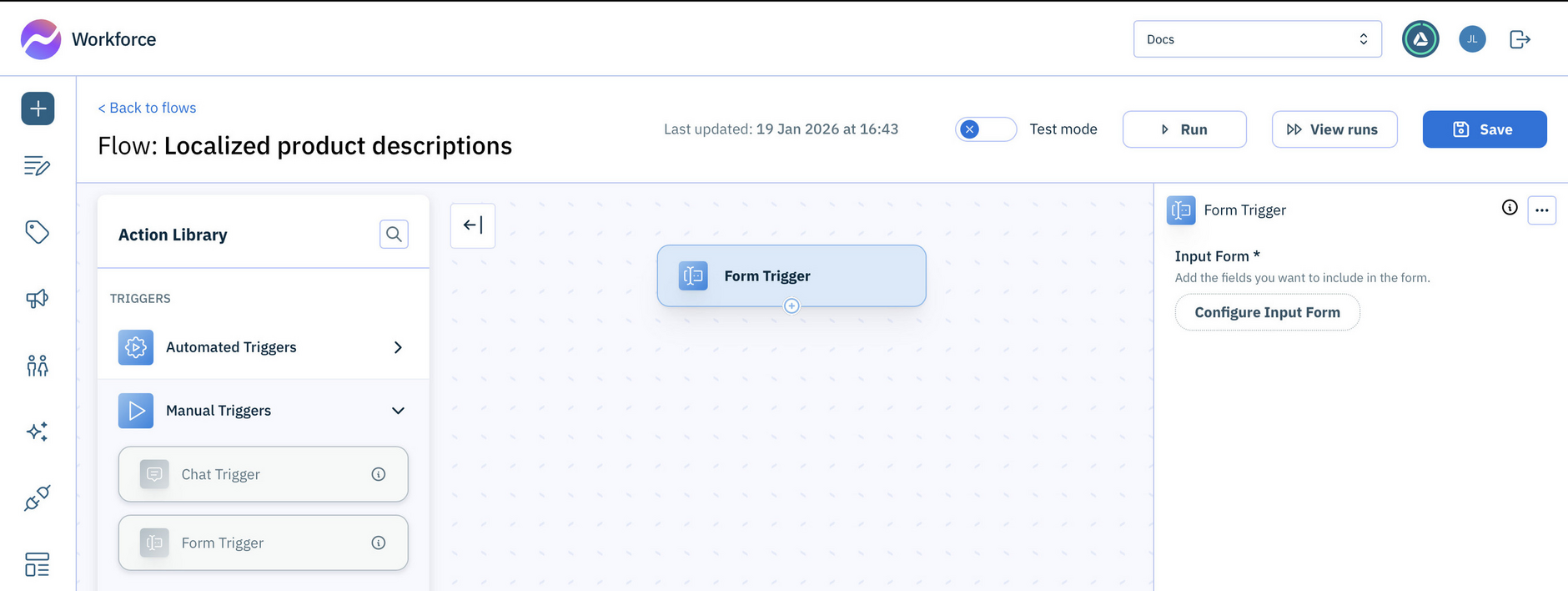
-
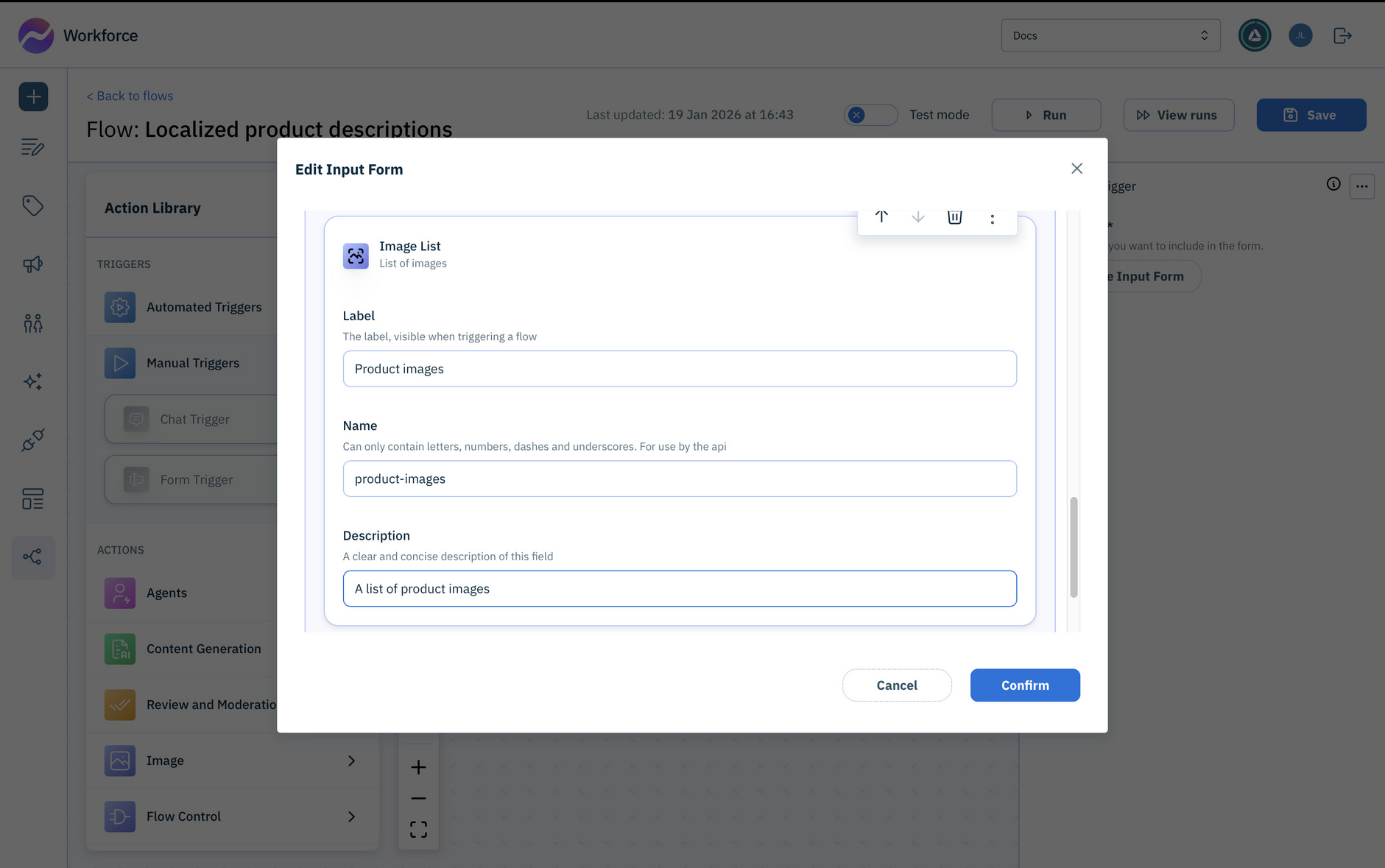
Click the Configure Input Form button and add the following fields:
-
A single line text field: Product name
-
A multi line text field: Product features
-
An image list field: Product images
-
Step 2- Add the Product description actionLink copied!
Use a content generation type action to generate a product description from the product name, features and images.
-
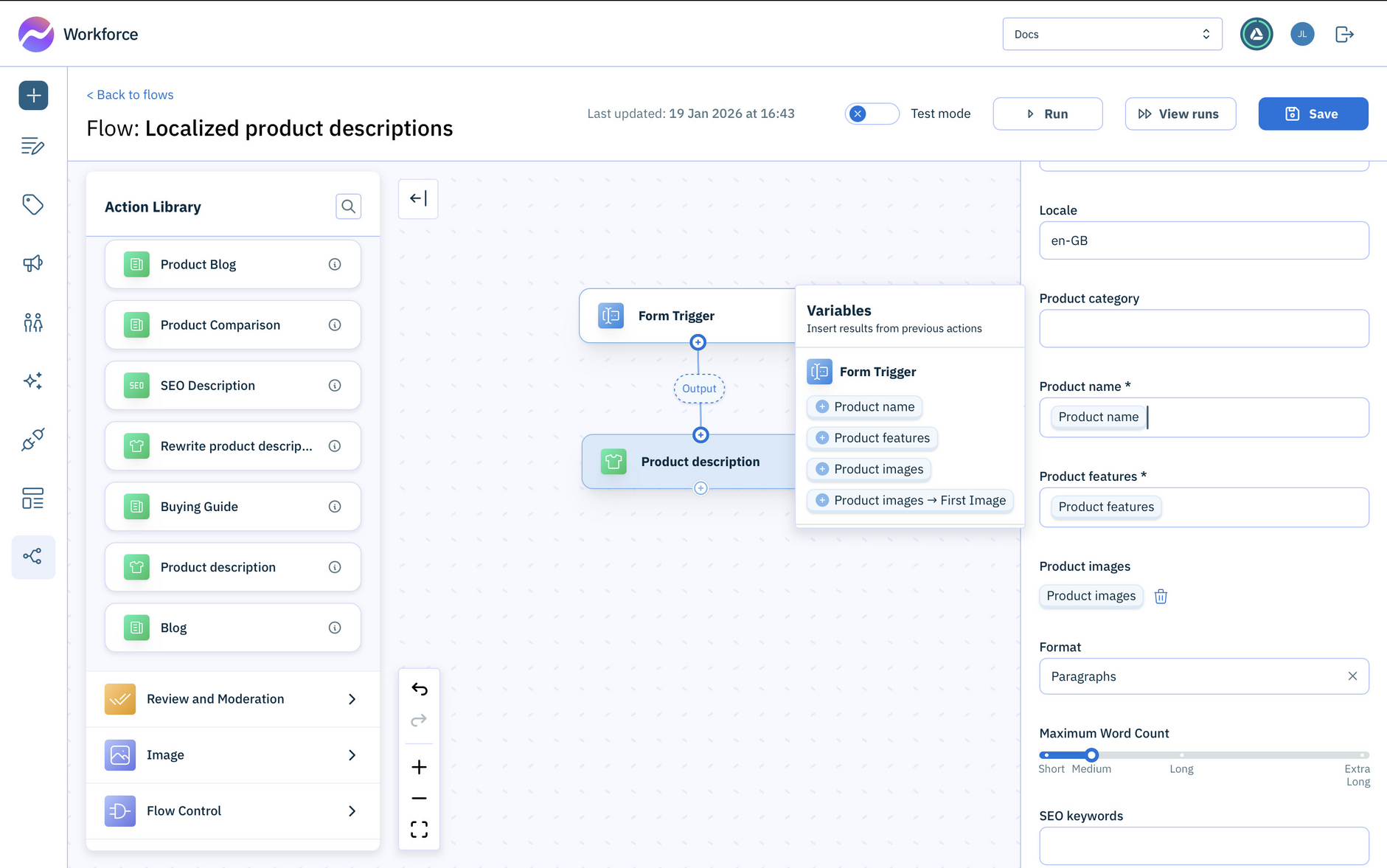
Drag the Product description action to your flow and connect it with the output of the form trigger.
-
Choose the model and optionally the brand voice, audience and locale to tune the output to your brand.
-
Enter a source locale. For example: en-GB.
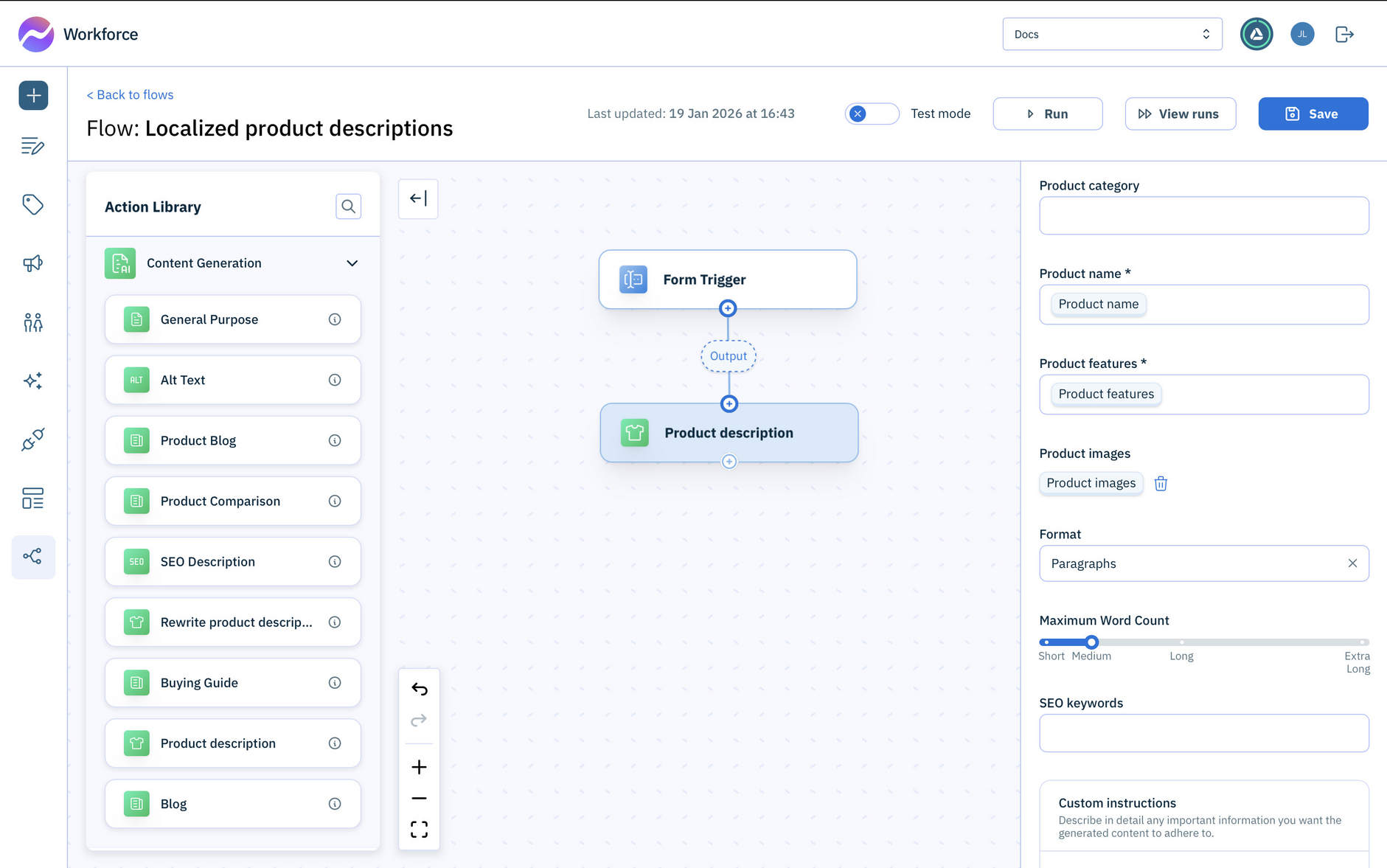
- Set the Product name, Product features and Product images to the corresponding outputs of the Form Trigger.
Step 3- Add the translation agentLink copied!
Once the product description is generated, you need translate it into the languages you choose.
-
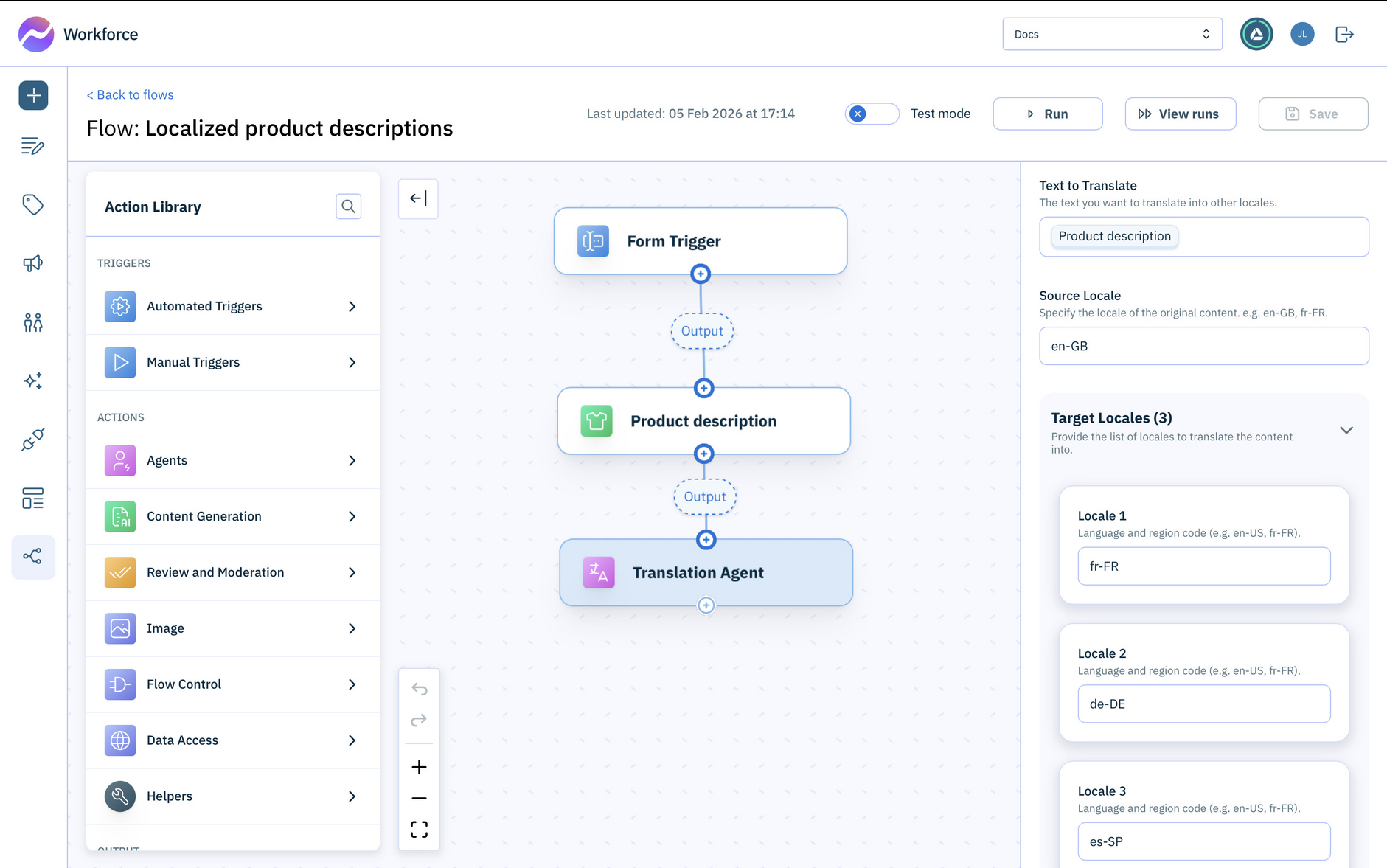
Open the Agents section and drag the Translation Agent to your flow. Connect it to the output of the Product description action.
-
Set the Text to translate to the output of the Product description.
-
Enter the Source Locale that you used to generate the product description in the previous step. In this example it's
en-GB. -
In Target Locales add all the locales that you want to translate the text into.
The output text will include the text in the source locale together with the translated text for each of the target locales.
Step 4- Output the result as a CSV fileLink copied!
In this example we'll output the product descriptions in each locale to a CSV file.
-
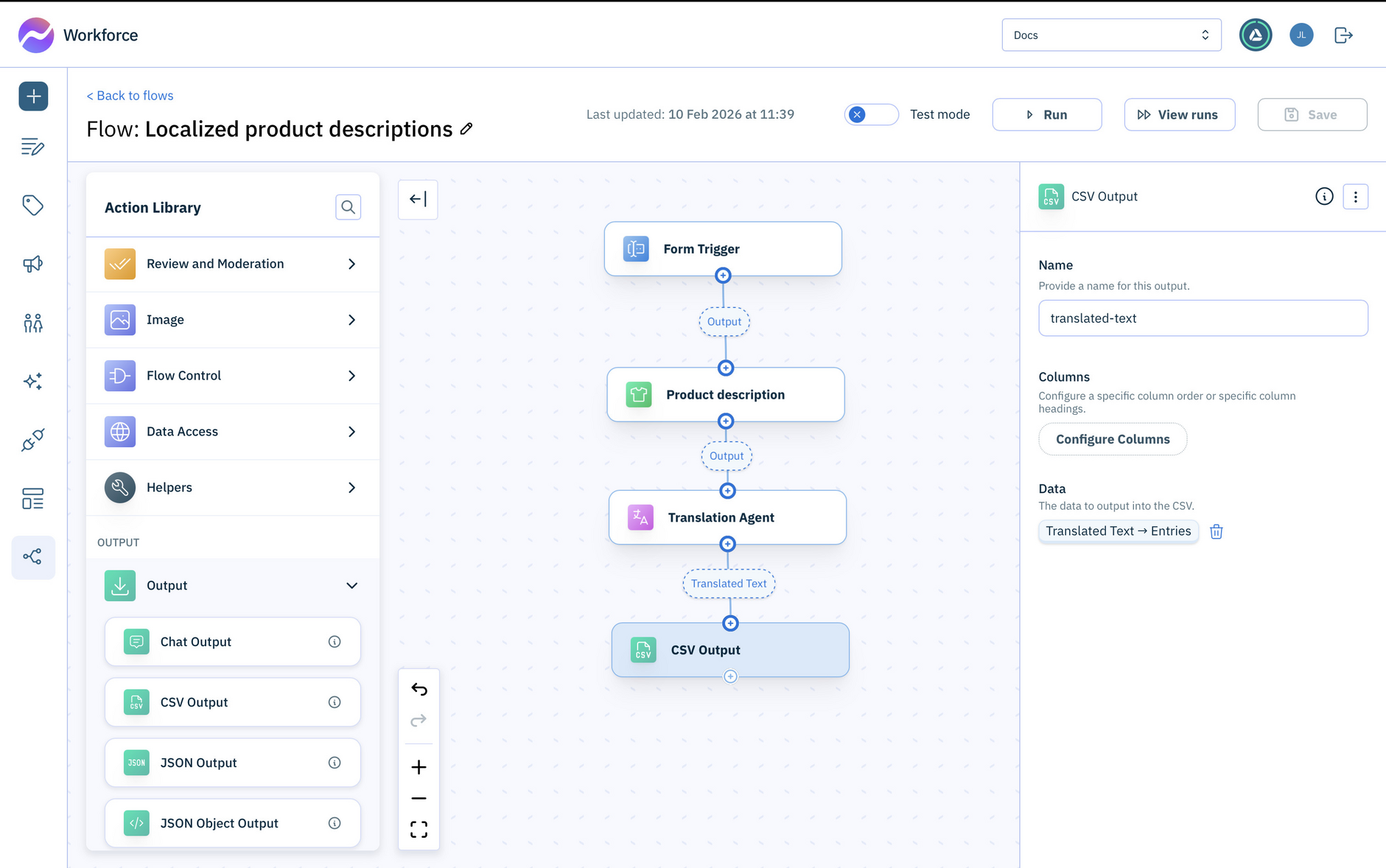
Open the Output section and drag the CSV Output action to your flow.
-
Connect the CSV Output to the Translation agent.
-
The Data field should be automatically populated, but if not then add Translated Text -> Entries from the output of the Translation agent.
Try it outLink copied!
The flow is now ready to run.
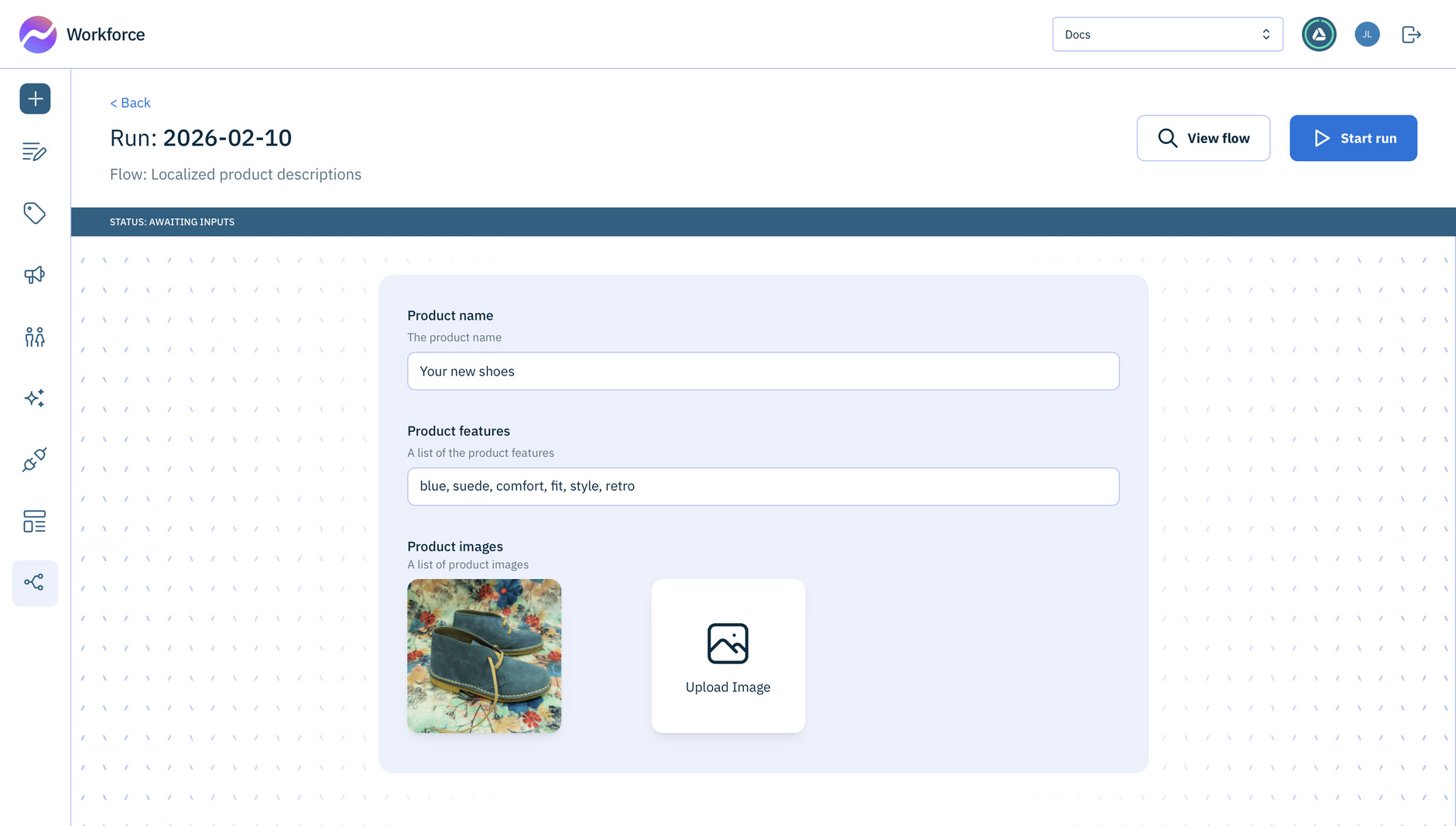
- Click Run at the top of the window and enter the product details to use to create the product description.
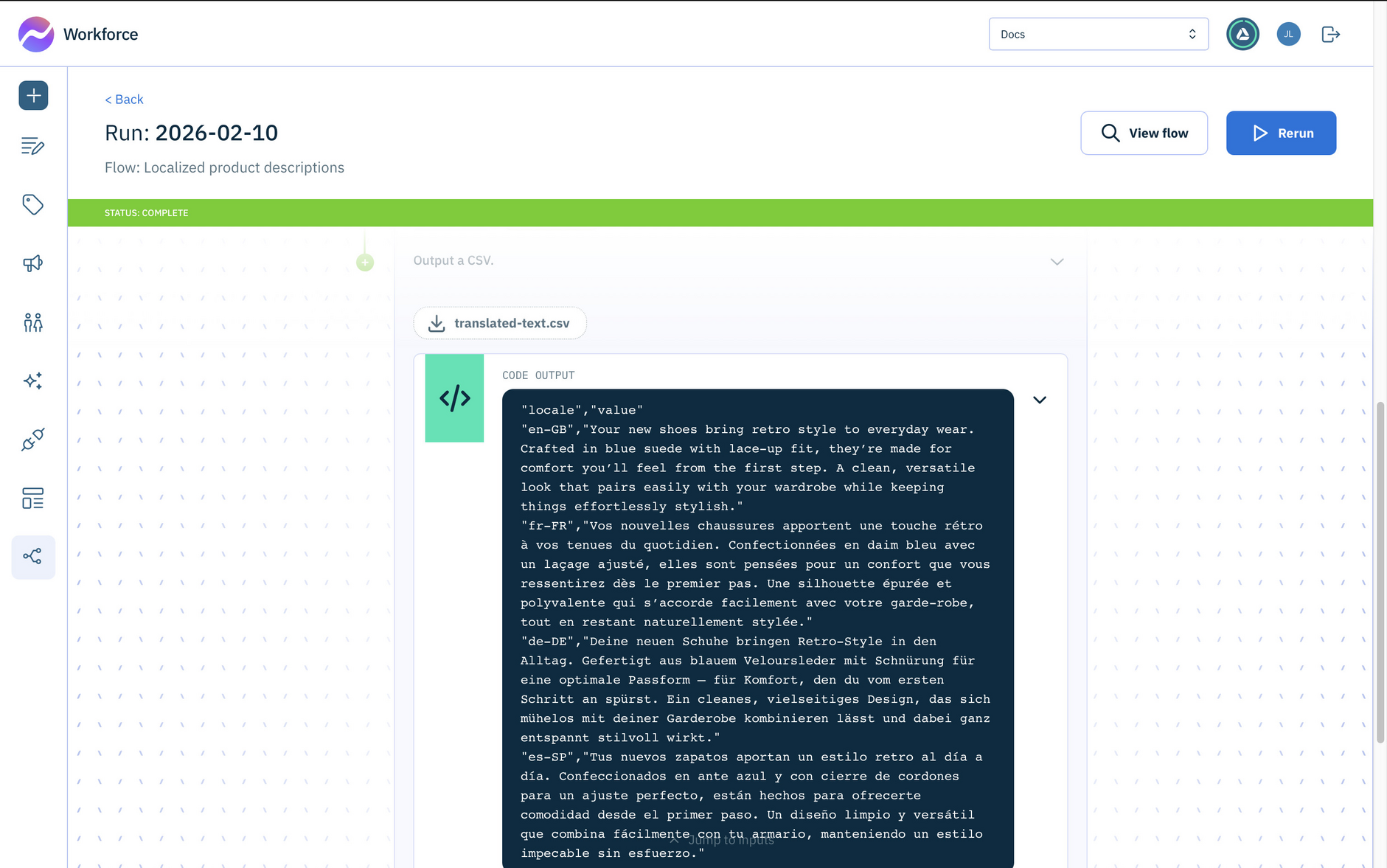
The product description is generated and translated into your chosen languages. The generated text is then output to a CSV file. You can open the CSV file by clicking its icon.
Tip- Customize the CSV fileLink copied!
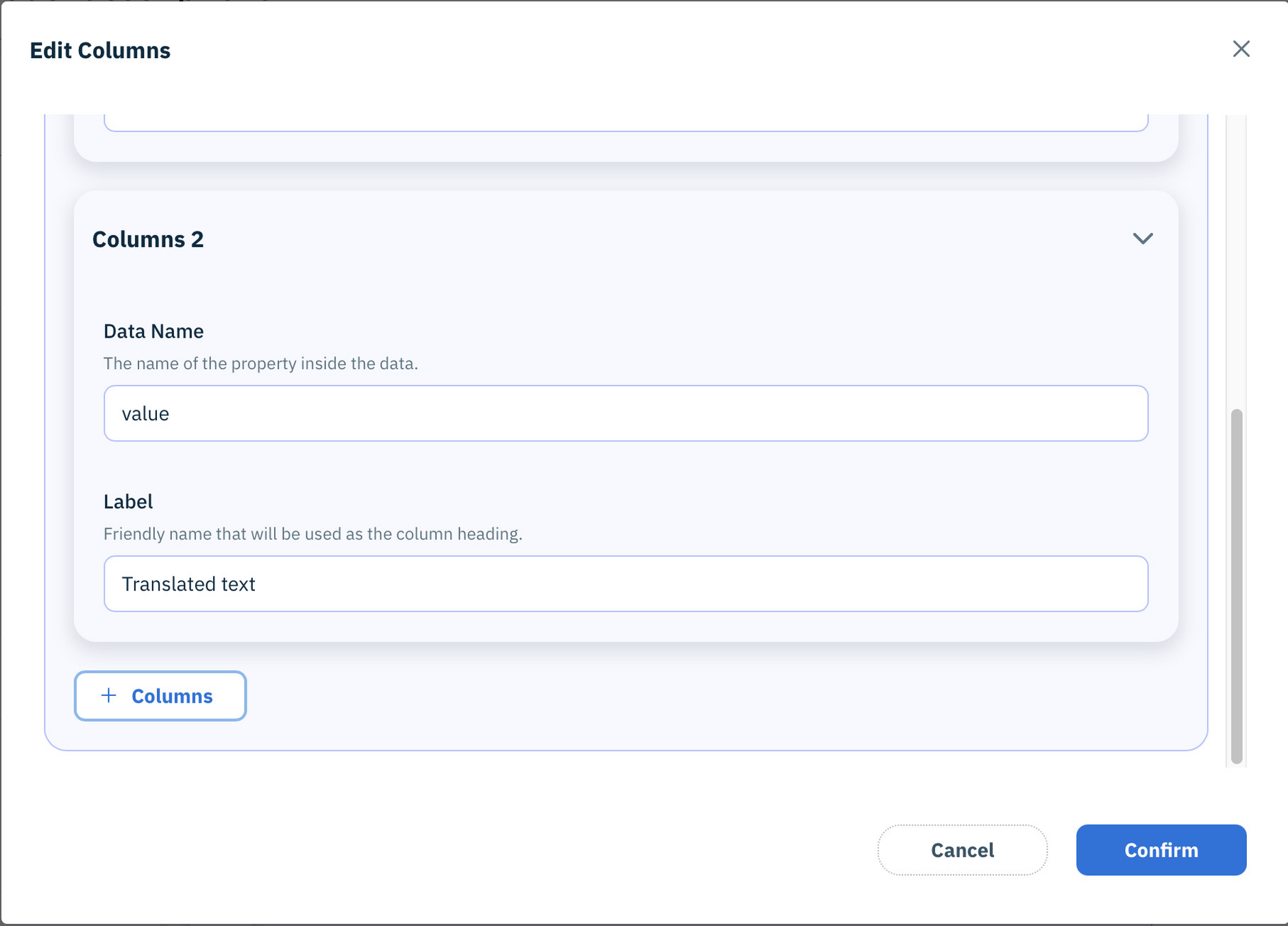
By default in this example, the text will be output using columns named "locale" and "value". You can change the labels for these columns in the CSV file.
To customize the CSV output, select the CSV Output action and choose "Configure Columns". Map the column names to the labels you want. In the example shown below, the column named "value" will now use a label of "Translated text".