Image tagging and Content Hub upload
On this page we walk you step by step through creating a Workforce Flow that:
- Uses AI to tag an image according to a predefined list of tags.
- Uploads the image to Content Hub, along with its tags.
The tags can be used to help classify and organize your images.


Step 1- Create the form triggerLink copied!
Create a new flow and give it a label and description.
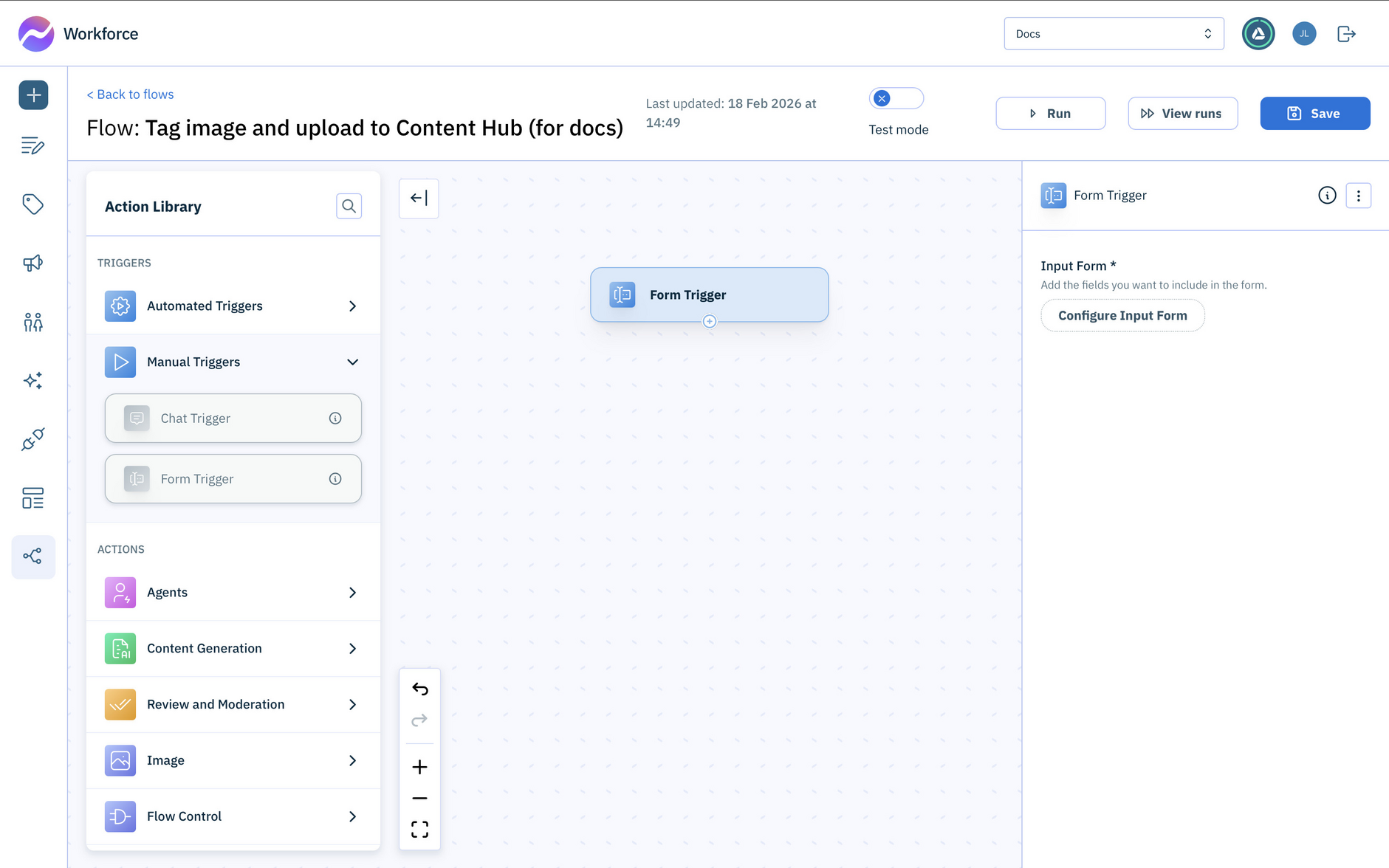
- From the Action Library open the Manual triggers and drag a Form trigger to your flow.
-
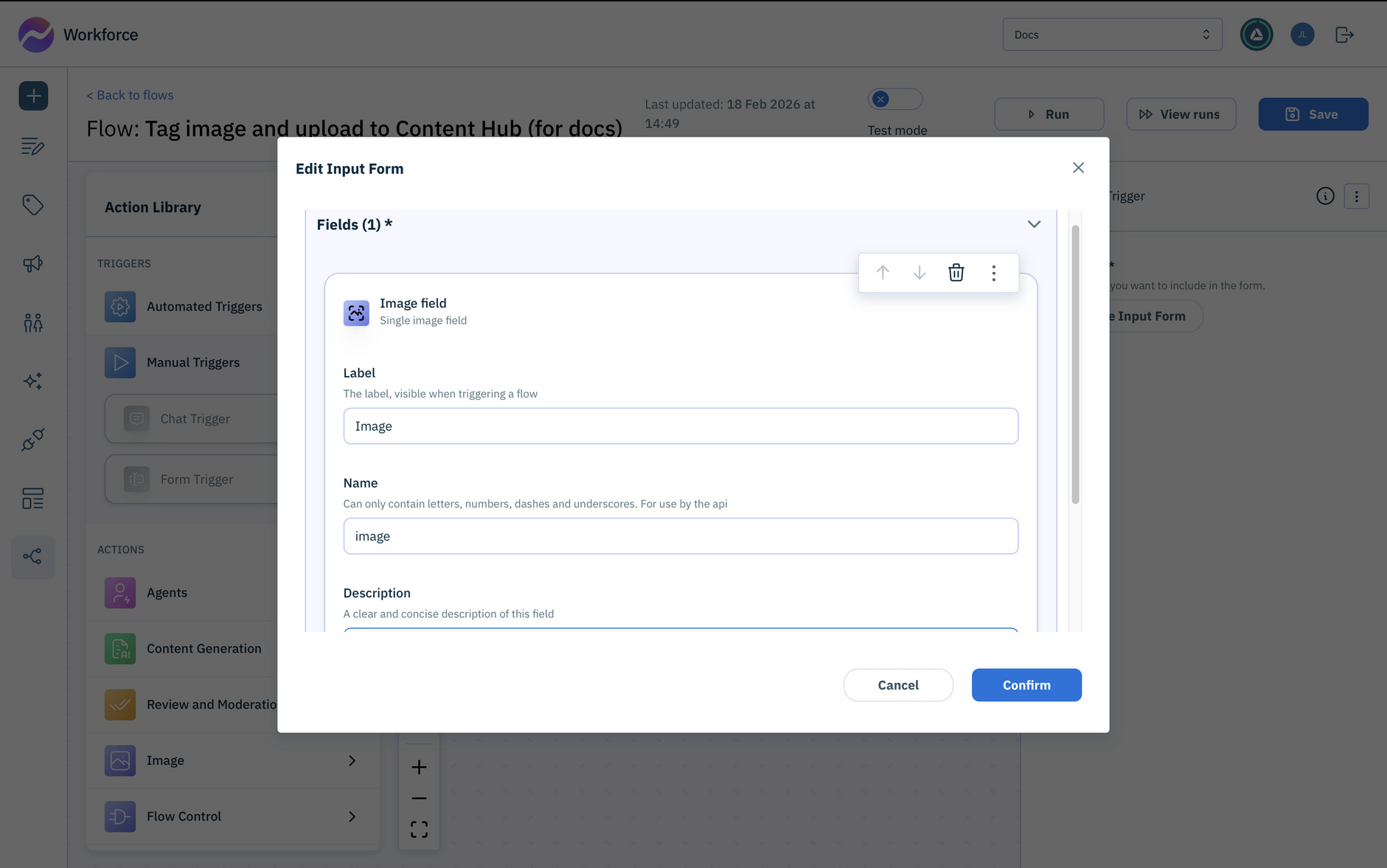
Click the Configure Input Form button and add the following fields:
-
The image to tag: Image
-
A single line text field: Filename. This will be the filename including the file extension (eg .png, .jpg).
-
Step 2- Auto Detect the tagsLink copied!
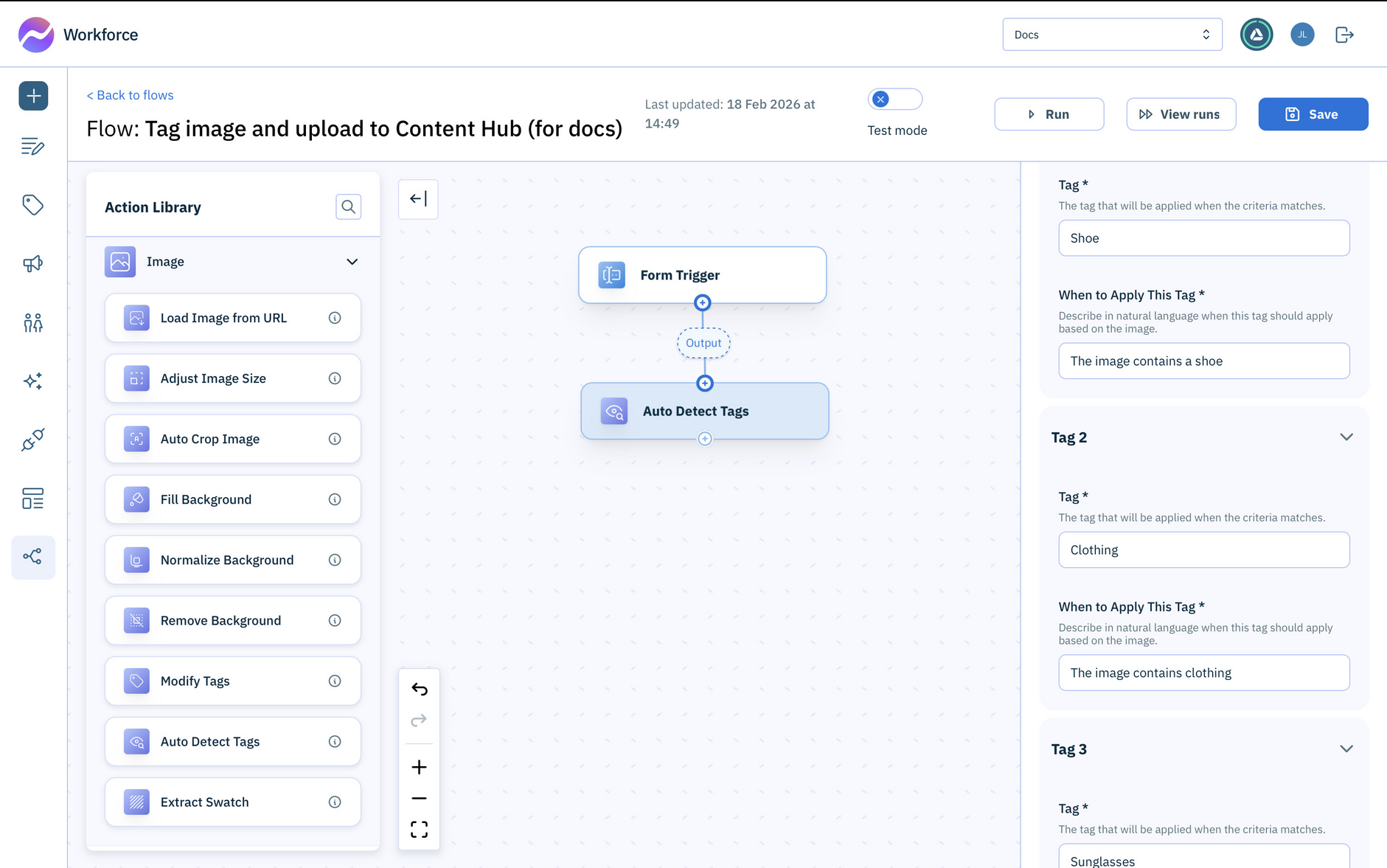
The Auto Detect Image action uses AI to process an image, matching the tags that you entered. For each tag you enter details for when the tag is to be applied. For example, for a tag of "Shoe", the when to apply this tag field could contain "When the image contains a shoe". Or you could be far more specific to just tag particular types of shoe.
-
Open the Image action section in the Action Library and drag the Auto Detect Image action to your flow.
-
Connect the action to the output of the Form Trigger. This will be the image to process.
Step 3- Split the filenameLink copied!
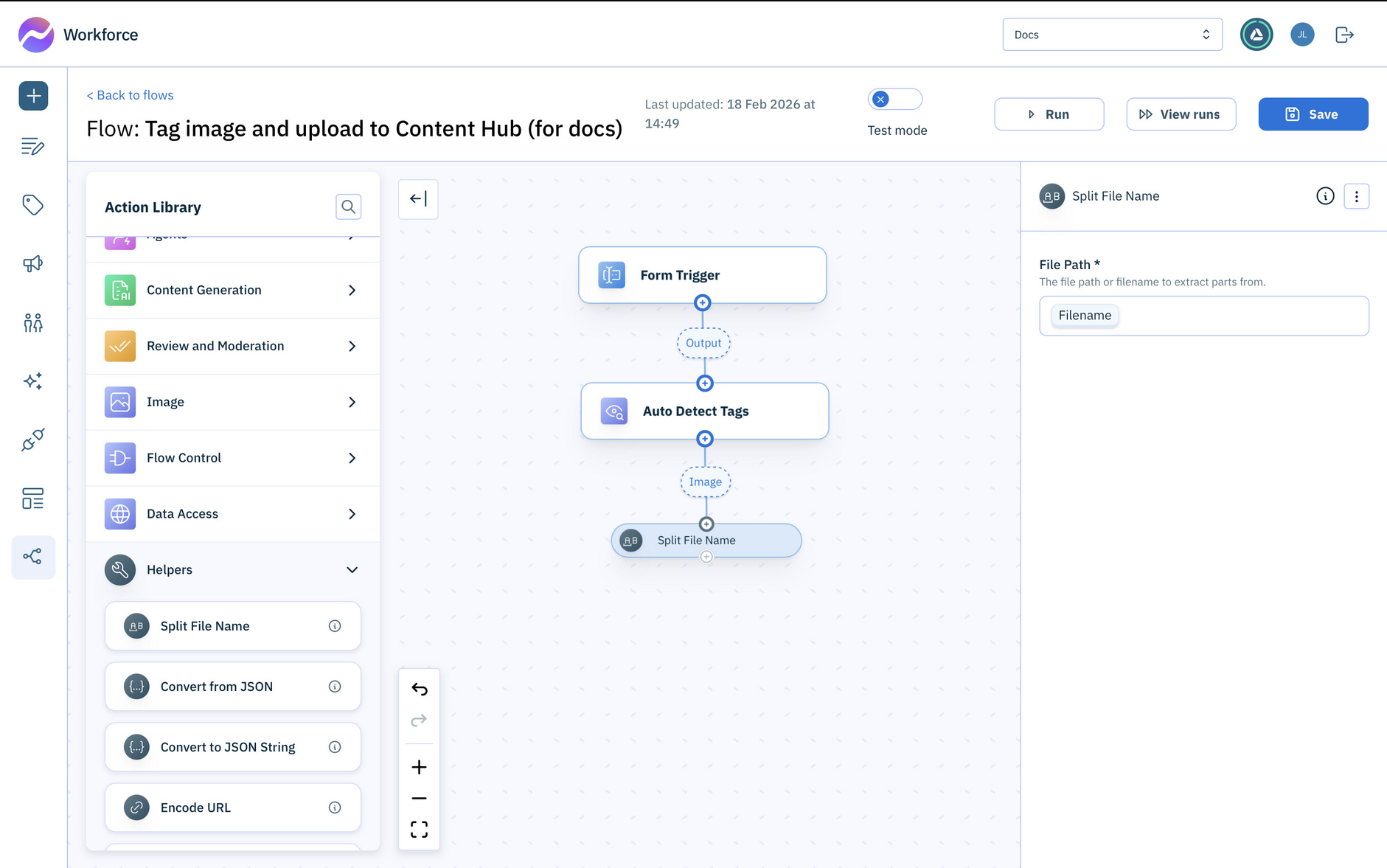
When uploading an image to Content Hub, you need to specify the image filename and an API name- this will be the filename without the image. To make this simple, use the Split Filename action.
-
Open the Helpers section in the Action Library and drag the Split Filename action into your flow.
-
Ensure that the File Path field is set to the Filename output by the Form trigger.
Step 4- Upload the asset to Content HubLink copied!
To upload the image, including its tags, to Content Hub, use the Upload Image Asset action.
-
Open the Amplience Content Hub folder within Integrations in the Action Library.
-
Drag the Upload Image Asset action to your form and connect it with the output of the Split Filename action.
-
Configure the fields of Upload Image Asset as follows:
-
Image - the Image returned by the Form Trigger.
-
File Name - the Filename returned by the Form Trigger.
-
API Name - the Base Name returned by the Split Filename action. This is the Filename without the file extension.
-
-
Ensure that Add tags to Content Hub is checked.
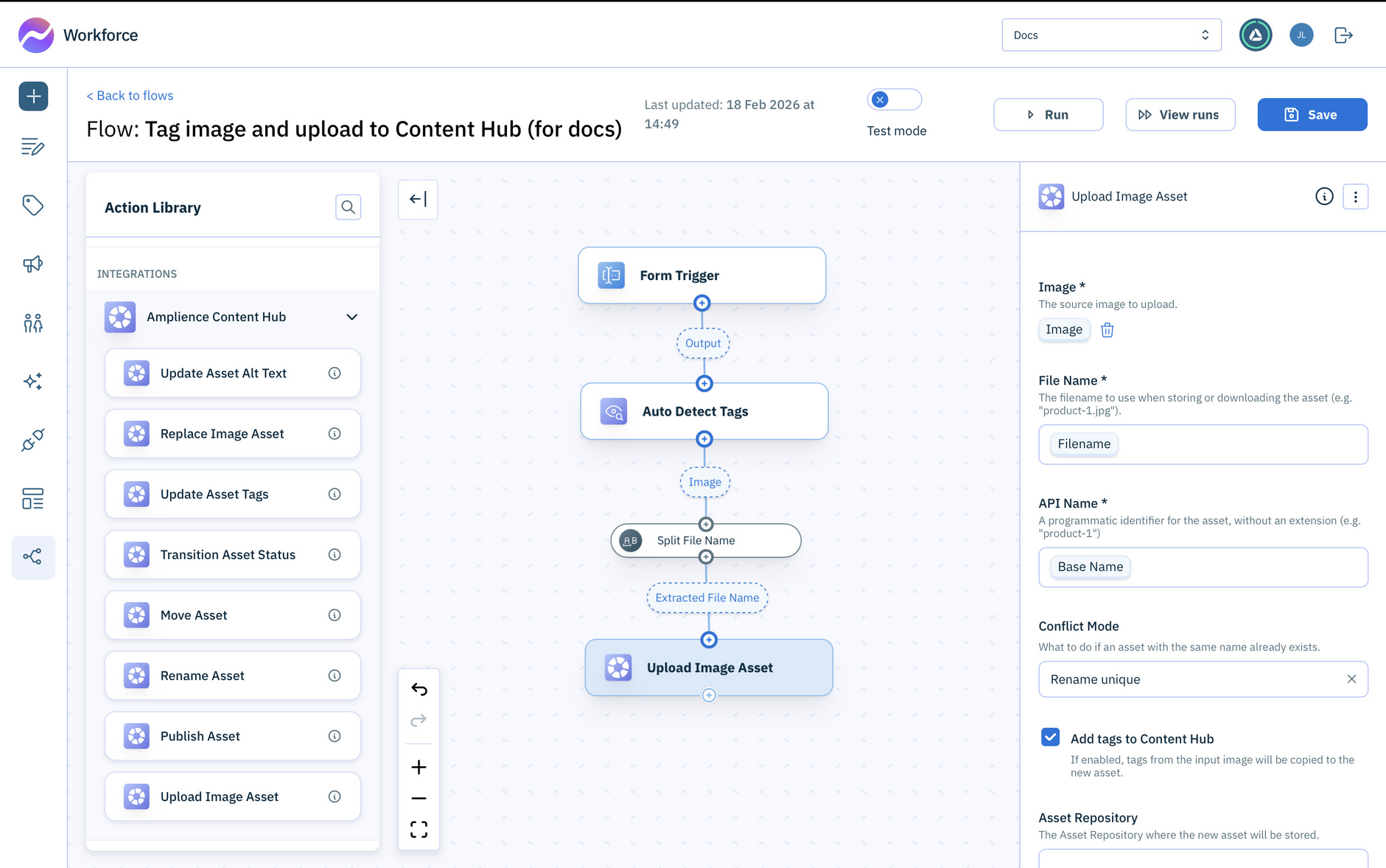
You can also choose the Conflict Mode: Rename unique (the default) or Overwrite. Rename unique will create a unique name for the file if one with the same name already exists, while Overwrite will replace existing file.
Try it outLink copied!
The flow is now ready to run.
-
Click Run at the top of the window.
-
Upload an image, enter a filename to be used in Content Hub and click the Start Run button.
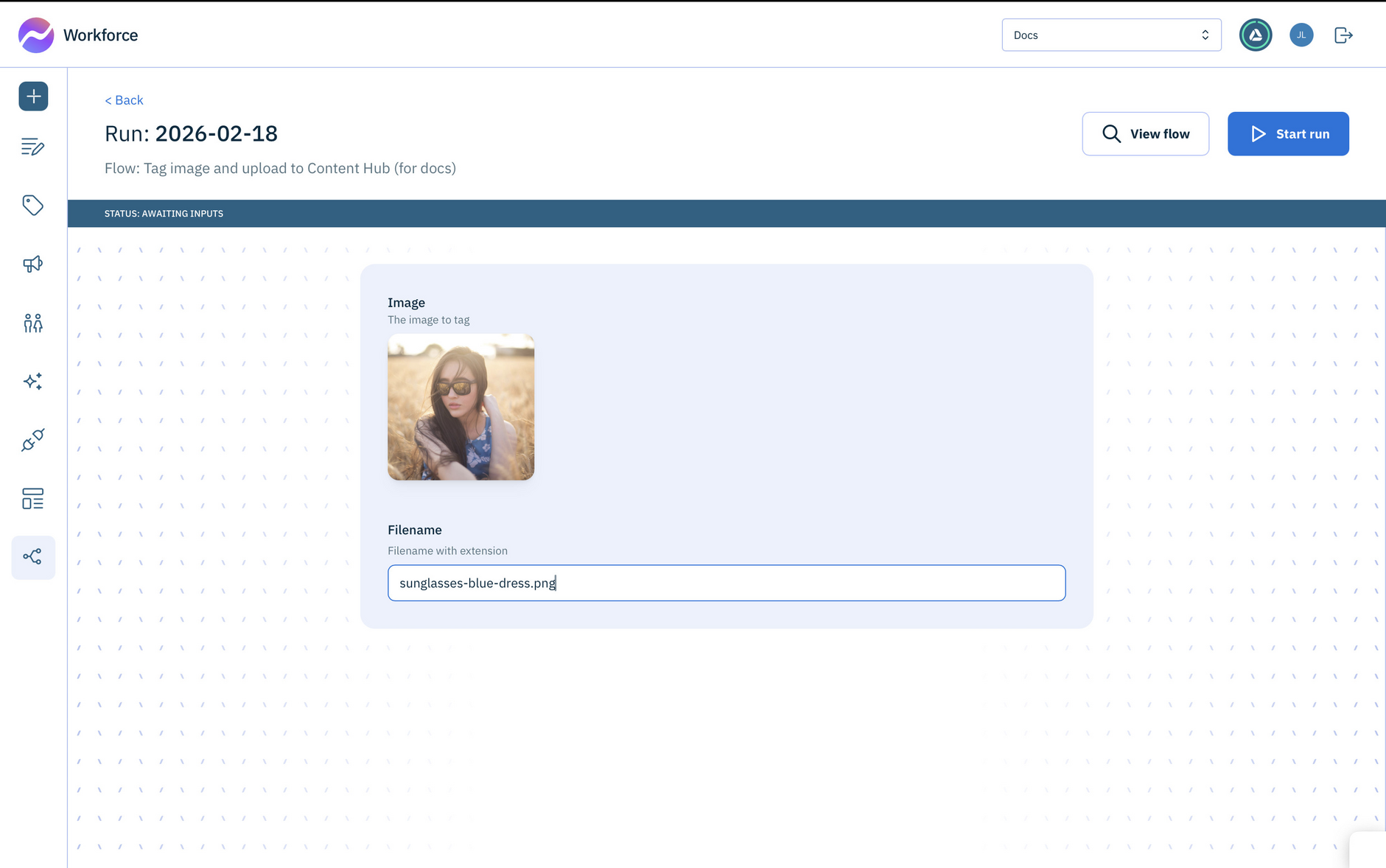
The image is processed and any matching tags are added. The image is then uploaded to Content Hub with the name you entered.
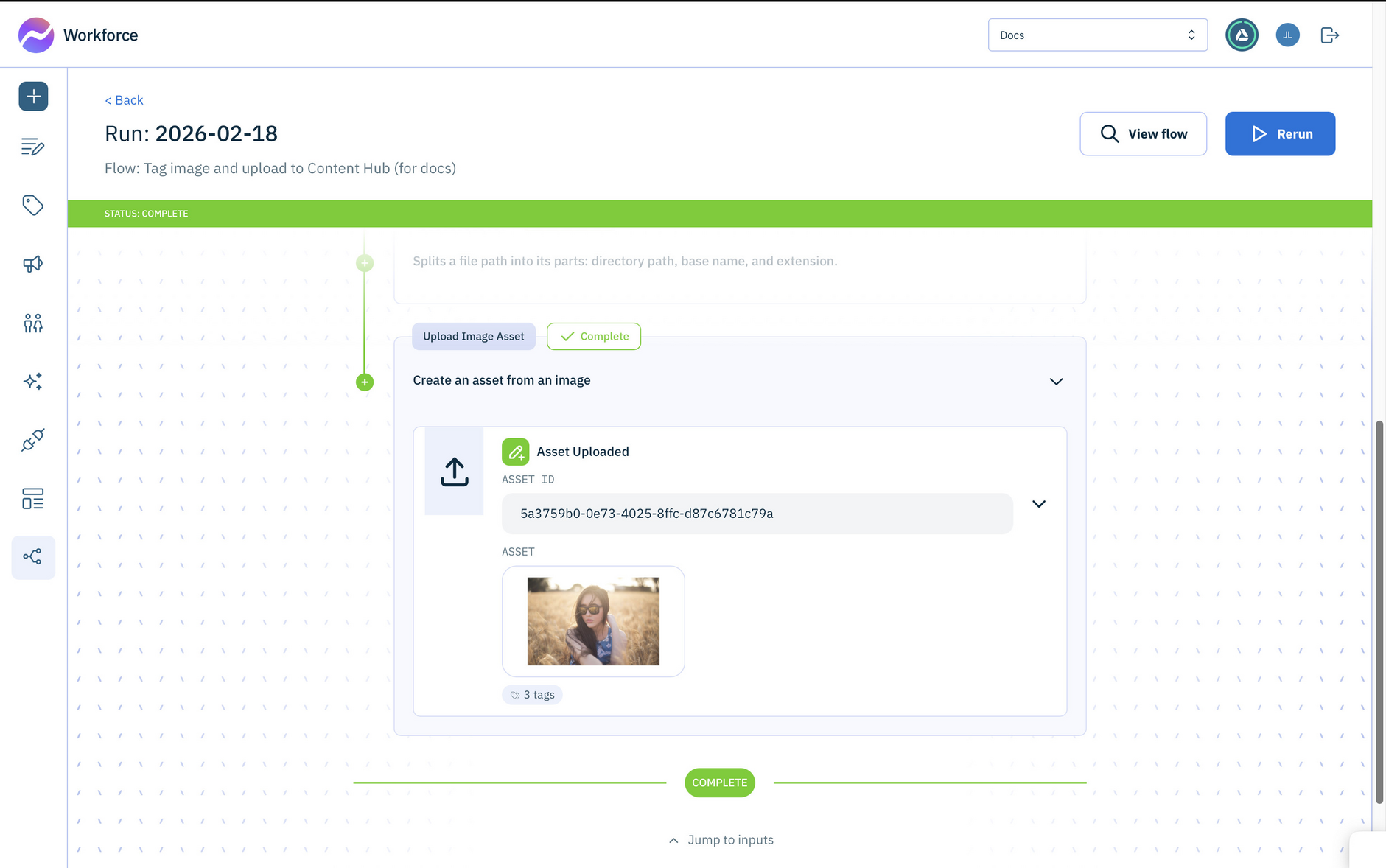
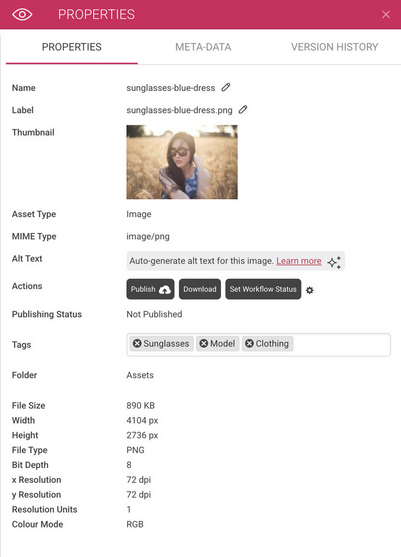
The image is now in Content Hub and the tags are showing in the properties pane.