Extract swatch
On this page we walk you step by step through creating a Workforce Flow that:
- Extracts a swatch from the most representative part of an image
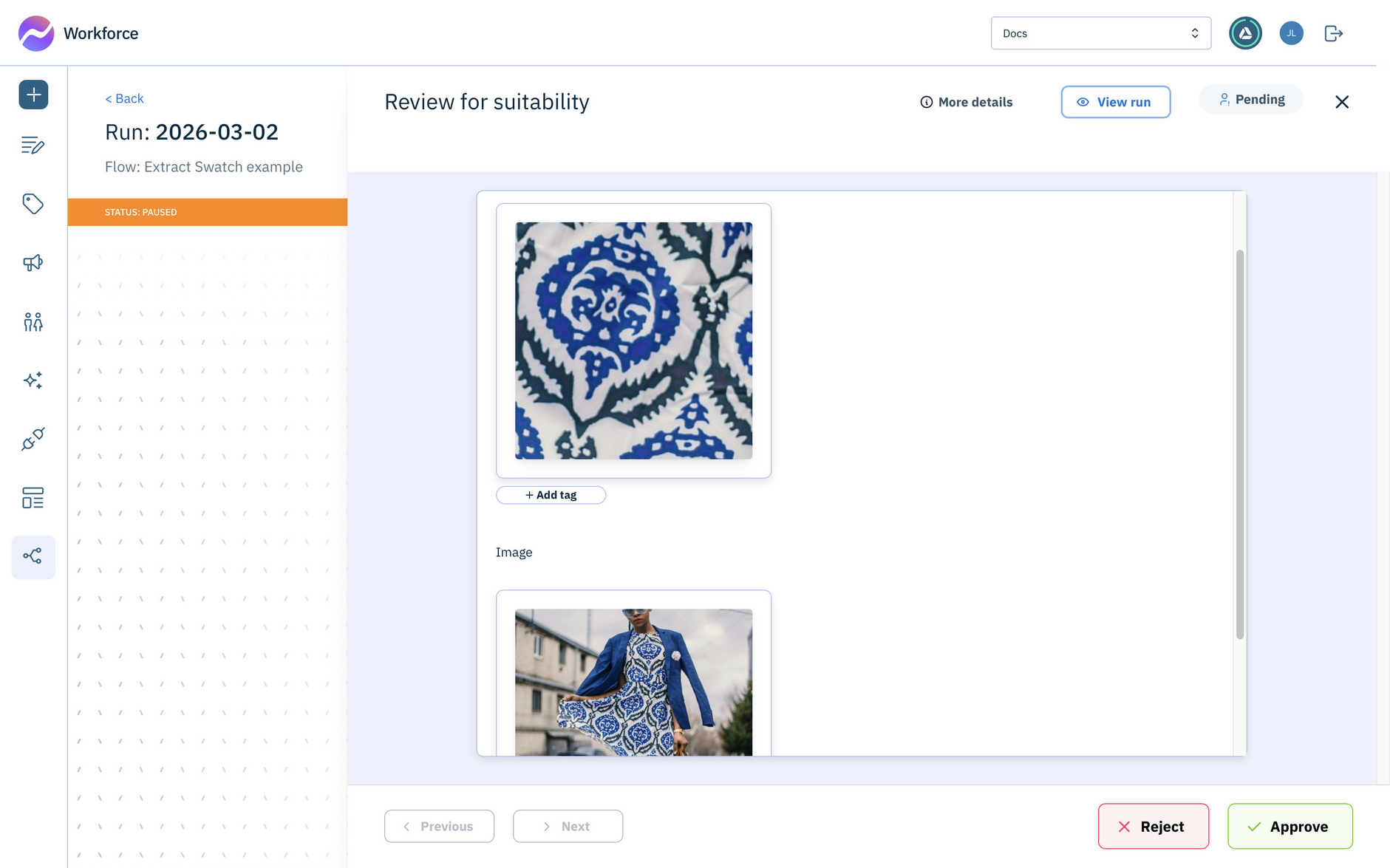
- Adds a human review step so you can see the swatch alongside the original image
A swatch is a convenient way of getting detail of a representative area of a product, for example a fabric, curtains, or a dress and with Flows you can automate this action and perform it at scale.


Step 1- Create the form triggerLink copied!
-
Create a new content flow and give it a label and description.
-
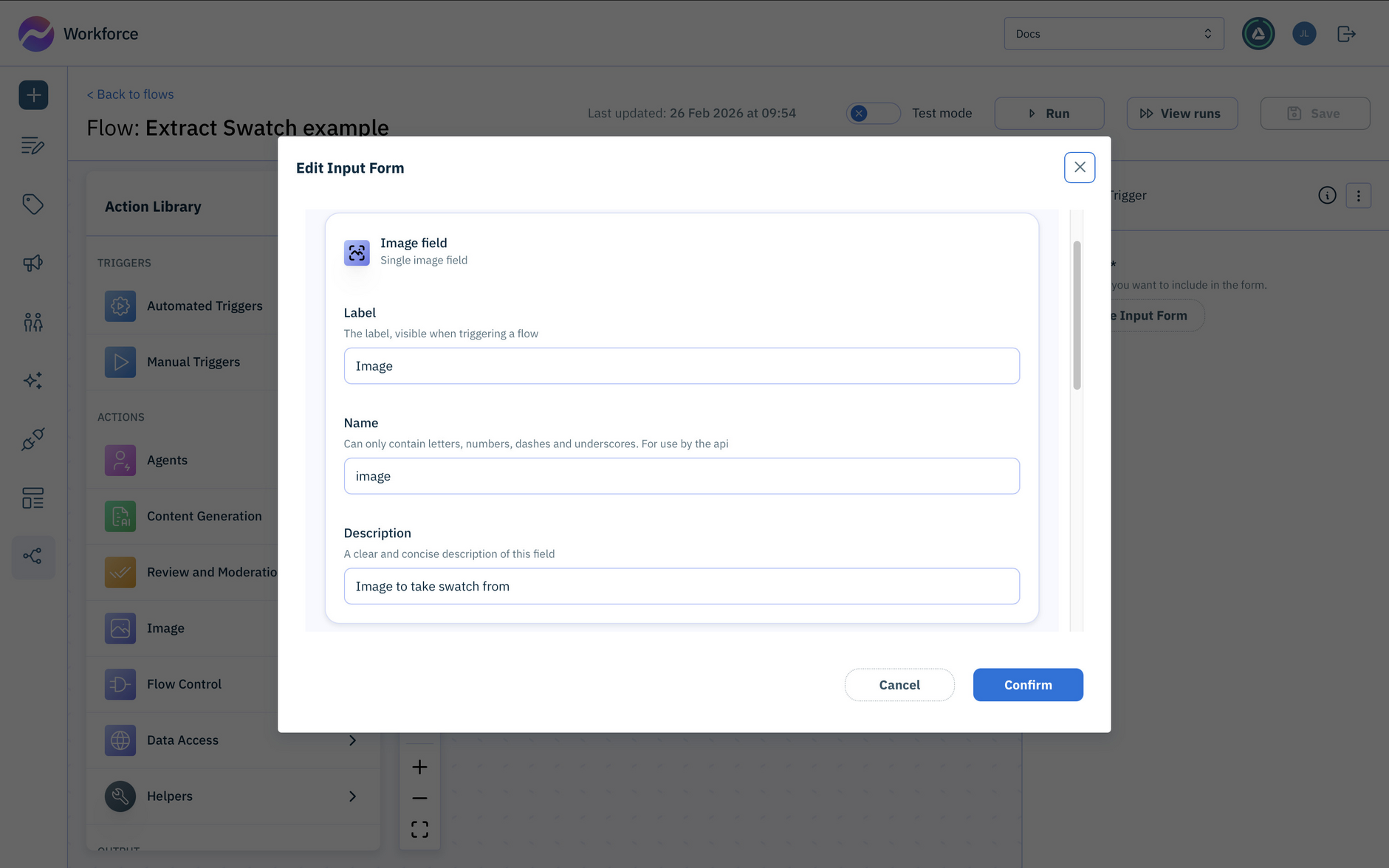
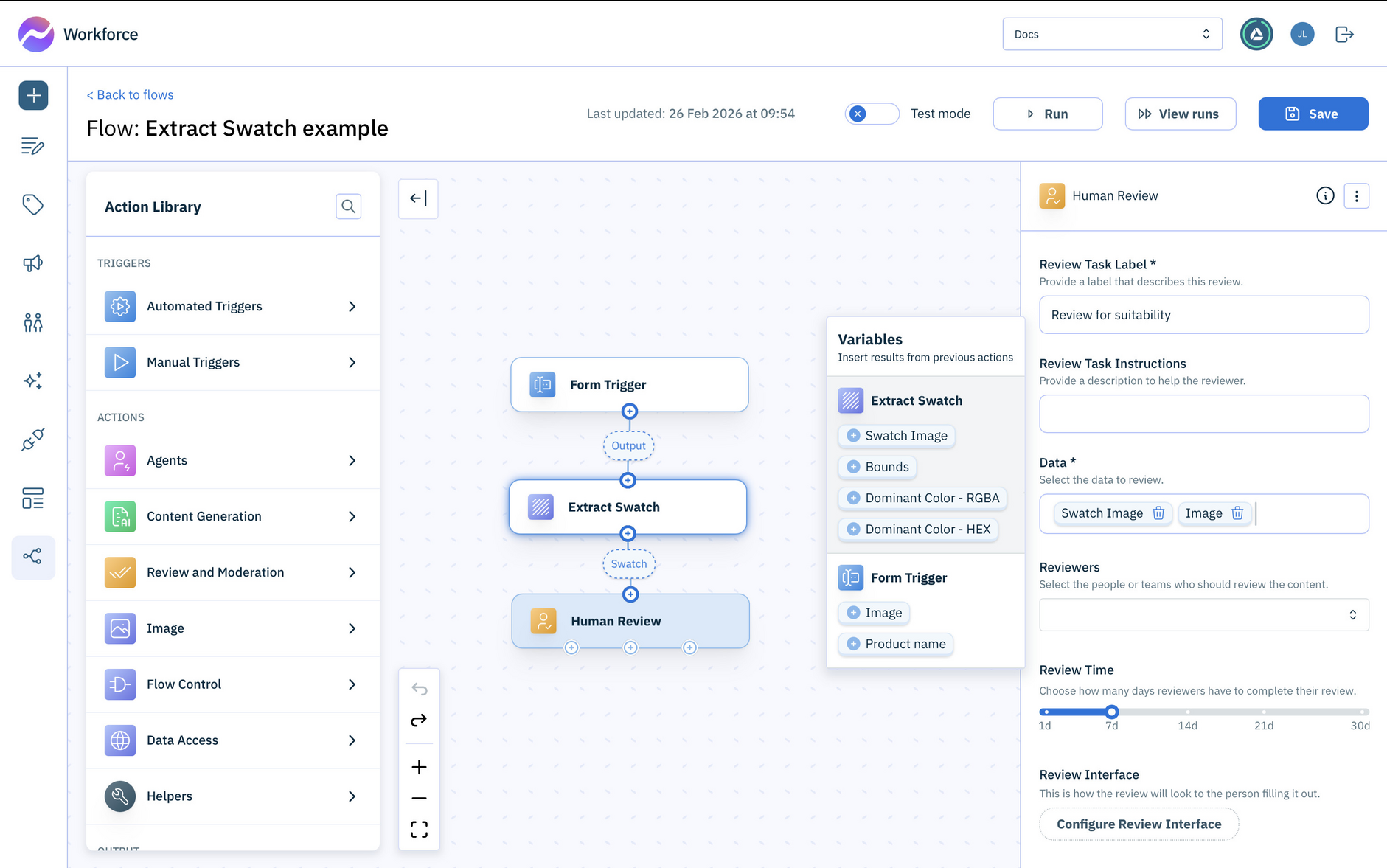
From the Action Library open the Manual triggers and drag a Form trigger to your flow.
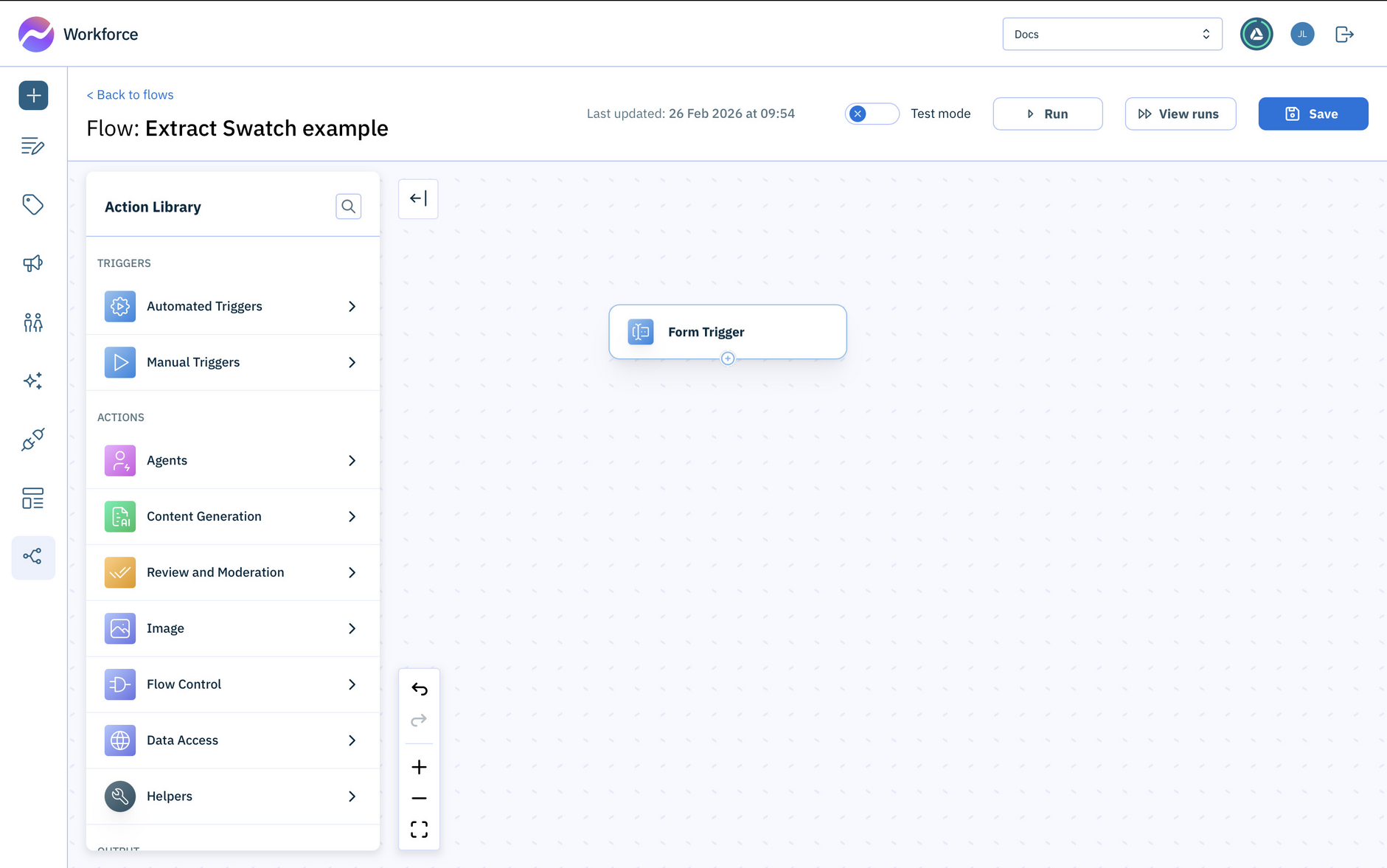
- Click the Configure Input Form button and add the following fields:
-
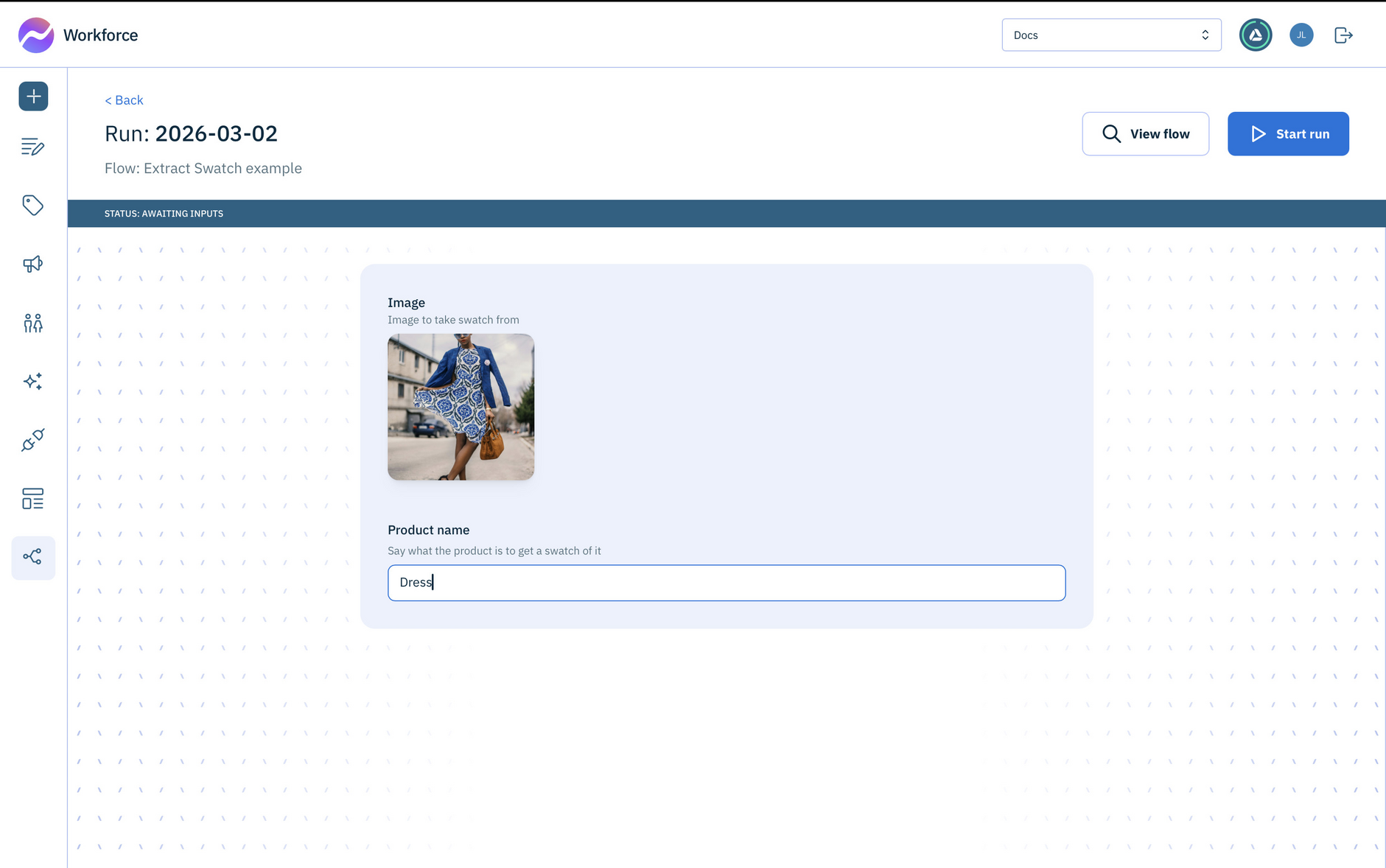
An image. This will be the image to take the swatch from: Image.
-
A single line text field to represent the name of the product to focus on when extracting the swatch (for example leather bag, sunglasses, dress): Product name. If this is not included, the action is prompted to find the most obvious product within the image and to extract a swatch from that.
-
Step 2- Extract a swatch from the imageLink copied!
Using the information entered in the Form trigger, the Extract Swatch action will extract the swatch from the image. If you specify a product name, it'll use AI to focus on the area of the image the contains that product.
-
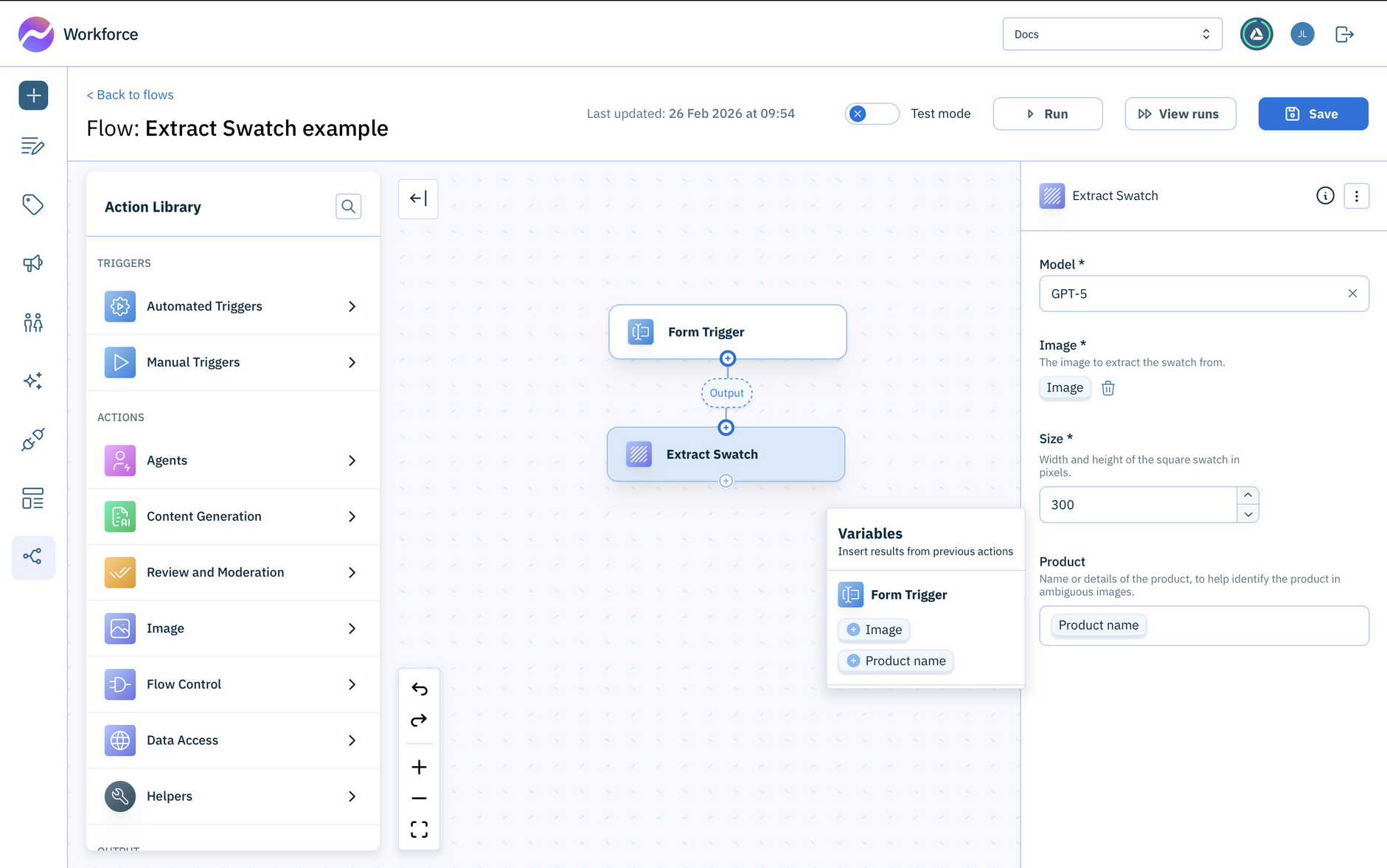
Open the Image section in the Actions Library and drag the Extract Swatch action to the flow. Connect it to the output of the Form Trigger.
-
Choose your model.
-
The Image to extract the swatch from should be set to the
Imagereturned by the Form Trigger. -
The Size of the swatch can be whatever you want, but in this example we're using a width and height of
300pixels. -
Set the Product to the
Product namereturned by the Form Trigger. This will help tell Extract Swatch what to focus on.
For more details on how this action works, see Extract Swatch.
Step 3- Review the swatch and original imageLink copied!
The final step is to review the generated swatch alongside the original image to ensure that it is suitable.
-
Open the Review and moderation section in the Action Library and drag the Human Review action to your flow. Connect it to the output of Extract Swatch.
-
Enter a Review Task Label, and set the Data to review by adding the
Swatch Imagereturned by Extract Swatch and the originalImagefrom the Form Trigger.
Try it outLink copied!
Save the flow. It's now ready to run.
-
Click Run at the top of the window.
-
Upload an image and enter a product name to focus the swatch on. In this example we're focusing on the model's dress.
-
Click the Start Run button.
The swatch is generated. You can view it by expanding the card.
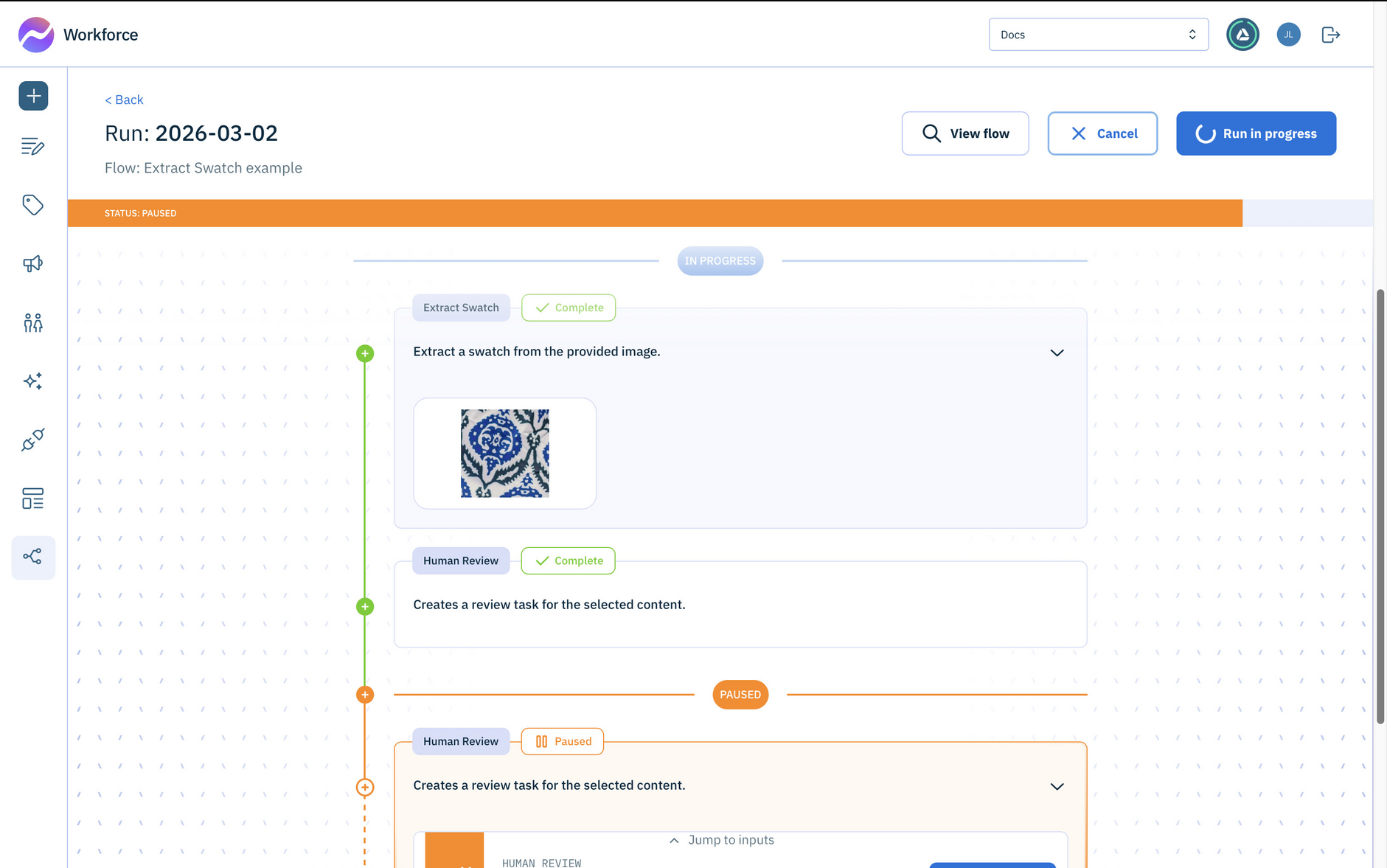
- Open the review.
The swatch is now shown in the review window alongside the original image so you can check it for suitability.