Automatic alt text example flow
On this page we walk you step by step through creating a Workforce Flow that:
- Automatically generates alt text when you create or update an asset in Content Hub
- Translates this text to multiple languages
- Updates the image asset in Content Hub
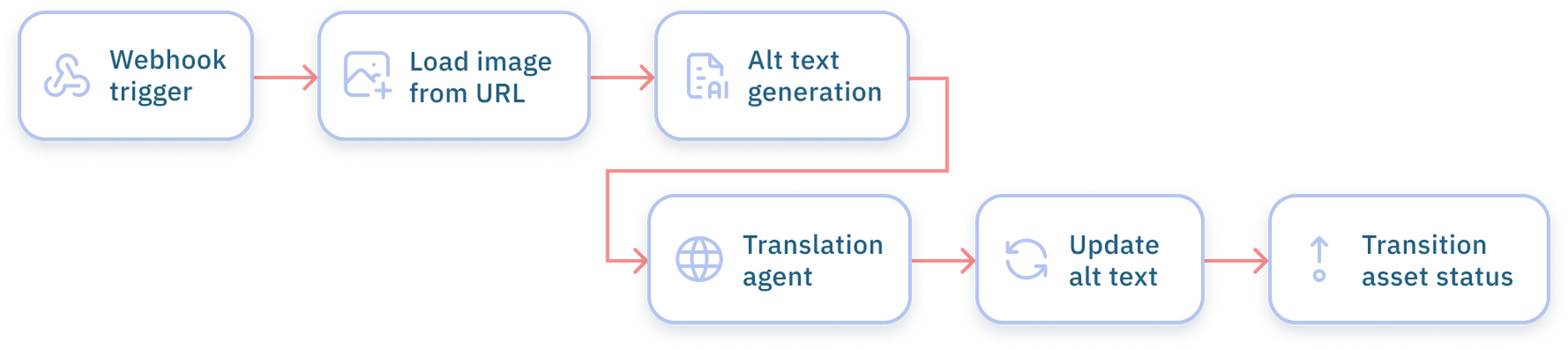
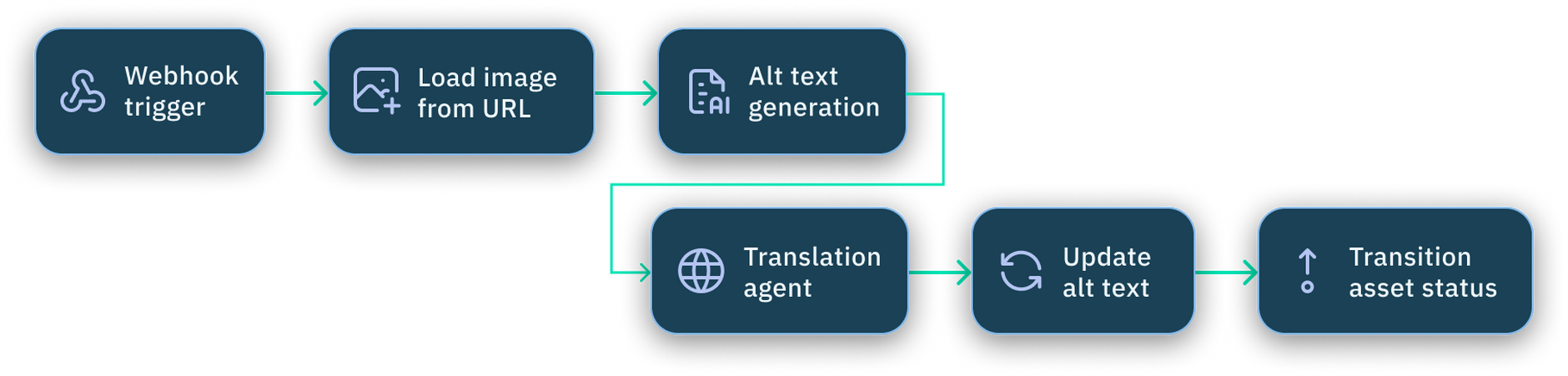
Step 1- Create the webhook triggerLink copied!
This flow will run automatically using a webhook that is triggered when an image is uploaded to Content Hub or it is modified. You will need to do some initial set up in order to create this webhook.
- Create a new content flow and give it a label and description.
- Drag a webhook trigger to your flow. If you already have a Content Hub webhook in your webhook library, then you can select this and move to Step 2.
- Open the webhook library from the action configuration panel.

- In the webhook dialog create a new webhook URL. Leave the settings as the defaults.
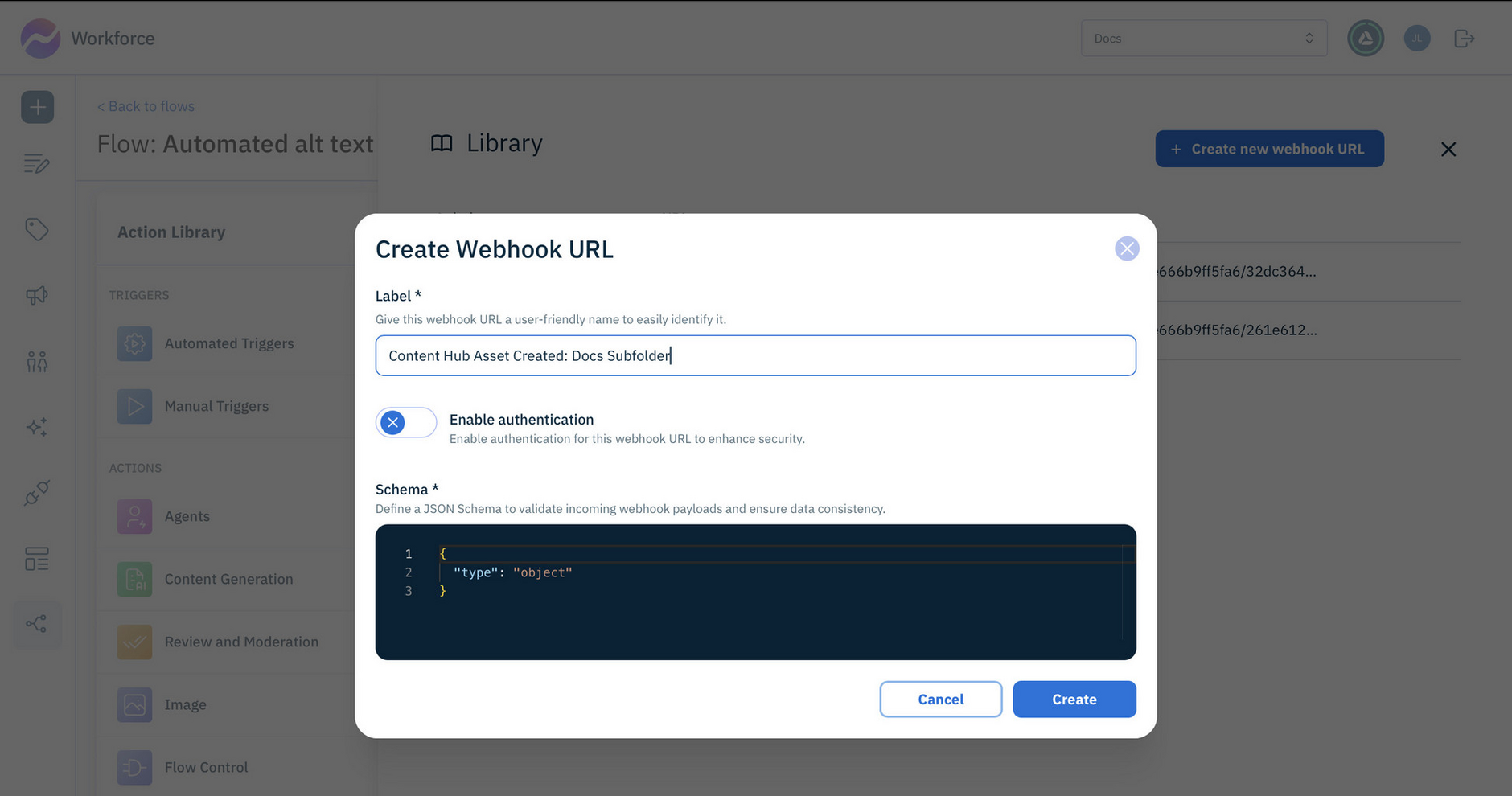
- Copy the webhook URL that you just created.
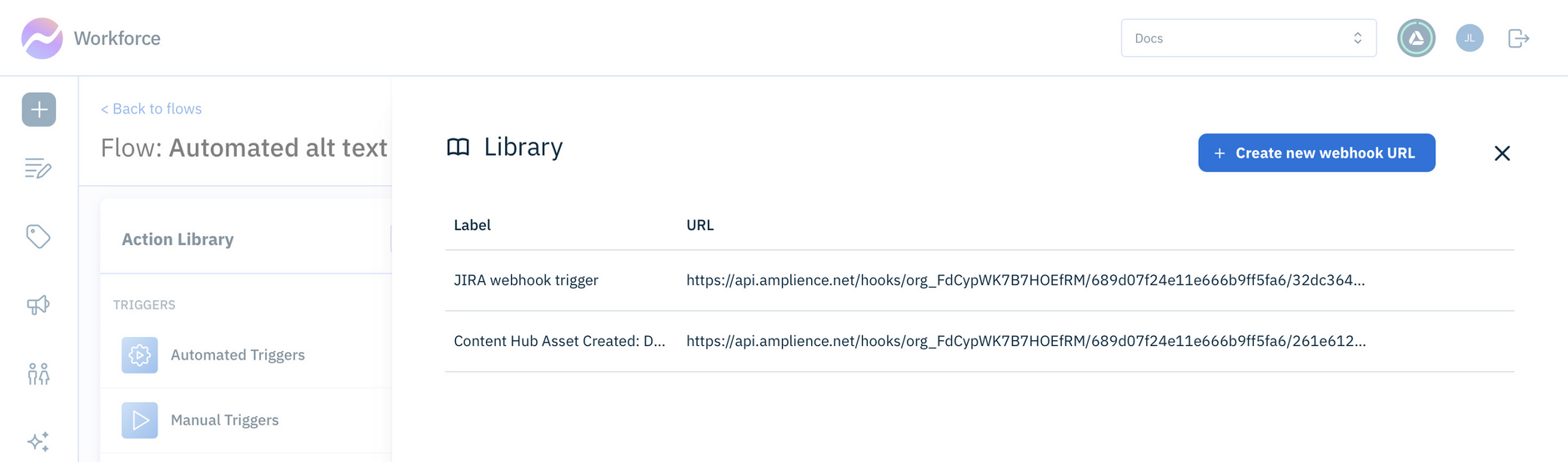
- In your content flow, select the webhook.

Configuring the webhook in Content HubLink copied!
Your content flow won't be fully functional until a webhook is set up in Content Hub to trigger your webhook URL and start your flow.
Contact Amplience Support to set up a Content Hub webhook.
You will need to specify
- Your webhook URL
- The media hub id of the hub you use for images.
- Whether the webhook should be triggered when assets are uploaded to a specific asset store or folder.
Once the webhook is set up in Content Hub, you're ready to move on to Step 2.
Step 2- Extract information from the payloadLink copied!
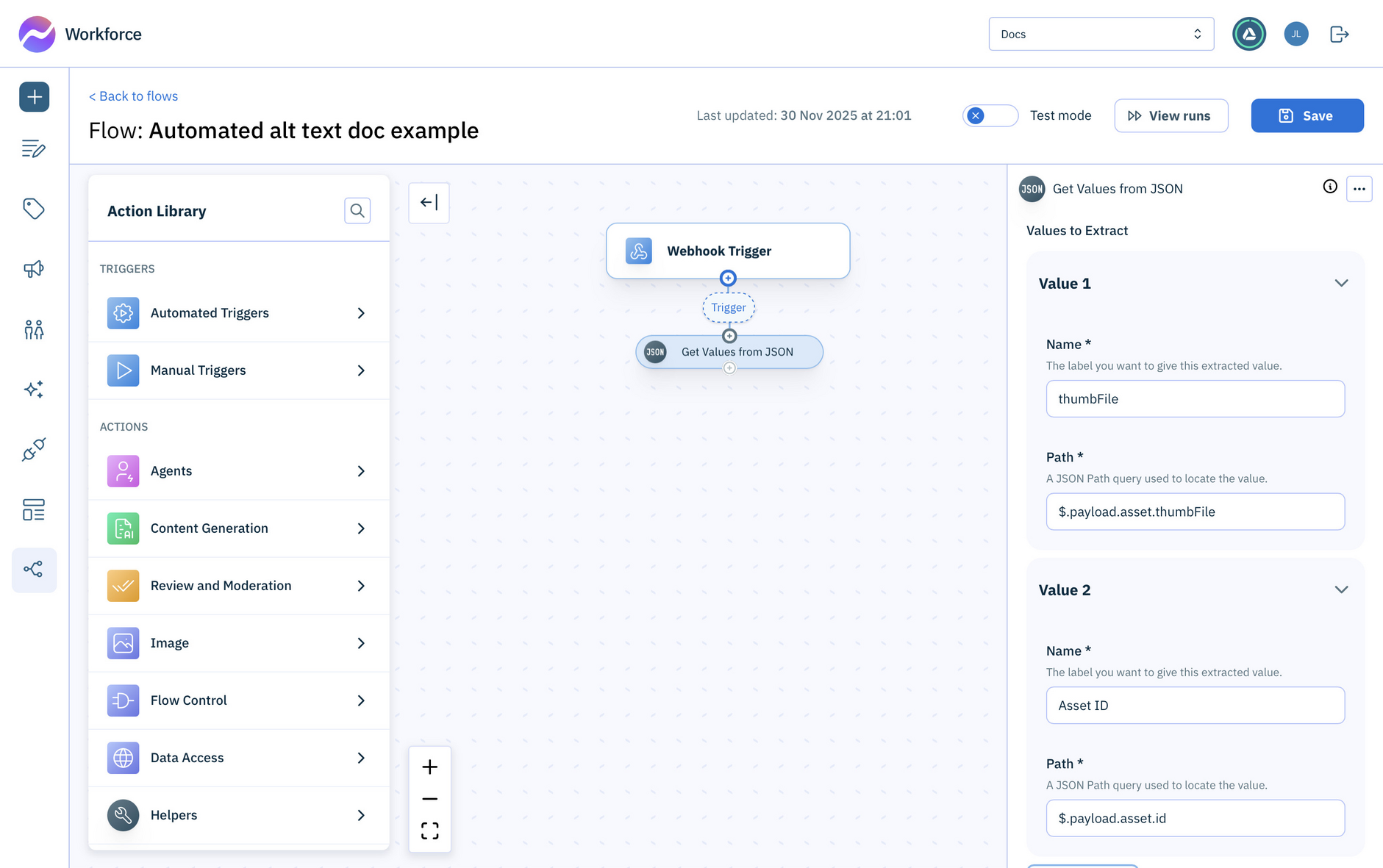
- Add a Get Values from JSON helper action to your content flow. Link the out port of the webhook trigger to the in port of the action.
The data field of the action will automatically be populated with the value of the payload.
- Add 2 values from the payload as shown below:
$.payload.asset.thumbFile- name this thumbFile
$.payload.asset.id name this Asset ID
You will use these values in the following steps.
Step 3- Load the image URLLink copied!
In this step you’ll use the data you read from the payload in step 2 to load the image from its URL.
-
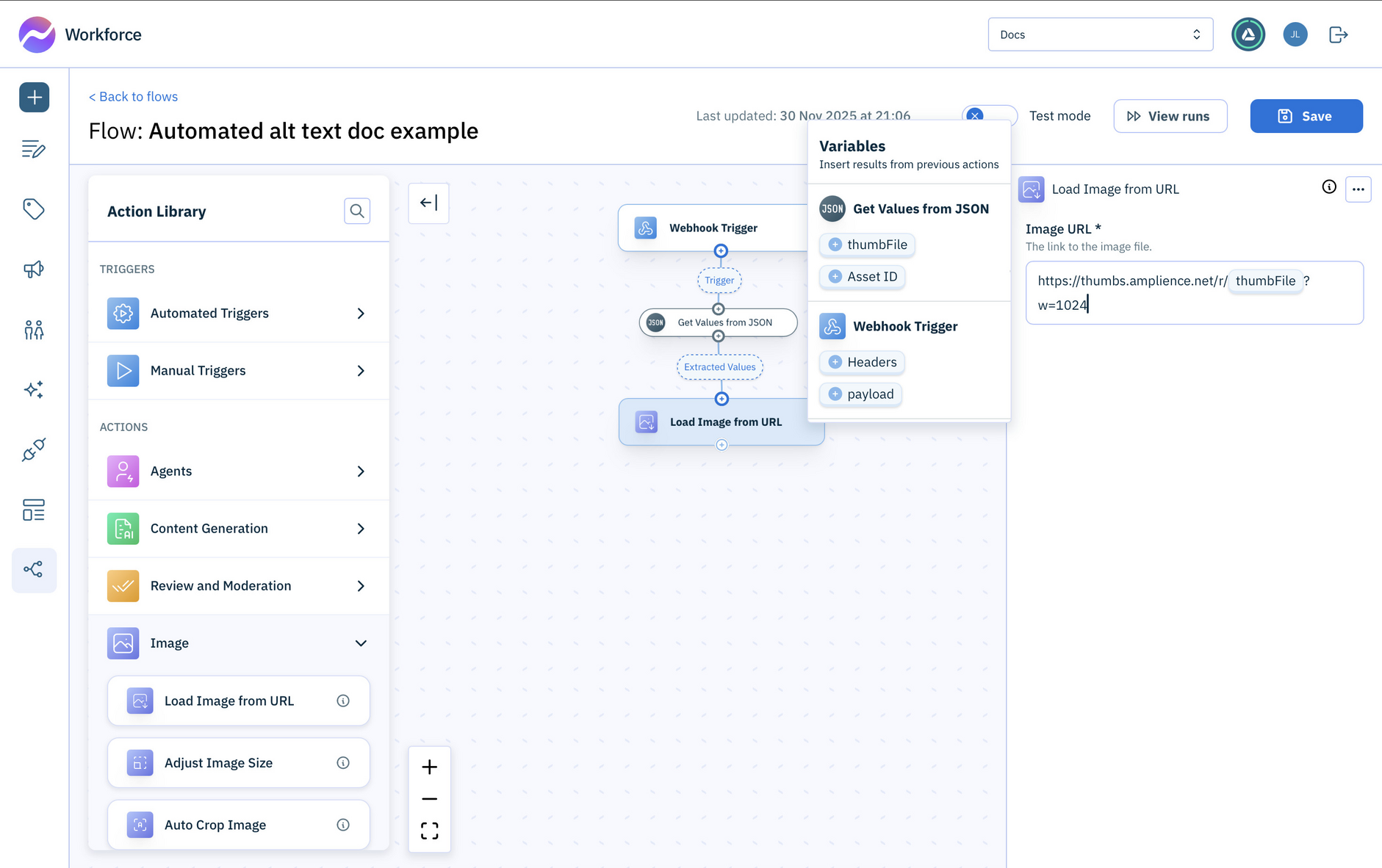
From the image actions, add a Load image from URL action to the flow and connect it with the Get Values from JSON helper.
-
Insert the thumbFile variable into the image URL as shown below (this example sets the image width to 1024 pixels):
https://thumbs.amplience.net/r/{thumbFile}?w=1024
Step 4- Generate the alt textLink copied!
-
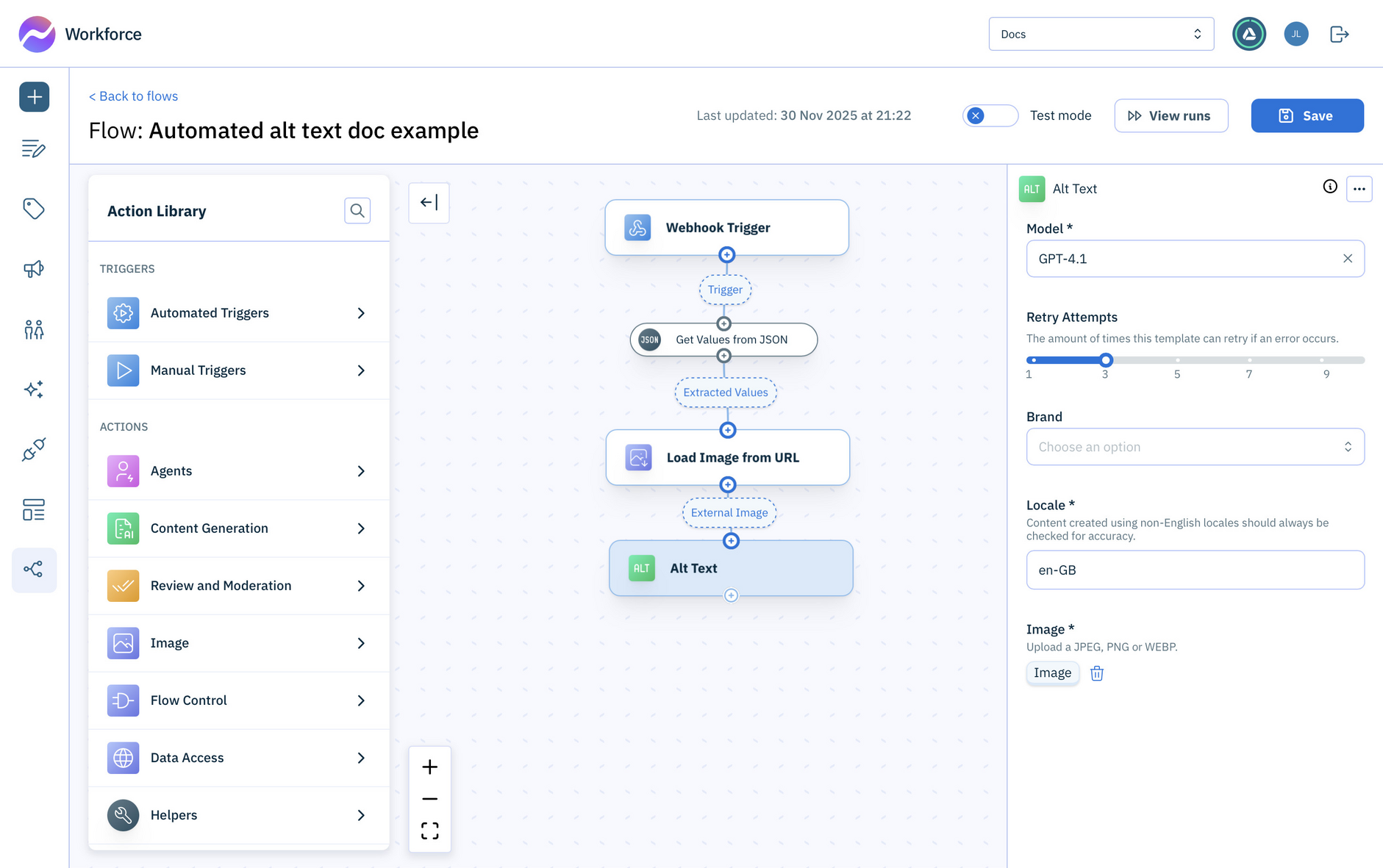
Add the Alt text content generation action to your flow, connecting it with the Load image from URL action.
-
Choose which model to use. In this example we're using
GPT-4.1. -
Specify the locale. The alt text will be generated for this locale and then translated into the other languages we specified. Here we're using
en-GB. -
In the image section at the bottom of the action configuration panel, choose the
Imagethat was output from the Load image from URL action.
Step 5- Translate the alt textLink copied!
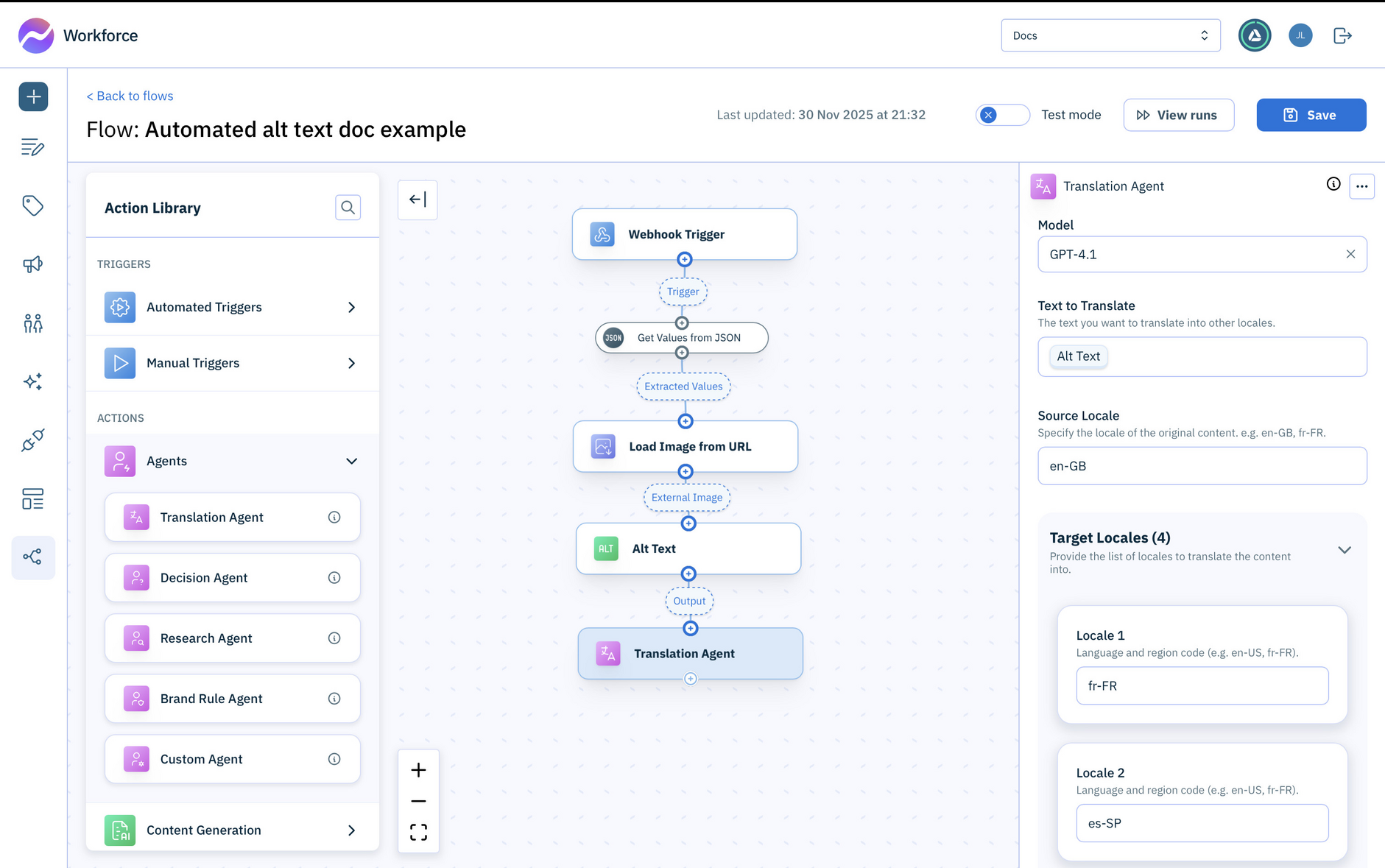
Use the translation agent to translate the text output from the alt text action into your chosen languages.
-
Drag the Translation agent action into your flow and connect it to the alt text action.
-
Choose the model to use and specify the locale used to generate the alt text, in this case
en-GB. -
Add the locales into which you want to translate the alt text. In this example we've chose 4 locales:
fr-FR,es-SP,de-DEandpl-PL.
Step 6- Update the image in Content HubLink copied!
With the alt text generated in all the languages you require, you can update the asset in Content Hub.
-
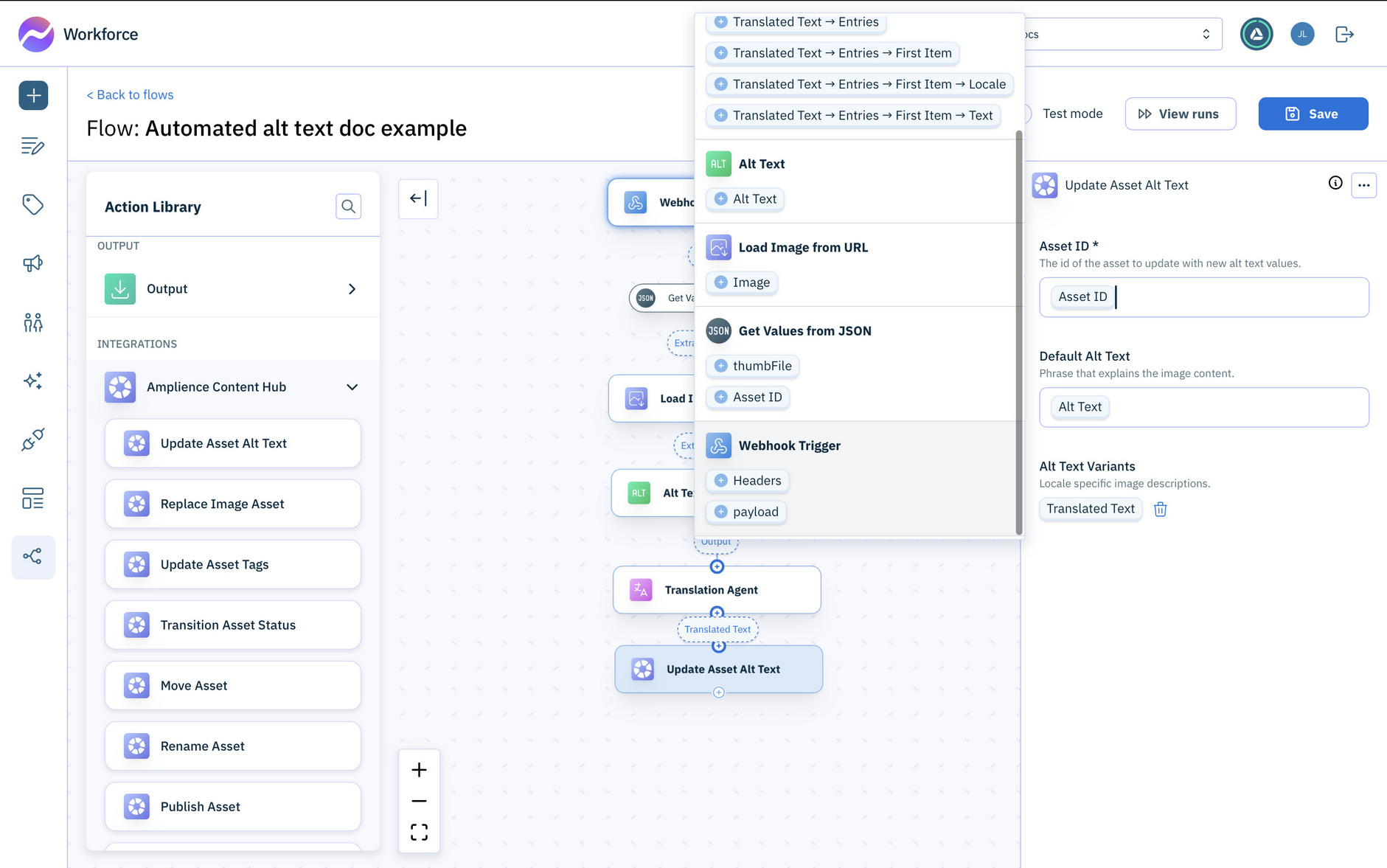
Drag the Update Asset Alt Text action from the Amplience Content Hub folder to your flow. Connect it to the Translation Agent action.
-
For the Asset ID, add the value returned from the Get Values from JSON action.
-
Set the Default Alt Text to the value returned by the Alt Text action.
-
For the Alt Text Variants, the
Translated Textreturned by the Translation Agent should be automatically filled in.
Step 7- Set the asset statusLink copied!
Depending on your workflow, you might want to set the status of the image asset in Content Hub to mark it as ready for review. You can skip this step if you're not using Content Hub statuses.
-
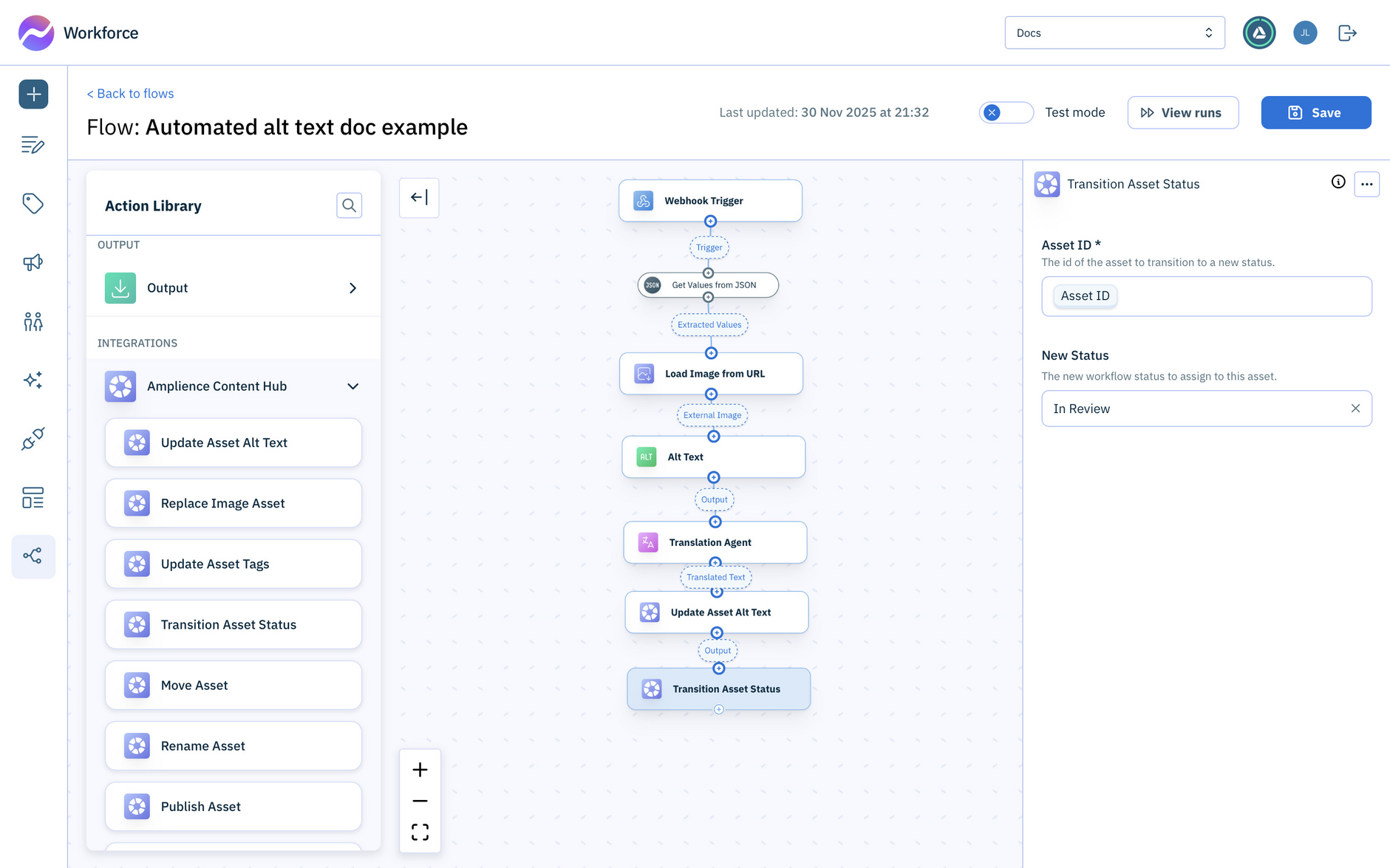
Drag the Transition Asset Status action to your flow and connect it to the Update Asset Alt Text action.
-
Fill in the Asset ID and choose the new status for the asset.
Save the flow. You're now ready to test generate some alt text and translations.
Try it outLink copied!
To run the flow upload an image into your Content Hub, in the asset store you specified. In this example we also specified a folder.
Your webhook will be triggered and your flow will be started automatically.
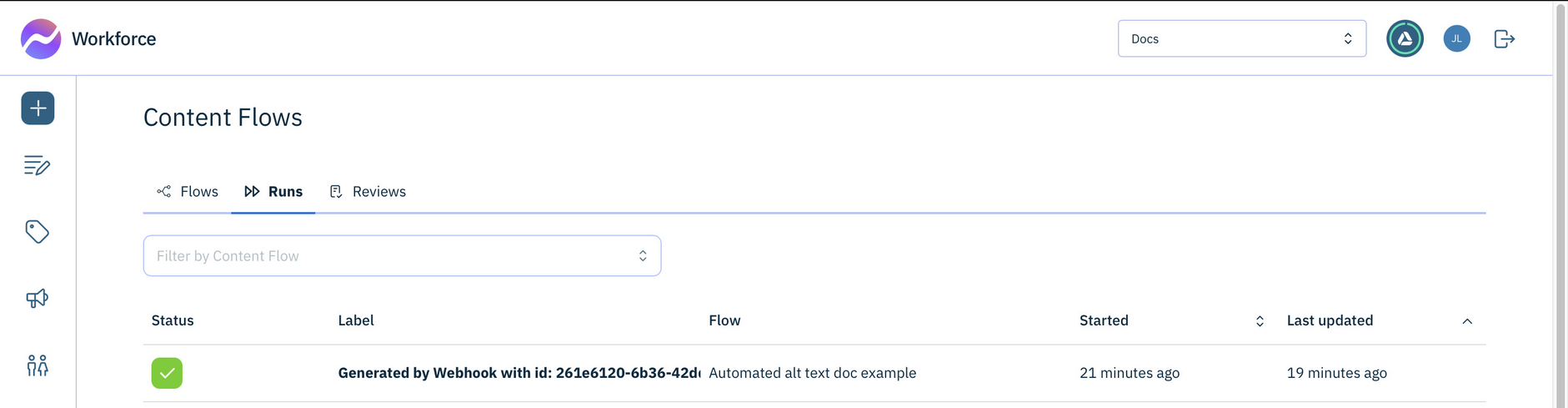
- In Workforce, go to the Runs list. Click the new run that has been created.
The run opens and the output from each step is displayed.
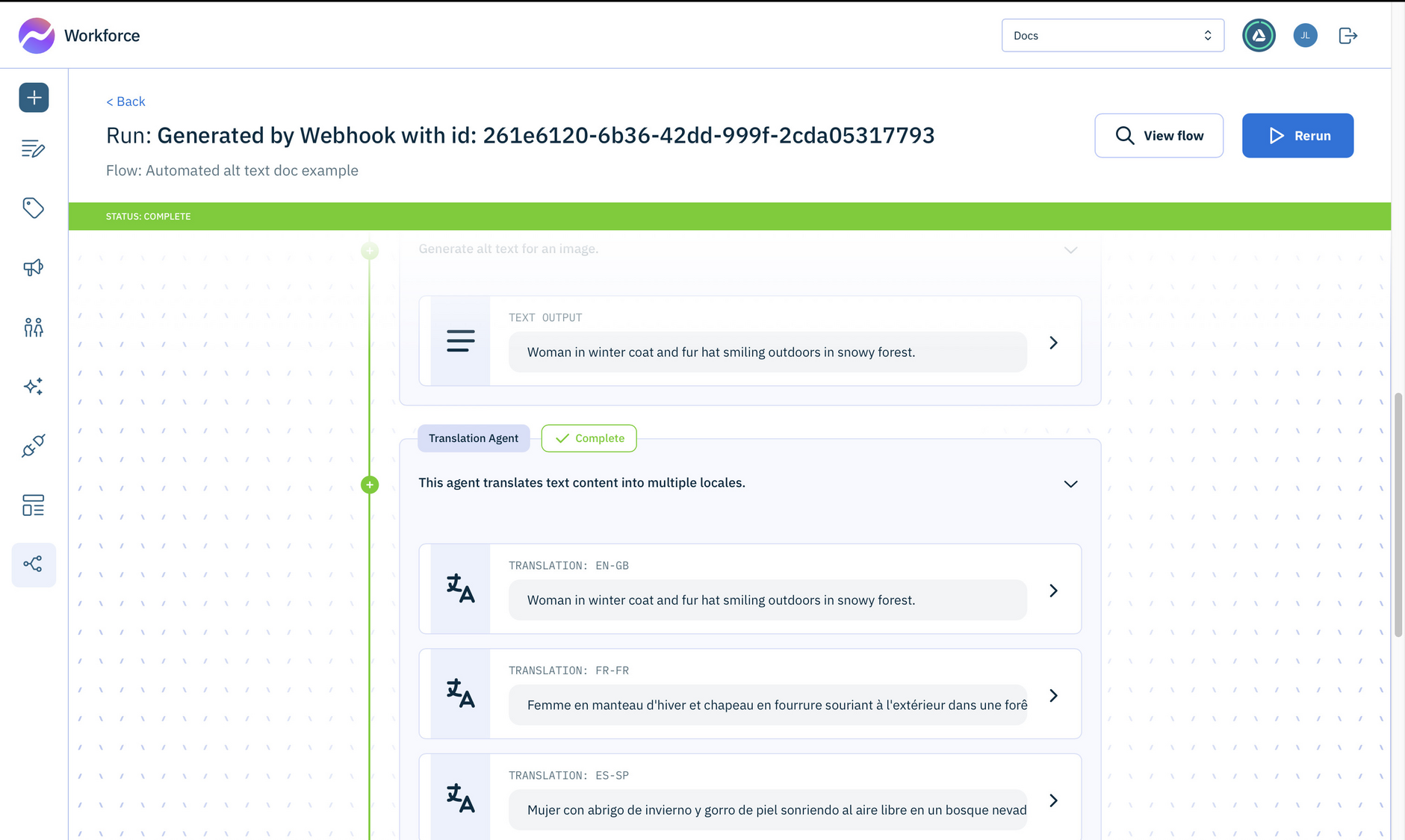
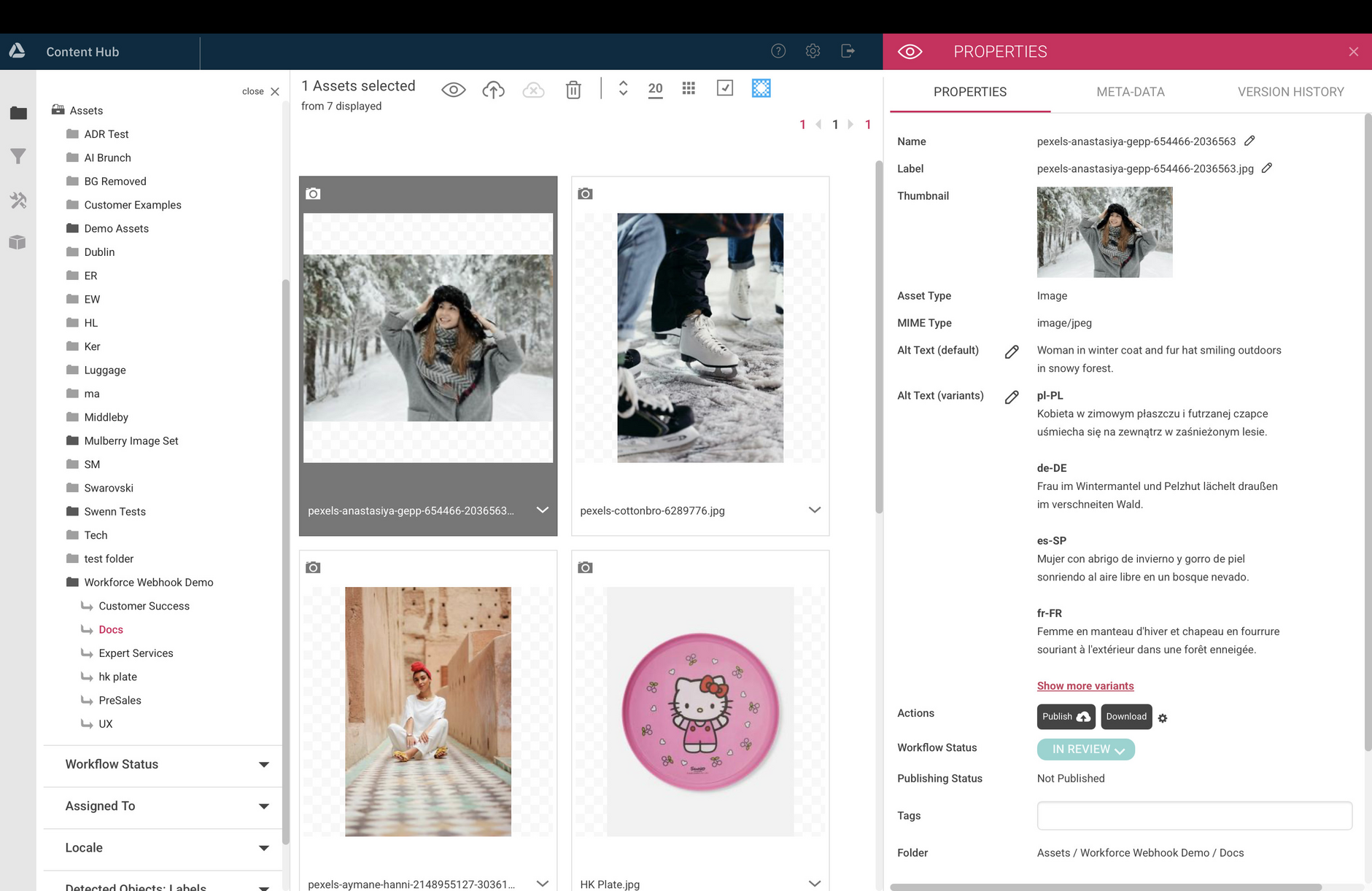
Once the run is complete, the image asset will be updated in Content Hub with all the alt text variants generated by your flow.
You can run the flow in test mode, you just need to enter a sample webhook payload.