Running and reviewing flows
Once a flow has been created, you can run it to automate a process. As a flow runs, you can monitor its progress, view the actions being executed, and review the outputs it produces.
Flows are stored with a hub, and to run them you will need the Author role or higher. More about Workforce permissions.
Running flowsLink copied!
To run a flow, launch it from your Flows library.
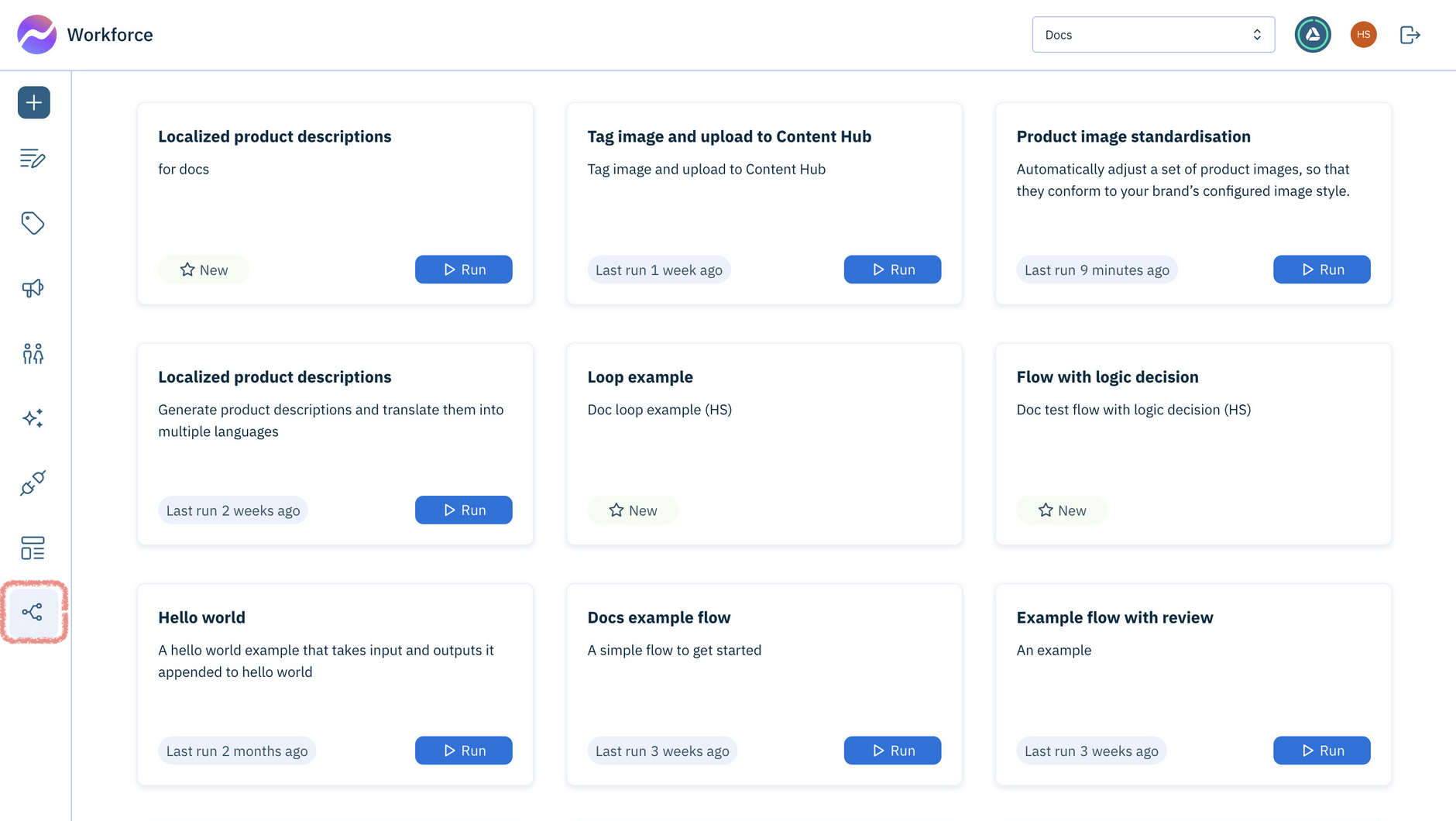
Each flow is shown as a card with its name and description.
Hover over a card to:
- Copy flow details: Copies the flow label and ID to the clipboard (useful for developers using theGraphQL Management API)
- View runs: Opens the Runs list filtered to that flow
- Duplicate flow: Creates a copy of the flow in the current hub
- Edit flow: Opens the flow in the editor
- Delete flow: Prompts for confirmation, then deletes the flow and any associated runs and reviews
Flows that include a manual trigger display a Run button on their card, allowing you to start the flow. Learn more about Triggers.
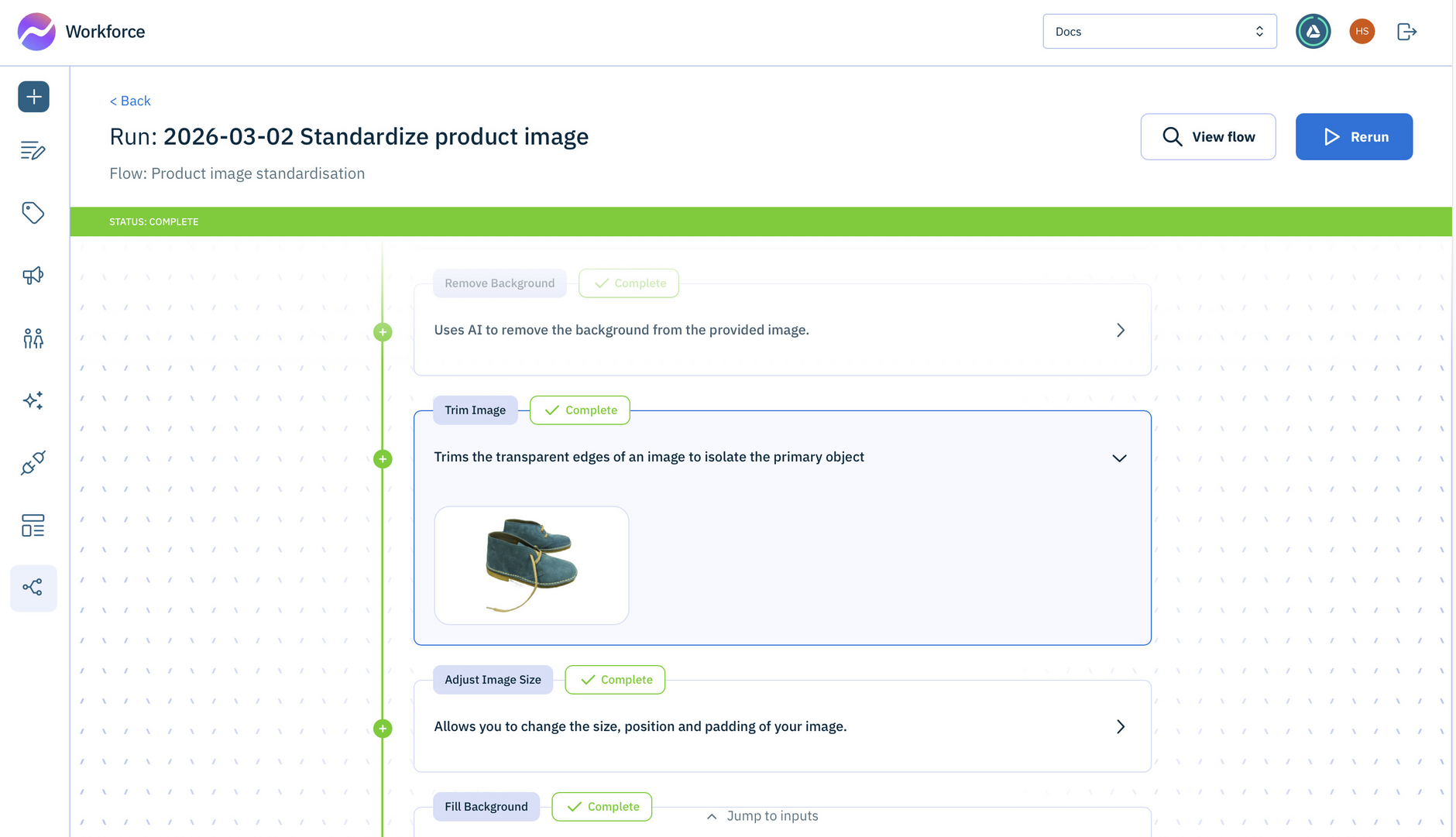
As a flow runs, each action is shown in an action card so you can track progress.
Running a flow is an asynchronous process that takes an indeterminate amount of time.
Runs listLink copied!
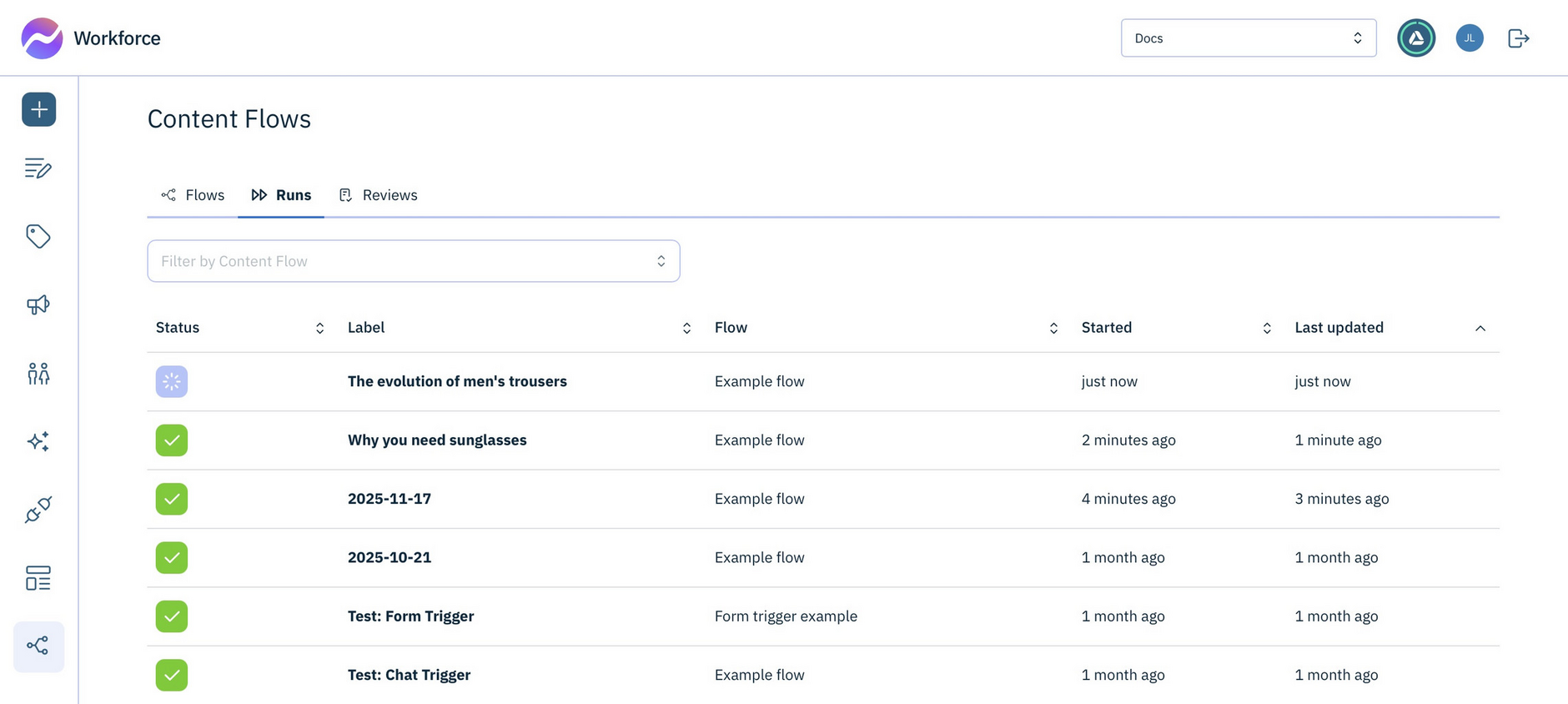
All runs, whether in progress or completed, are shown in the Runs list. You can view more information about a run by clicking on it to show its Run detail.
Note: Run data is maintained for 90 days.
Run detailLink copied!
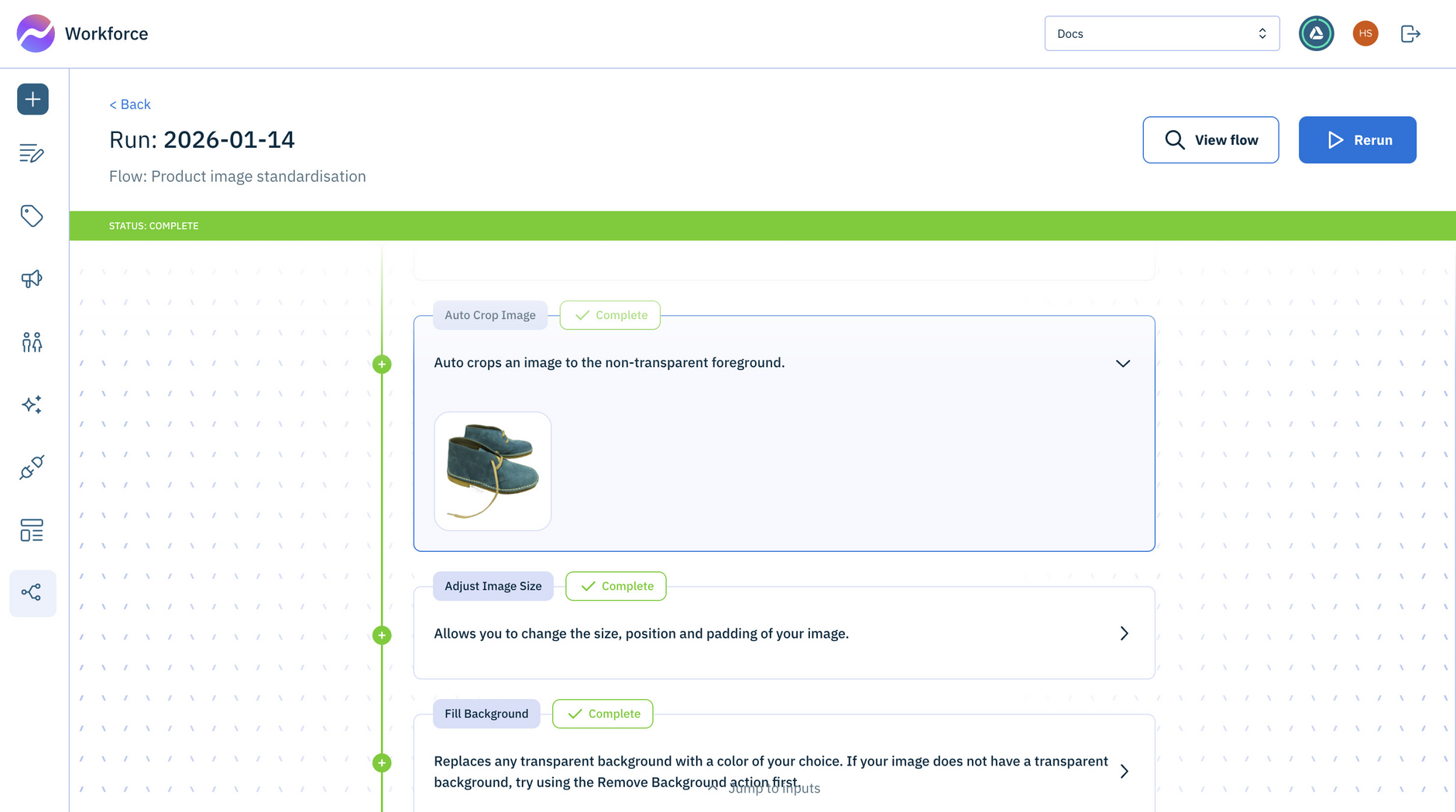
The run detail shows which actions the flow has run and the order in which they were performed. For each action, you can see its name, status (in progress or complete), description and output.
In the example below, the output of the Auto Crop Image action is shown in a card.
Run statusesLink copied!
While running, a flow can have the following statuses:
- Queued The run has been triggered, but is in a queue waiting to start
- In Progress The run has started
- Paused The run is waiting for a review task to be completed
- Complete The run has finished.
- Aborted - The run has been cancelled
- Expired - The run timed out (reached the maximum duration of 90 days)
- Failed - The run cannot continue due to an unrecoverable error, or too many repeated errors (too many retries)
Reviewing flow outputLink copied!
Flows let you include review checks wherever they're needed - so you can validate and approve, or reject results. A single flow can include multiple review stages, allowing you to check progress through the process.
For flows that include review actions, runs pause while human review is completed. Reviews can be carried out during the flow run or accessed later from the Reviews list, allowing you to approve, reject, or update content before the flow continues or completes.
The example below shows a flow with a Human Review action as the final step. The review pauses the flow from running, until the output is approved or rejected.
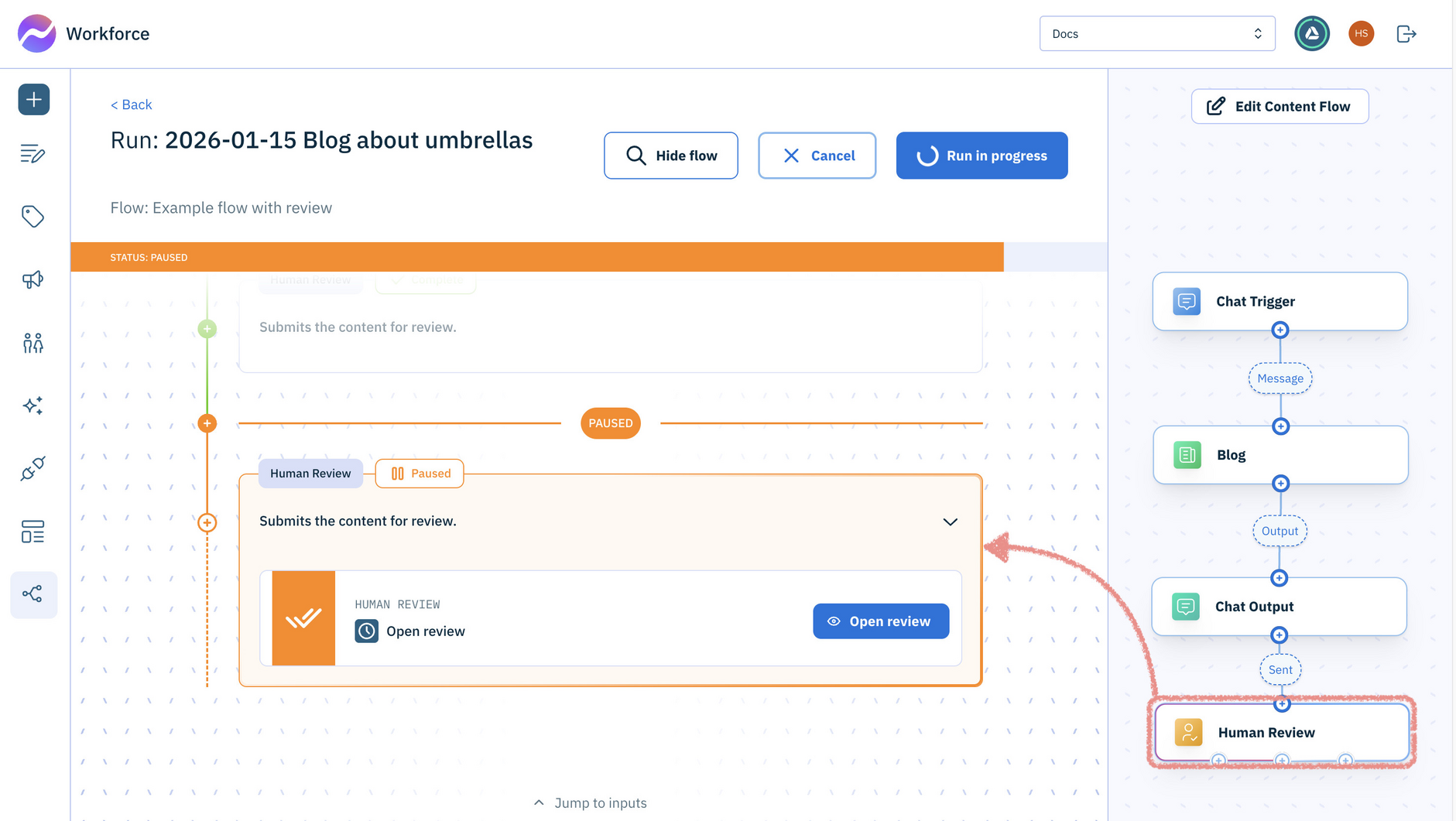
Clicking "Open review" opens the review drawer showing the output that’s ready for review.
For ideas about how and when to include reviews in flows, visit our Example flows.
Reviews listLink copied!
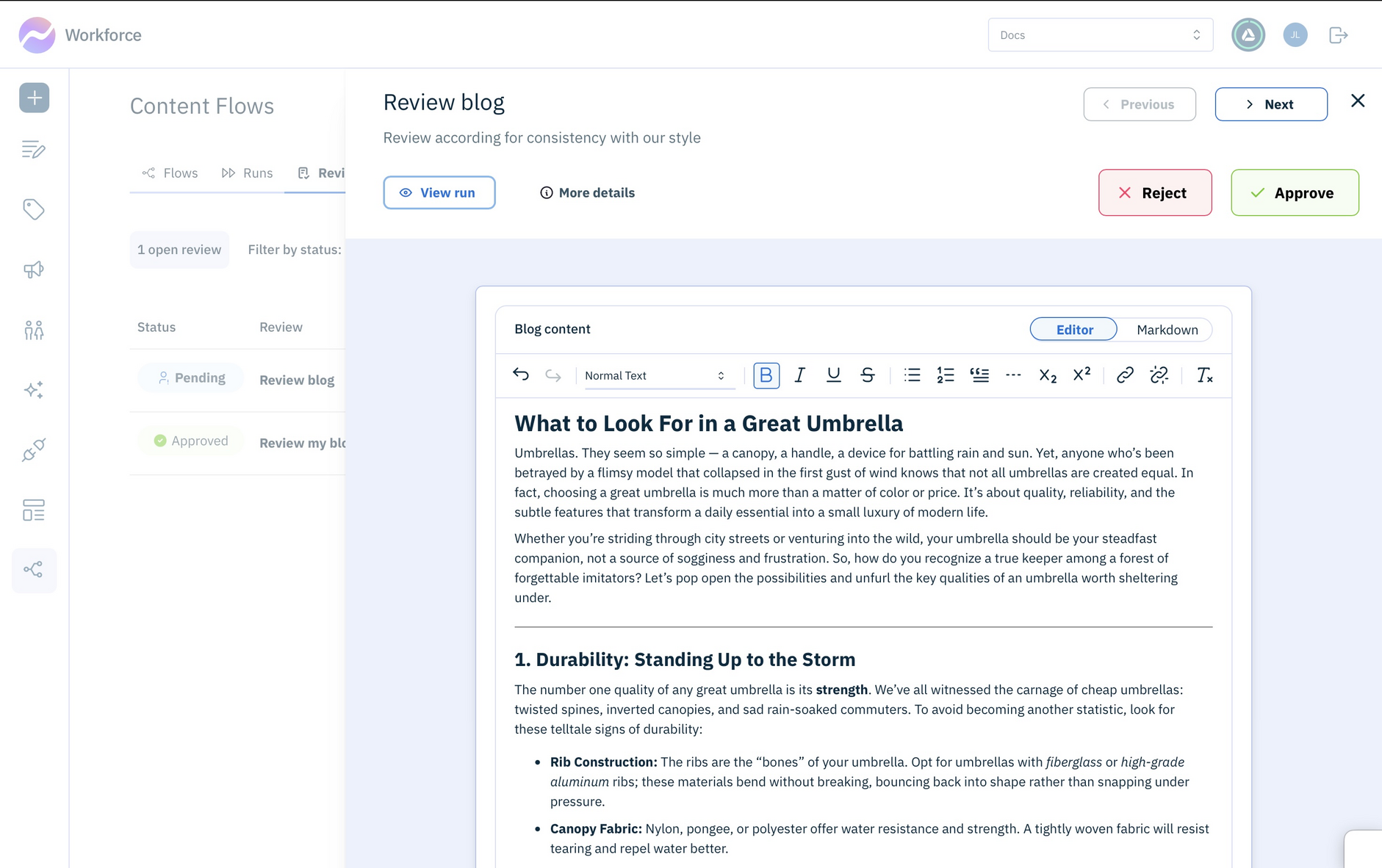
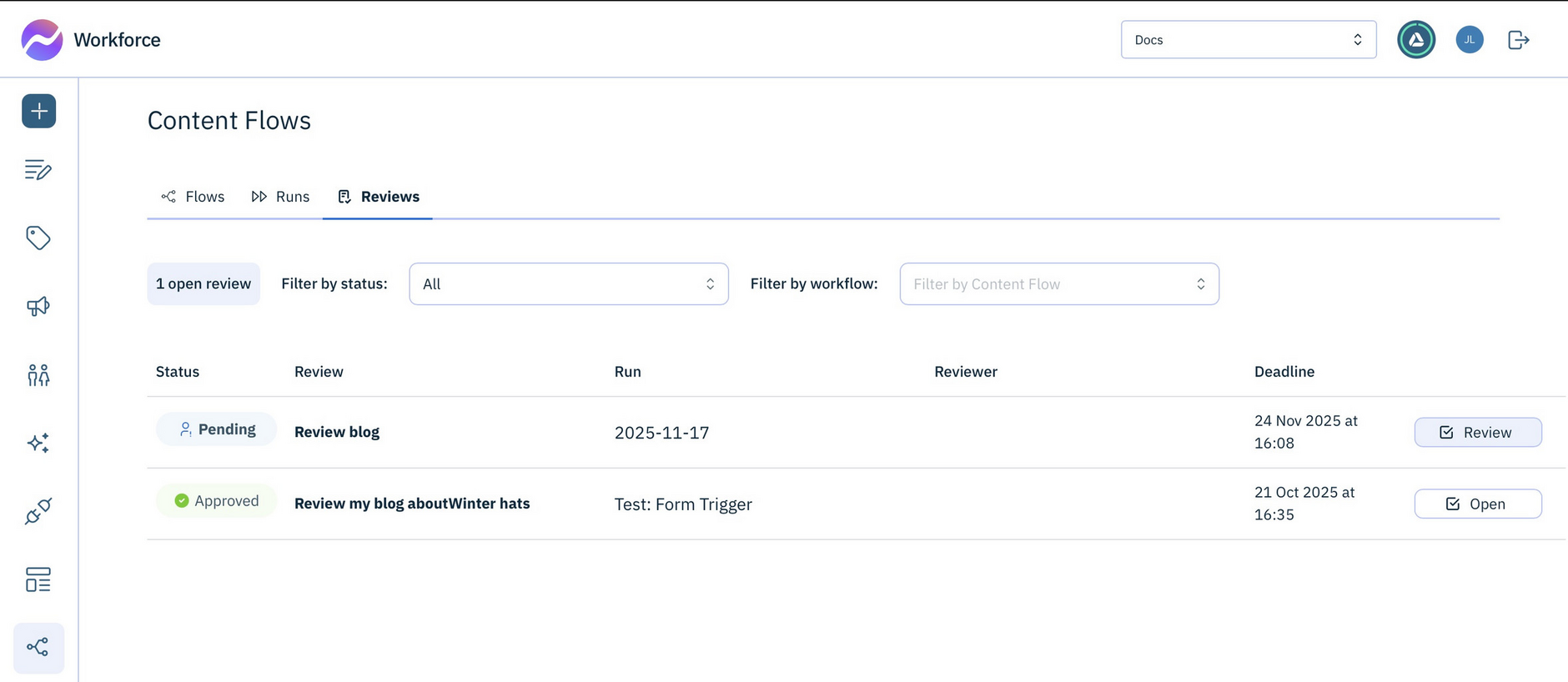
The Reviews list is where content teams can view review tasks that are awaiting their attention, or find details of reviews that have been completed. You can filter the list by status or flow and click a review in the list to open the review drawer.
Review statusesLink copied!
Content flow reviews have the following statuses:
- Pending - review has not yet been completed
- Approved - the review is approved
- Rejected - the review is rejected
- Expired - the deadline for the review has passed
Review drawerLink copied!
The review drawer is where you can approve, edit or reject flow output. You can open a review directly from a running flow, or at any time from the Reviews list. Once you've chosen whether to Approve or Reject, the flow will continue to the next action.