Installing extensions with GraphQL
On this page we explain how to install an extension using the GraphQL Management API using the example of the Hello World extension. The GraphQL examples in this section can be run from the GraphQL playground or your own code.
Here are the steps to install the Hello World extension.
Step 1- Find the hub idLink copied!
To install an extension on a hub, you first need to find the hub id. Use the following query to list your hubs and find the one you want. The hub id will be passed in the cmsHubId in the following steps.
Example responseLink copied!
We will install the Hello World extension on the "docsconductor" hub with the id Q01TSHViOm9yZ19GZEN5cFdLN0I3SE9FZlJNLzY4OWQwN2YyNGUxMWU2NjZiOWZmNWZhNg==.
Step 2: Create the extensionLink copied!
Creating an extension builds a wrapper for it, containing metadata such as its label and icon. Use the createExtension mutation to create the extension.
-
cmsHubIdis the id of the hub on which you want to install the extension. Find the hub id by running the query shown in Step 1. -
The label will be used as the folder name in the Action Library in Workforce. Your actions will be shown within this folder.
-
The description is markdown format text that will be used to provide detailed information about the extension.
-
The url should usually be a link to docs providing more information.
-
The extension icon is shown in the Action Library in Workforce. It must be specified as an SVG, either as a URL or inline as a Base64 encoded string. In the example below, the SVG is included inline.
Example response:Link copied!
The extension id and label will be returned. You will need the extension id to create the extension release in the next step.
Step 3: Create the extension releaseLink copied!
A release contains a specific version of the extension, including its code and the manifest file. The code and manifest both need to be specified as escaped JSON strings. There can be multiple versions of an extension installed on the same hub (and the user can choose between them).
You will need to include:
- The extension id
- The label. This will generally be the version
- An escaped version of the manifest file. In the Hello World example, this is generated in the dist folder as part of the build.
- The code to your index.js. This also needs to be escaped. In the example query below, triple quotes are used to escape the entire code block.
- Draft is set to true so that it is only visible on your account.
Example responseLink copied!
This extension release id is returned. You will need this to create the extension instance.
Step 4: Create an extension instanceLink copied!
Creating an extension instance will install the extension on your hub. You need to specify:
cmsHubId. Use the same hub id you used in previous steps.extensionId. This is the id returned by thecreateExtensionmutation.extensionReleaseId. This is returned bycreateExtensionRelease. You can install multiple releases of the same extension on a hub. The user will be offered a choice of which extension to use.labelanddescription. Details of this instance.env. Include this in the input if you have environment variables (such as an API key). In the Hello world example, aHELLO_DEFAULT_NAMEproperty is defined in the environment variable section of the manifest. It will be used as the default name if no name is passed to the Hello action.
Example responseLink copied!
The extension instance id and label will be returned in the response. You can delete an extension instance with the deleteExtensionInstance mutation, passing the instance id.
Step 5: List the extension instances on your hubLink copied!
You check that the extension instance has been installed on your hub by running the following query. A list of extension instances will be returned, together with the extensions.
Example responseLink copied!
The instance of the Hello world extension is shown in the response.
Testing the extensionLink copied!
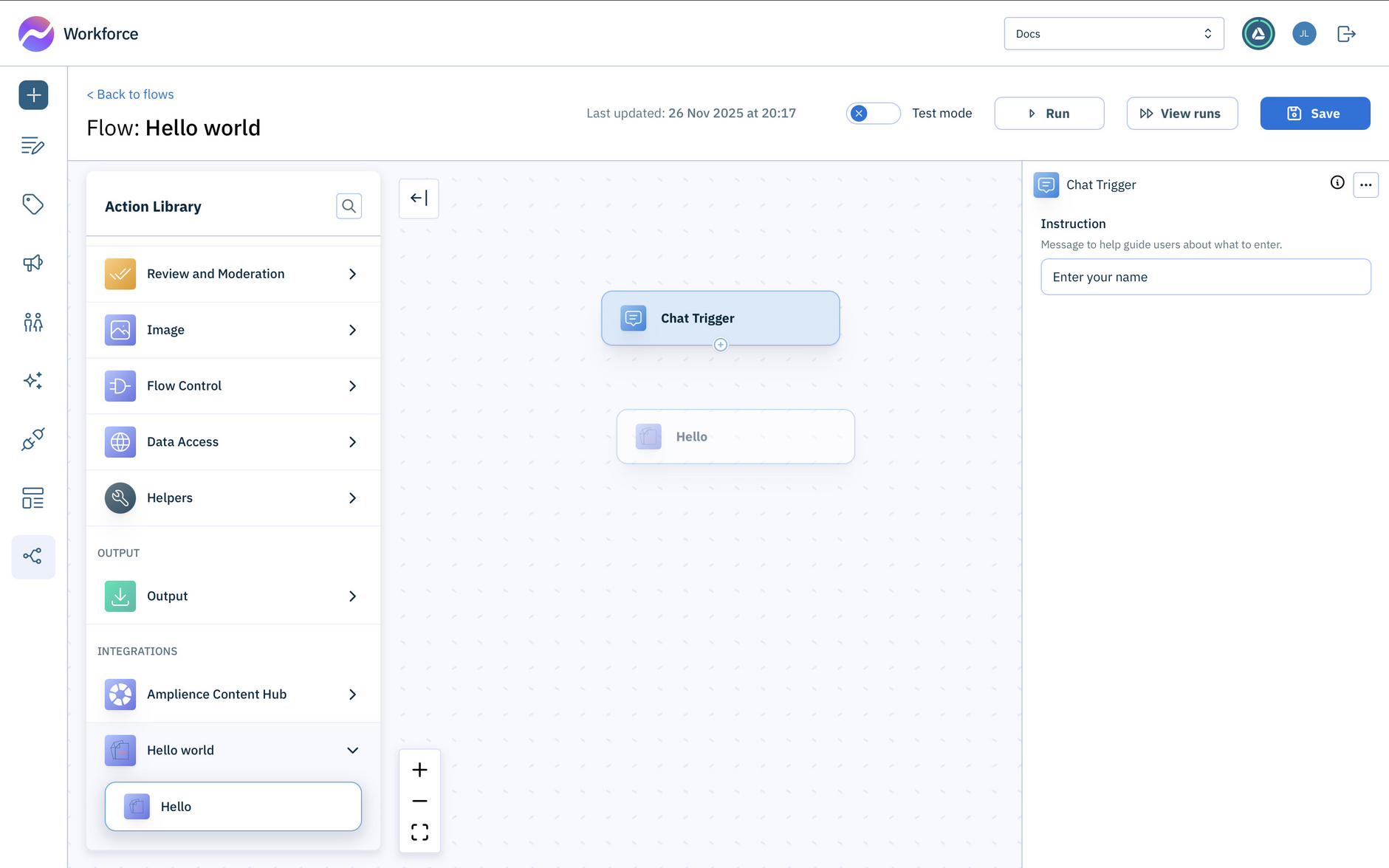
Once installed on the hub, the extension is now shown in the Action Library under a category called "Hello World".
The name of the action is specified in the manifest file, while the folder label is configured when the extension is created using the createExtension mutation.
Download the Hello world exampleLink copied!
You can download the Hello world example, including the code and manifest.