Build a flow in 5 minutes (or less)
One of the quickest ways to get started with Workforce Flows is to create your own. This guide walks you through a simple flow that creates a blog post from a user prompt and outputs the result.
As a bonus, you’ll also learn how to add a human review step to edit, approve, or reject the content.


To build and manage flows for your organization you will need Developer or Administrator permissions. See Workforce permissions.
Step 1: Create the flowLink copied!
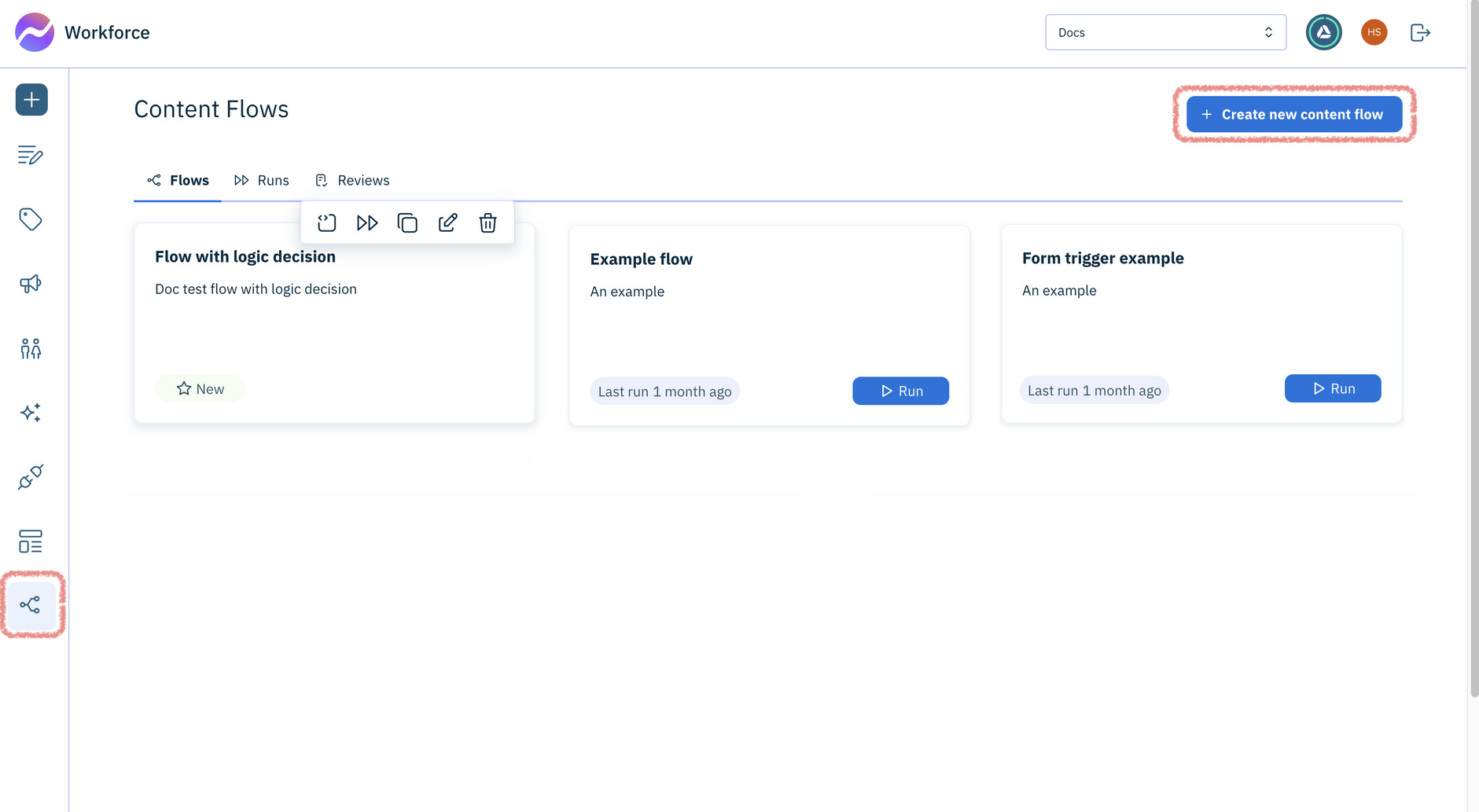
From the Workforce Content Flows page, click Create new content flow, and give the flow a name and description.
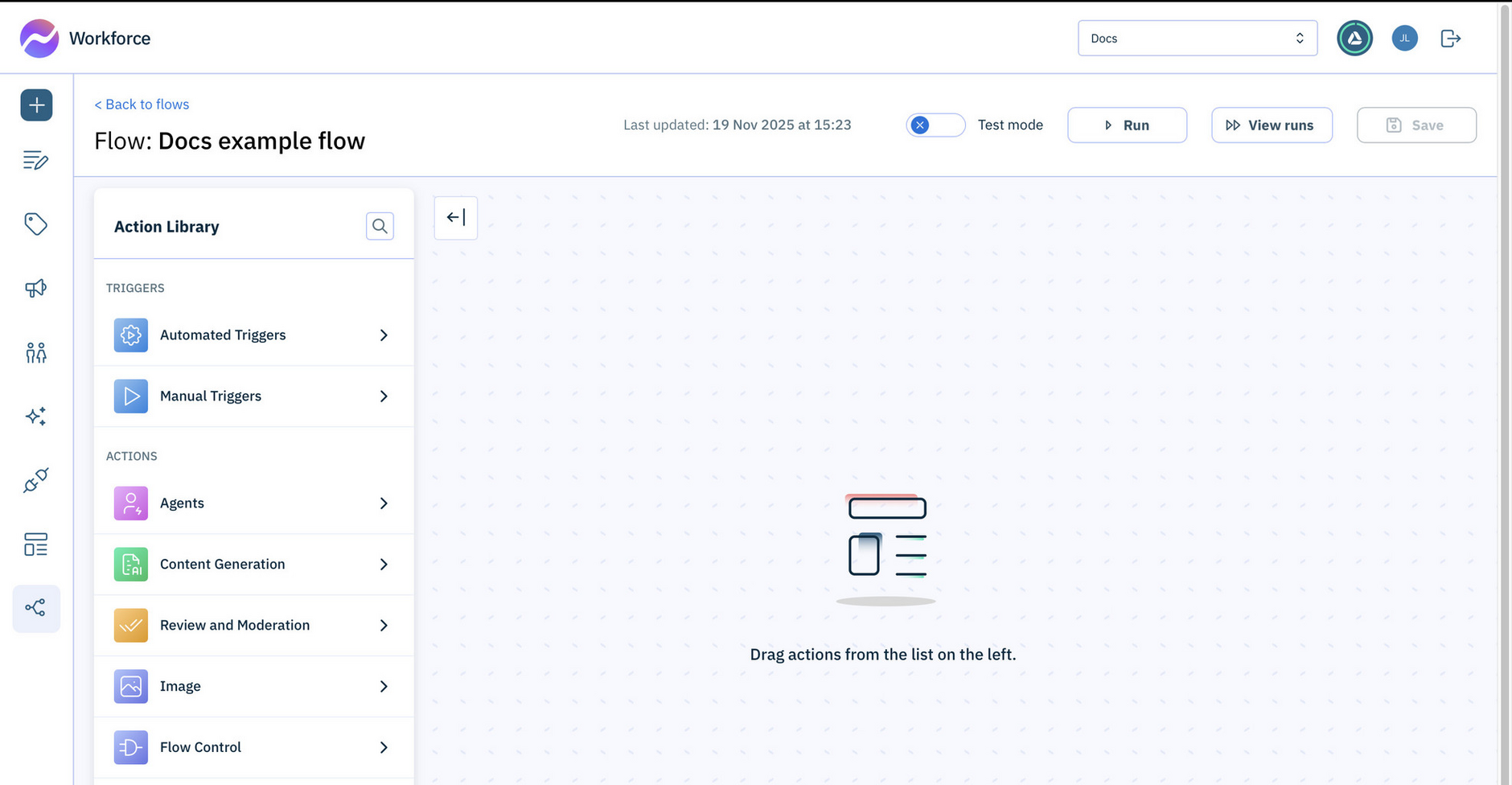
The Flow Designer opens ready for you to start designing the flow.
Step 2: Add a triggerLink copied!
Every flow starts with a trigger. The trigger defines what causes the flow to run. In this example, we're going to use a Chat trigger to start the flow manually.
To add the trigger:
-
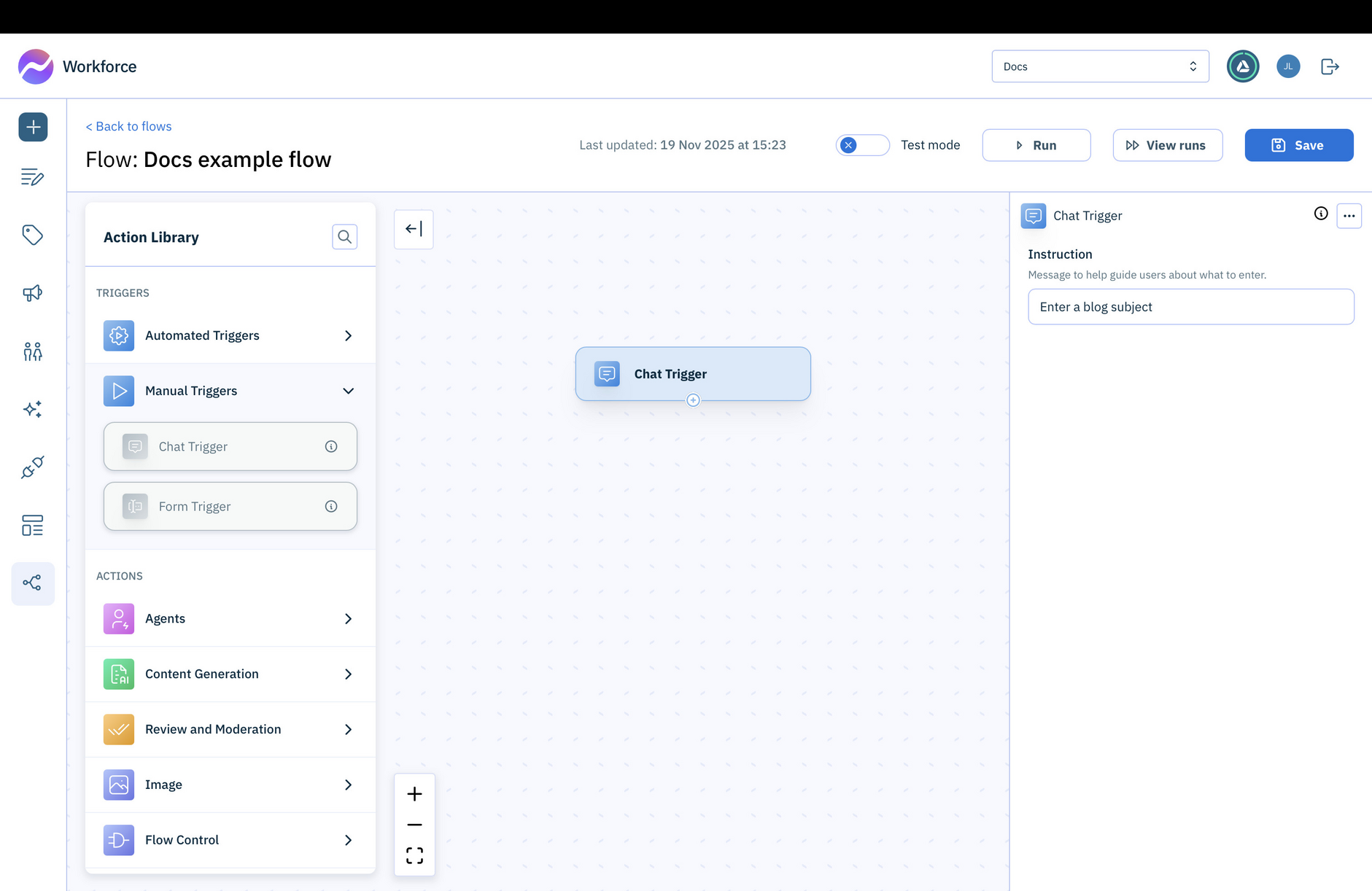
In the Actions library, expand Manual Triggers.
-
Drag the Chat Trigger action into the editing area.
Once the trigger is added to the flow, its configuration panel opens ready for a user prompt to be entered.
Tip: In this example we'll be creating a blog, so use something like "Enter a blog subject".
In this example, we’re using a manual trigger, but content flows can also be triggered by external events using webhook triggers, allowing you to fully automate your processes. Learn more about Triggers
Step 3: Add a content generation actionLink copied!
Now that we have the trigger for our flow, we need to add the next action. In this example we'll add a content generation action.
Content generation actions let you use both built in and custom templates that are available elsewhere in Workforce. Learn more about content generation actions.
For this flow, we'll use the blog action.
To add the blog action: In the Action library, expand the content generation actions, then drag the Blog action to just below the Chat Trigger.
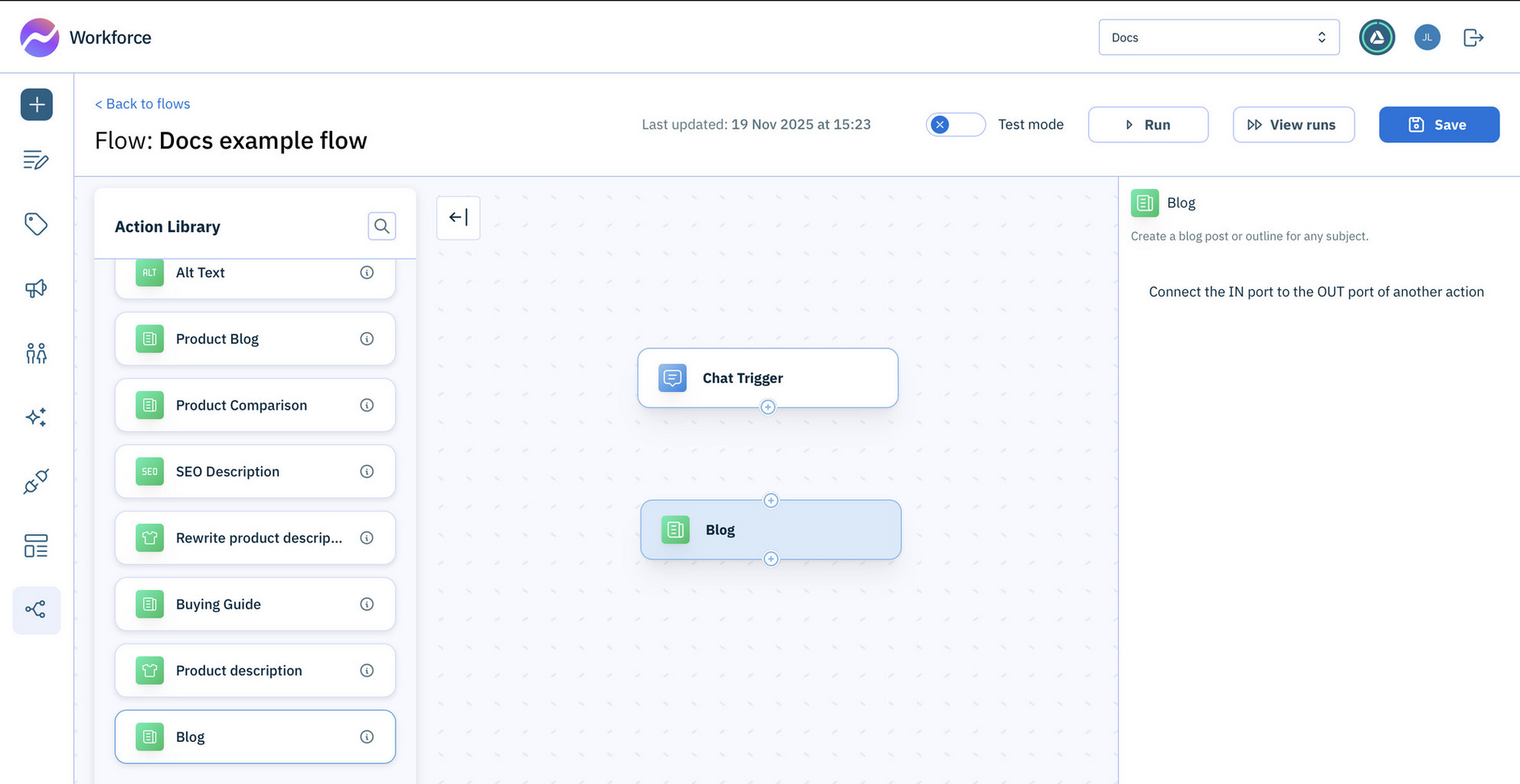
You'll see instructions on the right telling you to connect the IN port of the Blog action to the OUT port of another action.
-
Click on the OUT port of the Chat trigger and drag to the IN port of the Blog action.
-
Set the Blog action input values:
-
Select the Model in the configuration panel, along with any other information, such as tone of voice and audience. Tip: The Blog action must selected to display its configuration panel.
-
Click in the Title field. The Variables picker opens for you to choose from the variables output by the chat trigger. Select
Messageto set the title of your blog to the text that will be entered by the user.
-
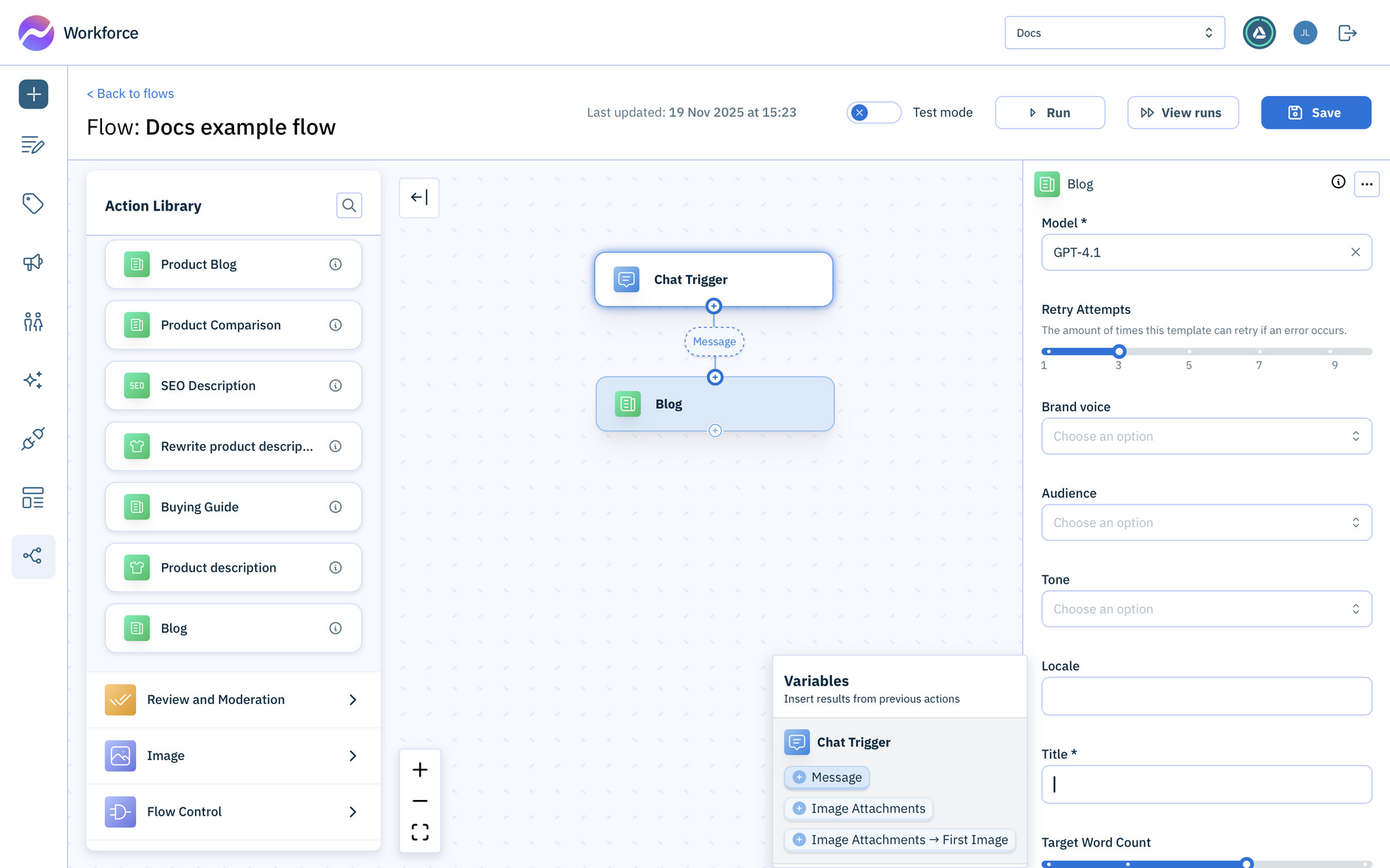
Find out more about ports and input values.
Step 4: Add an output actionLink copied!
The final step is to add an output action to output the content generated by the Blog action.
-
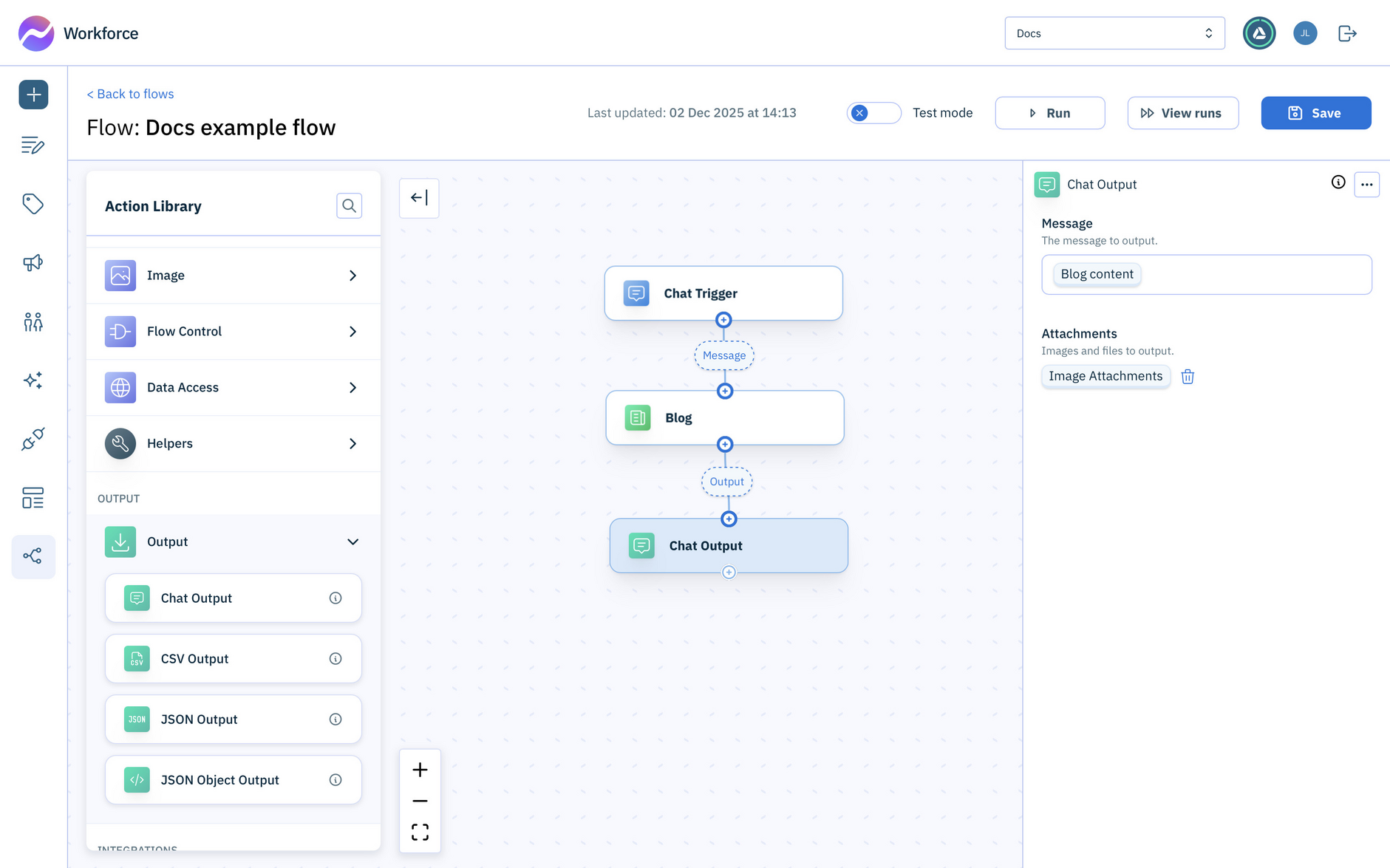
In the Action library, expand the Output actions, and drag the Chat Output to your flow. Connect it with the Blog action. Note that the
Blog contentvariable is automatically added as the Chat output message. -
Save your flow. It's now ready to run.
Try it outLink copied!
The example blog flow is now ready to run:
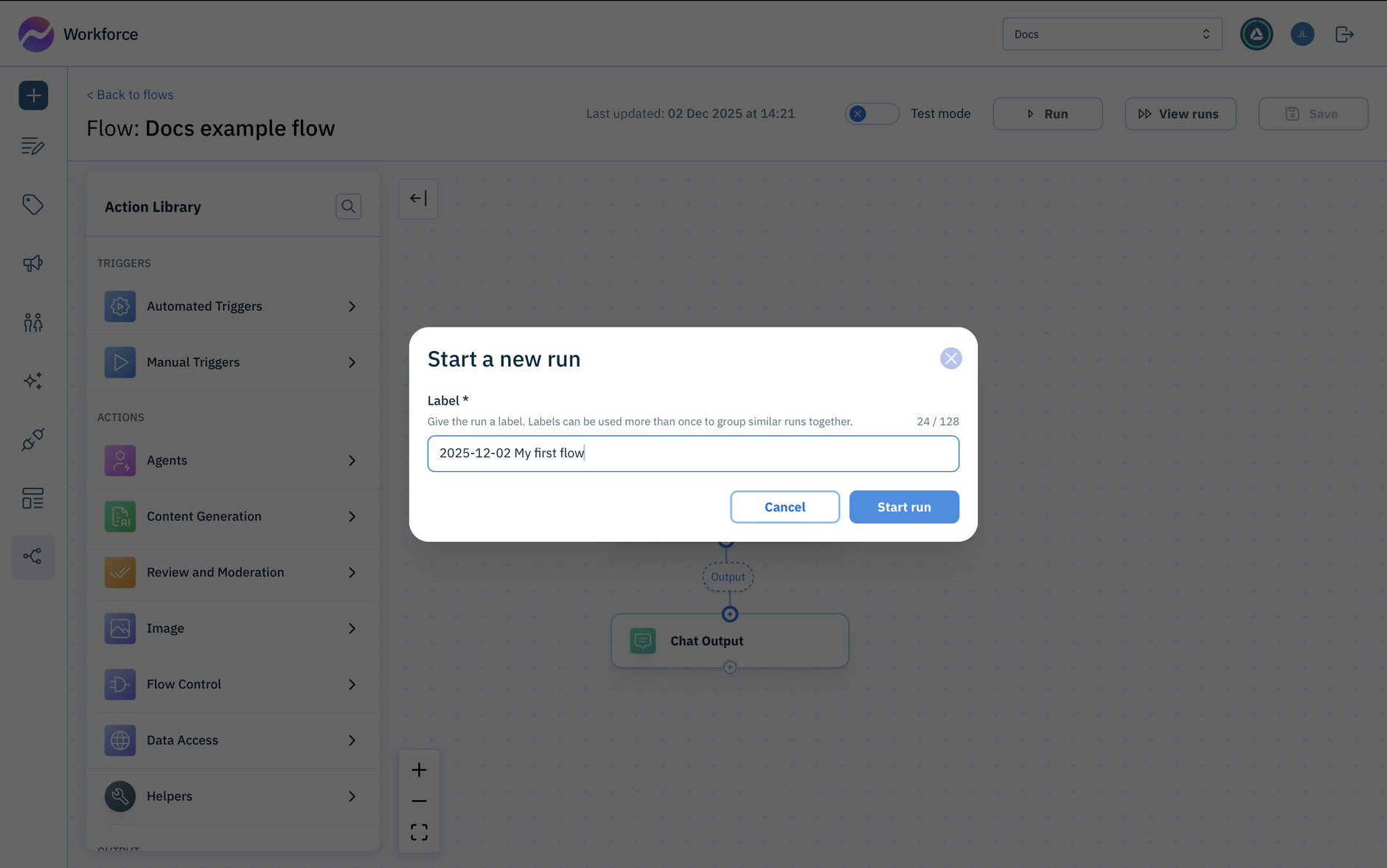
- Click Run at the top of the window
- In the Start a run dialog, enter a label to help find the results in the list of runs later, then start the run.
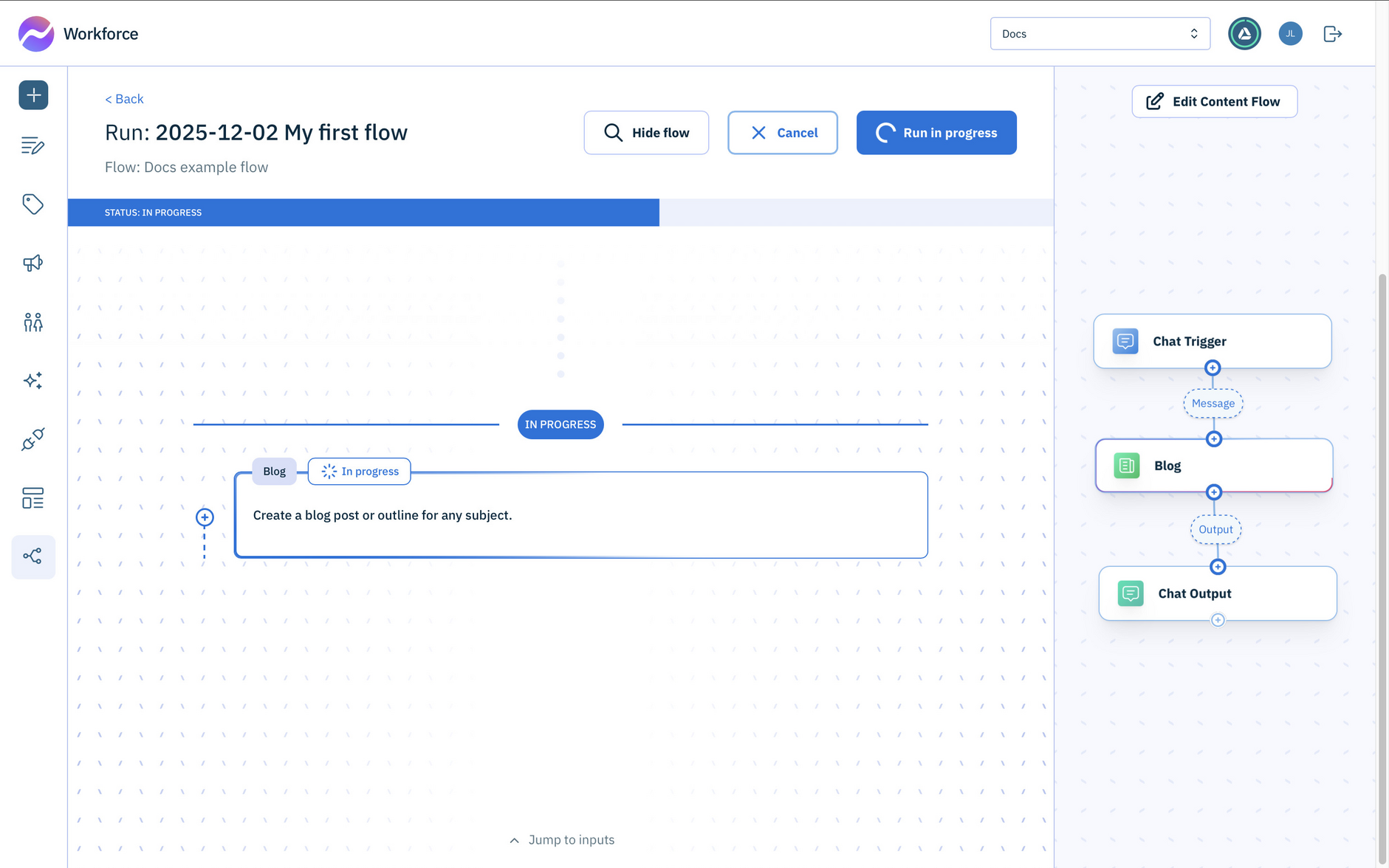
While the run is in progress, you can click Show flow to follow progress through the flow. The flow progress is shown in the main window, with the flow displayed to the right. As the flow runs, the current action is highlighted.
When the flow is complete, the content generated by the blog action is displayed.
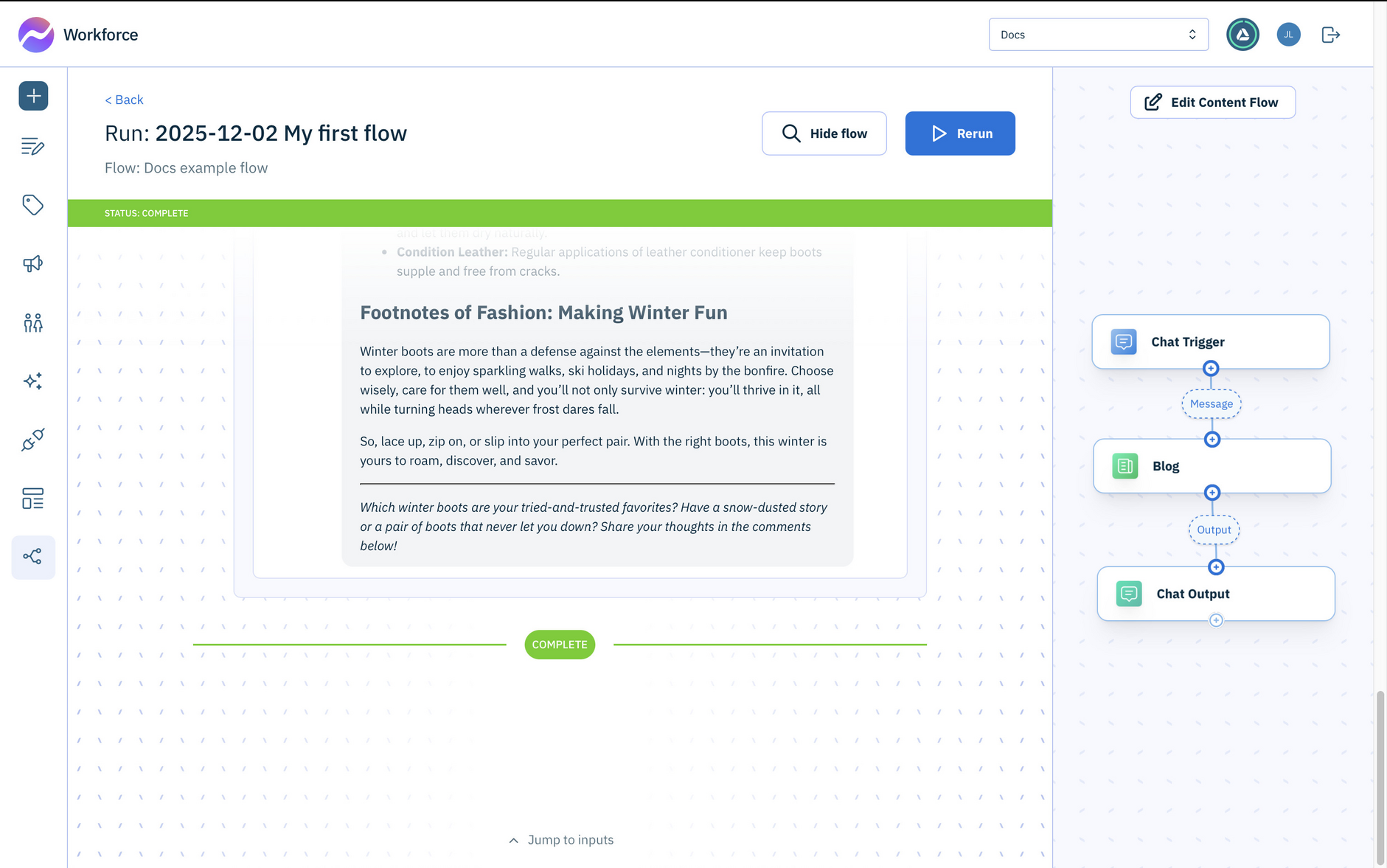
The completed run is shown in the "Runs" window. You can open the flow again to check the output or to run it again.
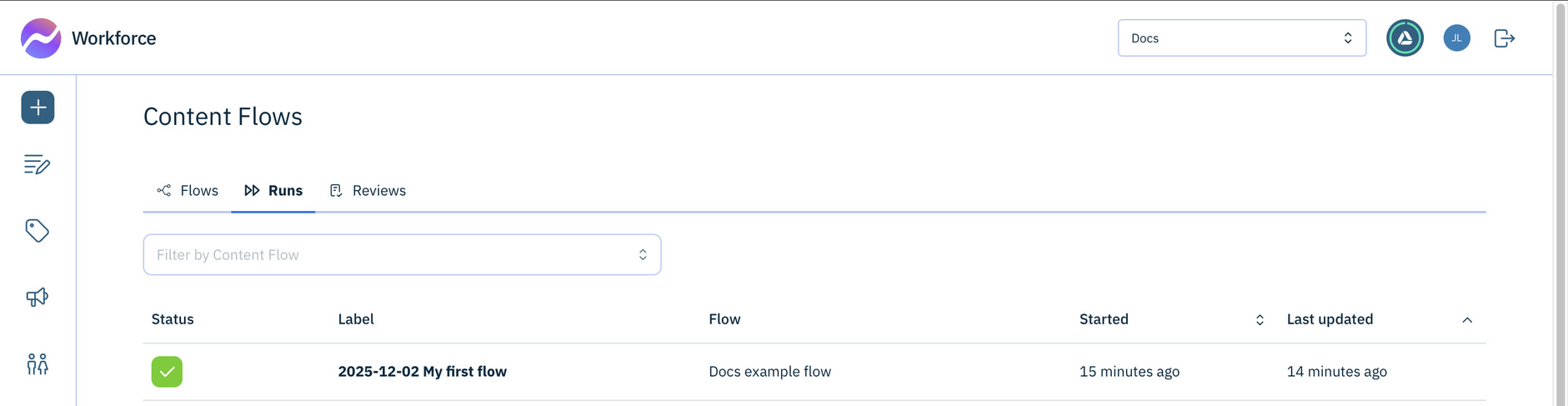
In just 5 steps you've created your first flow. From here, you might want to add another action to translate the content, or use the output as input for another action.
Bonus step: add human reviewLink copied!
In this bonus step you'll add a human review stage to the example flow, giving you the opportunity to approve, reject or edit the generated content.
-
In the Action library, expand the Review and moderation actions and drag the Human review action to your flow, connecting it with the Chat output action.
-
Set inputs for the review action:
- Set the Review label to use the
Messageentered by the user in the chat trigger - Add some instructions for the reviewer in the Review Task Instructions field
- Select the
Blog outputas the Data to be reviewed. - Optionally, adjust the Review time, which defines how long the review remains active. The default is 7 days.
- Set the Review label to use the
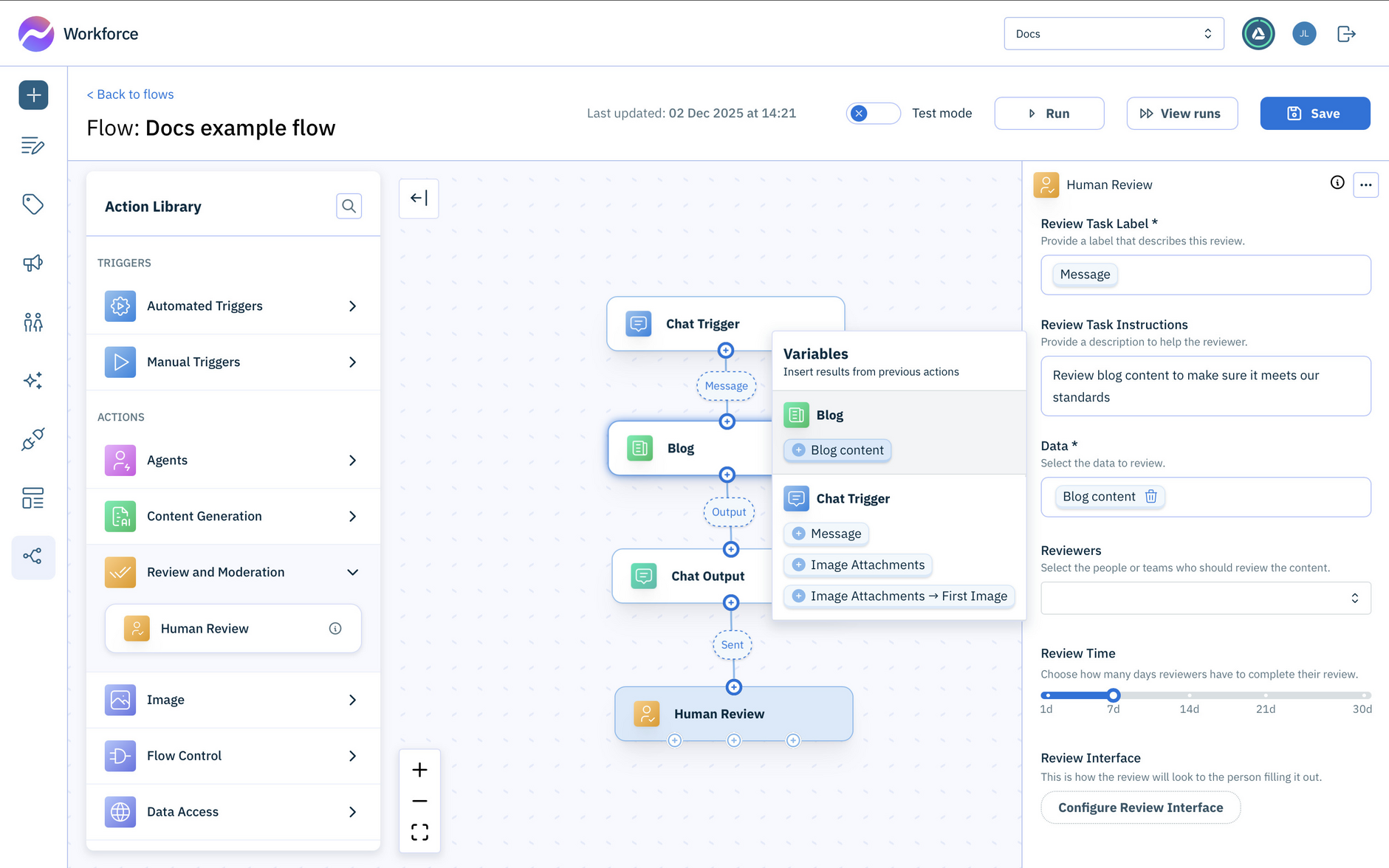
Now run the flow by clicking Run at the top of the window.
When the review step is reached, the flow pauses and waits for you to begin the review process. Click Open review to start your review.
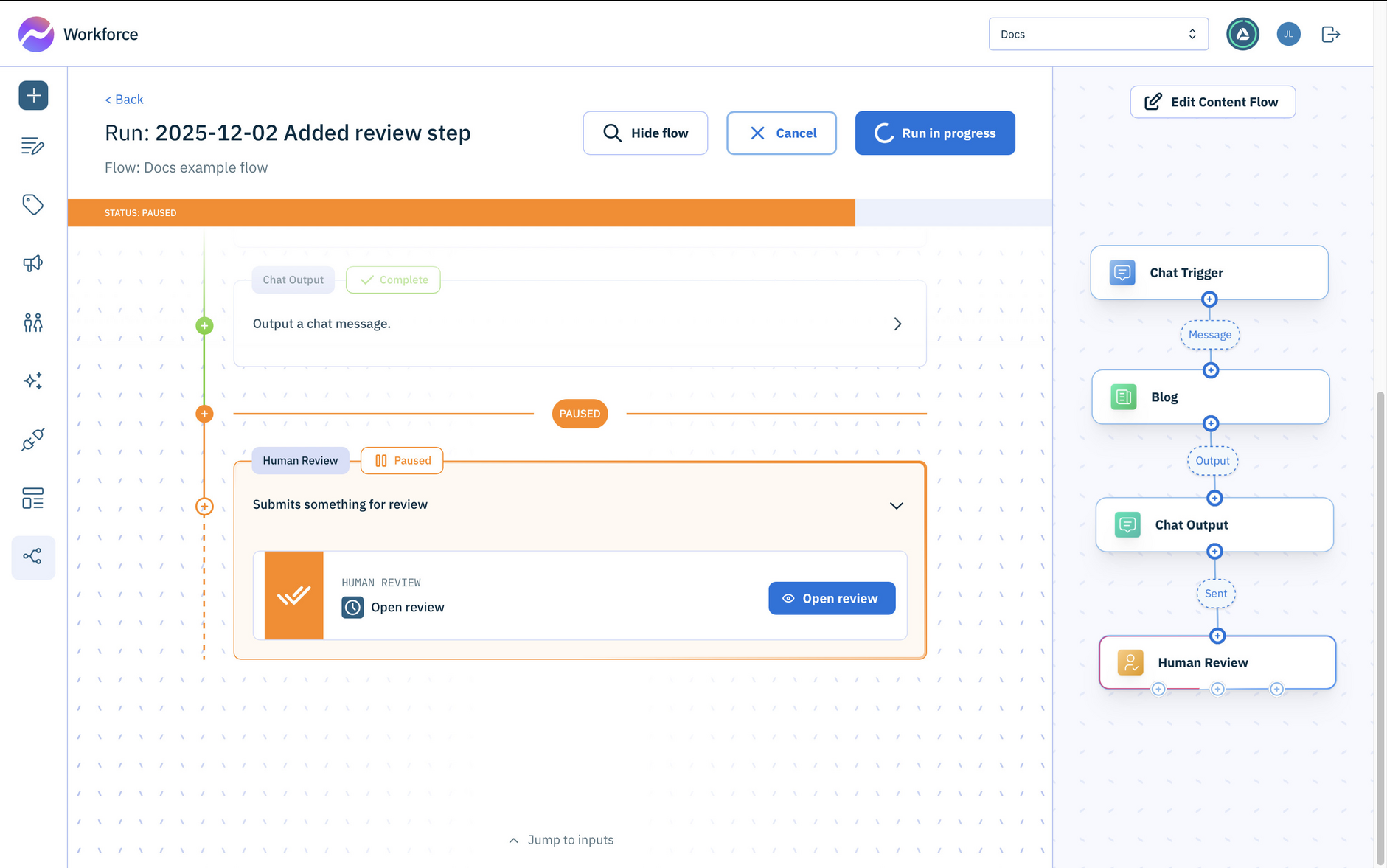
Check the content and make any necessary changes, choose whether to approve or reject the content.
Close the review window when you're finished.
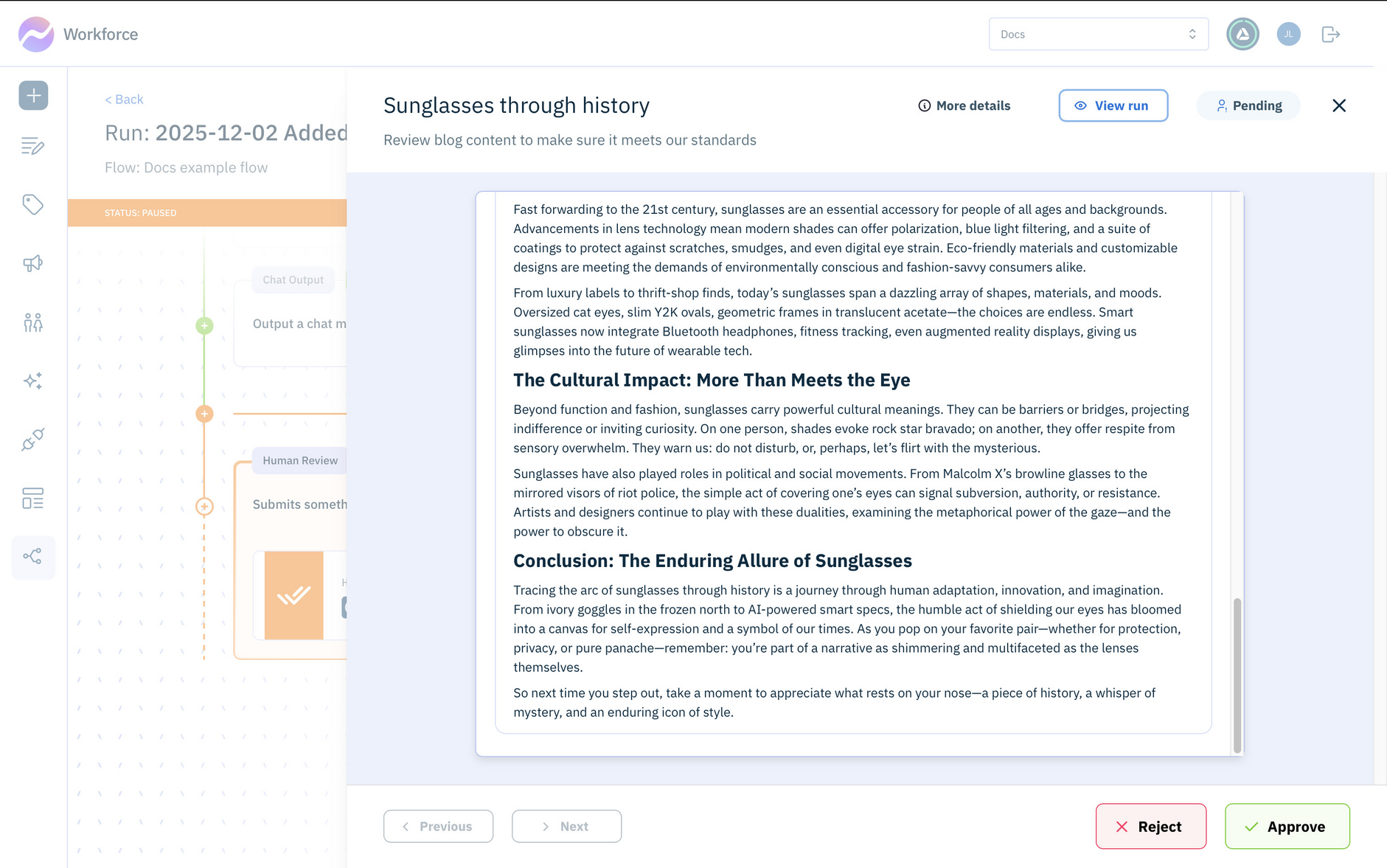
The flow will resume running. In this example the review is the last step and the flow run is complete. It will show whether you accepted or rejected the content.
Notice that there are 3 outputs from the Human review action: accepted, rejected or expired. You can connect different actions to each of these outputs, allowing you to branch the flow according to the result of the review.
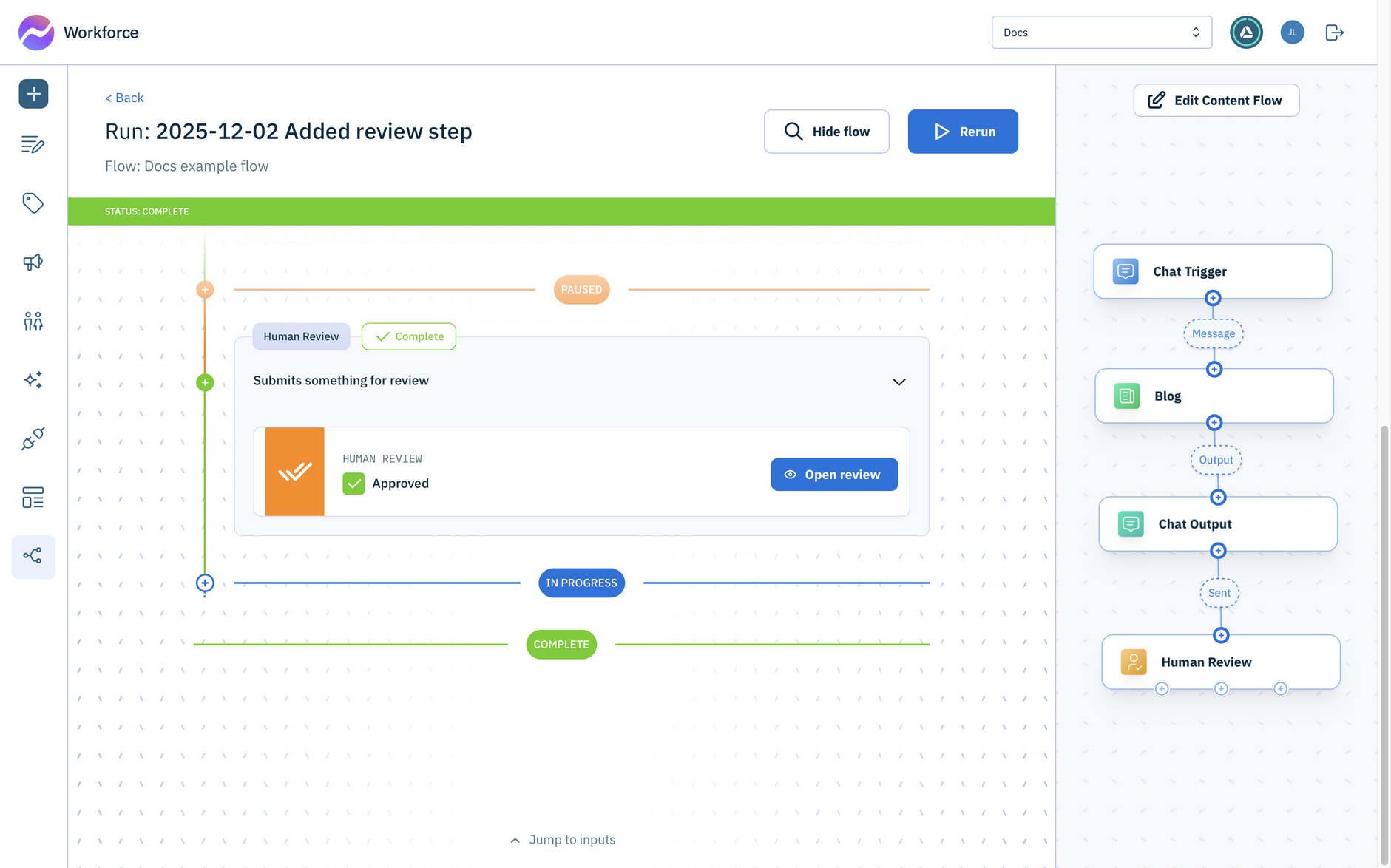
In this example, the review is completed directly from the flow. However, in most cases, you’ll complete reviews from the Review list which lets you review the output of flows triggered automatically, such as by webhooks. See Reviewing flow output.