Configuring webhook triggers for flows
Here’s how to configure a webhook trigger to start a flow.
Adding a webhook trigger to a flowLink copied!
Adding a webhook trigger allows you to choose or create a webhook URL that will be used to start the flow. For example, you could start the flow when an asset is uploaded to Content Hub, or when an action is performed in JIRA, Slack or some other webhook enabled application.
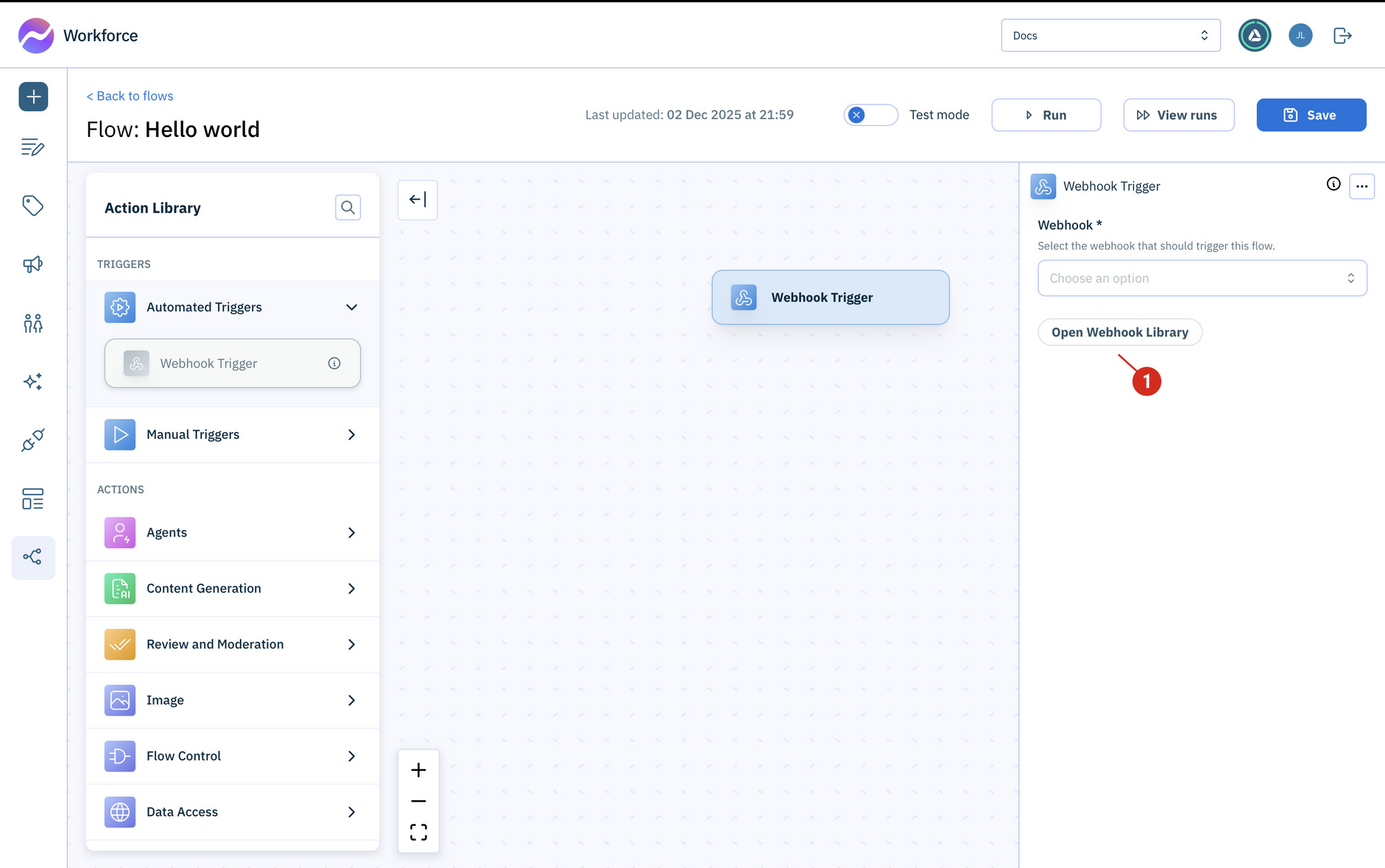
To add a webhook trigger, open the automated triggers folder in the actions list and drag the webhook trigger to your flow.
If you've already set up the webhook URL that you want to use, then choose it from the list, otherwise click the "Open Webhook Library" button.
Creating a webhook URLLink copied!
The webhook library is where new webhooks can be added and all webhook URLs associated with your hub can be managed.
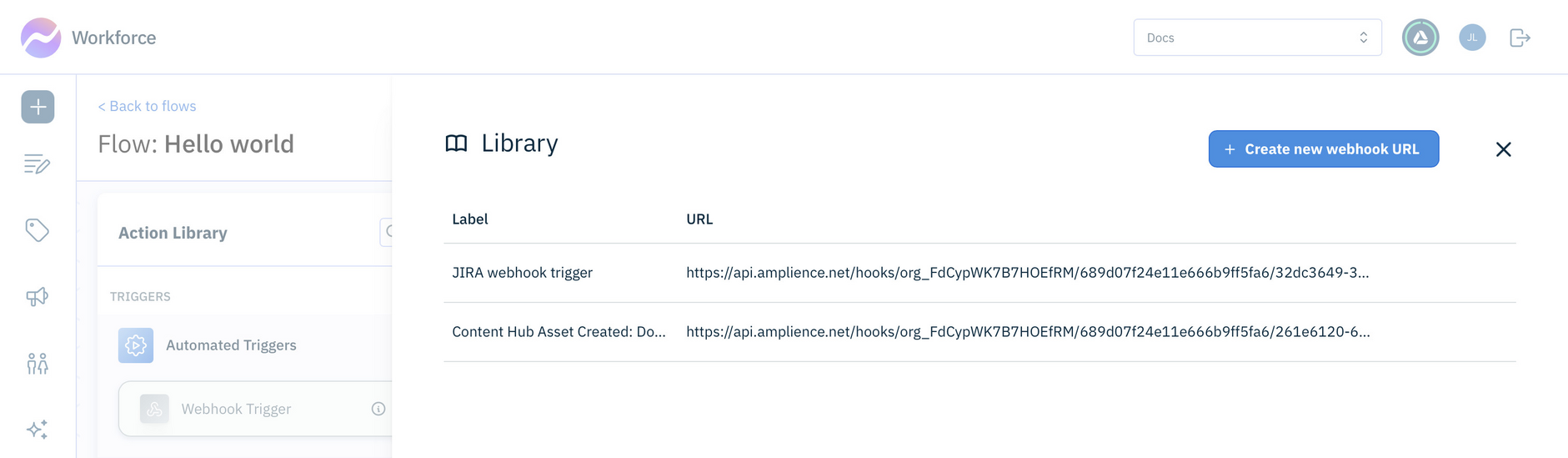
To create a new webhook URL, click the "Create new webhook URL" button. A URL will be generated that you should paste into the settings of the external application that you're integrating with Workforce. See JIRA webhook flow for an example of configuring a webhook using the URL you created in Workforce.
Webhook authenticationLink copied!
Webhooks can be received with or without authentication.
If the webhook is authenticated or there is no authentication, a 202 Accepted status code is returned with an empty response body.
If webhook authentication fails, for example, if the secrets don't match or there is an incorrect header name, a 400 bad request status code is returned. The response body will contain "The provided request was invalid".
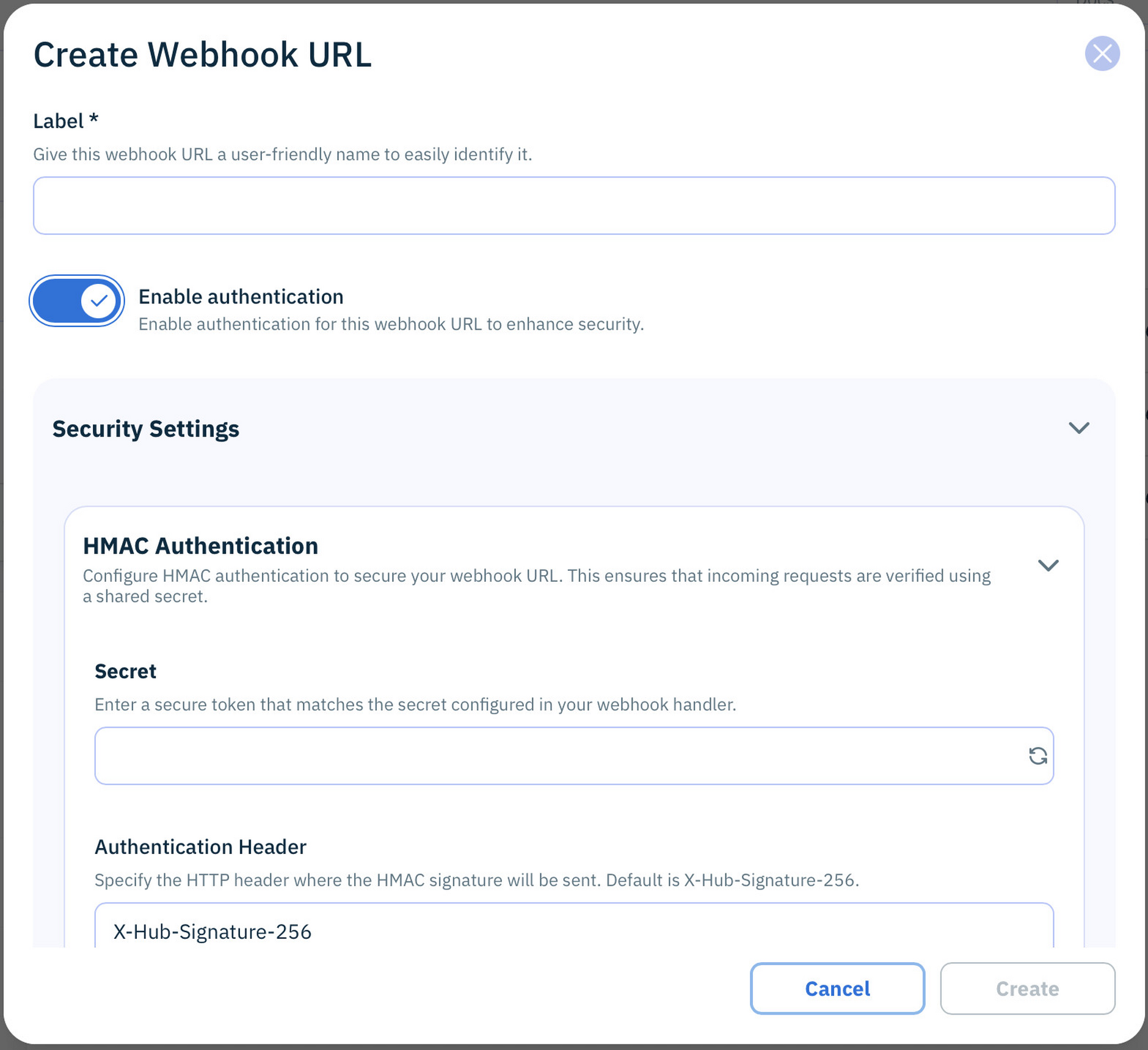
If authentication is enabled HMAC authentication is used, where incoming requests are verified using a shared secret. You have several options for setting the secret.
- Enter the secret generated in the application that will trigger the webhook request, for example Dynamic Content or JIRA.
- Generate a secret and add this to the settings of the external application.
- Enter a secret manually.
Once you save the webhook settings, you won't be able to view, copy or edit the secret.
Authentication headerLink copied!
The authentication header field must contain the name of the header used to verify the secret. This defaults to X-Hub-Signature-256. Check the documentation of the application that will send the webhook to ensure that you enter the correct header name.
For webhooks sent from Dynamic Content, the header name is X-Amplience-Webhook-Signature.
HMAC algorithmLink copied!
The default algorithm is SHA256. In most cases this will the the algorithm the webhook sender is using, but SHA1 and SHA512 can also be selected.
EncodingLink copied!
The default encoding is BASE64. In most cases this default should be the correct setting, but HEX encoding can also be chosen.
JSON schemaLink copied!
The JSON schema for the webhook listener defines the expected shape of the payload. Webhook requests will be validated against the schema.
Requests that are invalid according to the schema will be rejected with the response 400 Bad Request and a run will not be triggered.
If you leave the schema as an empty object: {"type": "object"}, almost all JSON payloads will be accepted and sent to your flow.
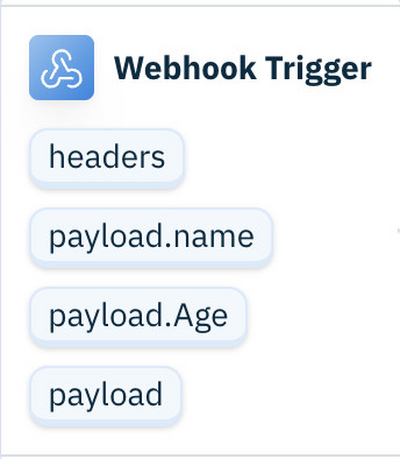
If you define a more specific schema, this enables the properties that you define to be chosen from the variable picker.
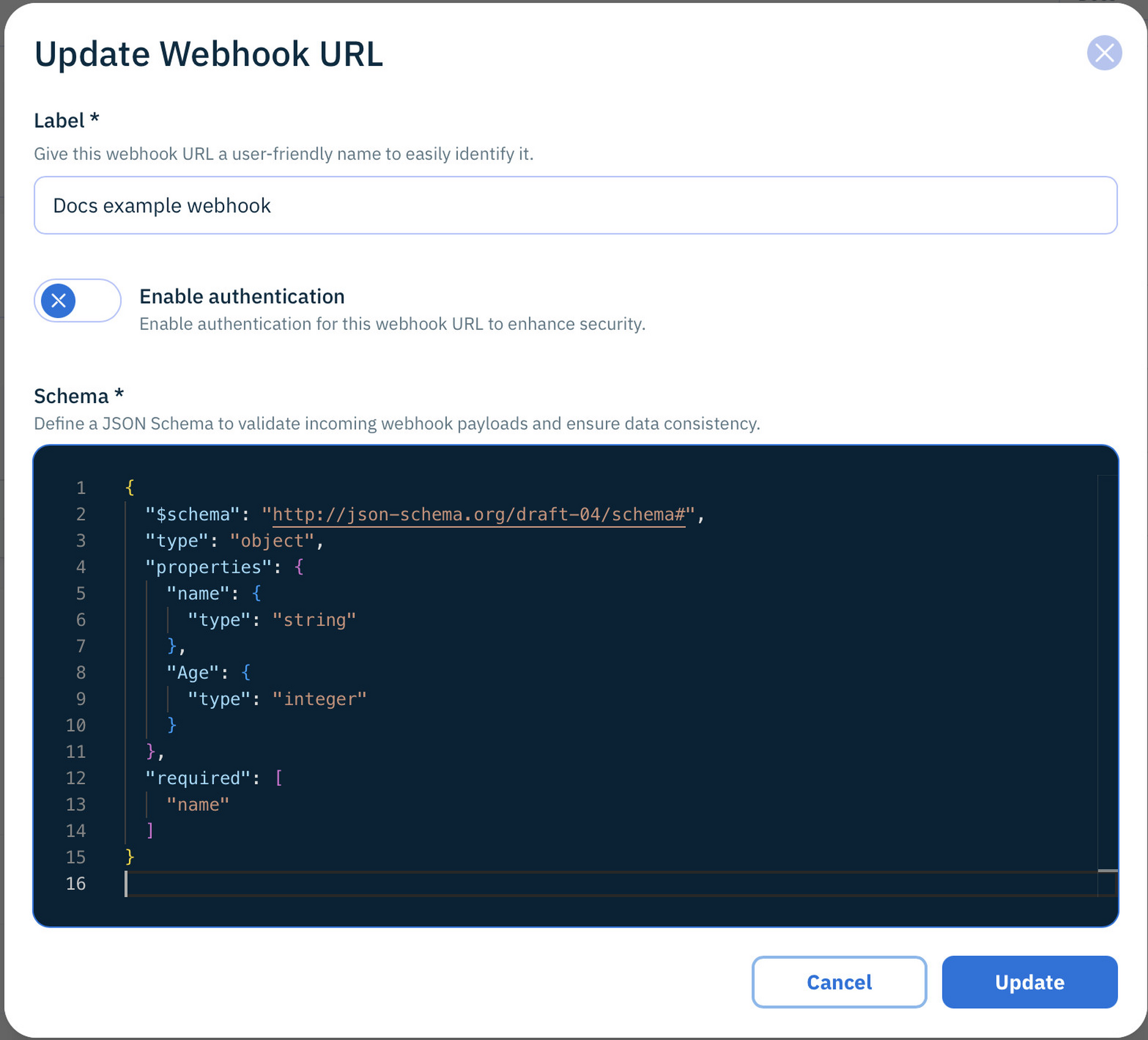
For example for the following schema contains two properties, name and age.
These properties will be available in the variables picker as payload.name and payload.age.
Content flow examplesLink copied!
For examples of webhook triggers in flows, see:
-
Automated alt text example flow for an example of a starting a flow automatically with a webhook triggered by uploading an item to Content Hub.
-
JIRA webhook example flow shows how to use a webhook trigger to run a flow when an action occurs in JIRA.