Developing extensions
Extensions let developers create their own Workforce actions that integrate with 3rd party products and make their data available to be used in automation flows. You can also create extensions that contain custom business logic.
On this page we'll explain the structure of extensions and walk you through developing and deploying a simple extension that installs a Hello World action in your library.
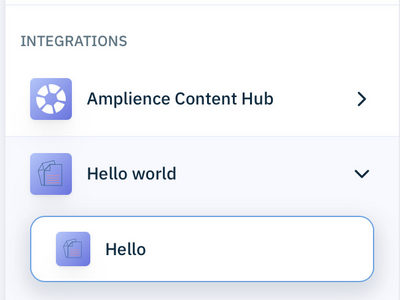
Extensions can contain multiple actions, with each extension showing in the Integrations section of the Actions Library.
Each extension appears in its own folder within the Integrations section, as shown in the Hello World example below. Any extensions you develop will be added to this section.
The example Hello World extension just contains one action, but you can include multiple actions within the same extension.
Building an extensionLink copied!
There are 3 parts to an extension:
- JavaScript code. This is the implementation of your extension. The code is hosted by Amplience and run within a sandbox. Your code must conform to the Minimum Common Web Platform API standard. If you write your code in TypeScript, you'll need to provide a bundler to compile it to JavaScript.
- A manifest file. This is a JSON file that provides information to our system about what actions the extension contains and the format of its inputs and outputs.
- Description- When you create an extension you will need to provide a description. This is markdown format text that will be used in our marketplace to help users discover the extension.
When you install an extension on a hub you will need to create a release. This is a version of the extension containing the code and manifest. You will need to use the GraphQL Management API to create an extension, release and instance. An instance of an extension is a specific version that is installed on a hub.
The Hello World exampleLink copied!
The Hello World example is a simple extension that implements an action named "Hello" that takes a string and appends "Hello" to the start of it. We'll use this example to outline the structure of the JavaScript and manifest files, and walk through the steps required to build and install an extension on a hub.
You can download the full example. The code is written in TypeScript but you can build it to generate an index.js file and a minified manifest file that you can use to create an extension release.
index.jsLink copied!
The code simply takes the input from the user and adds "Hello" at the beginning. We're also making use of an environment variable to set a default name if none is specified. Environment variables can be used for parameters such as API keys and will be passed as part of the request when you create an extension instance.
We're exporting a function named hello. Each action you define will use a function you've exported.
Manifest filesLink copied!
In the manifest file we're defining a single action with the name "hello". The name must match a function that we exported from our index.js file. The label defines how the action is displayed in Workforce.
The description should specify what the action does. This should be written to be consumed by AI as well as human users, to ensure that the action can be consumed by AI agents.
The input and output schemas specify the format of the action's inputs and outputs. In this example the input and output is a string. The root of both inputSchema and outputSchema must be an object.
The schema format is a simplified version of the JSON Schema used by Dynamic Content, but you cannot use features such as $refs and linked content. However, you can specify that properties are required.
The envSchema specifies the format of the environment variables that the extension supports, in this case a string with a default name.
Installing an extension on your hubLink copied!
Once the code and manifest have been created, you can install the extension on your hub using the GraphQL Management API. The GraphQL examples in this section can be run from the GraphQL playground or your own code.
Here are the steps to install the Hello World extension.
Step 1- Find the hub idLink copied!
To install an extension on a hub, you first need to find the hub id. Use the following query to list your hubs and find the one you want. The hub id will be passed in the cmsHubId in the following steps.
Example responseLink copied!
We will install the Hello World extension on the "docsconductor" hub with the id Q01TSHViOm9yZ19GZEN5cFdLN0I3SE9FZlJNLzY4OWQwN2YyNGUxMWU2NjZiOWZmNWZhNg==.
Step 2: Create the extensionLink copied!
Creating an extension builds a wrapper for it, containing metadata such as its label and icon. Use the createExtension mutation to create the extension.
-
cmsHubIdis the id of the hub on which you want to install the extension. Find the hub id by running the query shown in Step 1. -
The label will be used as the folder name in the Action Library in Workforce. Your actions will be shown within this folder.
-
The description is markdown format text that will be used to provide detailed information about the extension.
-
The url should usually be a link to docs providing more information.
-
The extension icon is shown in the Action Library in Workforce. It must be specified as an SVG, either as a URL or inline as a Base64 encoded string. In the example below, the SVG is included inline.
Example response:Link copied!
The extension id and label will be returned. You will need the extension id to create the extension release in the next step.
Step 3: Create the extension releaseLink copied!
A release contains a specific version of the extension, including its code and the manifest file. The code and manifest both need to be specified as escaped JSON strings. There can be multiple versions of an extension installed on the same hub (and the user can choose between them).
You will need to include:
- The extension id
- The label. This will generally be the version
- An escaped version of the manifest file. In the Hello World example, this is generated in the dist folder as part of the build.
- The code to your index.js. This also needs to be escaped. In the example query below, triple quotes are used to escape the entire code block.
- Draft is set to true so that it is only visible on your account.
Example responseLink copied!
This extension release id is returned. You will need this to create the extension instance.
Step 4: Create an extension instanceLink copied!
Creating an extension instance will install the extension on your hub. You need to specify:
cmsHubId. Use the same hub id you used in previous steps.extensionId. This is the id returned by thecreateExtensionmutation.extensionReleaseId. This is returned bycreateExtensionRelease. You can install multiple releases of the same extension on a hub. The user will be offered a choice of which extension to use.labelanddescription. Details of this instance.env. Include this in the input if you have environment variables (such as an API key). In the Hello world example, aHELLO_DEFAULT_NAMEproperty is defined in the environment variable section of the manifest. It will be used as the default name if no name is passed to the Hello action.
Example responseLink copied!
The extension instance id and label will be returned in the response. You can delete an extension instance with the deleteExtensionInstance mutation, passing the instance id.
Step 5: List the extension instances on your hubLink copied!
You check that the extension instance has been installed on your hub by running the following query. A list of extension instances will be returned, together with the extensions.
Example responseLink copied!
The instance of the Hello world extension is shown in the response.
Testing the extensionLink copied!
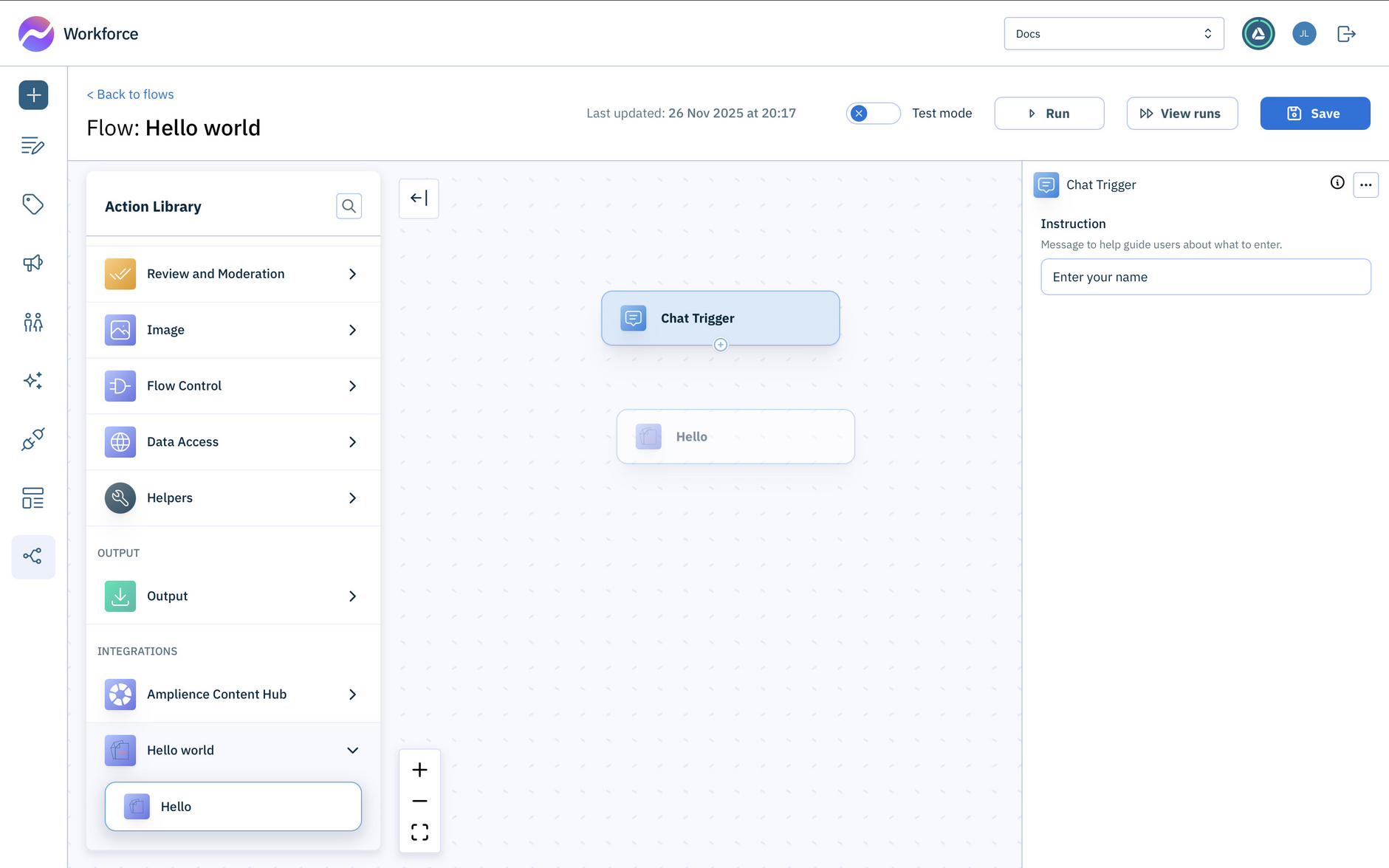
Once installed on the hub, the extension is now shown in the Action Library under a category called "Hello World".
The name of the action is specified in the manifest file, while the folder label is configured when the extension is created using the createExtension mutation.
Download the Hello world exampleLink copied!
You can download the Hello world example, including the code and manifest shown on this page.
Usage notesLink copied!
Extensions are hosted by Amplience and run within a sandbox.
-
Extension code must be written in JavaScript and conform to the Minimum common web API WinterTC standard.
-
Your input and output schemas must be objects.
The following limits apply to extensions:
- 30 seconds run time
- 10 API requests
- 128MB of RAM
- No access to the local network