Creating schemas
Content type schemas allow you to define the structure of the content you want to create.
The schema editor lets you create, edit, and manage these schemas directly within your Amplience CMS hub. You can still create and host schemas externally to Amplience CMS (for example in AWS or GitHub), but the editor allows you to create, edit and manage schemas within your Amplience CMS hub.
New to building schemas?
Start by getting familiar with the concepts of content modeling and content types and schemas.
You can also use the schema editor to create:
- Slot type schemas - schemas for helping you model the way content is organised on your website, app, or within an e-commerce system
- Partials - schemas with just a definitions section for including in other schemas
Creating a content schema (quick steps)Link copied!
Here's a summary of the steps to create a content type schema and register it as a content type from which users can create content:
- Create a content type schema and give it a unique URL. The URL just needs to be valid to ensure that the schema is valid JSON schema format. The URL will not be resolved and we do not enforce any naming standards
- Choose the validation to be used by the schema editor. For a content type schema choose "content type".
- Save the schema and open the schema editing window
- Add the properties you require. The schema editor provides shortcuts for most property types. You can preview how content created from this schema will appear in the content editing form
- Save the schema.
- Register a content type from the schema. To create a content type you specify the schema URL, label and optionally an icon, card and visualizations. You also select which repositories the content type is associated with.
The content type is now available for the user to create content.
Simple banner schema exampleLink copied!
This example walks through creating a banner content type schema using the schema editor, then registering it so users can create content.
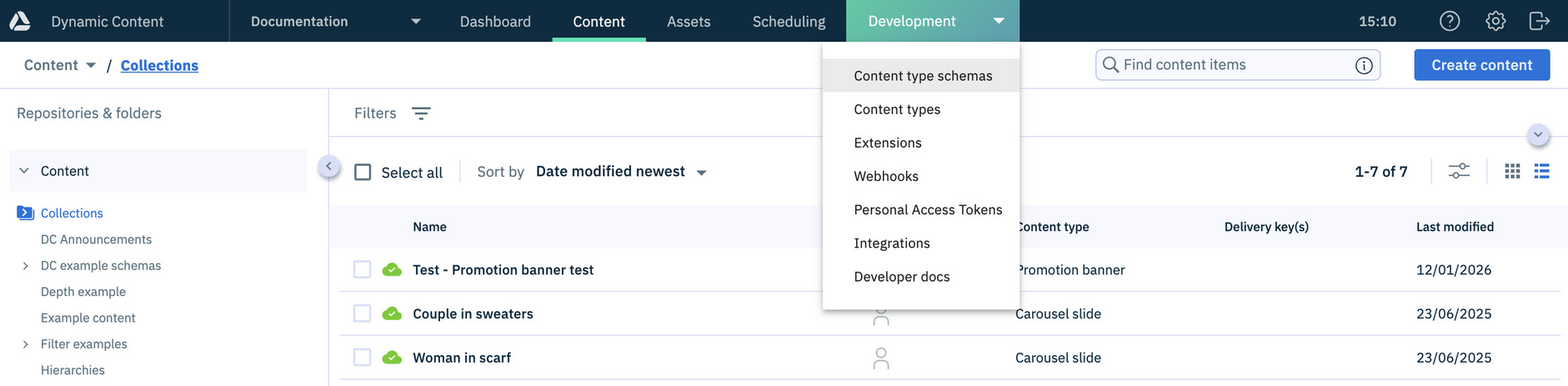
To create or edit a schema, choose "Content type schemas" from the "Development" menu in Amplience CMS.
Note
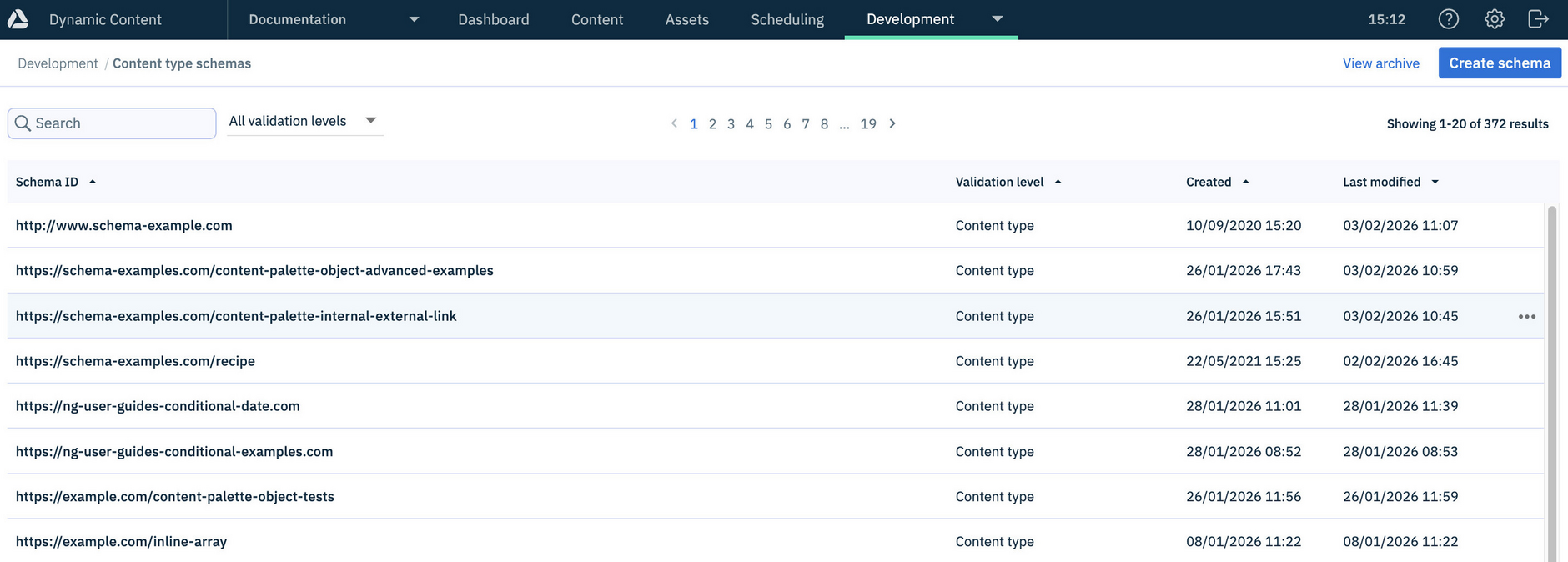
From the "Content type schemas" screen, click the "Create schema" button.
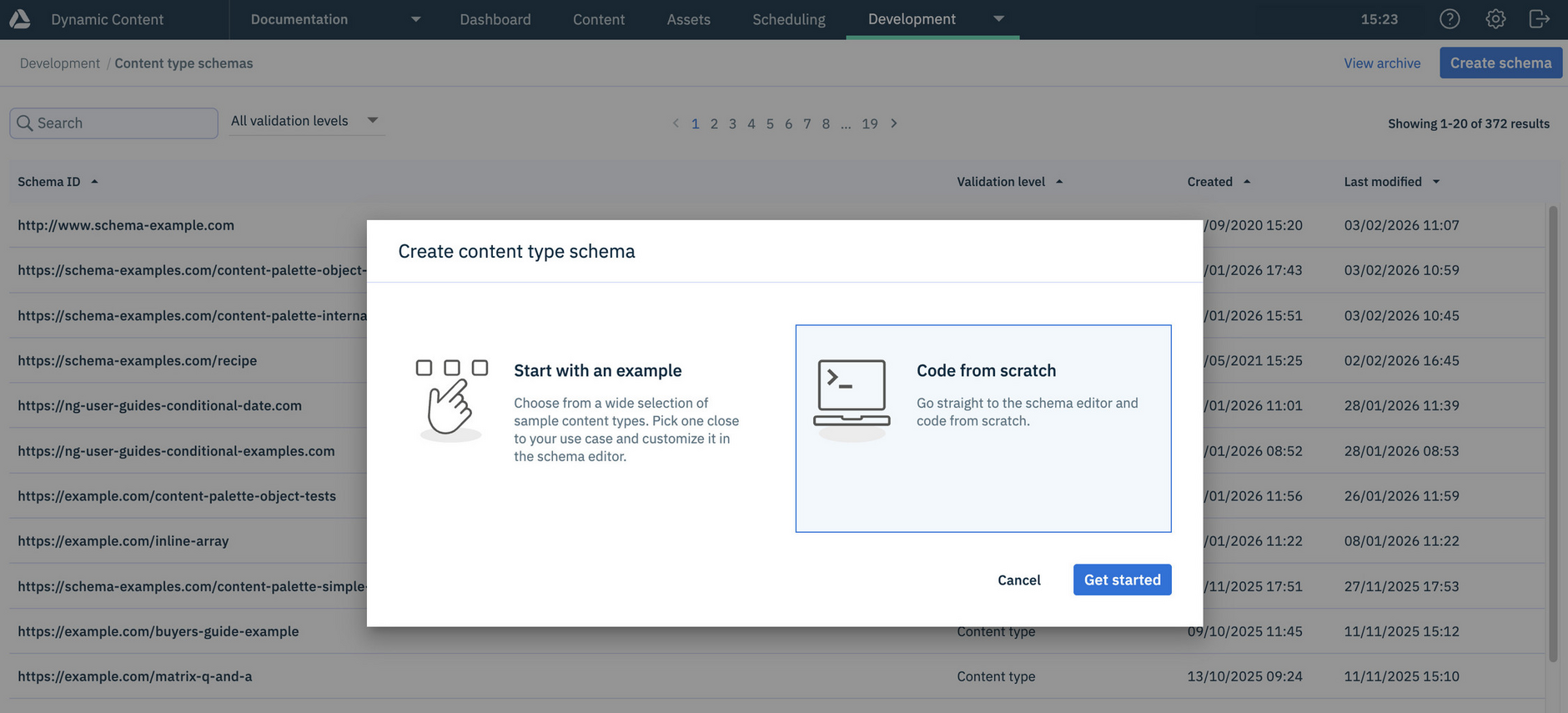
A dialog opens where you can choose between using a built-in schema example or coding from scratch.
Select "Code from scratch", then click "Get started".
Tip
Explore schema examples to get started quickly with ready-made schemas.
Set schema ID and validationLink copied!
Each schema requires:
- Schema ID - to ensure that it is a valid JSON Schema, the schema ID must be a valid URL. The URL won't be resolved, you can use any URL format you prefer.
- Validation level - Content type, Slot or Partial. The schema editor validates your schema based on its selected validation level.
In this example we're creating a content type schema, using the url: http://example.com/tutorialbanner.json. You may wish to use your own domain as a way of organizing your schema types, but we don't enforce any standard. This is the process to follow whether you are creating a text block, banner or any other content type.
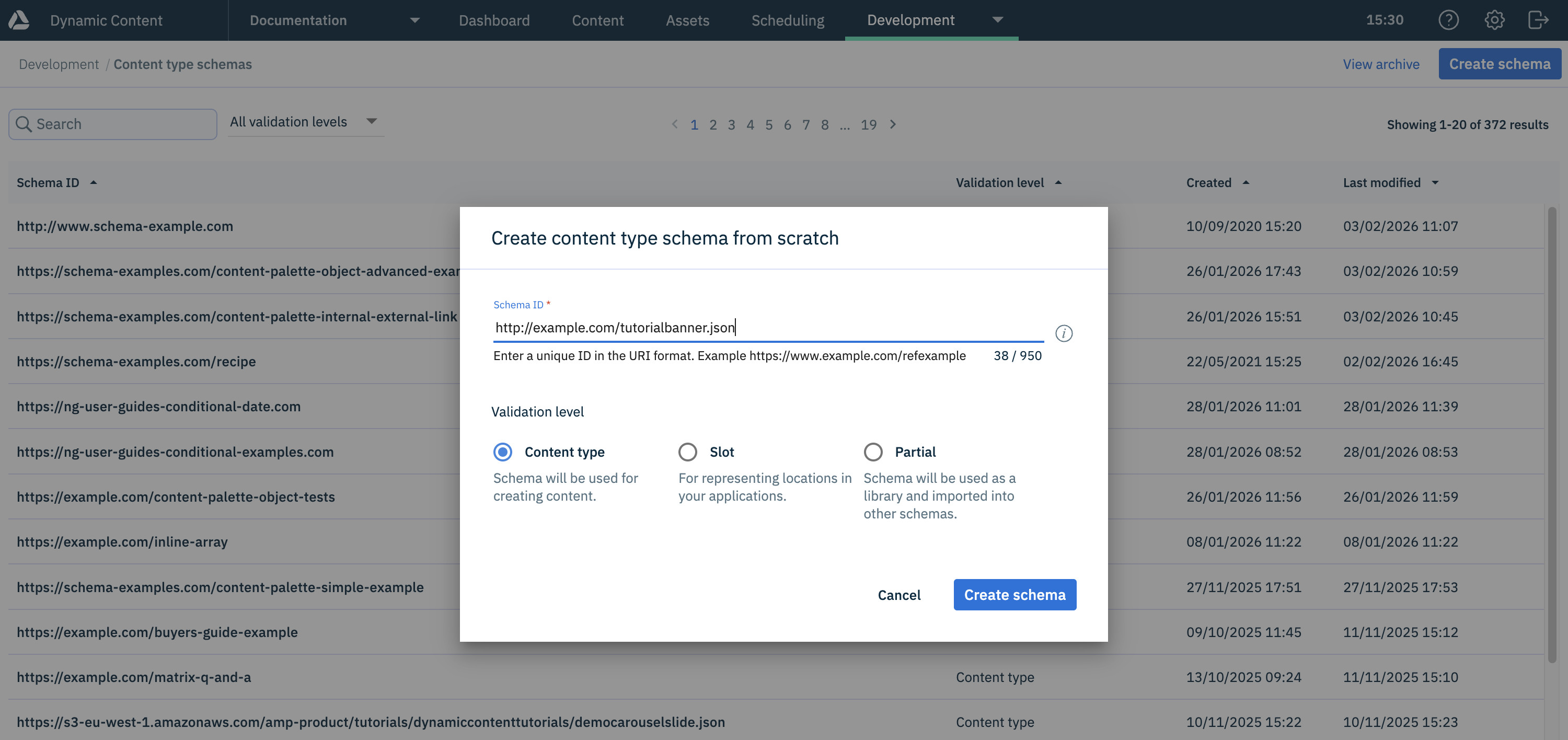
Click the "Create schema" button to open editor.
Adding propertiesLink copied!
When you create a content type schema from scratch, the schema editor opens with an outline of the schema.
To add the properties you require, select them from the "Add property" menu.
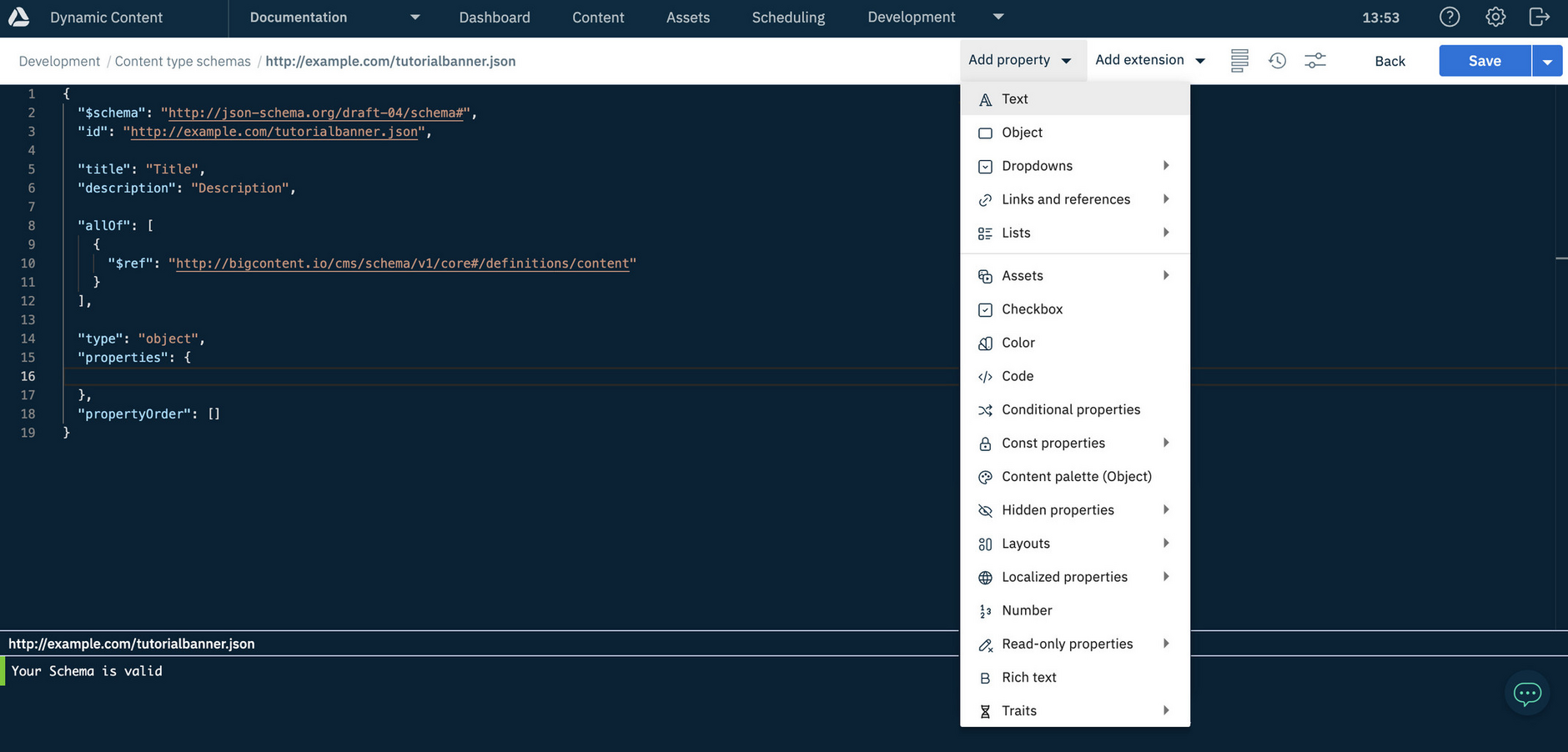
For this banner example, the following properties will be added:
headline(Text, max 255)strapline(Text, max 255)background(Image)calltoactiontext(Text)calltoactionurl(Text, format: URI)
Tip
The editor offers type ahead suggestions and validates the schema as you go.
Here, we've added a new property as the starting point for the headline property - the outline is added to the schema.
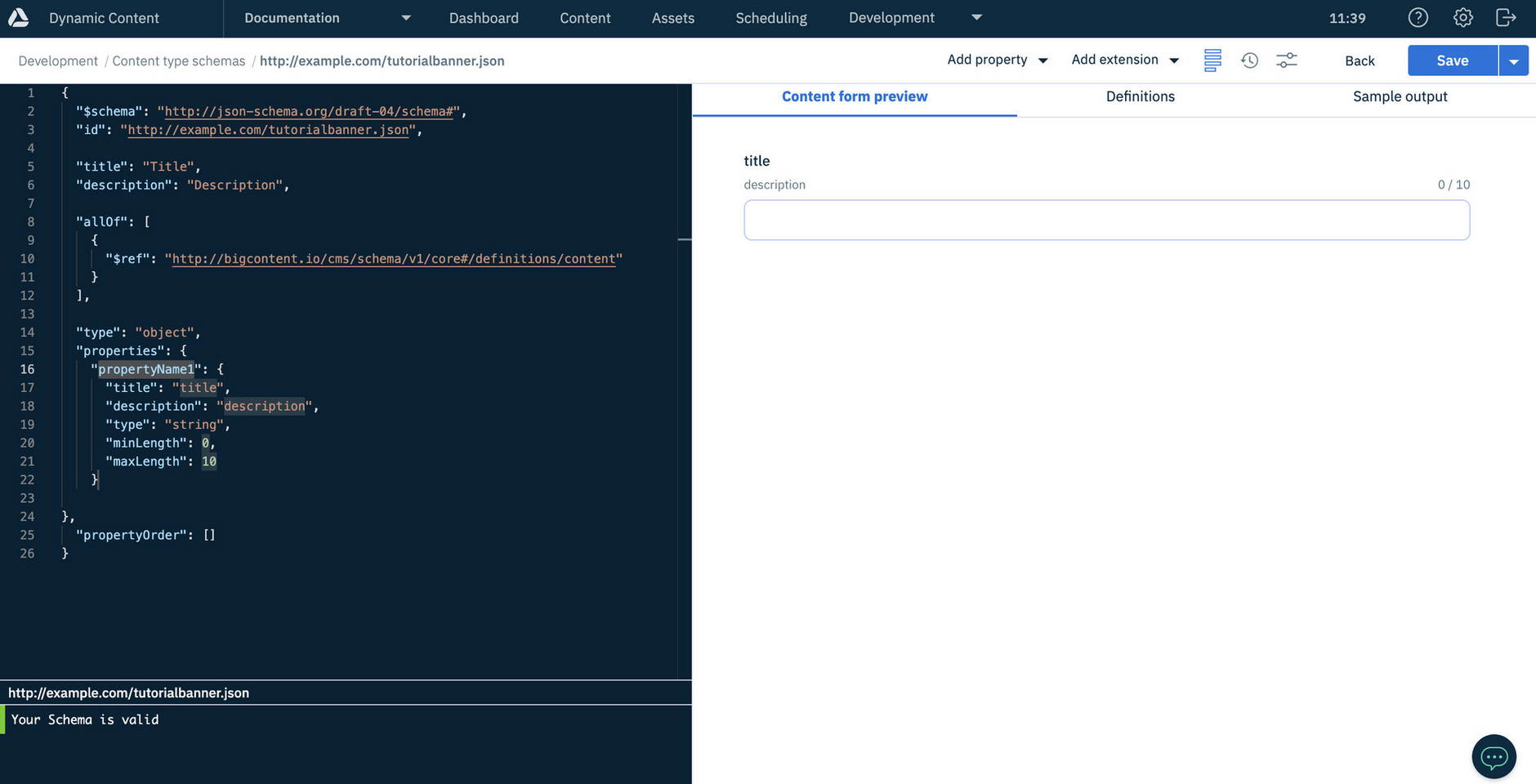
The strapline and calltoactiontext properties will also be added as text string fields.
Tip
Adding an image and text with a URI formatLink copied!
Complete the banner schema example by adding the remaining properties.
To add the banner's background image property, choose "Image" from the "Add property" menu. An image chooser property will be added to the schema window. Edit the default values, changing the property name to "background".
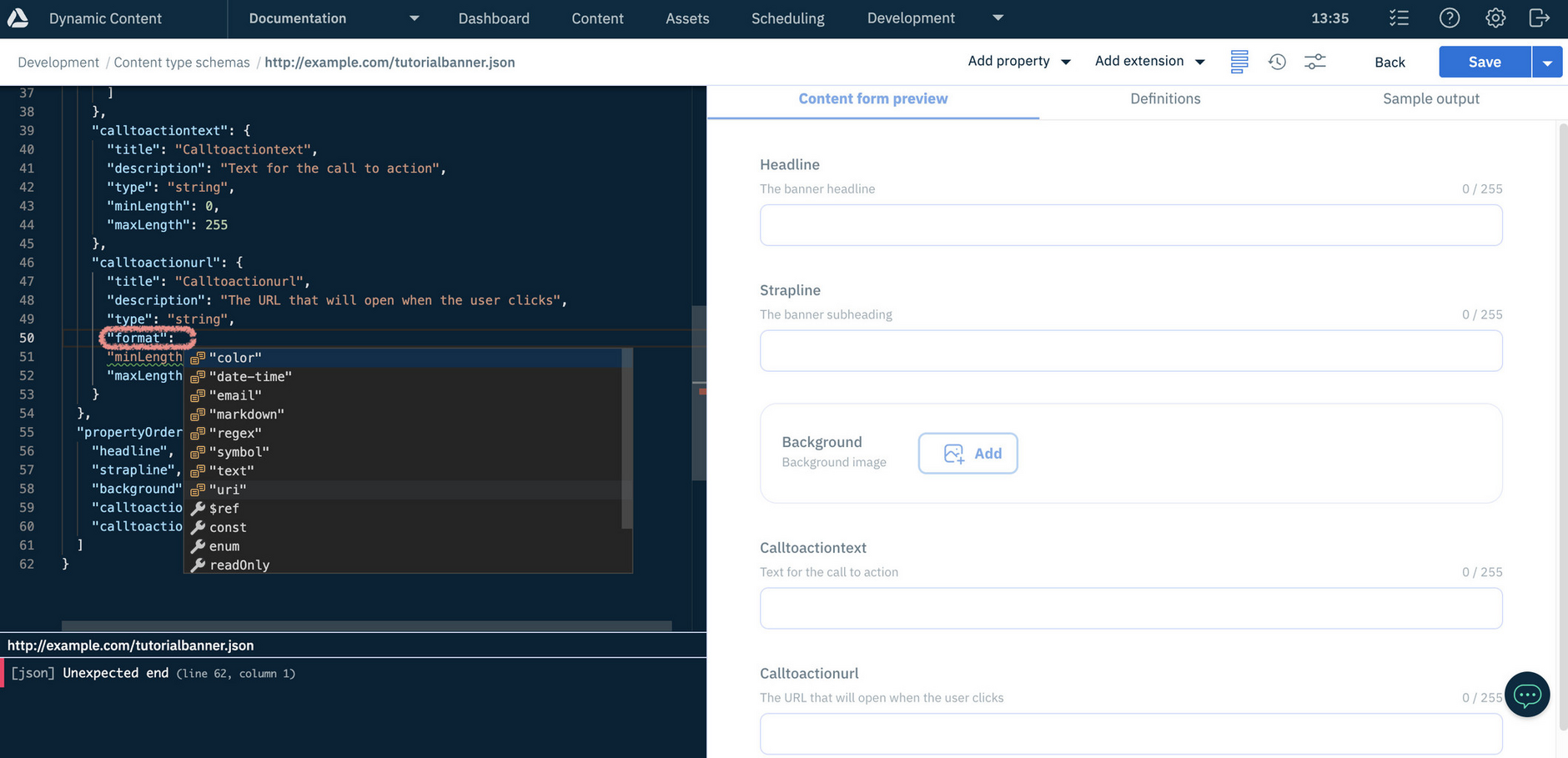
For the call to action URL, we want to ensure that a valid URL is entered and so this needs to be a string with the format of "uri".
To add the call to action URL, choose "Text" from the "Add property" menu and edit the property name, text and description. To specify that the property should be validated as a URI, add a line after "type:string" and type "format":. A menu displays with the available formatting options for the string. Choose "uri" from the list.
Tip
The form preview lets you try out validation defined for a property, for example the format of the calltoactionurl.
When all the properties have been added and the schema is valid, click "Save".
The complete banner schemaLink copied!
The complete banner schema example will look like this:
Registering a content typeLink copied!
Before a content type schema can be used, it must be registered as a content type. A content type links your schema URL with a label and, optionally, an icon, card, and visualizations. These are what users select when creating content using Amplience CMS.
You can register a content type in two ways: from the schema editor or from the Content types window. This section covers how to register from the schema editor. For more detail, see registering content types.
Once your schema is ready, open the "Save" menu in the schema editor and choose Save and register as content type. If the schema has already been saved, this option appears as Register as content type.
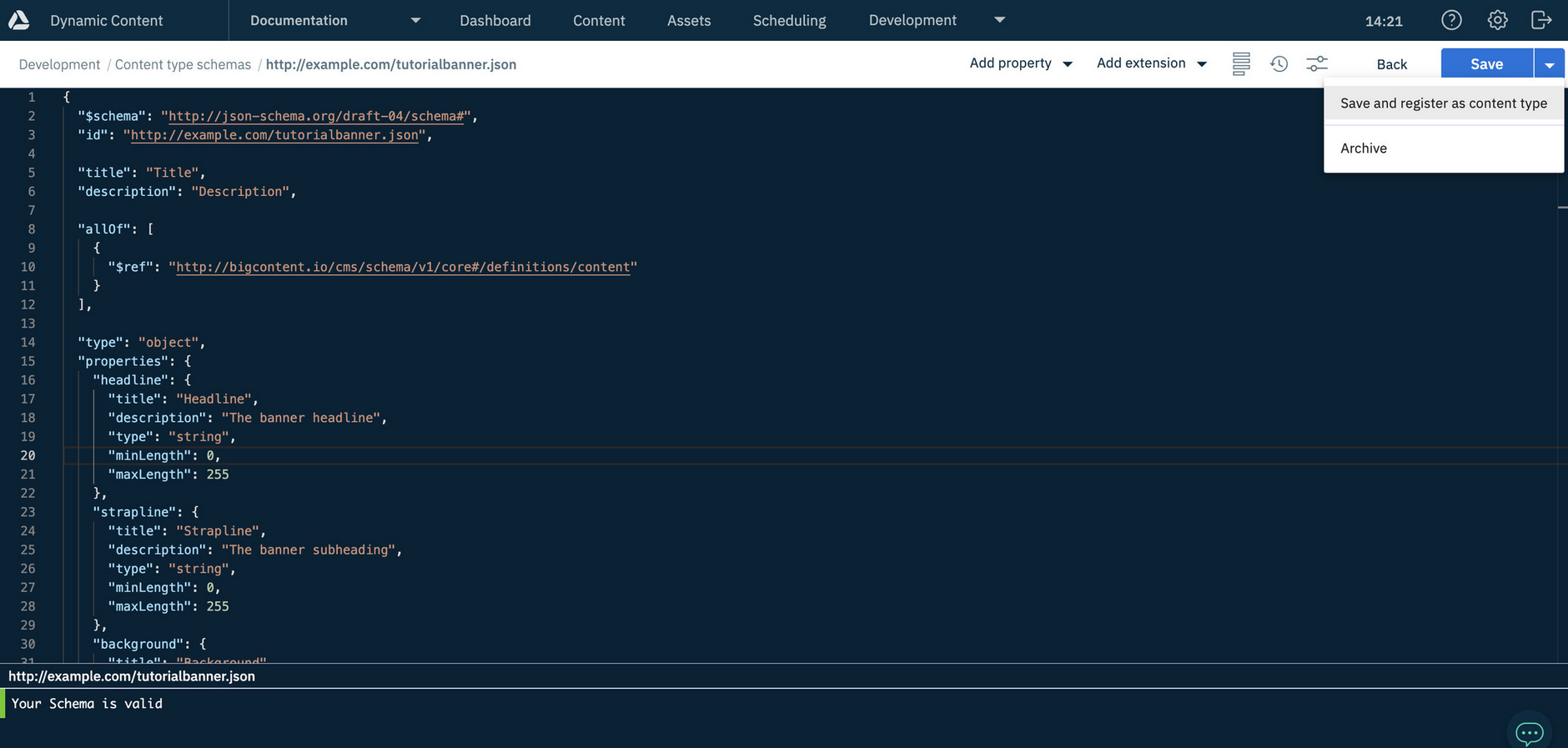
The content type registration window opens with your schema already selected.
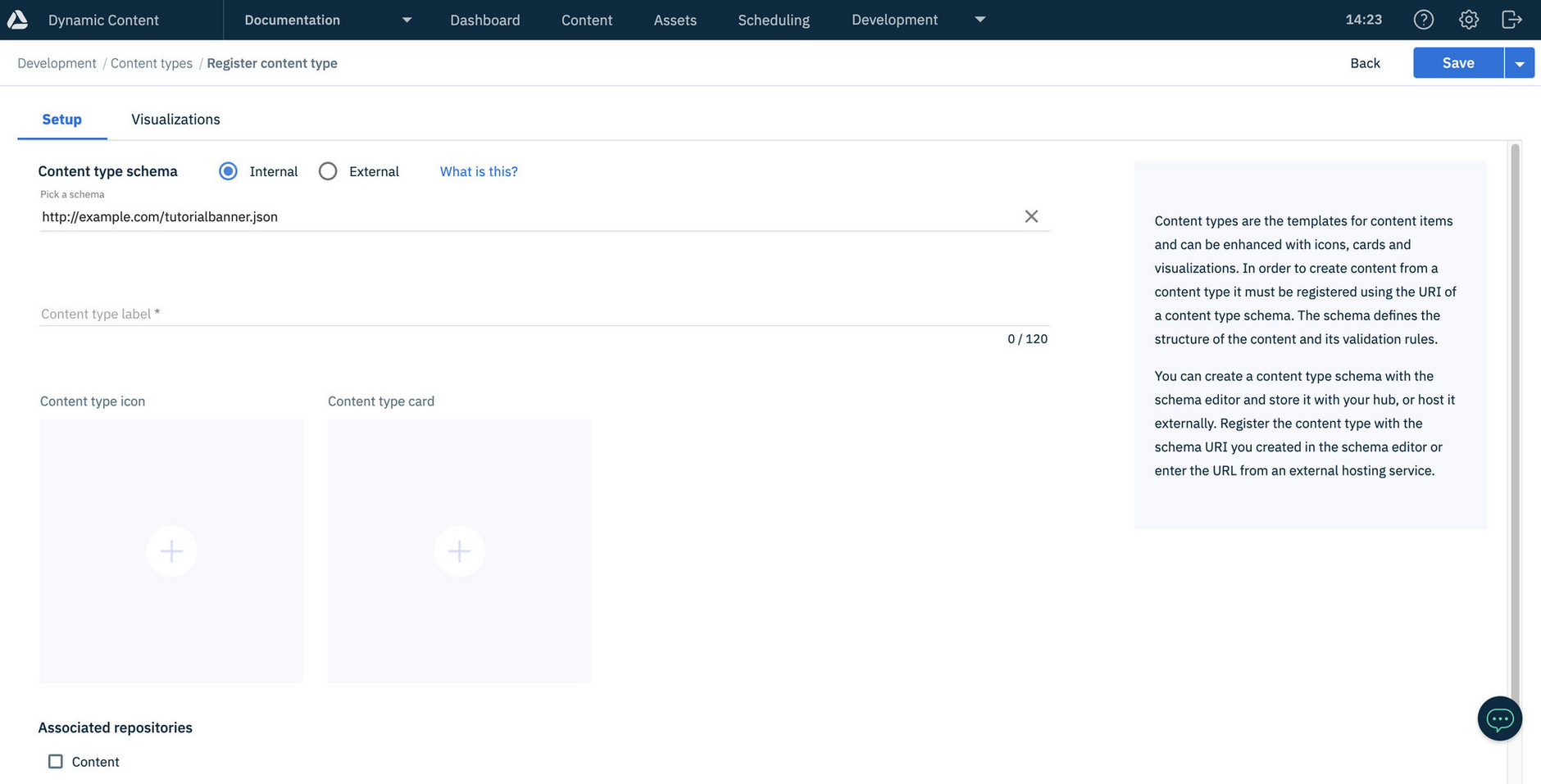
See registering content types for more details about associating content types with repositories and adding icons, cards and visualizations. Once a content type is registered, you can update its label, icon, card and visualization, but the URL cannot be changed.
When you've filled in the necessary fields, click the "Save" button. The content type is now registered with the hub and available to use to create content in the repositories you associated it with.
The simple banner is now available for users to create content.
Tip
For details about consuming content created using a slightly modified version of this content type, see the Consume step of our Get started guide.
Partials exampleLink copied!
Partials are schemas that contain just a definitions section. These definitions can be referenced in multiple schemas, particularly useful if you have some complex properties that you want to store and refer to in one place.
Creating a partialLink copied!
To create a partial, choose "Content type schemas" from the "Development" menu and click the "Create schema" button. Give the schema a valid URL and click "Save and open schema" to open the schema editor.
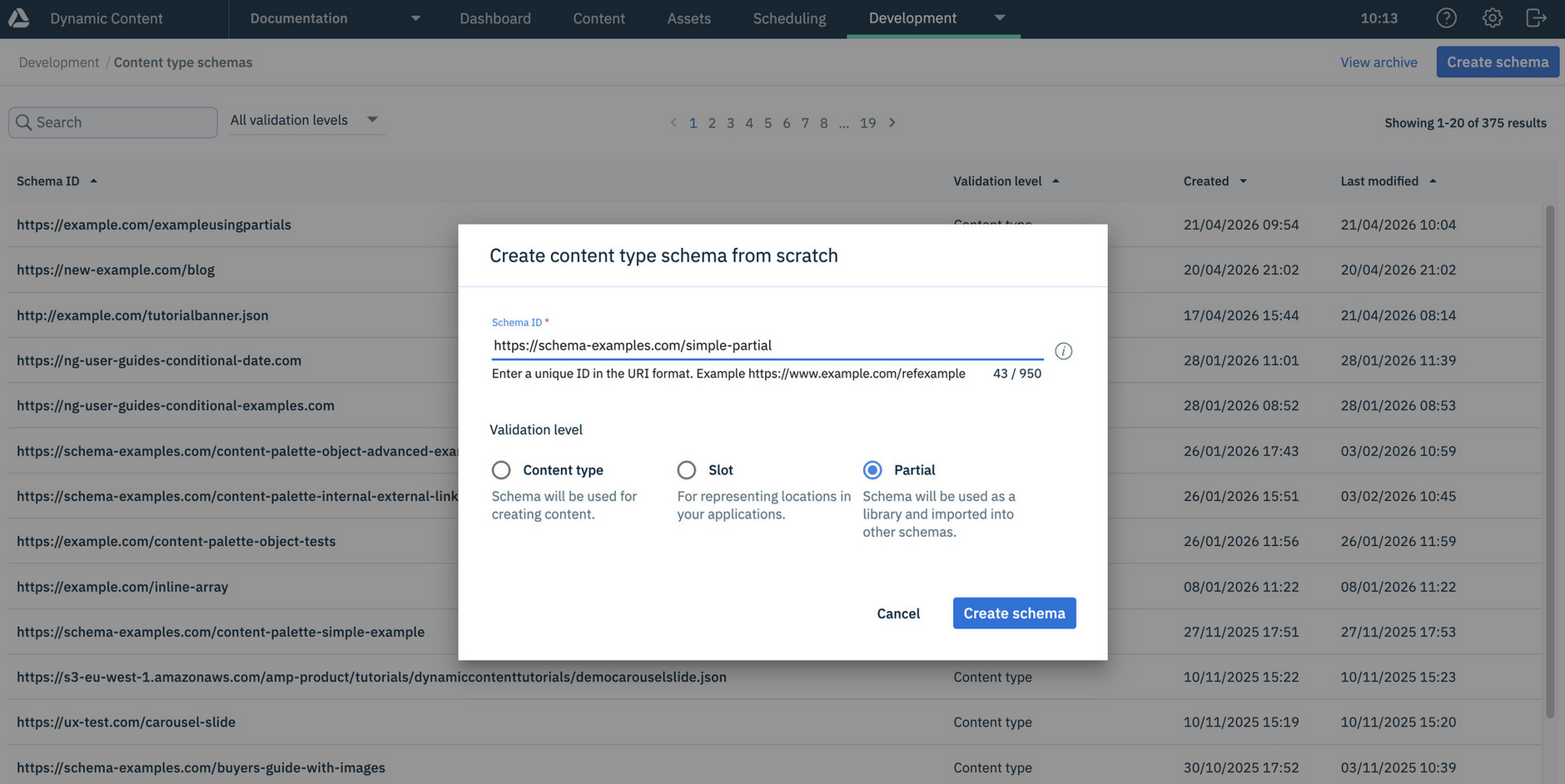
The schema editor opens with a definitions section included. Add properties to this section (see the example partial below) in the same way as you would add properties to content types.
You can preview the definitions by clicking the preview icon and then selecting the "Definitions" section. In this example, we are adding a simple "person" object with text properties for name and address.
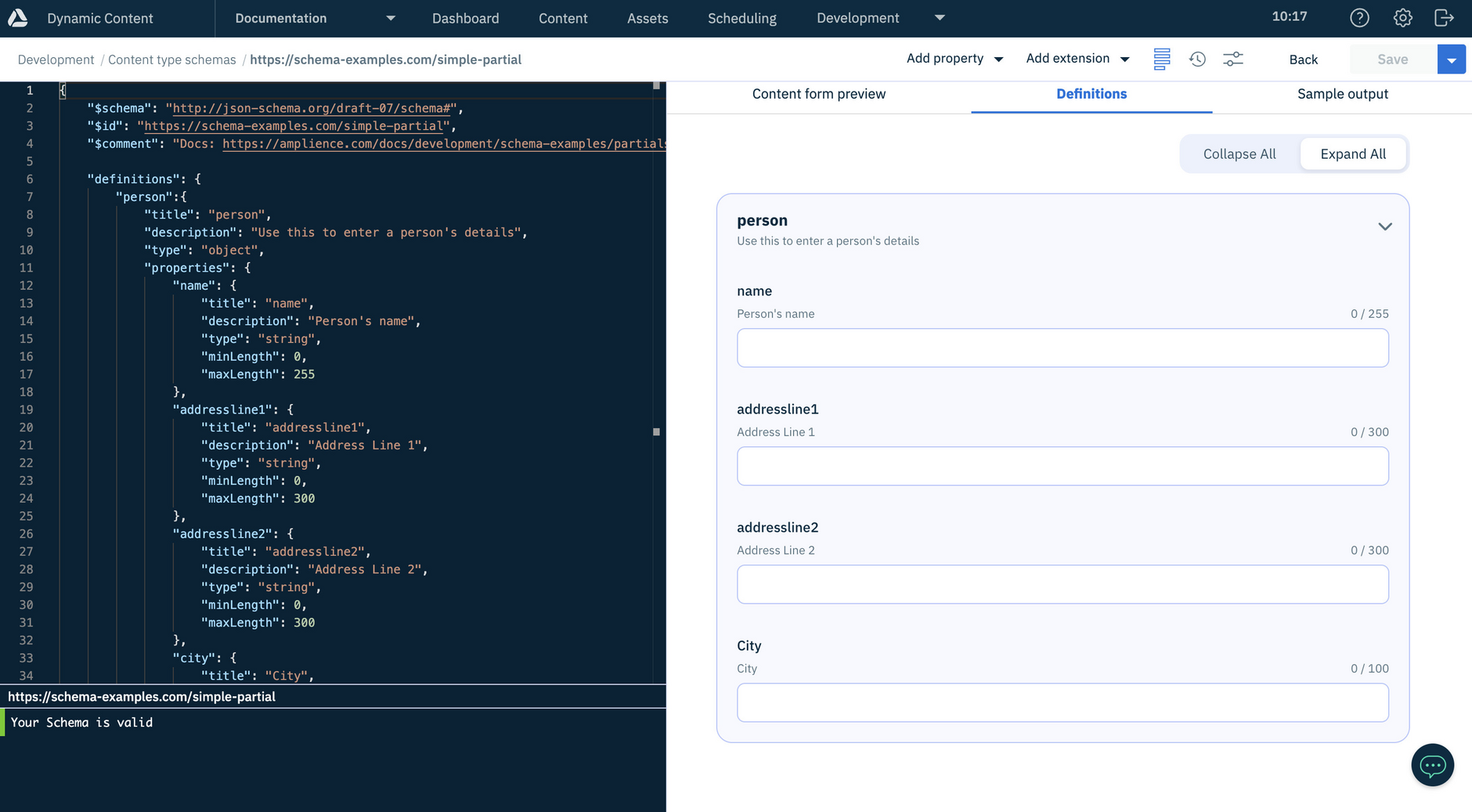
When you've finished adding properties to the definition, click the "Save" button.
Using the partialLink copied!
The simple definitions schema is shown below.
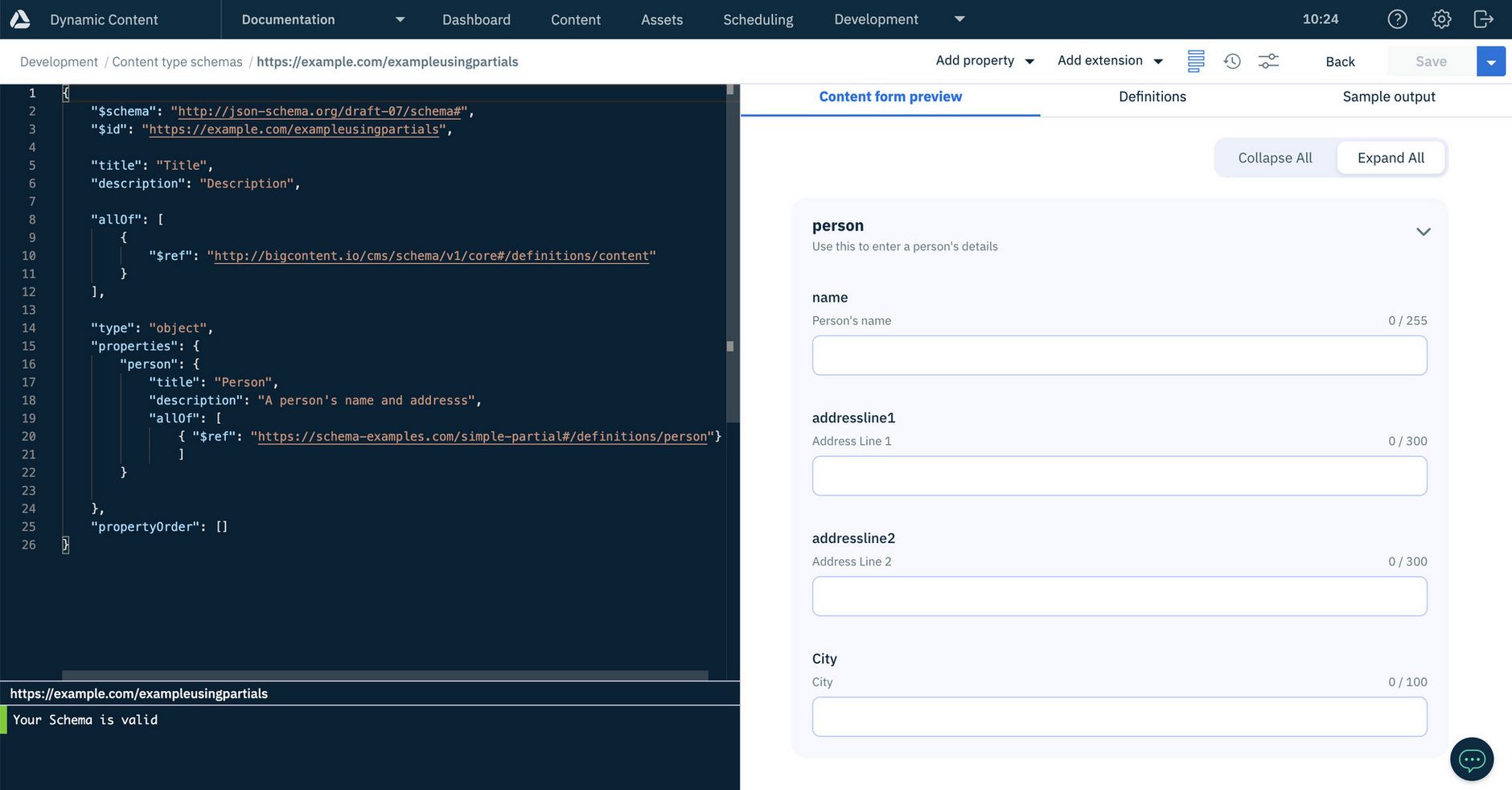
You can refer to the "person" definition from another schema as follows:
This is how the “person” property appears in the content form preview when used within another schema.
Using definitions in the same schemaLink copied!
You can also use definitions within the same schema. In the example below a definitions section has been added to include the "person" object. To refer to the person object you'd just use:
Info
Partials are not registered as content types.
Viewing and editing schemasLink copied!
The Amplience CMS schema editor helps with creating and editing schemas by providing snippets for most common property types, validating your syntax as you type and including a preview so you can see how the schema will appear in the content form.
The content form previewLink copied!
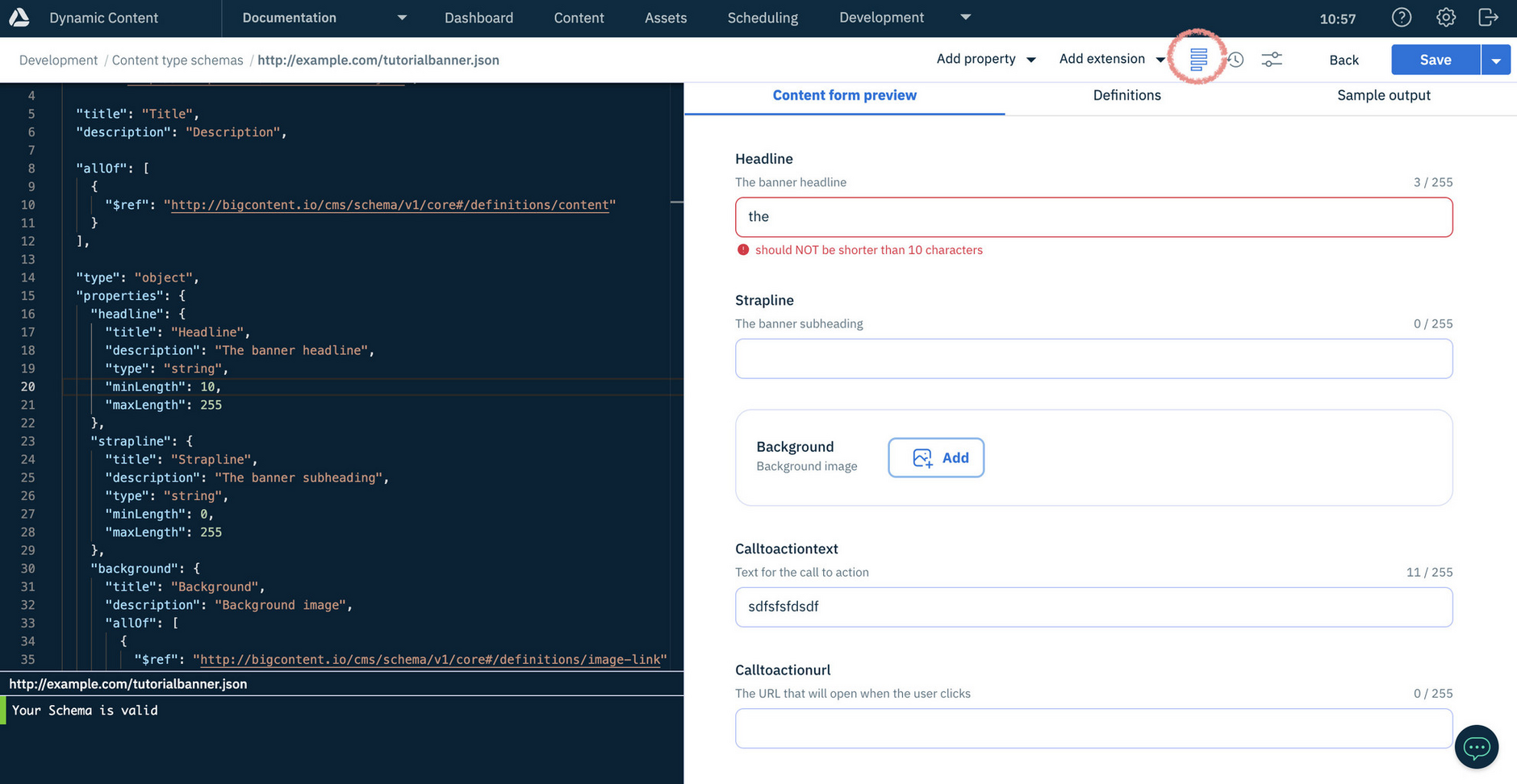
From the schema editor, you can view how a content schema will appear in the content form by clicking the "preview" icon.
Tip
The preview will let you try out validation defined for a property.
Previewing JSON outputLink copied!
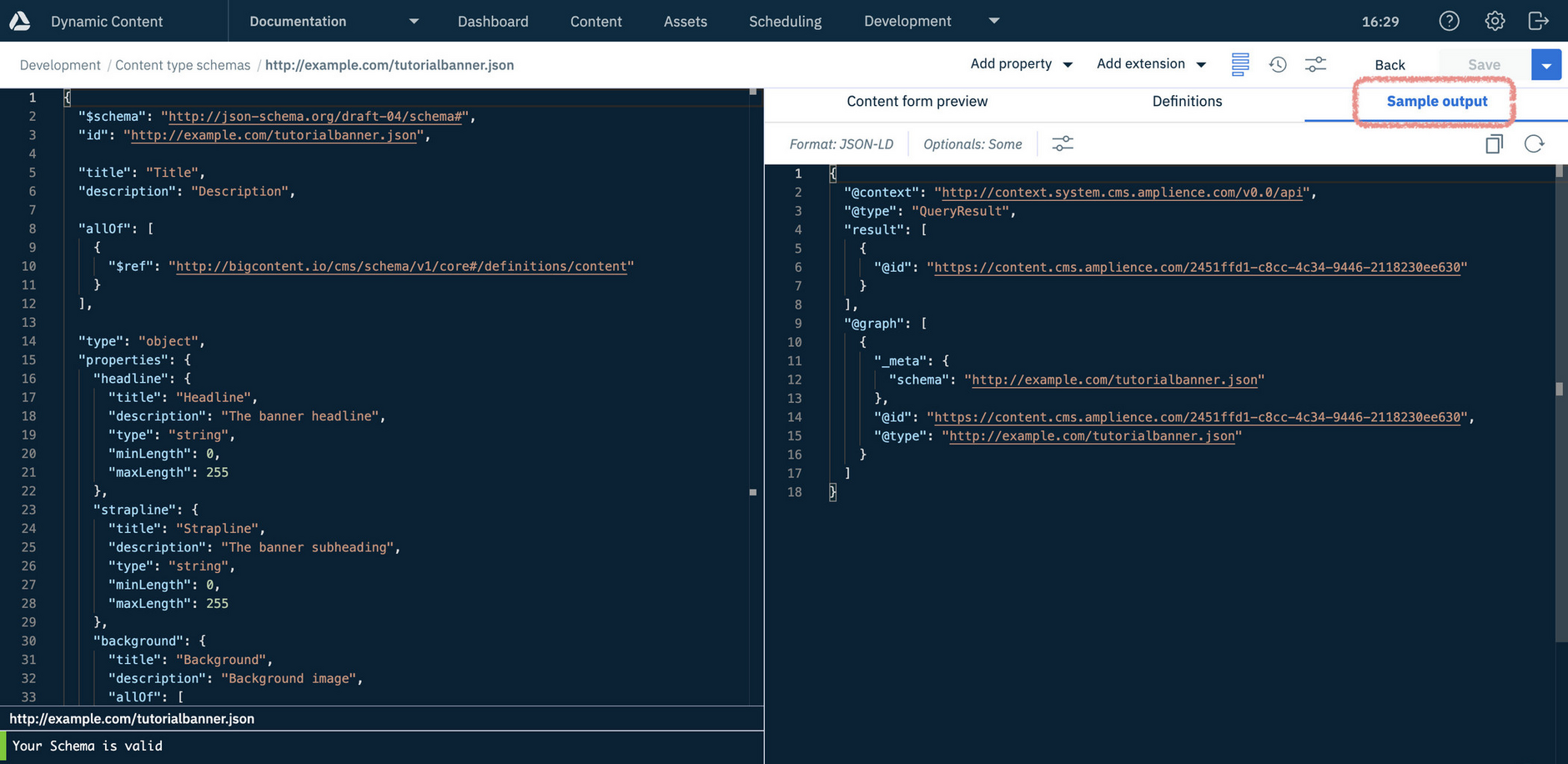
You can view sample JSON data generated from the current schema from the "Sample Output" tab. The generated JSON includes sample values for all property types including strings, images, video and any localized properties.
Tip
Previewing output helps save time when creating your rendering code and templates, by giving you example JSON output to work with.
To configure the format of the generated JSON use the "Sample output settings" dialog.
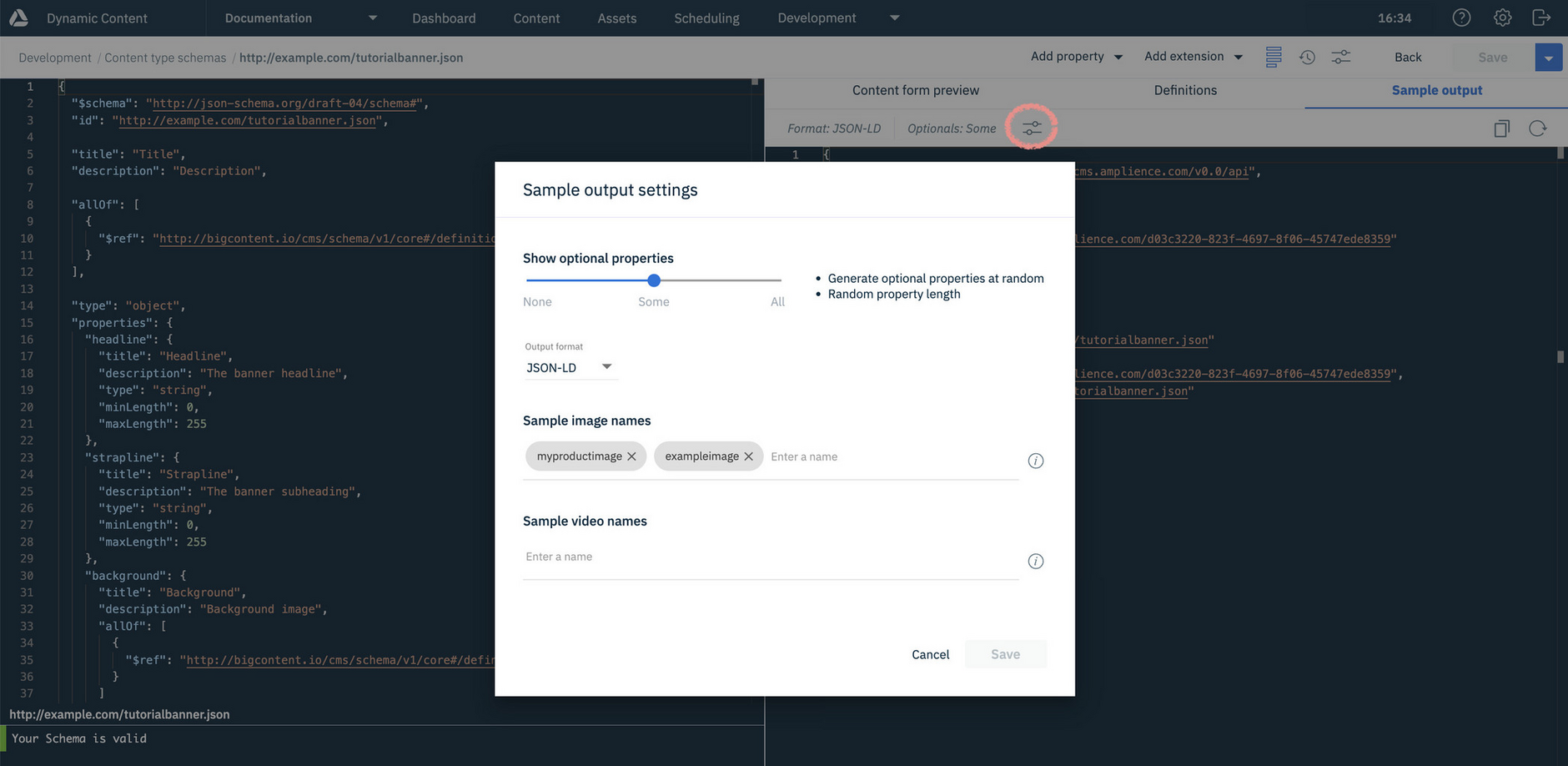
You can configure:
-
"Show optional properties" - lets you control how optional properties - those not defined as required in your schema - are included in the JSON output:
- None - includes only the required properties, excluding all optional ones
- Some - includes a randomly selected subset of the optional properties
- All - includes all optional properties
-
"Output format" - either "SDK" format, which represents content as a content tree, or JSON linked data (JSON-LD). In most cases you will work with content in SDK format. See the Content Delivery API and Content Delivery SDK for more details.
-
Sample names can also be included to be used for images and video, so you can include example asset names from your Amplience DAM account.
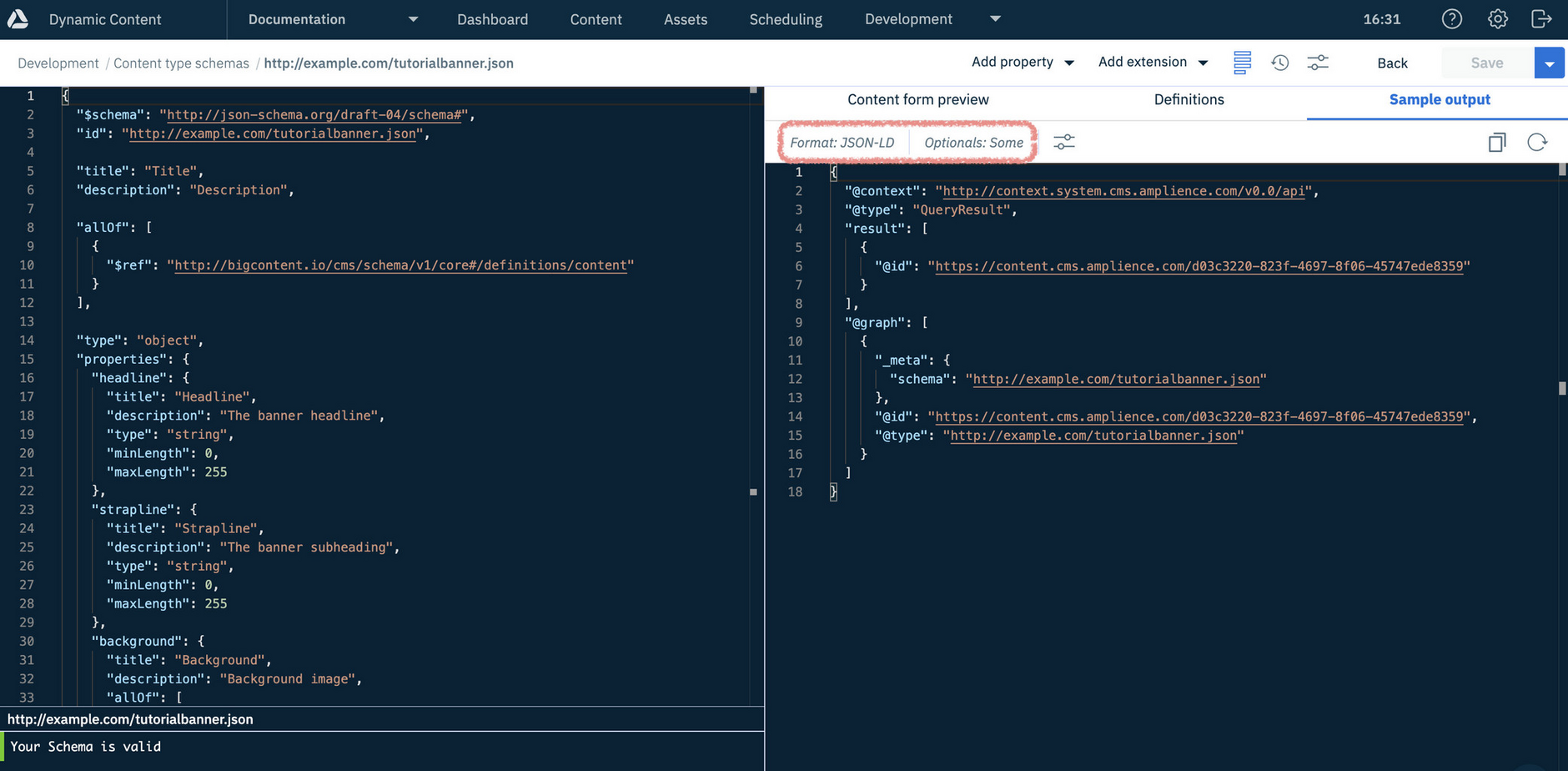
In the example below "Some" of the optional properties are being displayed - these will be chosen at random and have random property lengths.
Note
If "All" optional properties are included, the properties are generated to use the maximum length of each property.
Editing a schemaLink copied!
Editing a schema allows you to update the structure, fields, and validation rules used by your content types. These changes can affect how content is created and validated.
To open a schema for editing either, double-click it in the schema list or choose "Open" from its contextual menu. You can then update the schema in the editor (for example, add fields, modify properties, or adjust validation rules)
Tip
The editor validates your schema as you make changes and will prevent you from saving if there are errors.
In this example, we want to edit the propertyOrder property to ensure that the properties are shown in the correct order in the content form.
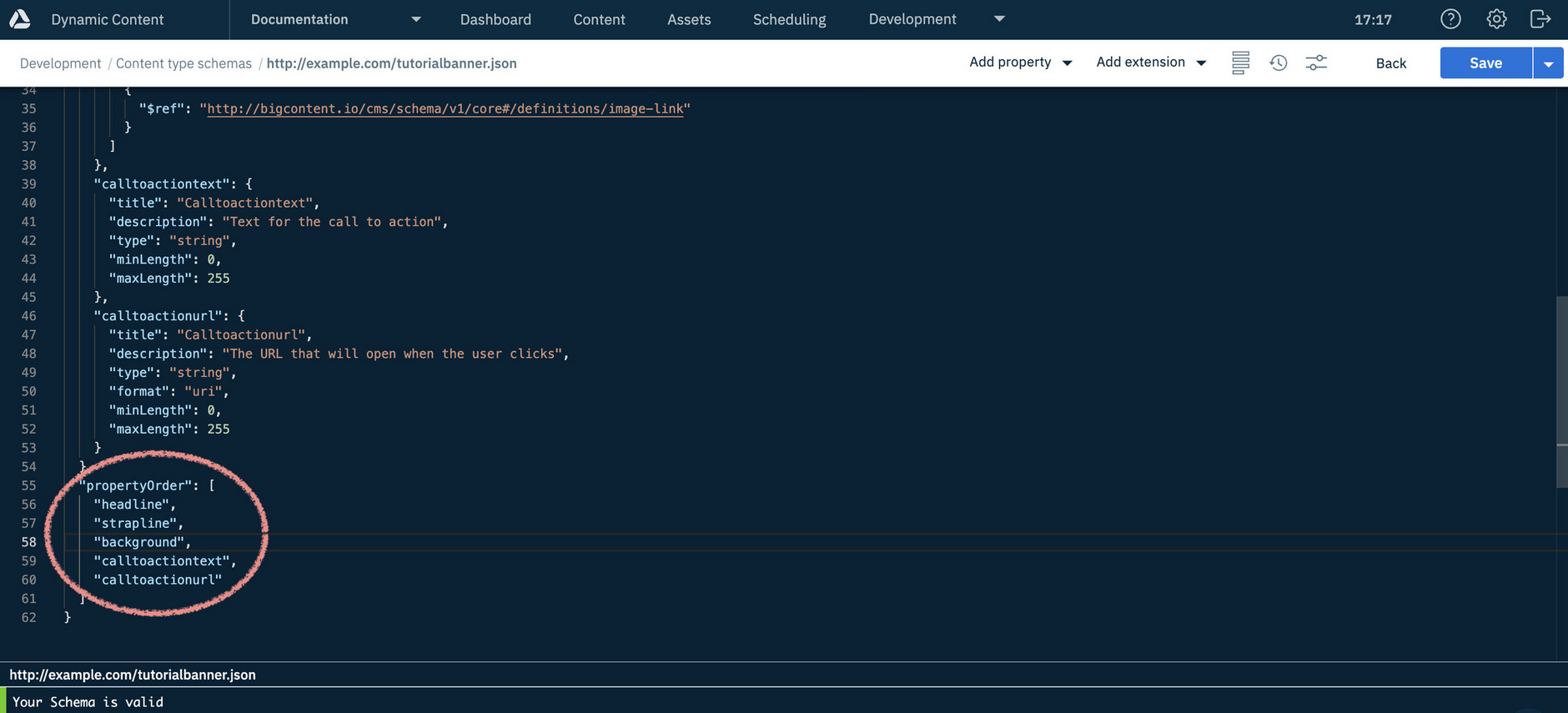
Click "Save" to apply your edits. If the schema is still valid, your changes will be applied.
Editing registered schemas
If the schema is already registered to a content type, you must sync it for your changes to take effect in content authoring. See syncing content types
To update, choose "Sync with schema" from its menu in the content types window.
Tip
If you have't already saved, this option will be "Save and sync content type".
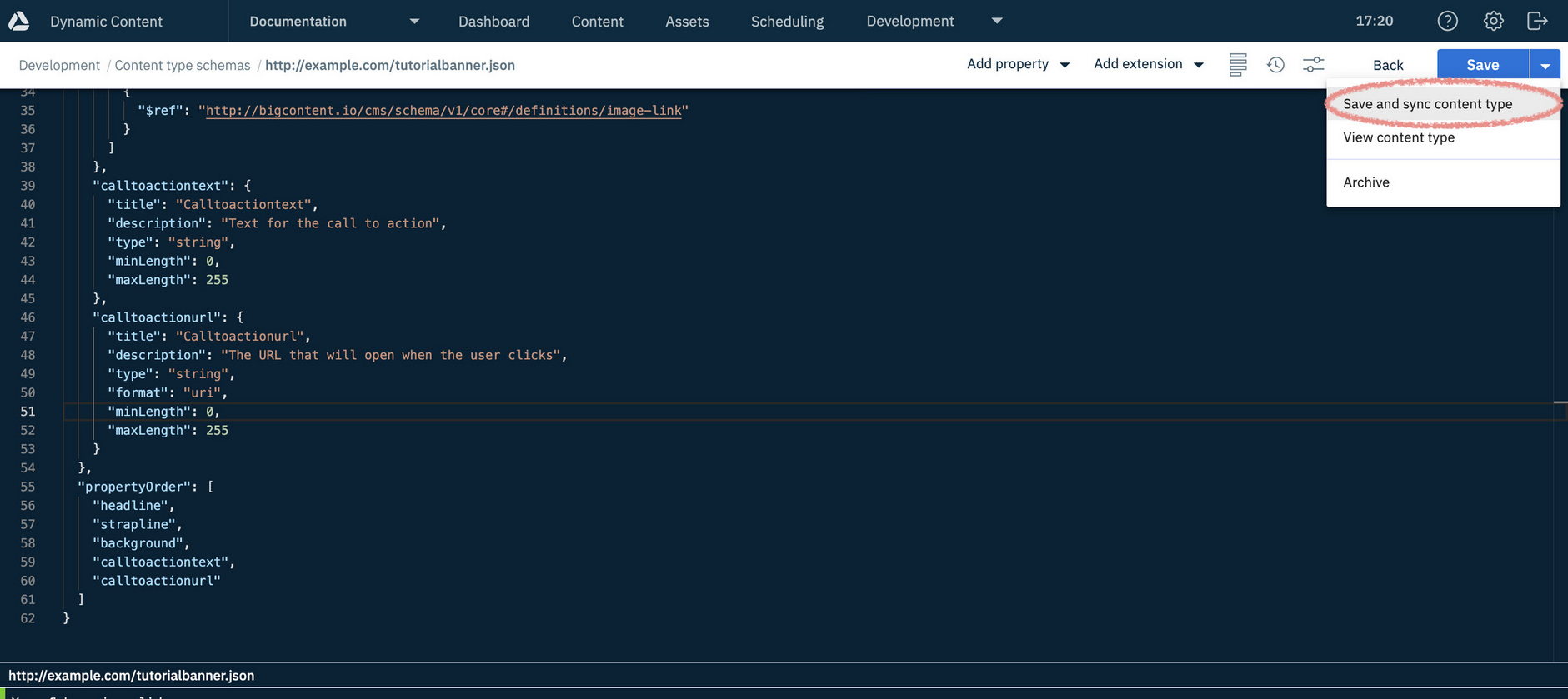
When users view or edit content of this type, the properties will now be now shown in the correct order.
Note
Changing the order of properties in a content type schema will not affect any content already created, but care should be taken when updating a schema. See Syncing a content type with its schema for more information.
Schema versioningLink copied!
You can view a schema's version history and restore to a previous version.
To view the version history for a schema, click "Show/hide history" at the top of the Amplience CMS schema window.
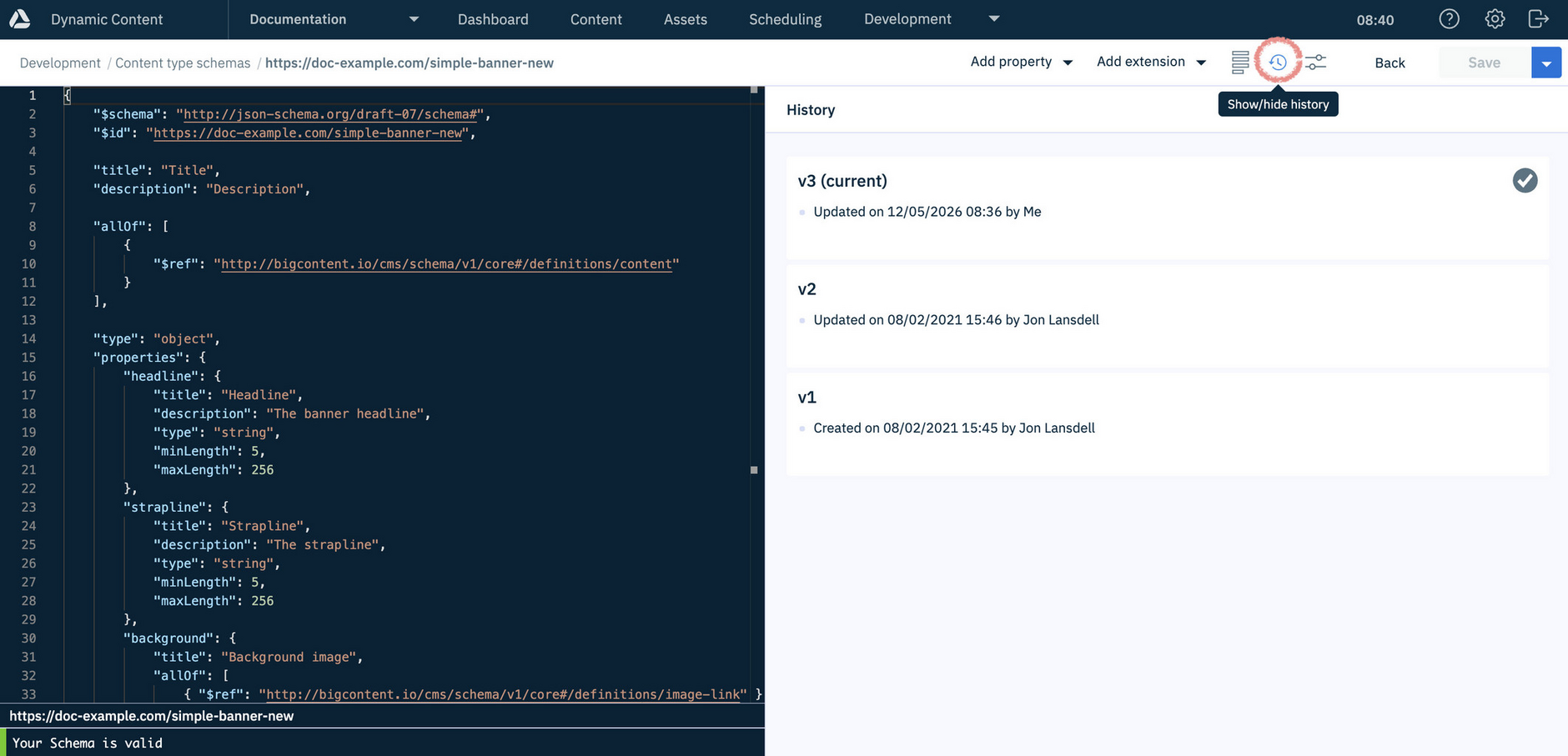
The history shows the list of available versions, including information about when changes were made and who made them.
In this example, we want to revert to a previous version because the minLength values for the headline and strapline properties were updated to values that are too short - the schema has been saved, which has created a new schema version, version 6.
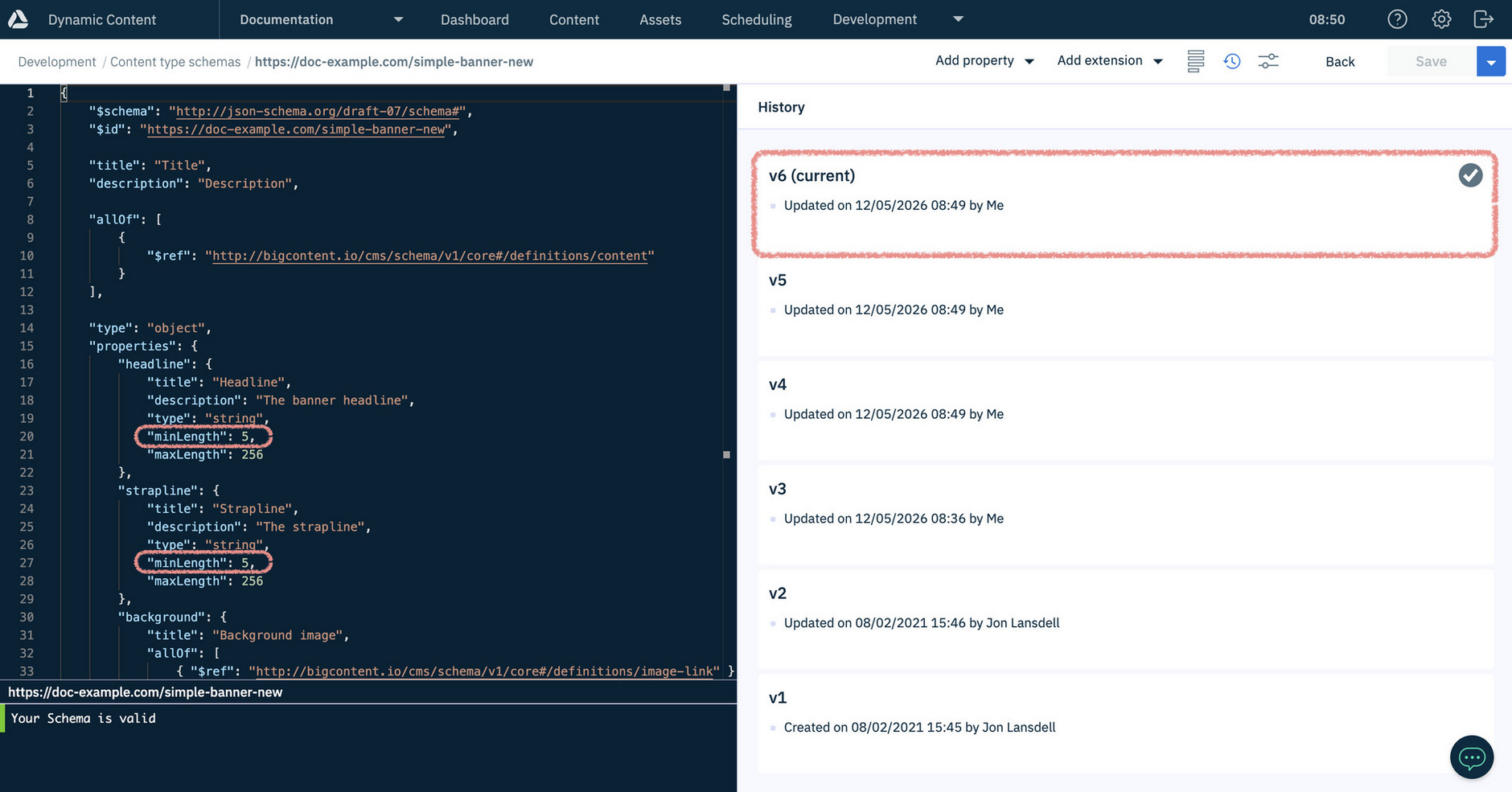
Tip
You can select a previous version to view it in read only mode in the schema window.
For our example, we've looked through the previous versions to where the minLength was correctly set (version 4).
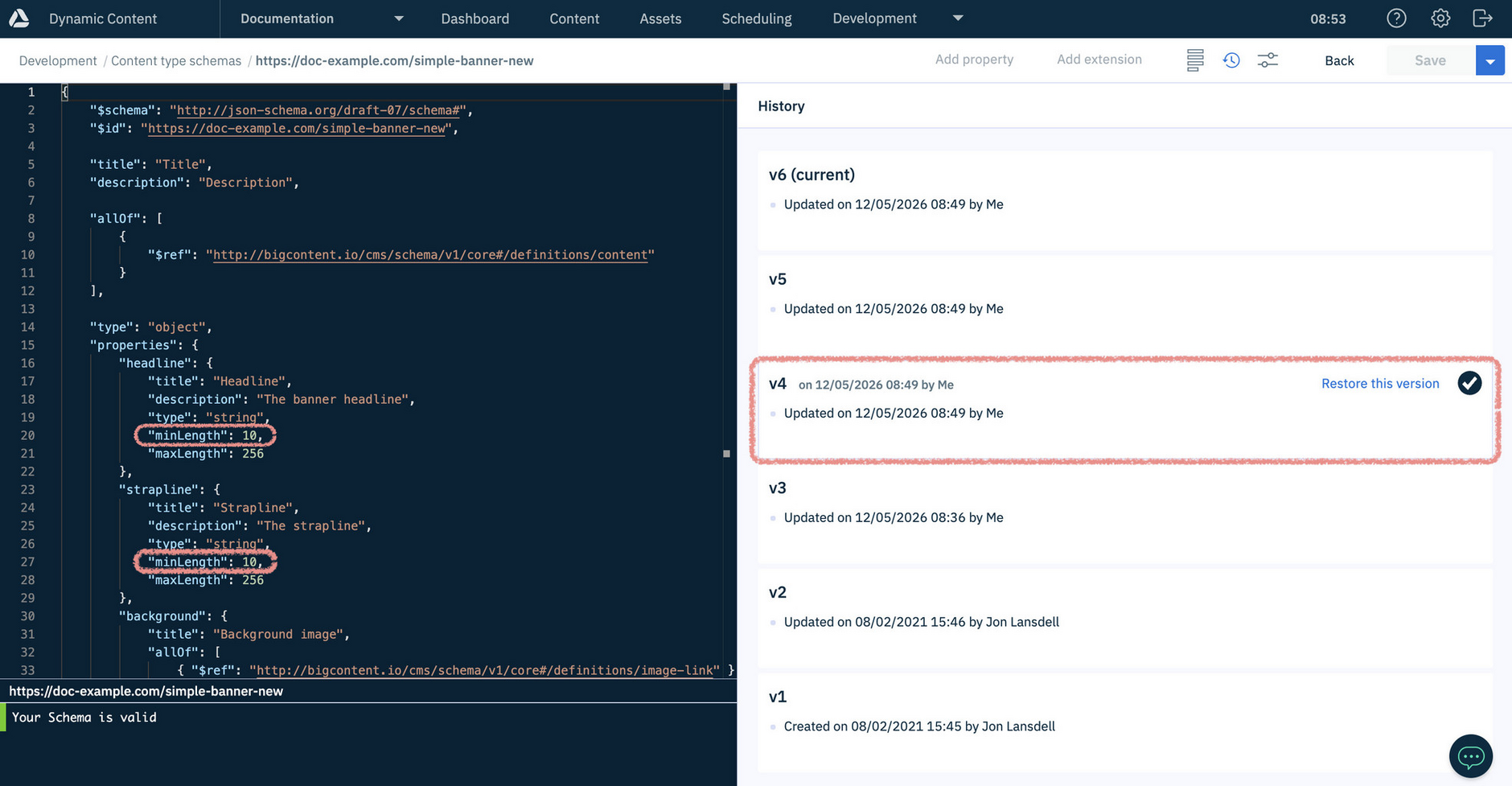
To restore to a selected previous version, click "Restore this version".
When the schema is restored from a previous version, a new version is created. In this example, a new version, version 7 is created, restored from version 4.
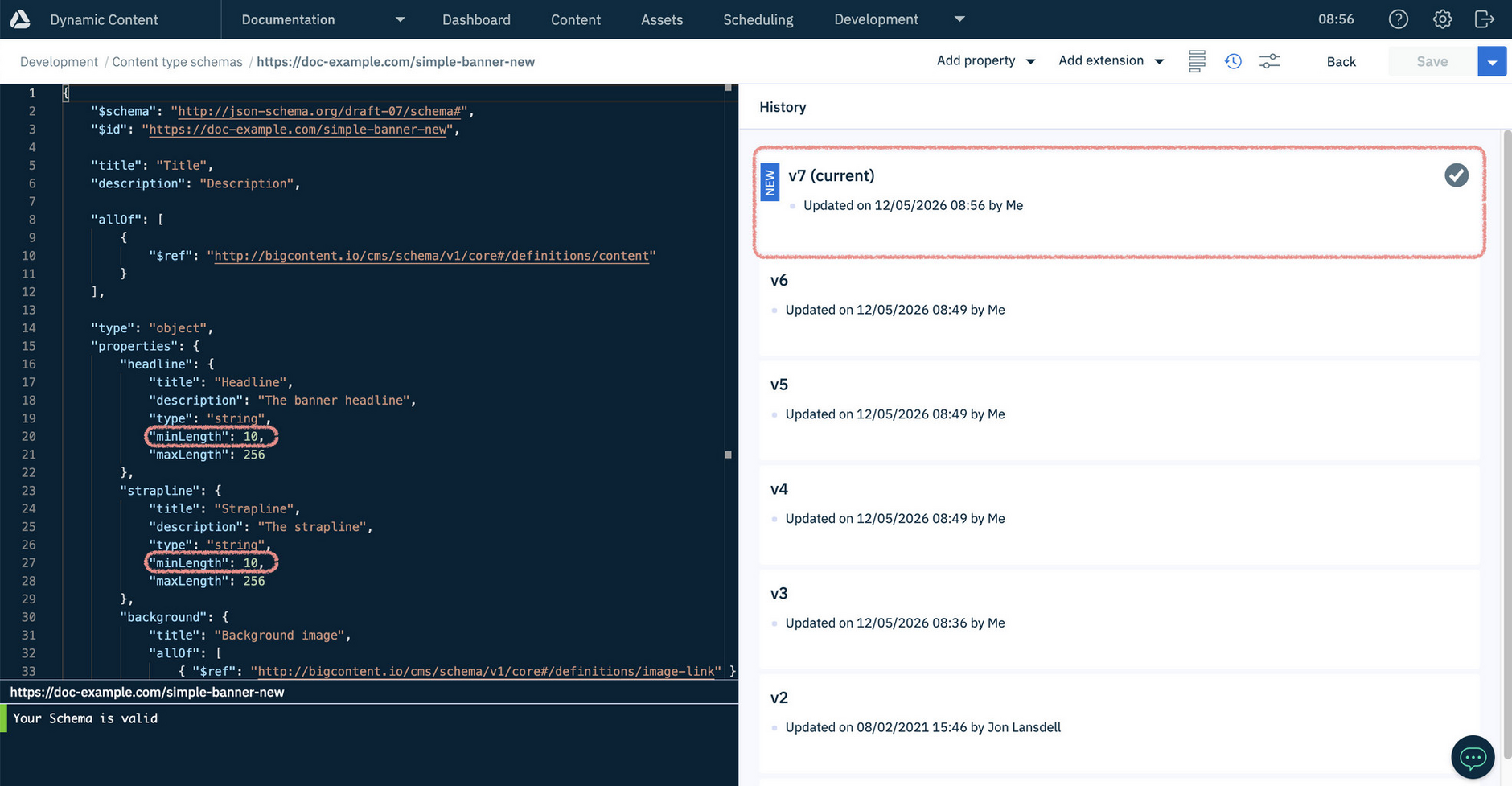
Note
If a content type has already been registered from this schema, you will need to sync the content type with the schema to ensure it is using the latest version. For more information, see Syncing a content type with its schema .
Archiving a schemaLink copied!
To keep your list of schemas organized, you can archive any schemas you no longer need to work with. Archiving moves them out of your active list into a separate archive, helping reduce clutter without permanently deleting them.
To archive a schema, either:
- Select "Archive" from the menu in the content type schema list (shown below), or
- From the schema editor, select "Archive" from the Save menu
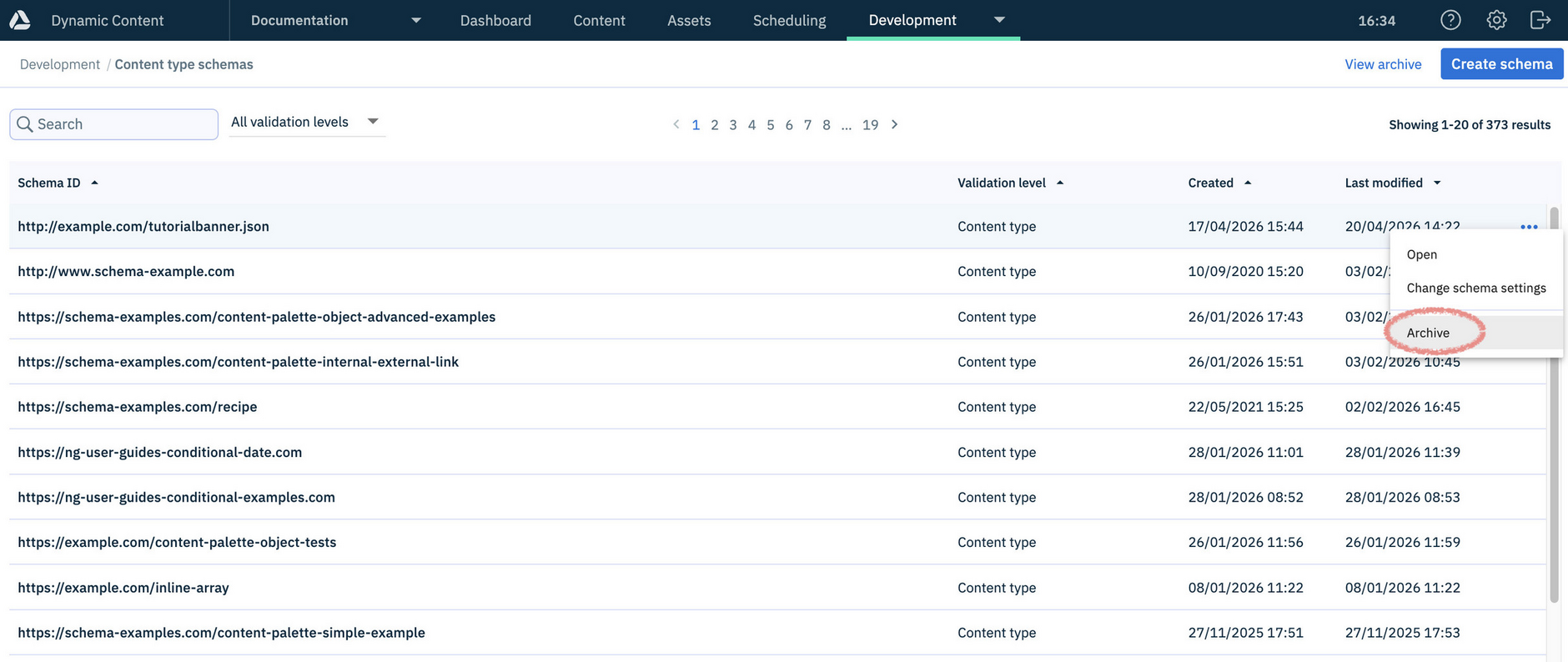
Once archived, the schema is moved to the schema archive.
To access archived schemas, click "View archive" at the top of the schema window to open the schema archive.
Info
Once a schema has been archived, it cannot be registered as a content type. However, content types already registered and content created from these content types will not be affected.
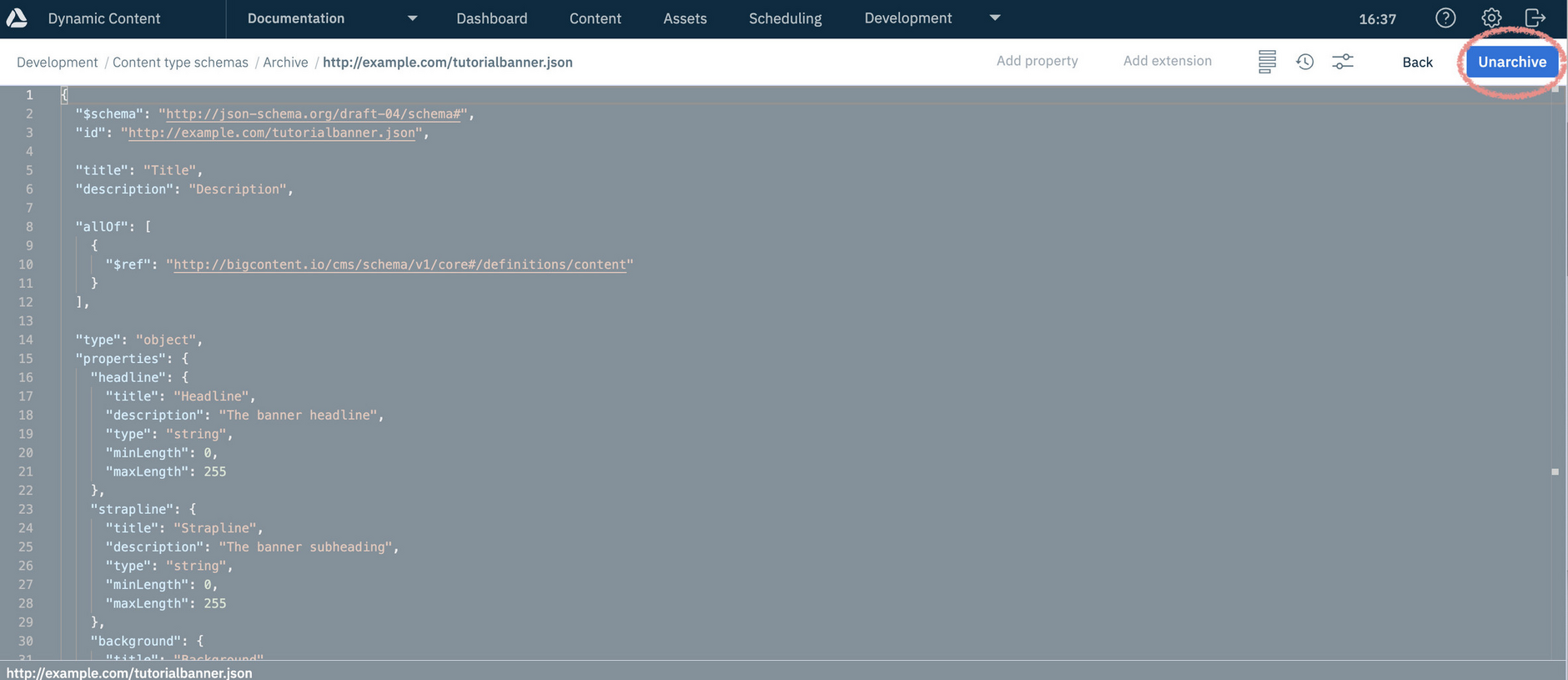
You can open an archived schema, but it will be read only, as shown in the image below. An archived schema can be unarchived by clicking the "Unarchive" button or choosing "Unarchive" from its contextual menu.
Video: Creating and registering a content type schemaLink copied!
Using the example of a simple banner, this video shows you how to create a content type schema with the Schema Editor, how to register the schema as a content type and how this content type is used to create content.