Workforce integrations
From the workforce integrations page you can:
- Install action extensions to use with Workforce Flows
- Configure commerce repositories to use with content generation templates in Workforce.
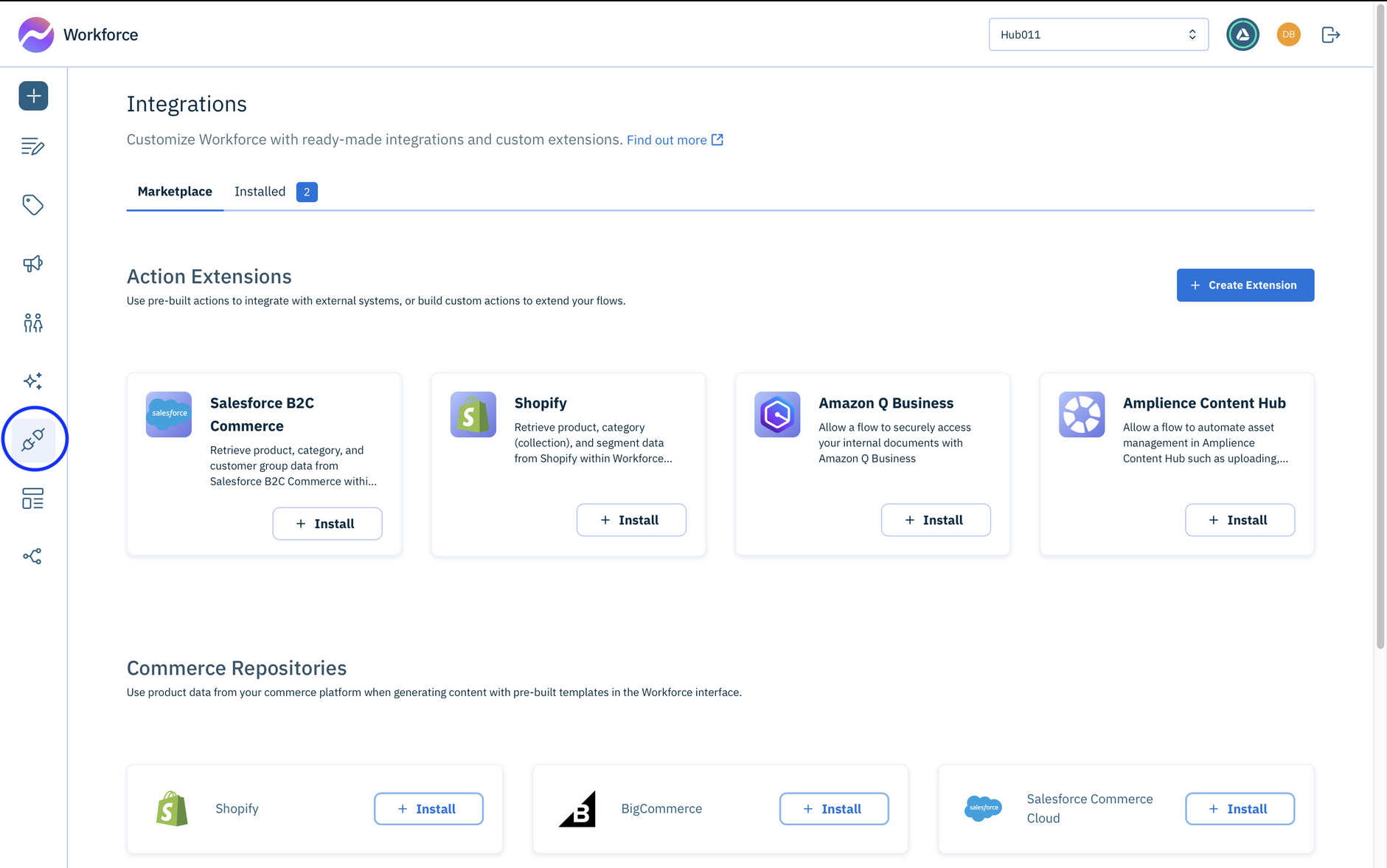
What are action extensions?Link copied!
Action extensions contain one or more actions that allow you to integrate Workforce with third party products, including commerce systems, Dynamic Content and Content Hub. You can also create your own action extensions to implement your own business logic or integrate with your own systems. Choose action extensions from the marketplace or create and install your own.
What is the marketplace?
The marketplace is a collection of extensions developed by Amplience or our partners. It includes action extensions to integrate with Dynamic Content and Content Hub and integrations with commerce platforms including Shopify, Salesforce B2C Commerce, BigCommerce and commercetools. The marketplace action extensions are available to install on any of your hubs.
Installing an action extensionLink copied!
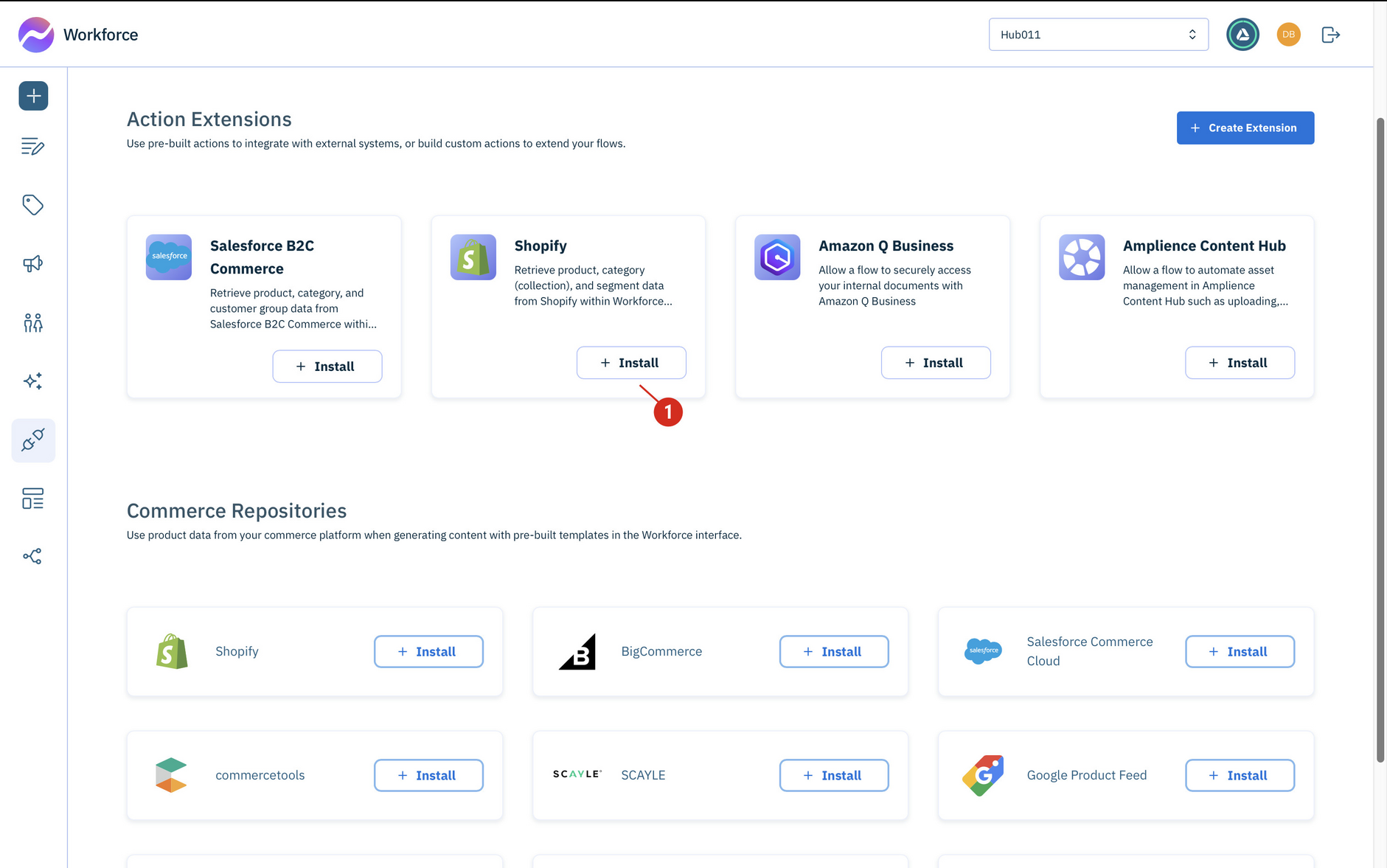
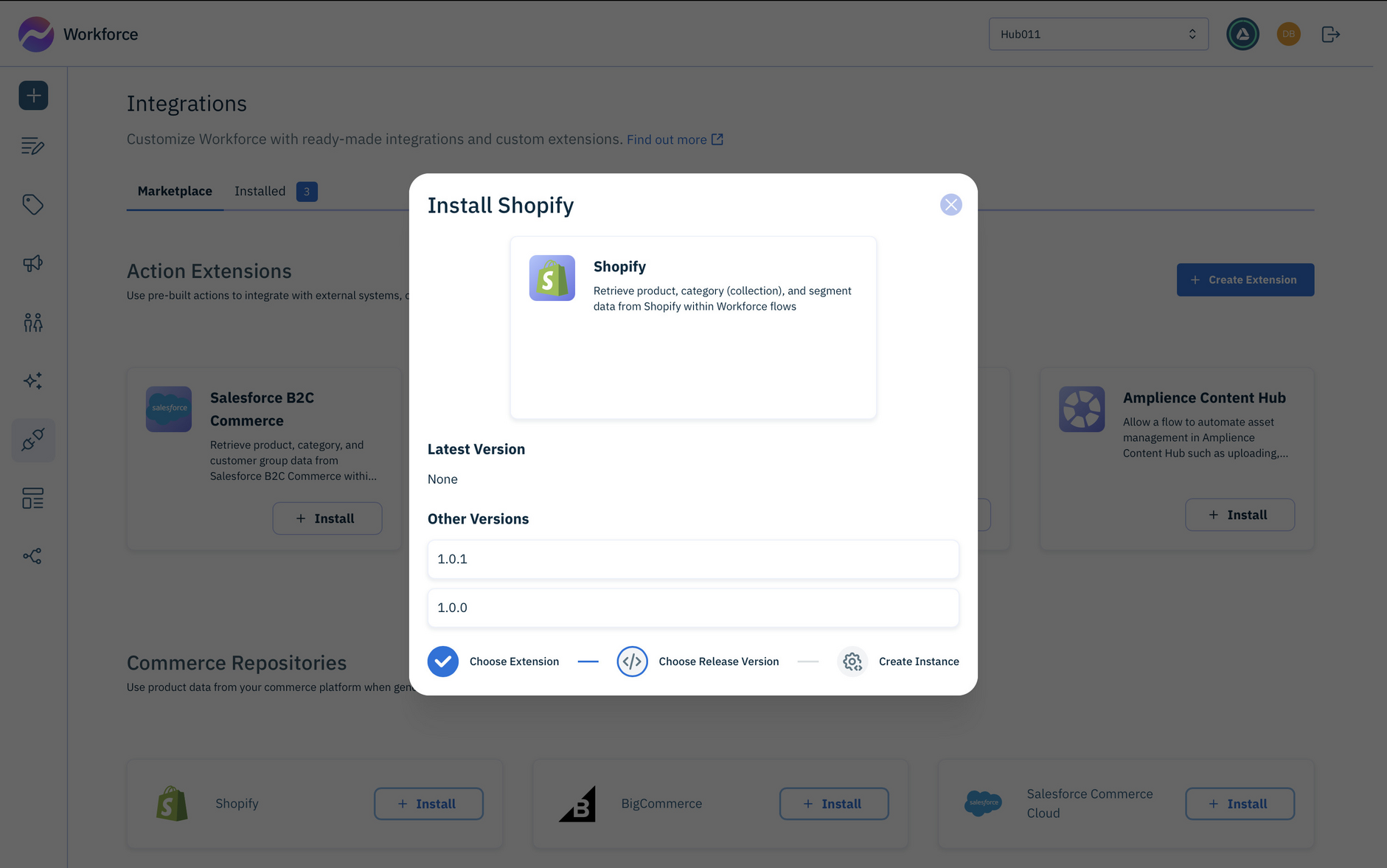
To install an action extension, choose the one you want to add to your hub and click the Install button. In the example shown below we have chosen the Shopify action extension from the marketplace.
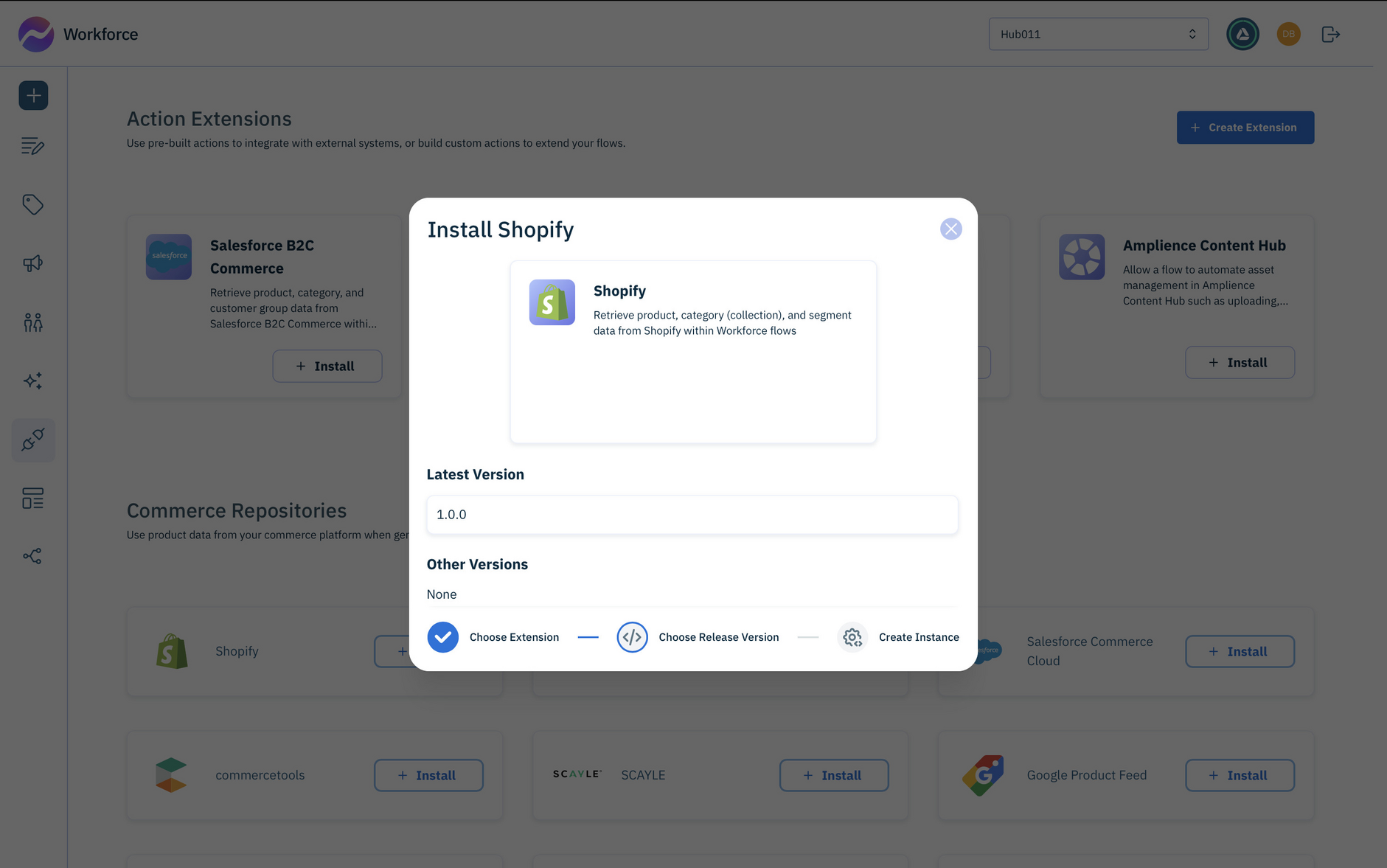
First choose which version of the action extension to install. In this example there's just one version available- 1.0.0- so we'll choose that and move on to setting up the configuration.
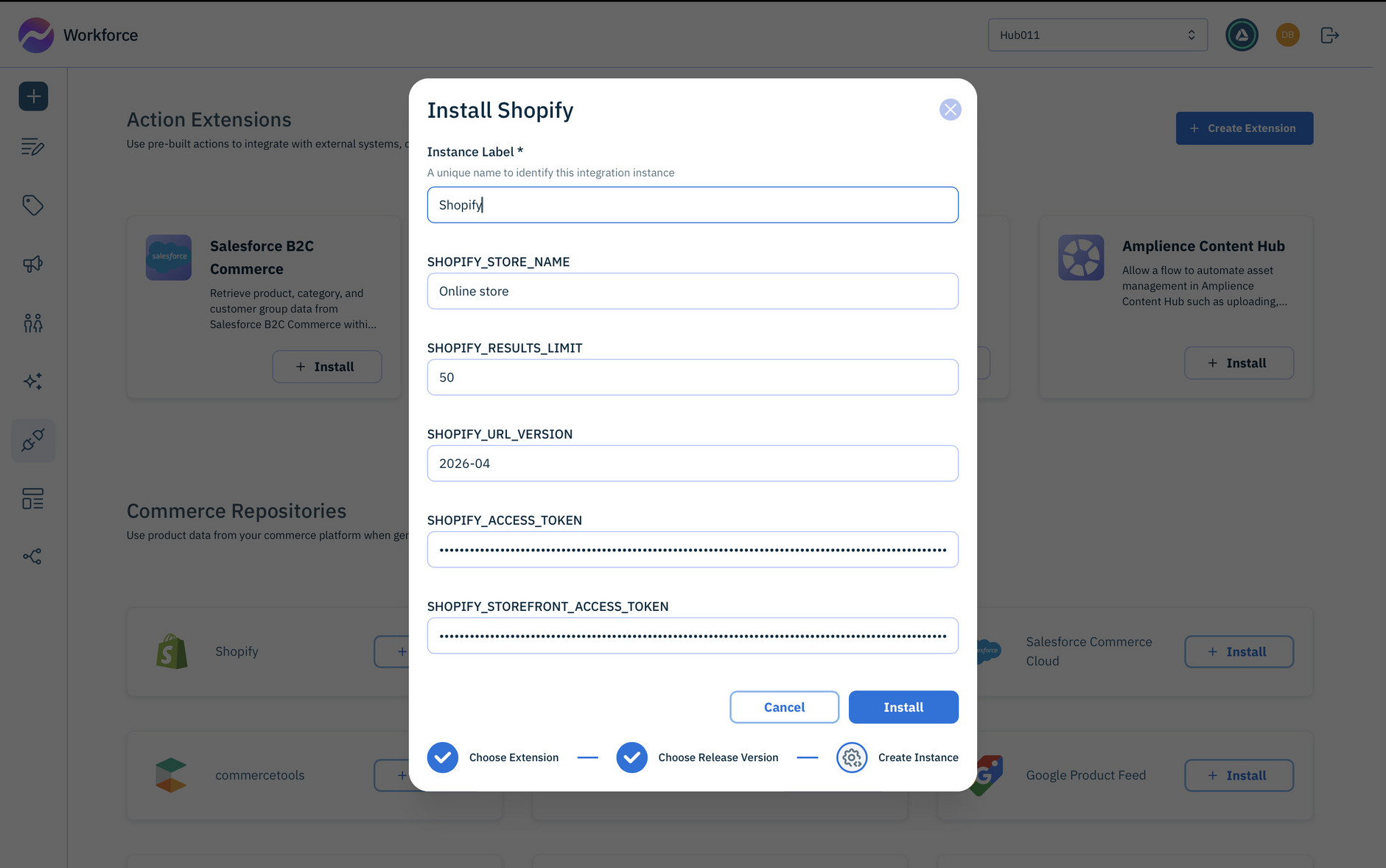
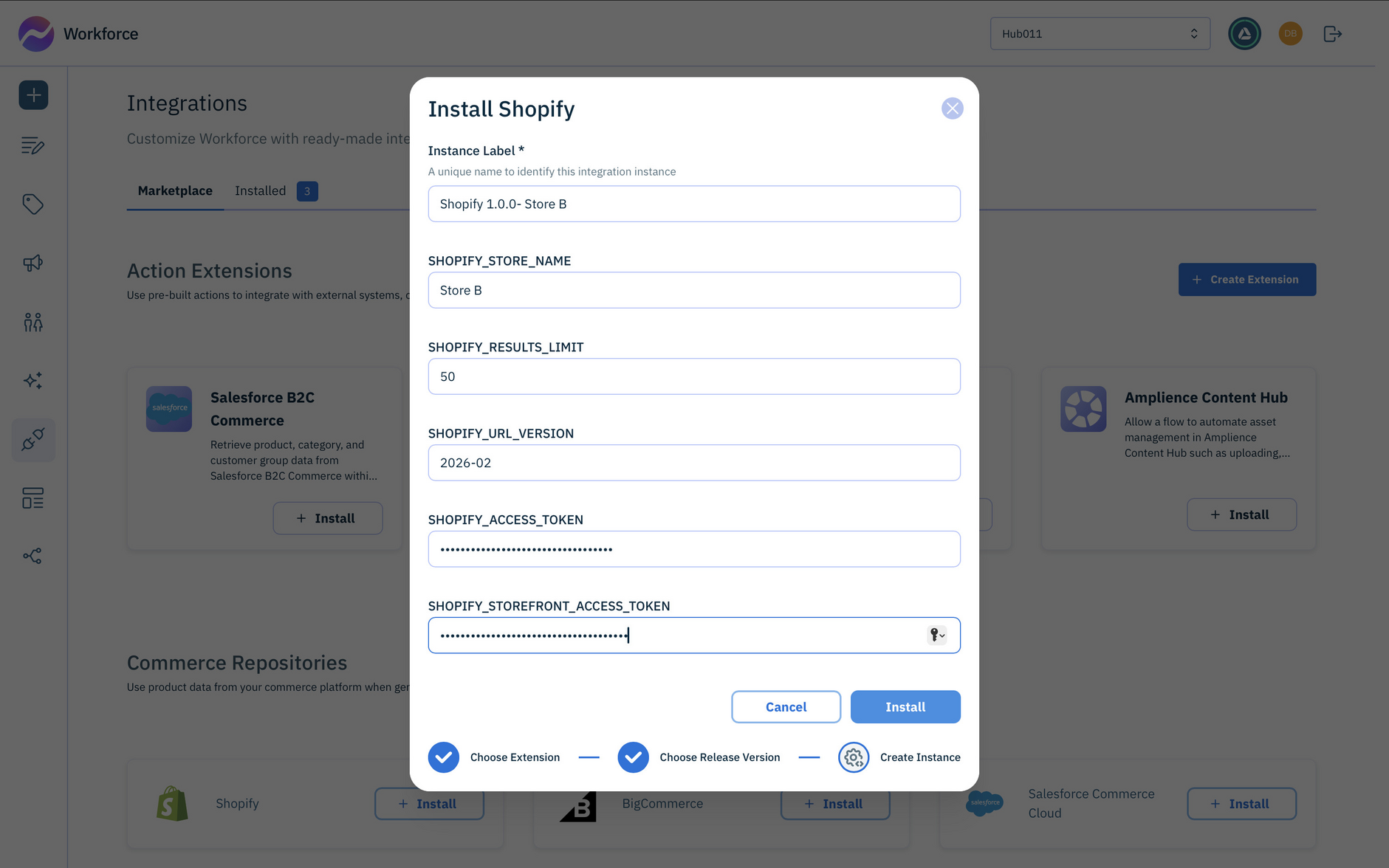
When you choose to install an action extension you're actually creating an instance of it. An instance is a particular configuration of a version of an extension. So in this case we want to configure version 1.0.0 of the Shopify extension with our store name, and Shopify access tokens. Click Install when all the required information has been entered.
Configuring commerce action extensions
The information you need to include to configure an extension will vary, but you can find out more about setting up the supported commerce extensions on the Shopify, Salesforce B2 Commerce, BigCommerce and commercetools pages. The Amazon Q-Index page explains how to set up the Amazon Q Business extension.
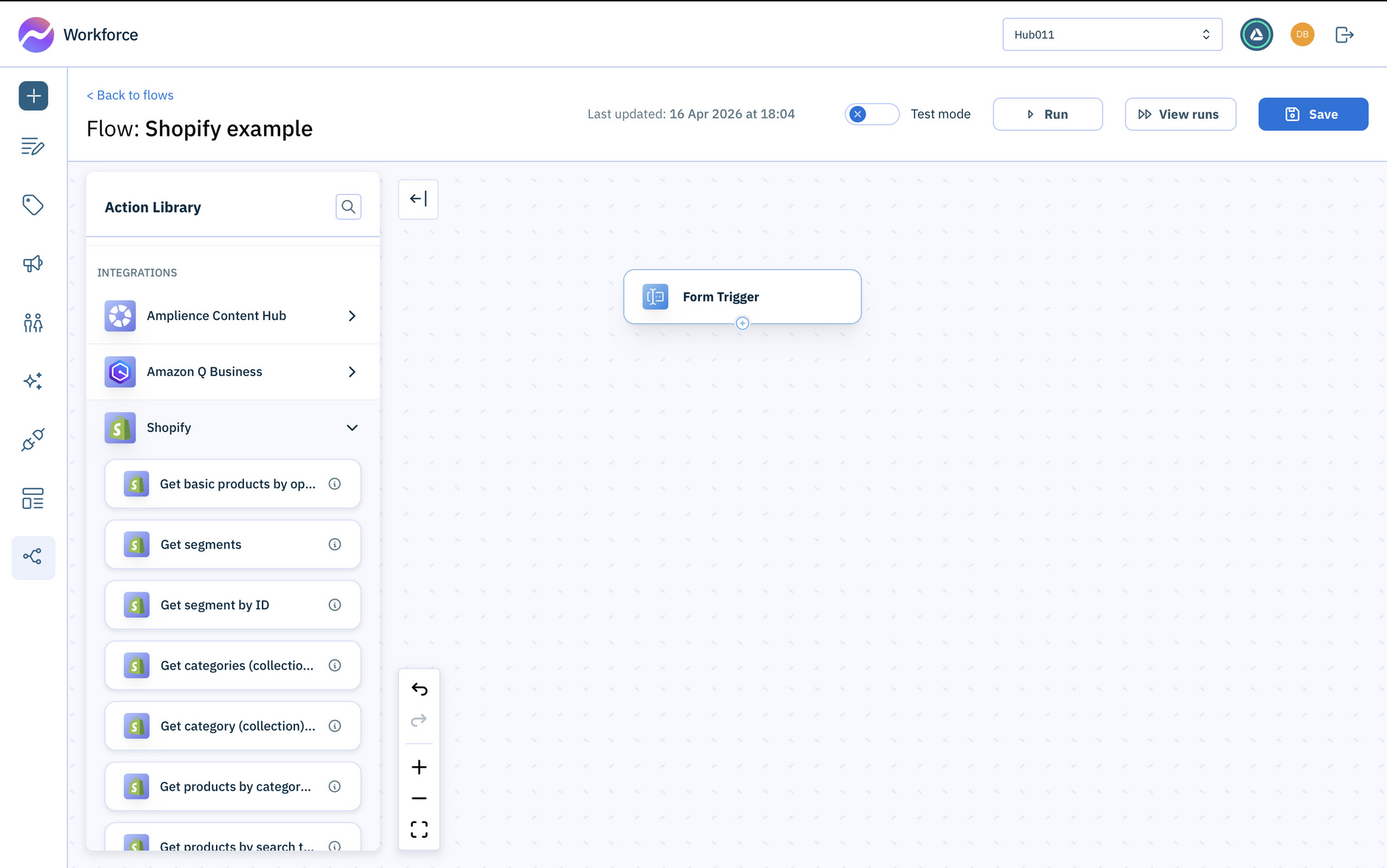
Once you've installed an action extension it's shown under the "Installed" tab and its actions are available for you to use in your flows.
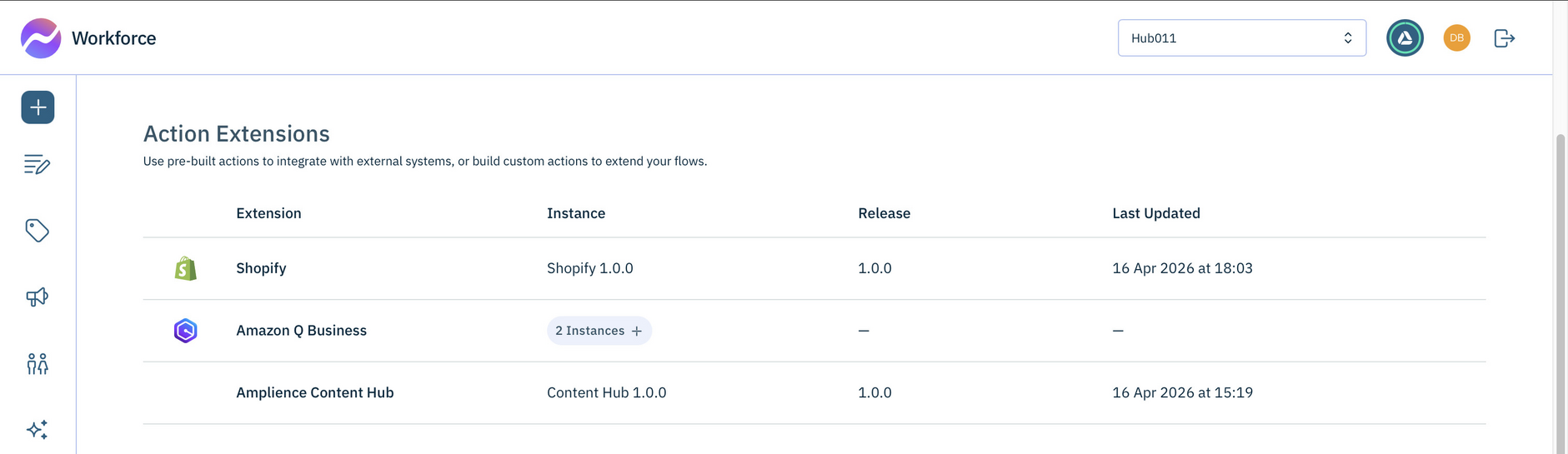
With the action extension installed, the Shopify actions are now shown in the Workforce Flows action library.
Installing multiple instances of an extensionLink copied!
Sometimes you may want to install multiple instances of the same action extension. For example, you could have multiple commerce store configurations and want to be able to choose between each instance in a flow. There might also be multiple releases of an extension available that you choose to make available to your flows.
If an action extension is already installed, you can install another instance choosing the extension again, clicking install, selecting the release version and configuring the instance. In the example shown below we're configuring another instance of the Shopify extension, this time for Store B.
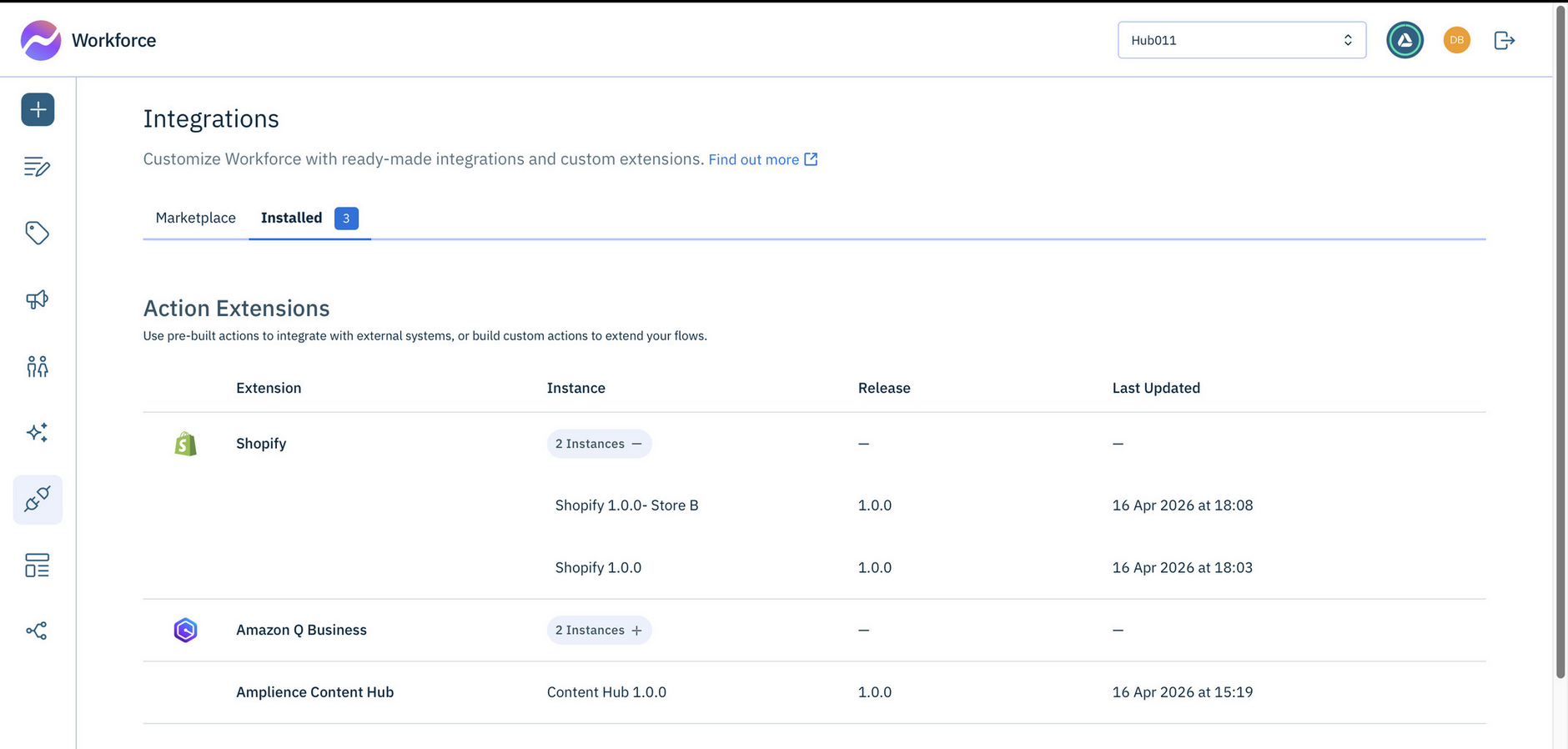
Once the additional instance has been installed, both instances are shown in the list of installed extensions.
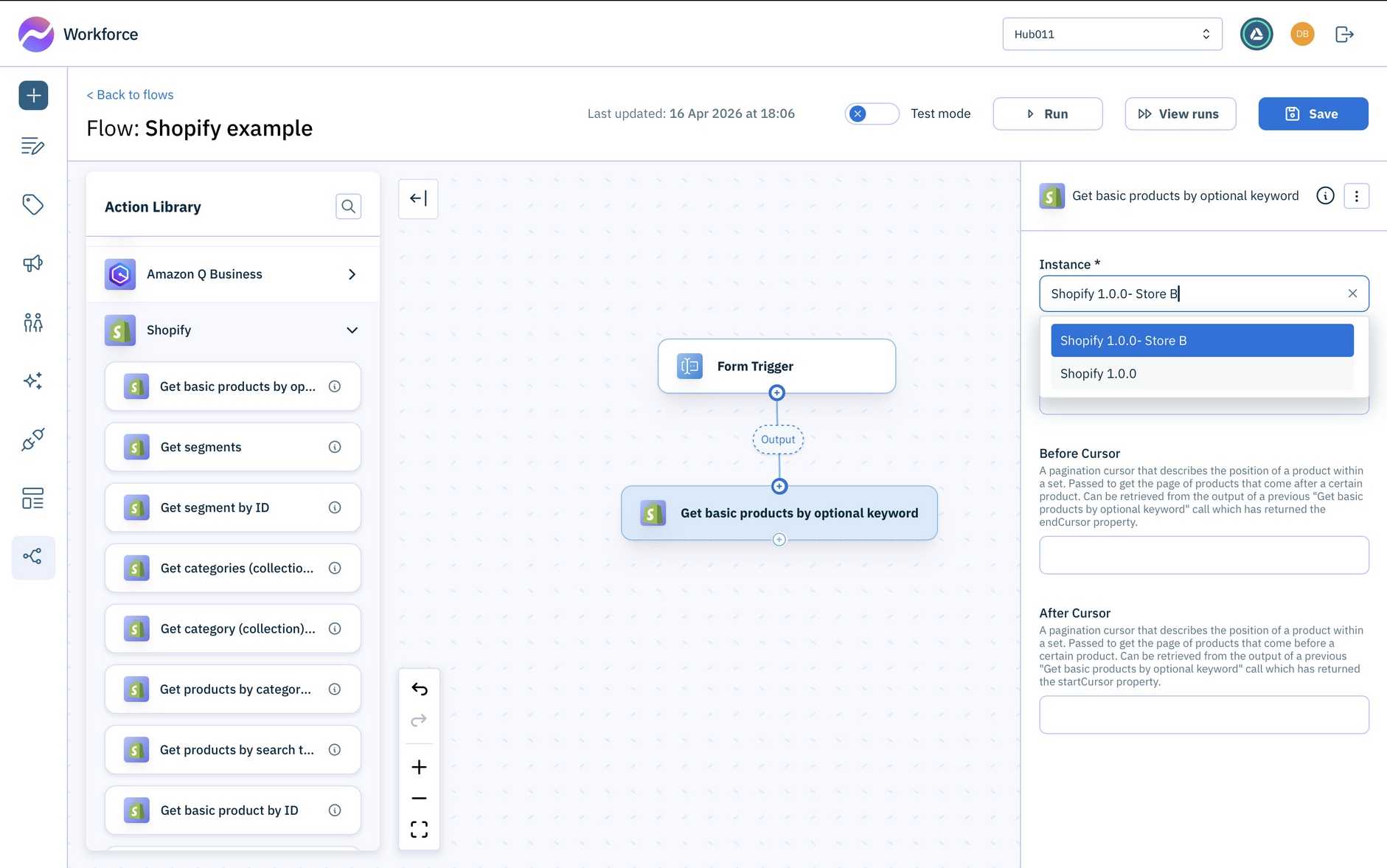
All instances of an installed extension are available to use in your flows and you can choose which one to use when adding an action. For example, when using the Shopify action Get basic products by optional keyword in a flow, both instances of the extension are shown and you can choose which one to use.
Managing releasesLink copied!
There may be multiple available release versions of an action extension and you can choose which one to install. In the same way that you can install multiple instances of the same version, you can also have multiple instances of different versions and choose between them in your flows. This allows you to test different versions alongside each other.
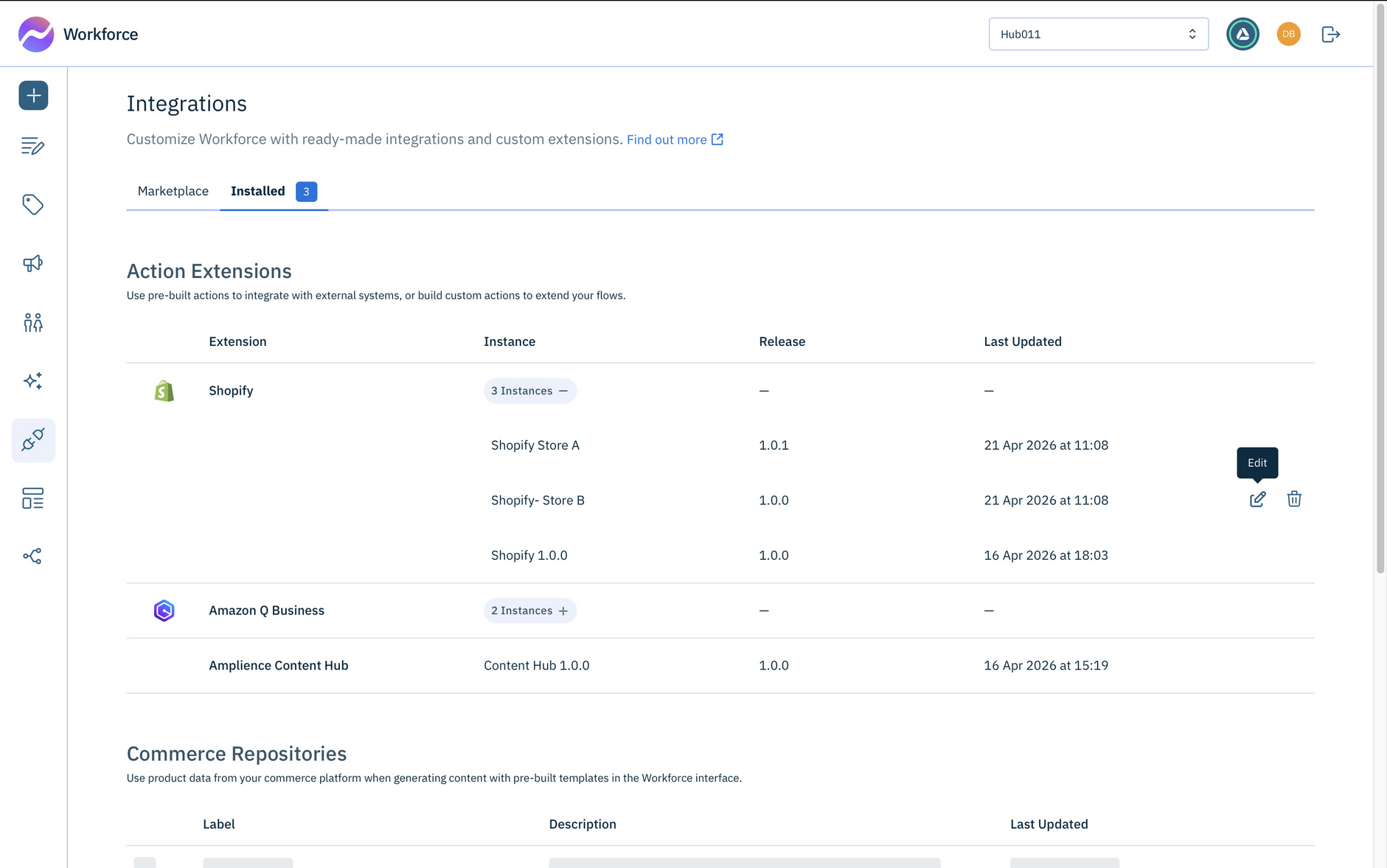
In the list of installed action extensions, the release version is shown for each instance. In the example shown below there are three instances of the Shopify extension, two for release 1.0.0 and one for 1.0.1.
To edit an instance of an action extension, move the mouse to the right hand side of the instance and click the edit icon.
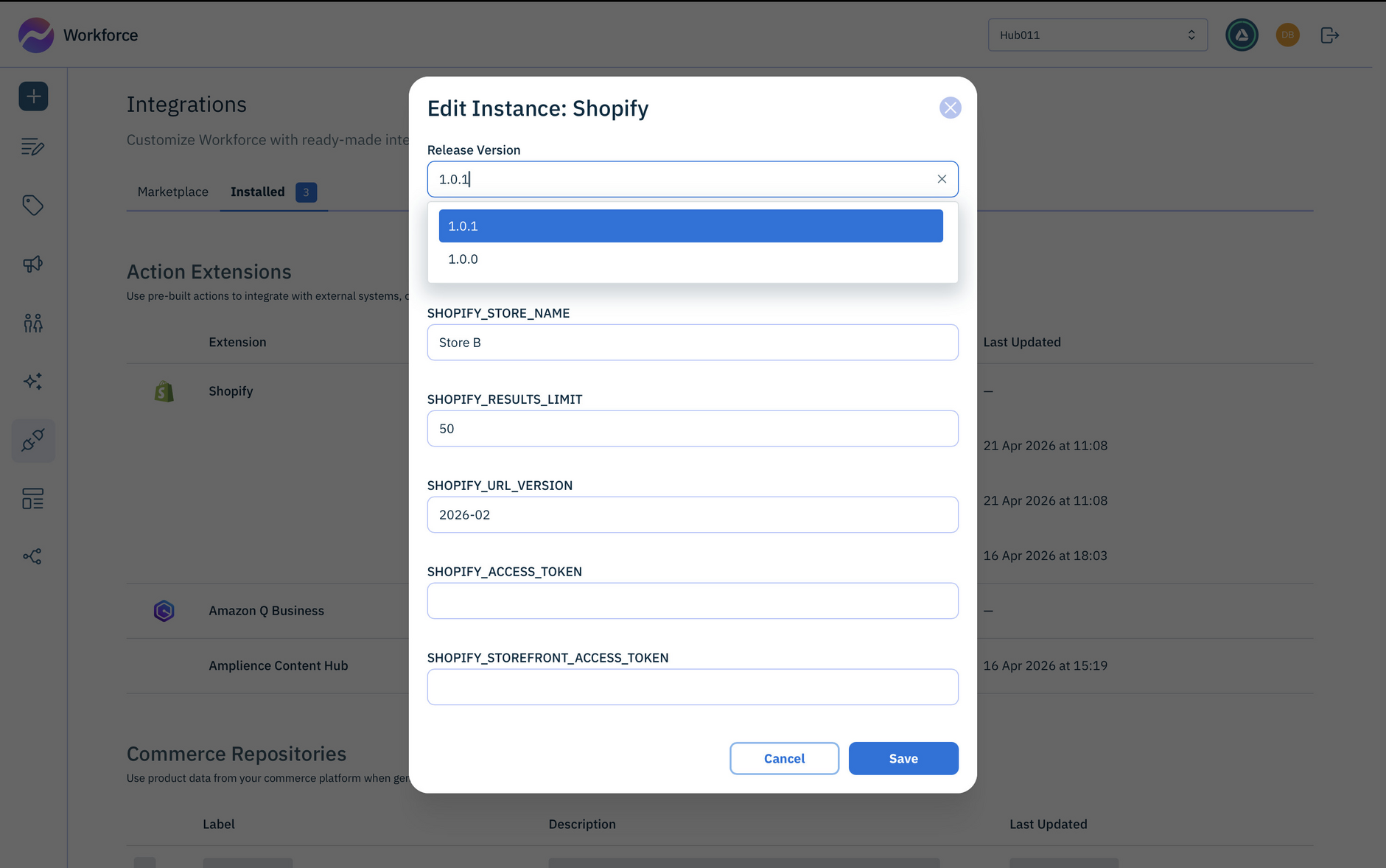
From the Edit Instance dialog you can change the release version. So if you've tested a new release of an extension and want to use it in your flows, just edit your extension instances to use the new version.
Deleting an extension instance
If you delete an extension instance and it is being used in a flow, you will get an error when running the flow.
Setting up commerce repositoriesLink copied!
You can set up commerce repositories to integrate with other commerce platforms and pull in the product information you need for use with content generation templates in Workforce. The supported integrations include BigCommerce, Commercetools, SCAYLE, Shopify and Salesforce and these integrations allow you to access product information when generating content for your brand.
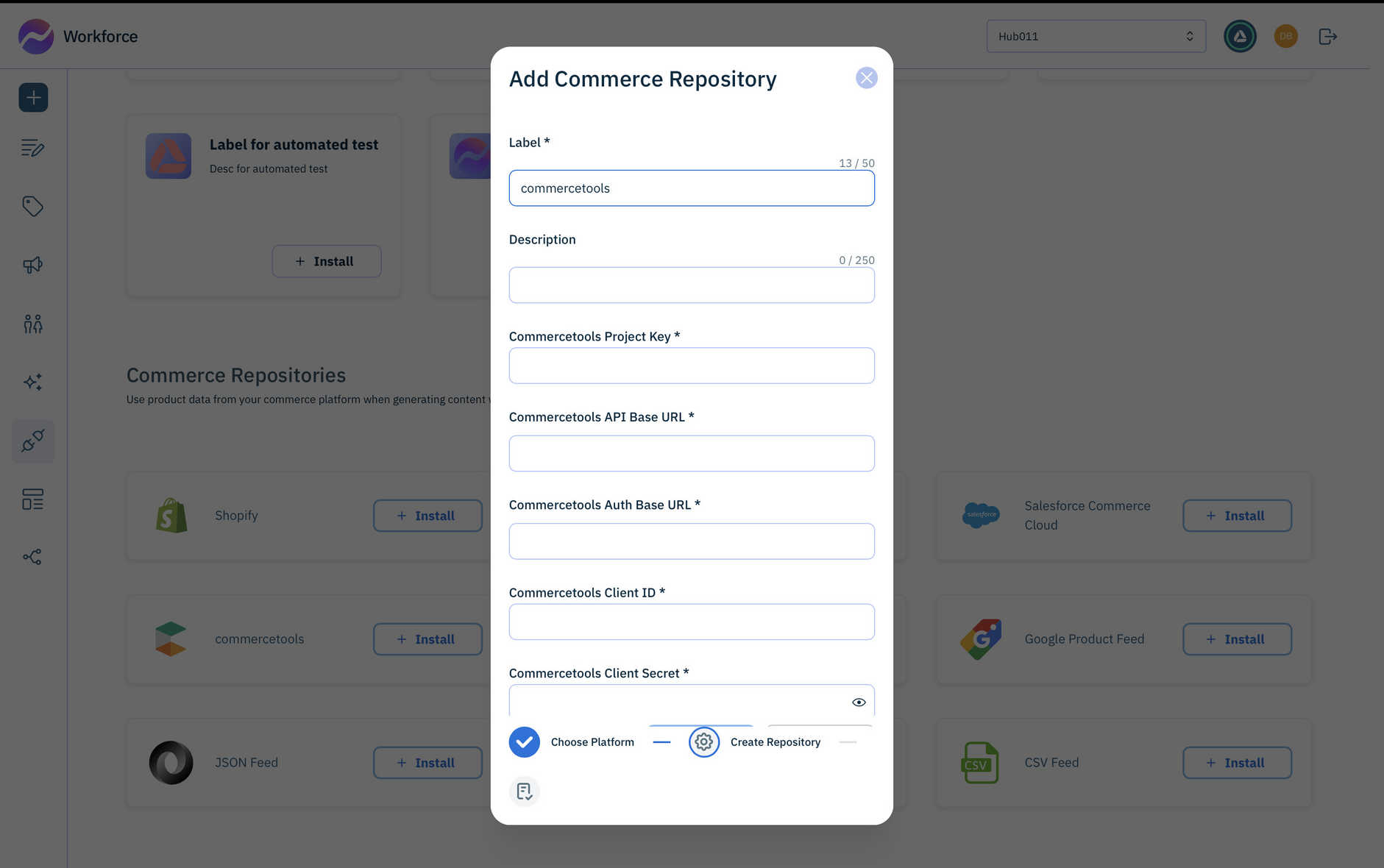
Choose the integration you want from the "Commerce Repositories" section in the integrations page, click the install button and configure it for use with your commerce account.
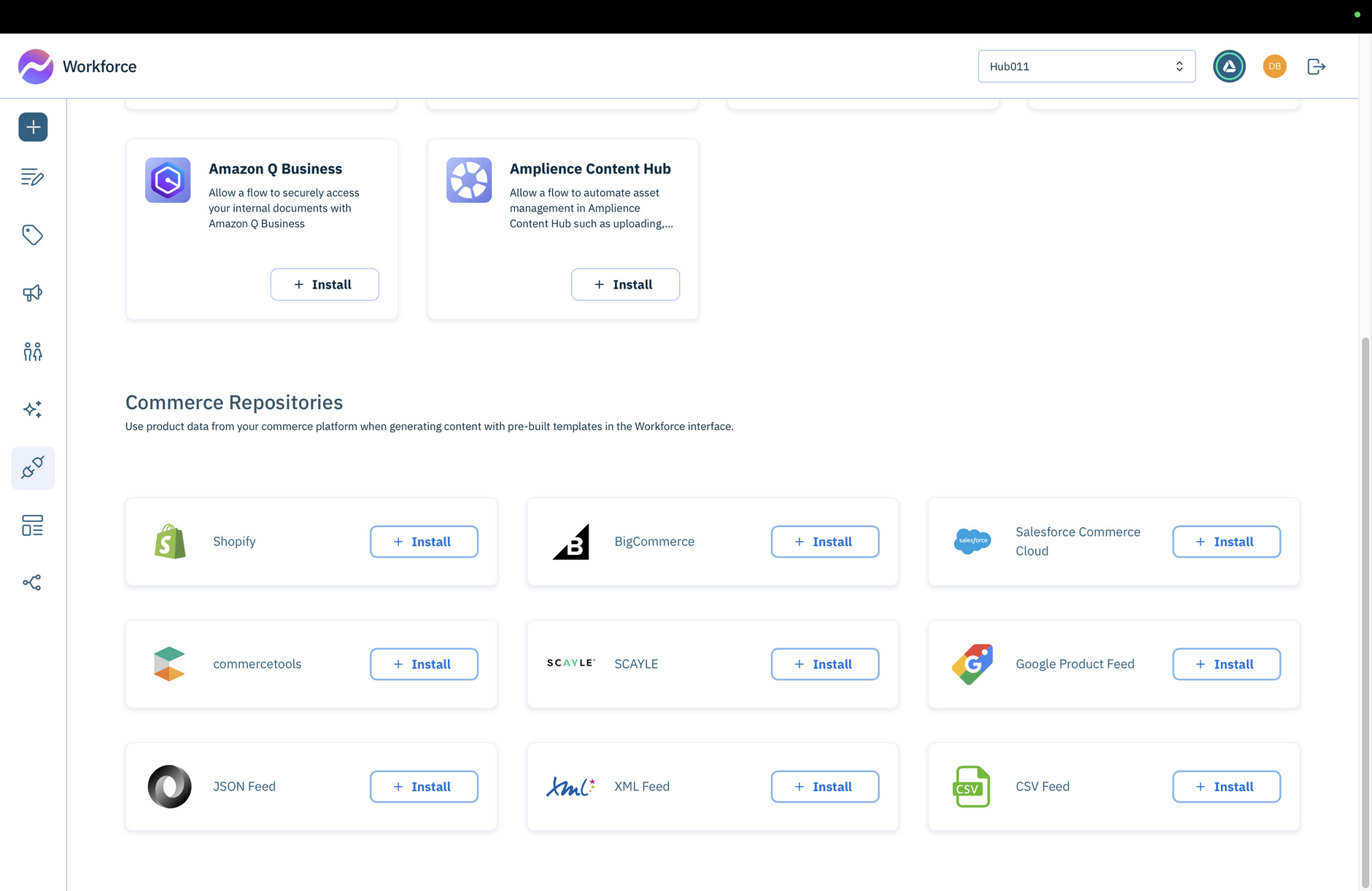
Configure the commerce repository. The information you need is the same as required to use an integration with Workforce Flows.
We've provided information about each of the the commerce integrations that Workforce supports.
Using product dataLink copied!
Once integrations are set up, you can select products you want to be used by specific templates. For example, the Product Description Rewrite template needs information about the product it will be rewriting.
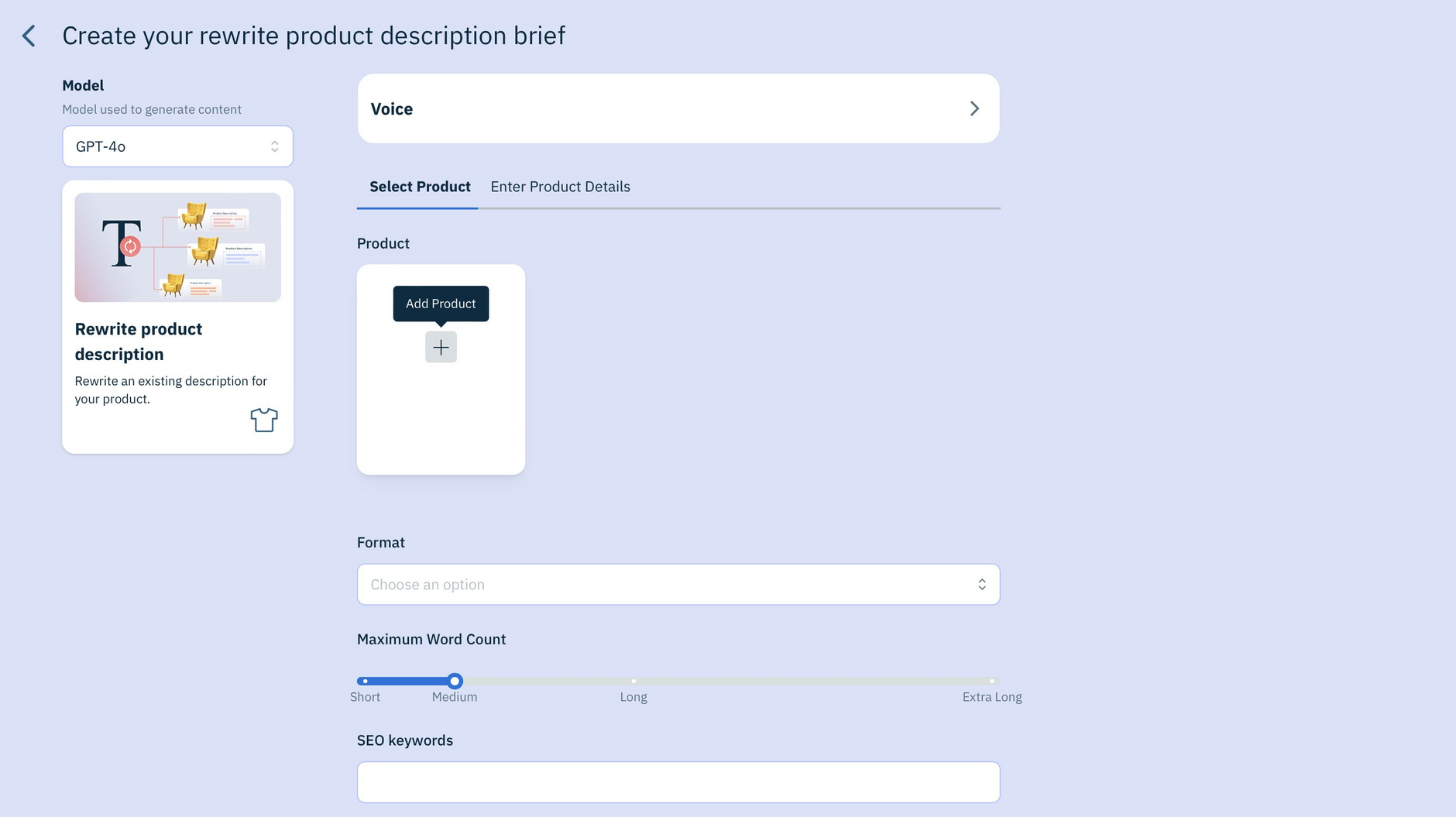
When you add a product to a template, you can choose from any of your integrated repositories. The example below has a number of commerce repositories that a product can be chosen from.
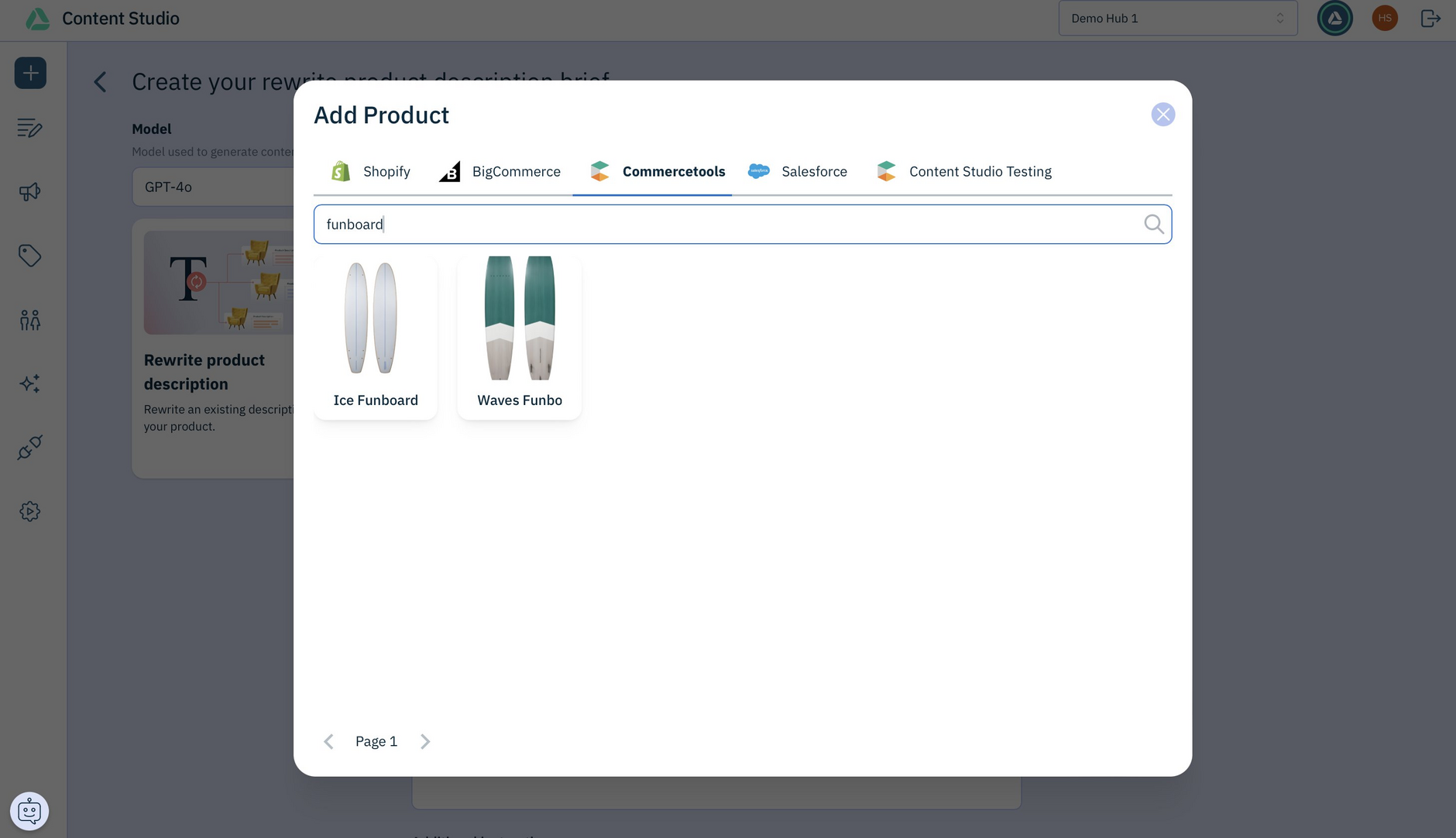
During generation the AI model will pull in your chosen product's information to include in your content.
Related pagesLink copied!
commercetools action reference