iOS (Swift)
Tutorials, sample code and SDKs to assist your iOS development.
The examples on this page use Swift with the iOS Content Delivery SDK. The same patterns apply whether you build with SwiftUI or UIKit.
SDKsLink copied!
- iOS Content Delivery SDK. A Swift SDK for using the Content Delivery API with iOS.
Sample codeLink copied!
The following examples are all written using Swift with the iOS Delivery SDK. Find these examples on GitHub within the SDK examples folder.
-
Banner. A simple banner. Content is retrieved from the CMS using a delivery key.
-
Carousel. A simple carousel with slides.
-
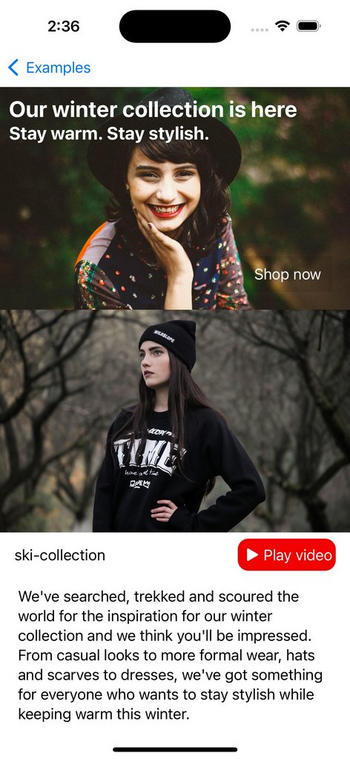
Multi content slot. How to render a slot that can contain banners, carousels and video.
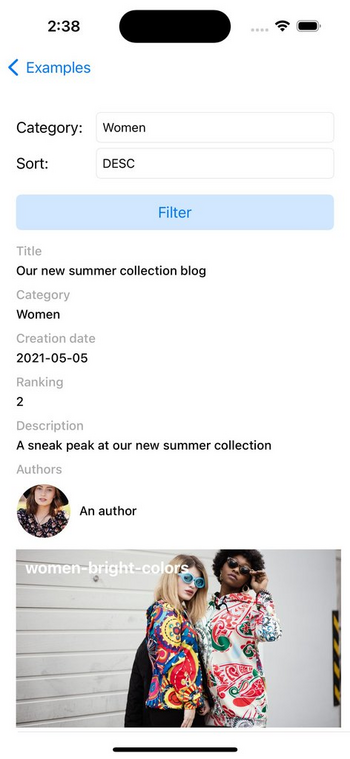
- Blog. An example of how to filter content using a blog.
Content preview in an iOS appLink copied!
Content preview is not tied to a platform. A preview app is any online resource that Amplience CMS opens with a templated URL, so a native iOS app can act as a preview app in the same way a website can. See Creating content previews for the full walkthrough.
For a native app:
- Register a preview app URL in Preview settings, using a custom URL scheme or universal link so that choosing Preview in Amplience CMS opens your app. Include the
{{vse.domain}}token, and{{context.timestamp}}if you want the chosen date and time. - Parse the parameters your app receives on launch, taking the virtual staging domain from the URL.
- Request content from that virtual staging domain in place of the production Content Delivery domain. Everything else about the request stays the same.
A virtual staging environment (VSE) must be set up on your hub before preview will work, and the virtual staging domain is for preview only, not production traffic. To let users change the previewed date and time inside your app, use the Virtual Staging API to generate a domain pinned to a new timestamp.
RelatedLink copied!
- Android (Java). The equivalent SDK and samples for Android.
- SDKs. Every Amplience SDK in one place.
- Content Delivery API. The API the iOS SDK wraps.
- Previewing content. How content producers launch a preview.