Amazon Q Index
What is Amazon Q IndexLink copied!
Amazon Q Index allows software vendors such as Amplience to securely access enterprise data. It provides a unified, queryable view of an organization’s information, making it easier to retrieve and use data in business processes.
Within Amplience, Amazon Q Index can be configured within Workforce Flows to securely query internal enterprise data sources, enabling automated workflows to retrieve and use relevant information as part of content creation processes.
How to connect Amazon Q Index and AmplienceLink copied!
Connecting Amazon Q Index with Amplience allows your content automation flows to securely access enterprise data sources through Q Index.
Follow these steps to set up the integration:
Locate your Amplience tenant IDLink copied!
You’ll need your tenant ID when creating the data accessor in the Amazon Q Index console. For Amplience, the tenant ID is your Hub ID.
To find it:
-
In the Amplience Dynamic Content interface, click the Settings icon in the top right corner.
-
Select Properties from the menu.
-
Your Hub ID will be displayed, copy this value to use as your tenant ID in Amazon Q Index.
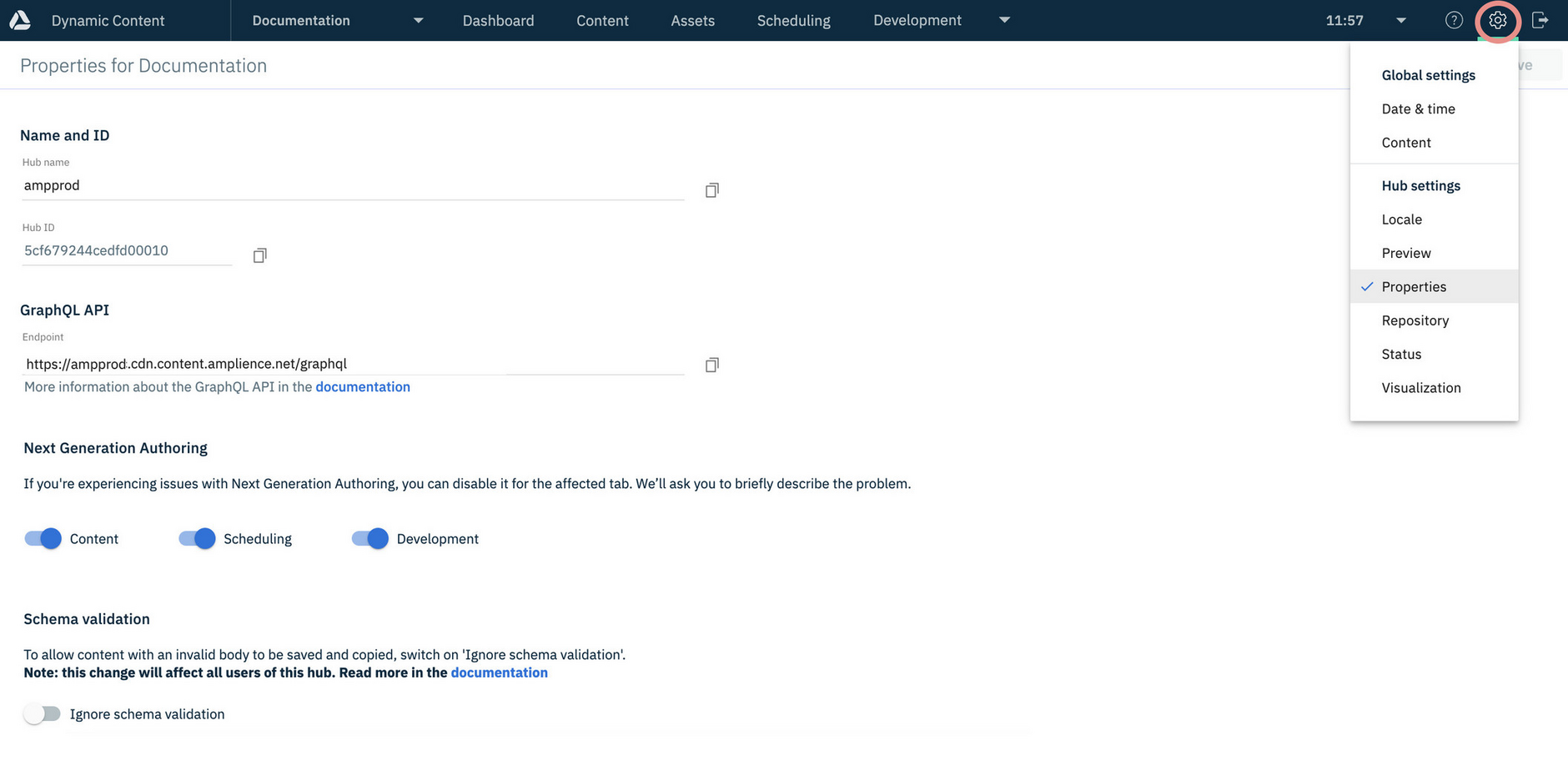
For more details, see the Hub Settings documentation.
Create an IAM Identity Center (IdC) UserLink copied!
An IAM Identity Center (IdC) user is required to authenticate the connection between Amazon Q Index and Amplience.
- In the AWS Management Console, navigate to the IAM Identity Center (IdC) service.
- Select the Users section and create a new user specifically for the Amplience integration.
- Note the username as Amplience will need it.
Add the Amplience data accessor in Amazon Q IndexLink copied!
-
In the AWS Management Console, navigate to Amazon Q Business and select the application you wish to connect with Amplience.
-
Go to the Data Accessors section and add the Amplience data accessor.
-
Set the
External IDto the tenant ID (Hub ID) obtained in the earlier step. -
In the
Trusted token issuerssection, create a new Trusted Token Issuer (TTI) for Amplience.- Set the name to anything you like (e.g., "Amplience").
-
In the
User accesssection, add the IAM Identity Center (IdC) user created in the previous step. -
Create the data accessor.
The AWS console should now display the details of the newly created Amplience data accessor. Note the following values as they will be needed in the next step:
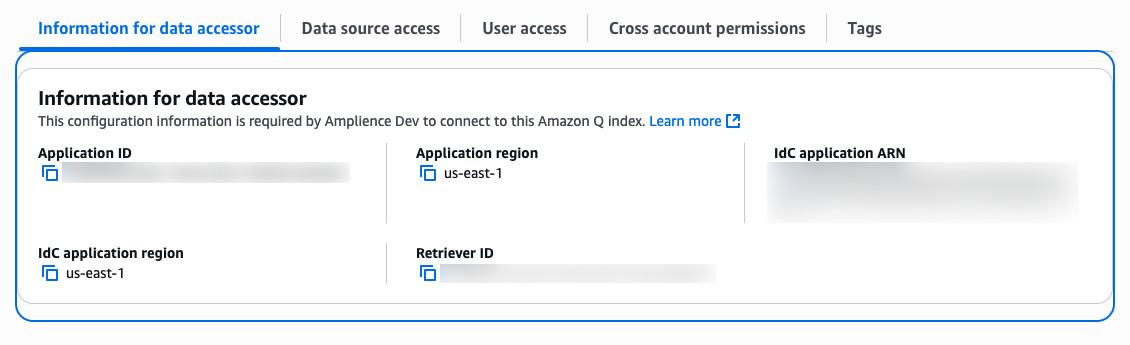
- Application ID
- Application region
- IdC application ARN
- IdC application region
- Retriever ID
These values uniquely identify your Amplience + Q Index integration and will be used by the Amplience team to connect your account to Amazon Q Index.
Configuring the Trusted Token Issuer (TTI)Link copied!
In the previous step you will have created a Trusted Token Issuer (TTI) for Amplience. You now need to configure this TTI to use the correct settings.
-
In the AWS Management Console, navigate to the IAM Identity Center (IdC) service.
-
Select the
Settingssection and edit the TTI created in the previous step. -
Switch the
Identity provider attributetoOtherthen:- Set the
Attribute nametoiam_user_id - Set the
IAM Identity Center attributetoUser name
- Set the
Contact Amplience SupportLink copied!
Once the data accessor has been created, contact Amplience Support to enable the Amazon Q Index integration on your account. Provide the details from your Amazon Q Index configuration so the integration can be provisioned and activated.
Please provide the following information as part of the ticket:
- Hub ID
- Application ID
- Application Region
- IdC application ARN
- IdC application region
- IdC username (the user created earlier)
- Retriever ID